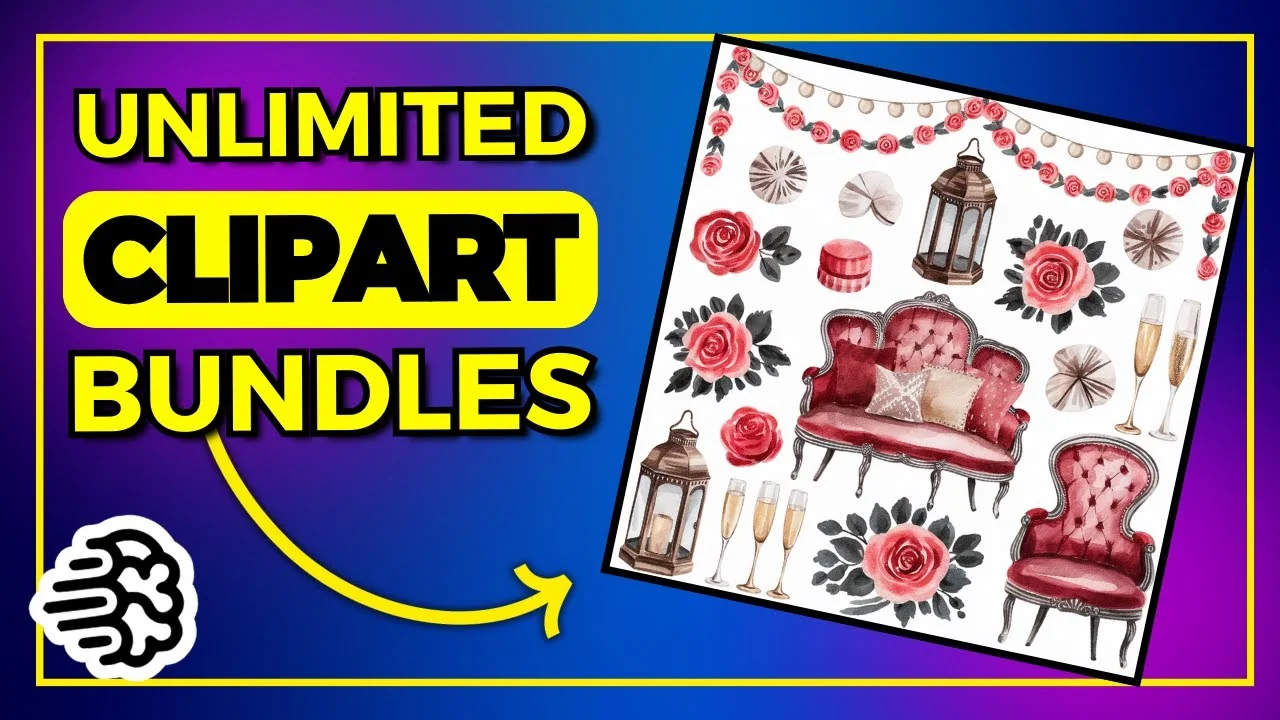
Yesterday I created a video about Creative Fabrica and how they have thousands of AI prompts. I downloaded some prompts and ran them through Midjourney and Ideogram. Ideogram did a much better job at creating these clip art bundles. I took one of those prompts and created a whole set from it. Some turned out better than others. I left a few that I wasn’t keen on because they were still useful to show the process.
These are on my public profile so you can play around with the prompts. I’ll show you exactly how I did this.
Ideogram Clipart Generation – My ChatGPT Setup
All I used was ChatGPT-4. No GPTs. This is how I started the chat:
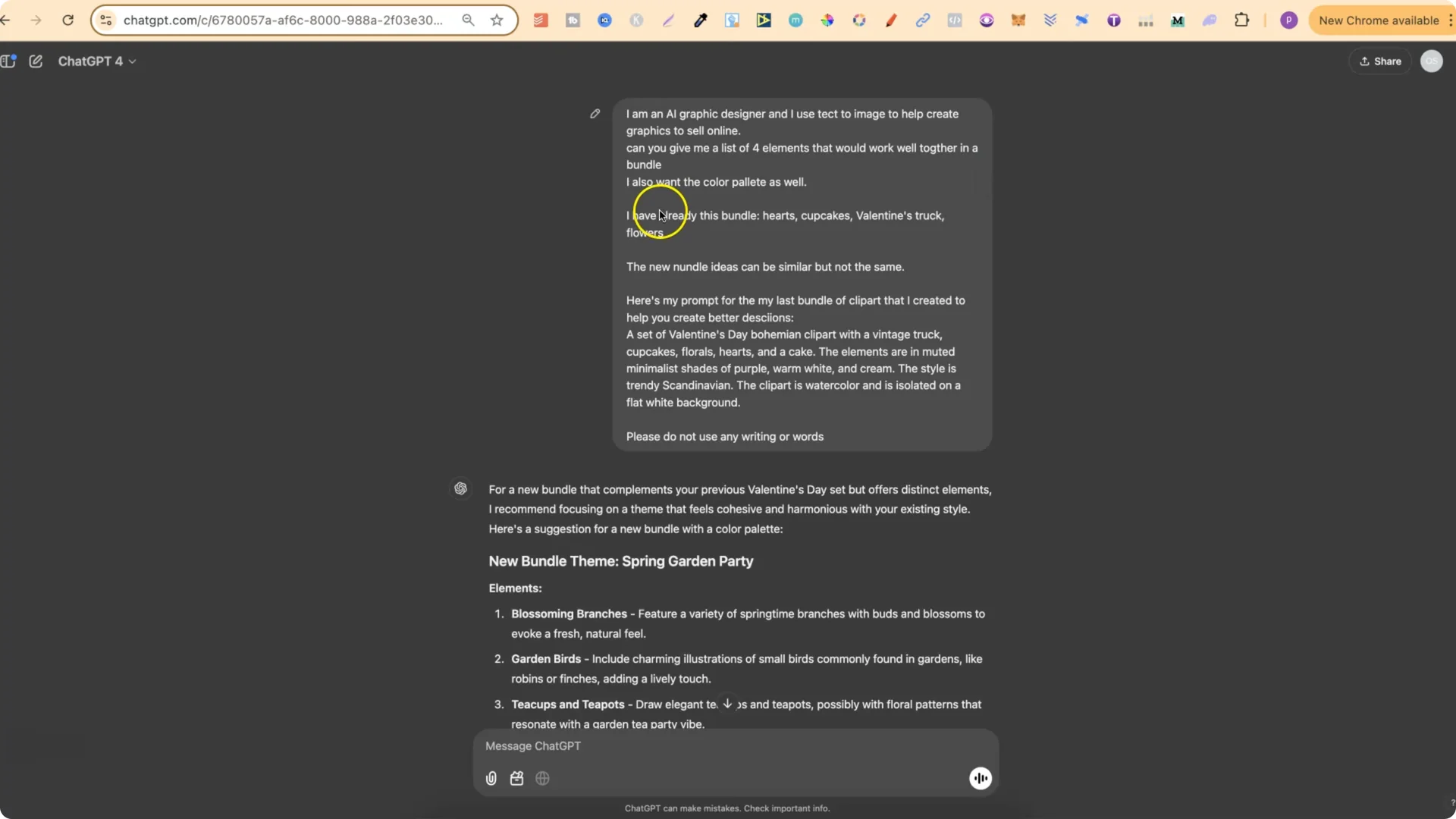
Adjusting Prompts for New Themes and Colors
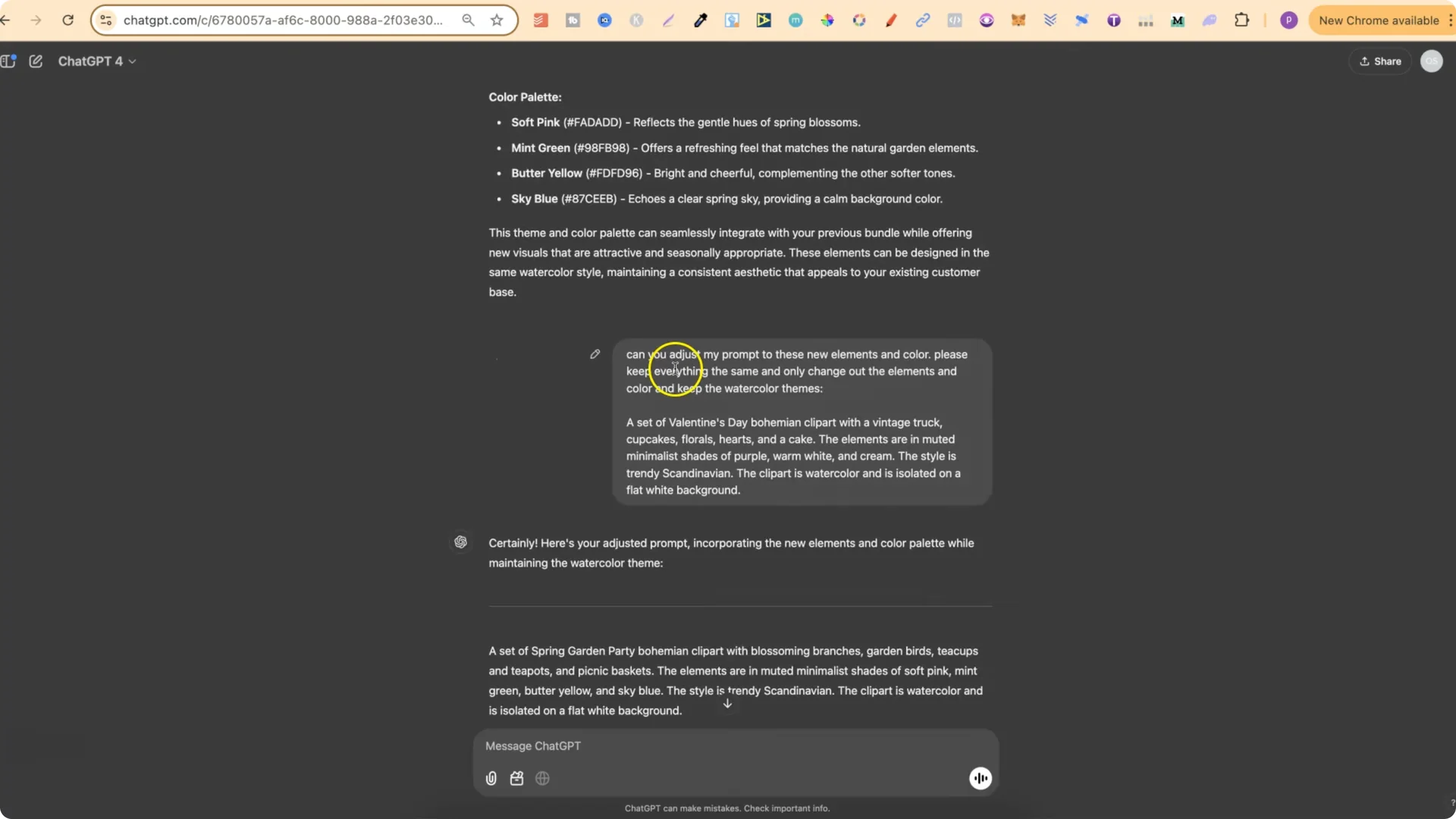
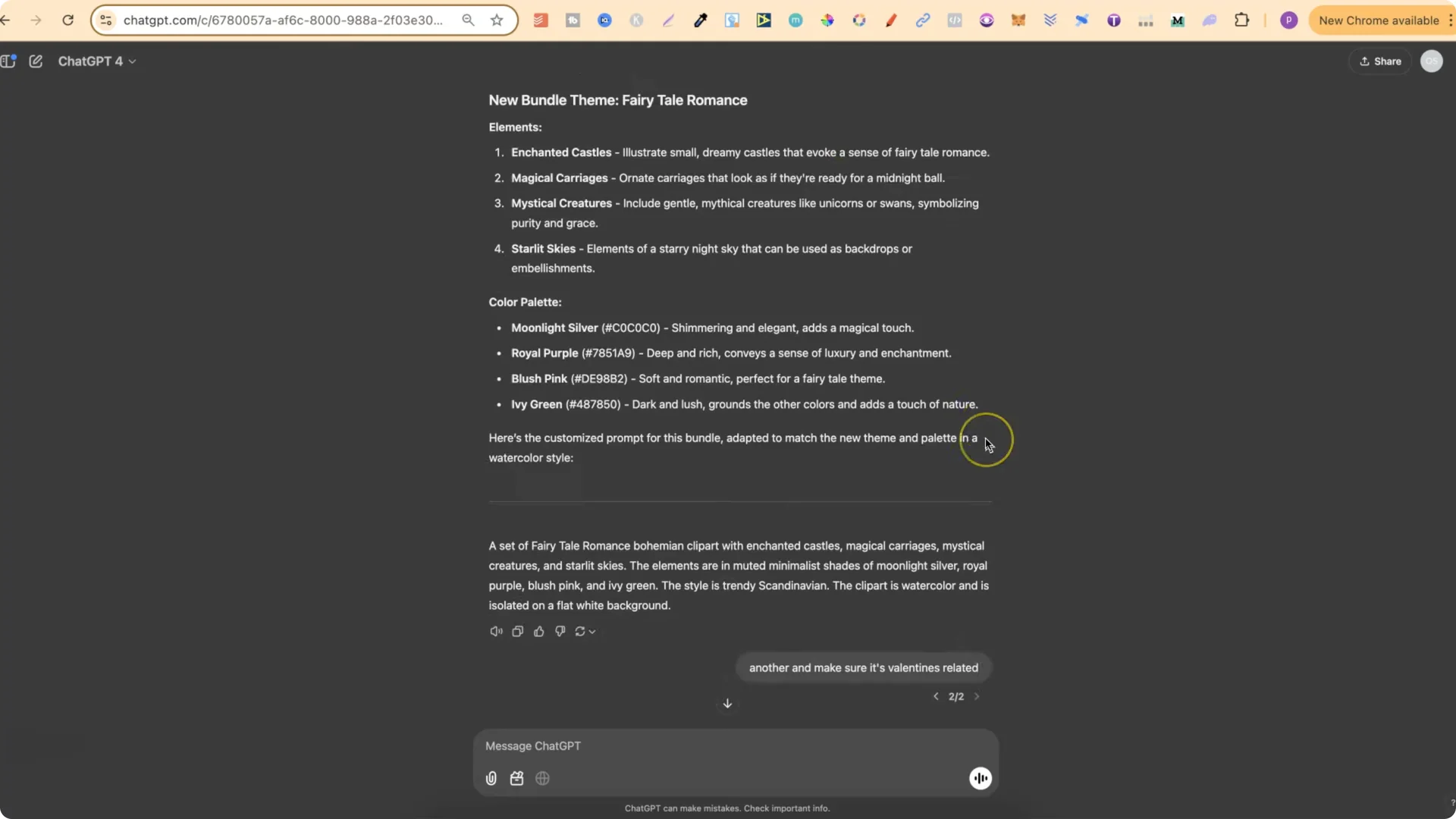
I started getting themes like Spring Garden Party. I asked: Can you adjust my prompt to these new elements and color? Please keep everything the same and only change out the elements and color, and keep the watercolor theme.
I used a prompt like: A set of Valentine’s Day Bohemian clipart.
Then I asked it to incorporate the idea into the prompt. That gave me Enchanted Valentine’s Forest, and at the bottom I had a prompt I could copy and test.
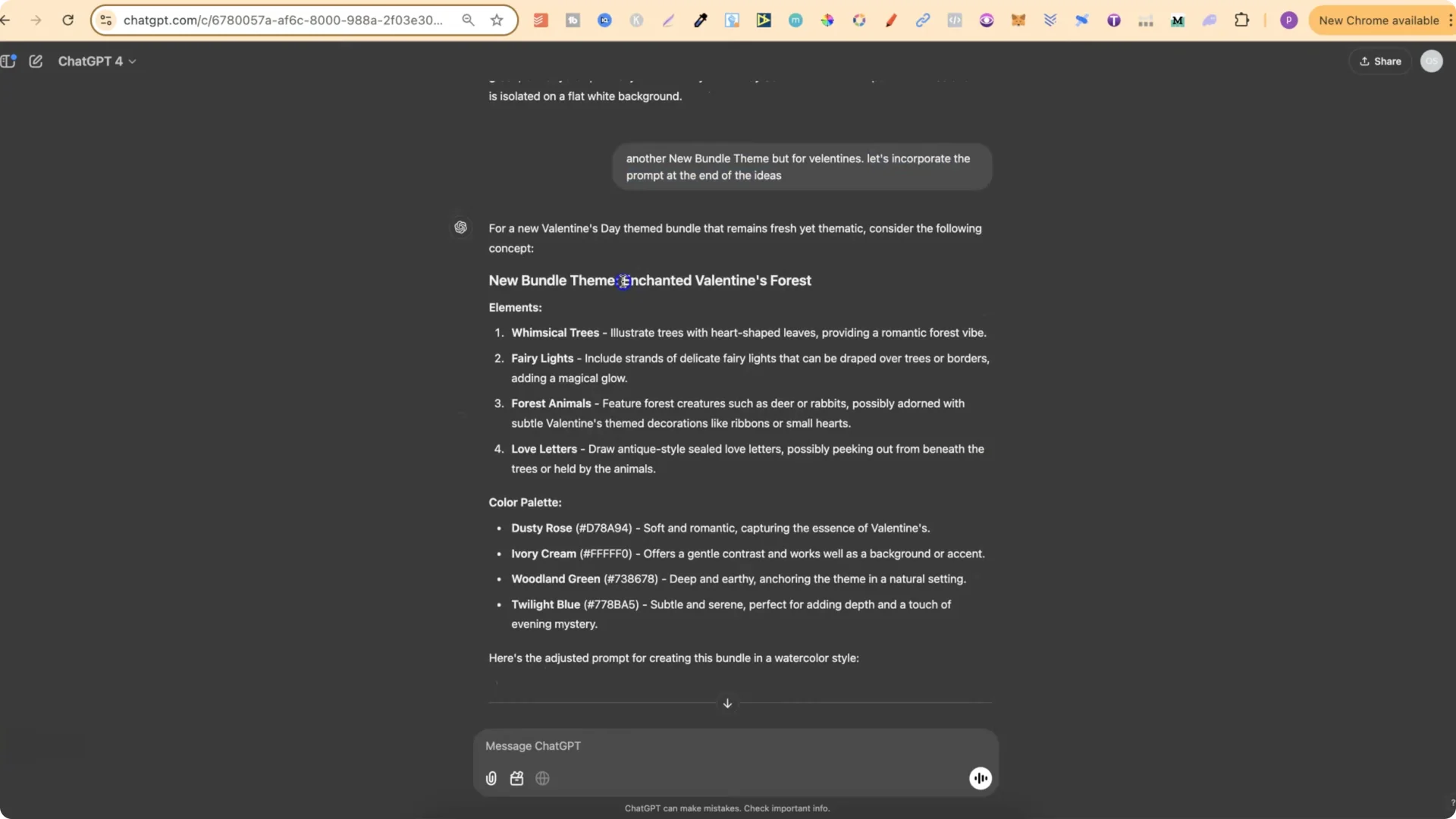
This is an easy way to take a prompt and spin it into brand new prompts with fresh ideas.
Ideogram Clipart Generation – Iterating and Keeping Structure
I kept scrolling and got a lot of great ideas:
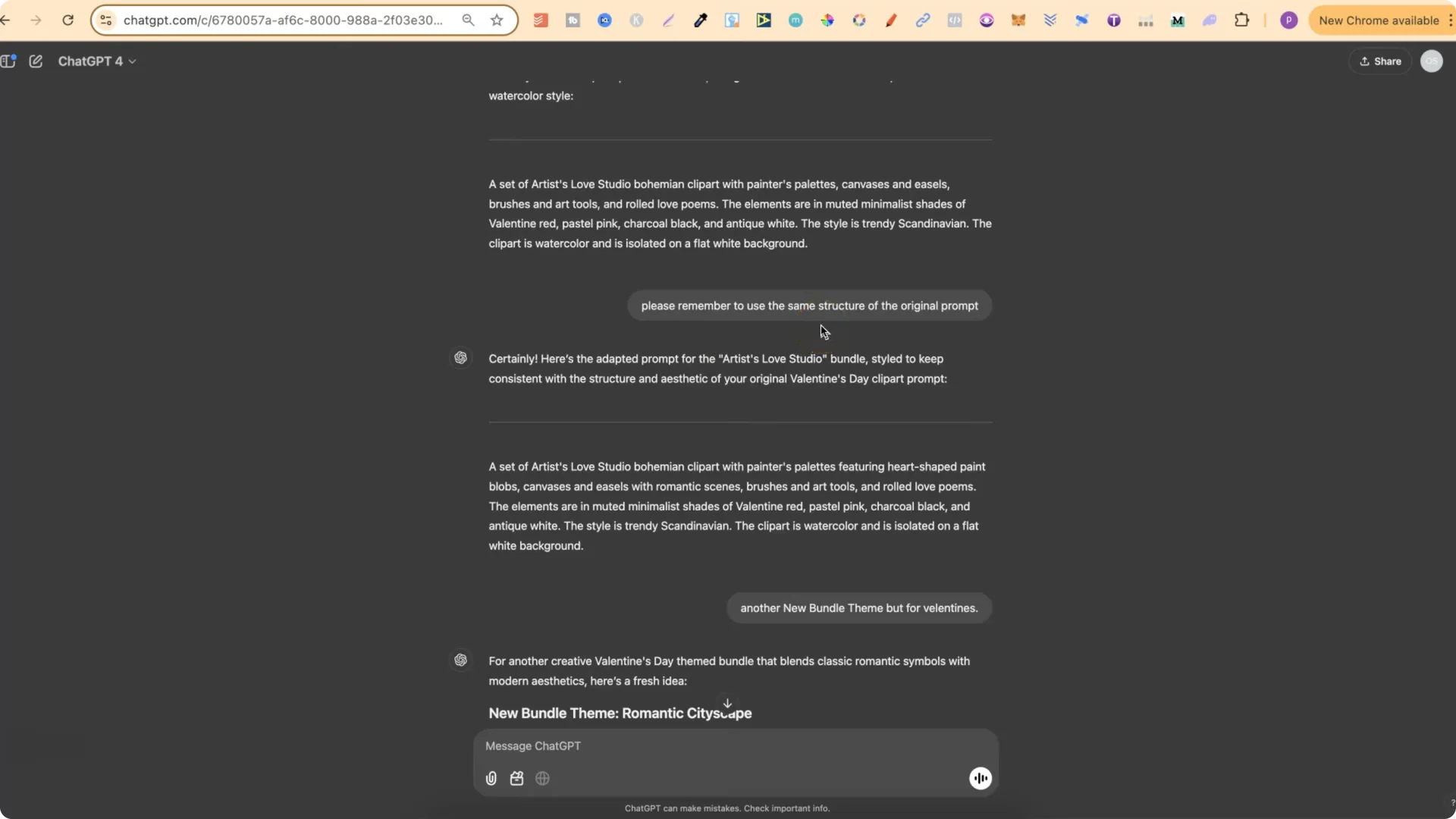
It did lose a bit of the structure of the original prompt at one point, so I put: Please remember to use the same structure of the original prompt. Results got better again. I kept doing this and created the majority of my bundles.
Some designs looked a little off when you zoom in, like a rabbit that didn’t look quite right, but overall they were still solid clip art bundles. My favorites had strong color palettes and consistent watercolor details.
Ideogram Clipart Generation – Building a Prompt Library
Further along in the chat, I made a list of my favorite prompts that I used. I took those favorites and added them back into ChatGPT:
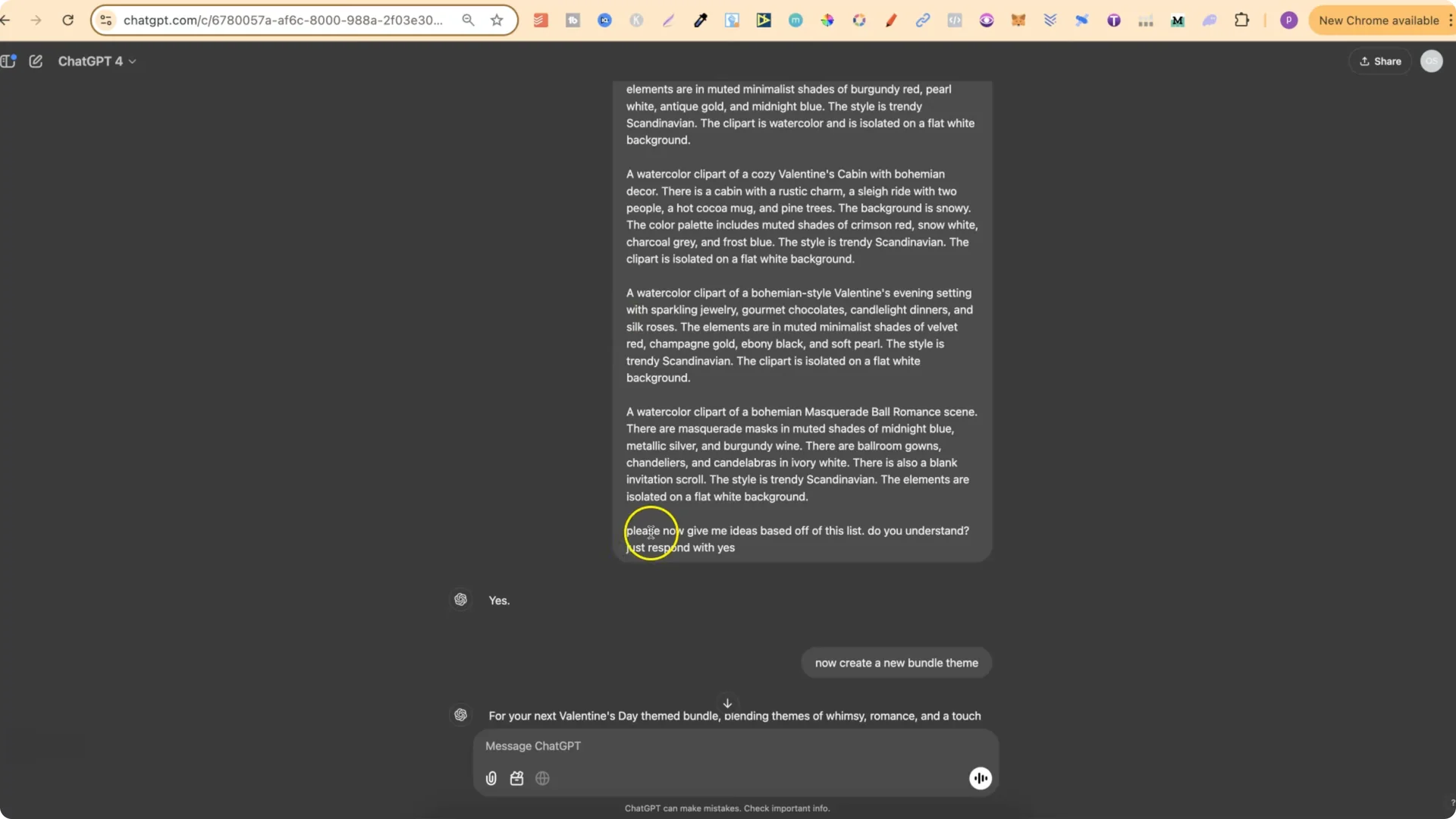
All of these stemmed from one original prompt. If you use Ideogram and create clip art to sell online, this is a simple way to keep generating new prompts and designs.
Ideogram Clipart Generation – Public Sets and Remix Guidance
My clip art bundles are on my public profile. You can check them out and use the prompts.
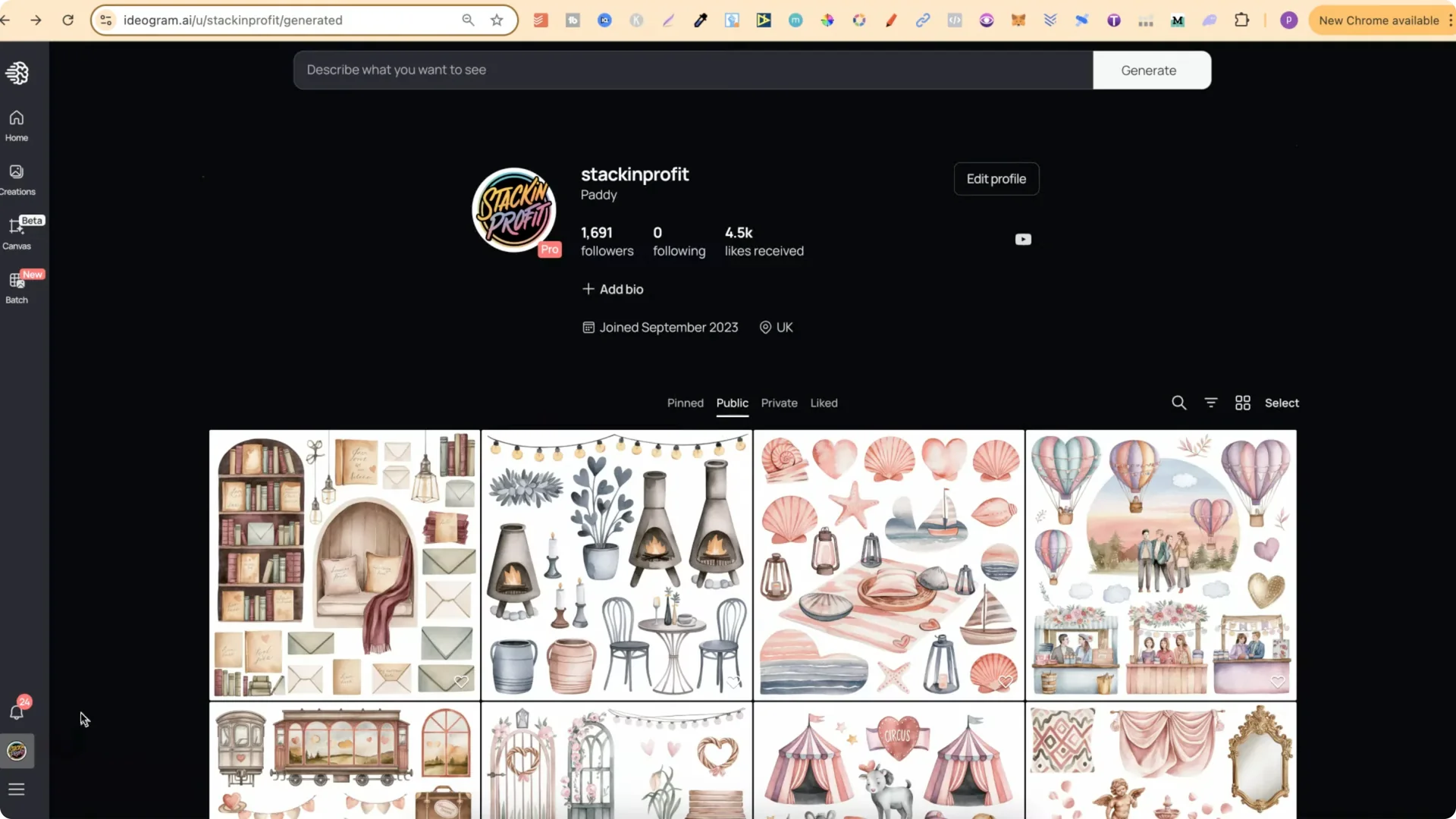
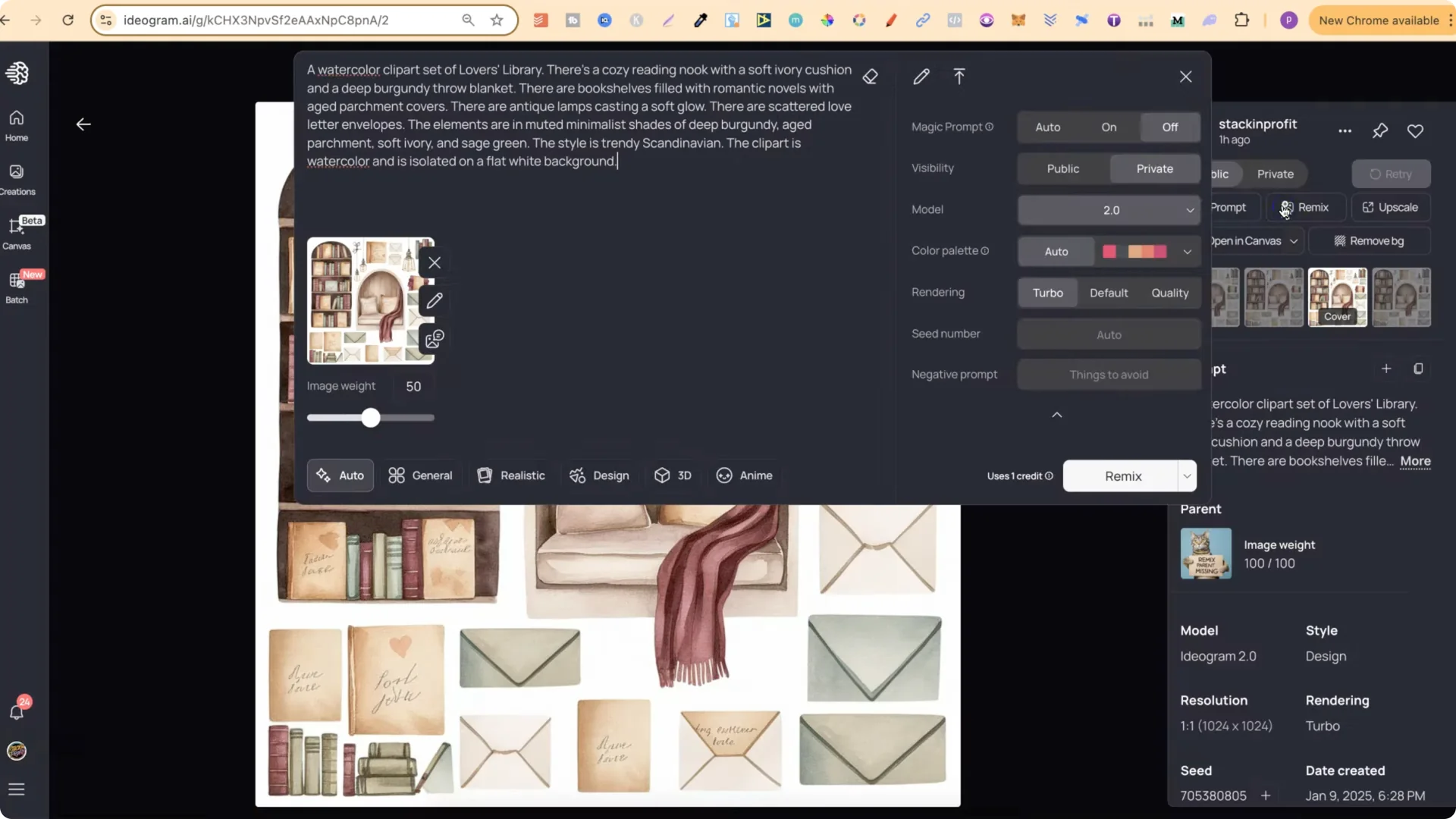
A quick note about remixing:
Step-by-Step – Ideogram Clipart Generation Workflow
1. Start a chat in ChatGPT-4.
2. Introduce yourself and your goal: text-to-image graphics to sell online.
3. Ask for a list of 4 elements that work well together in a bundle, plus a color palette.
4. Share an existing bundle you’ve made and say the new ideas should be similar but not the same.
5. Paste a successful past prompt as a reference.
6. Add: Please do not use any writing or words.
7. When ChatGPT gives you a theme, ask it to adjust your prompt to the new elements and color, and keep the watercolor theme.
8. Ask it to keep the exact structure of your original prompt.
9. Generate in Ideogram and review results.
10. Save your favorite prompts, feed them back into ChatGPT, and ask for more ideas and full prompts.
11. In Ideogram, avoid remixing finished designs. Use prompts directly and tweak elements and colors for variety.
Final Thoughts
Ideogram did a great job generating clip art bundles from structured prompts. Starting with one solid prompt, I used ChatGPT-4 to branch into many related themes, kept the same prompt structure, and refined elements and colors for variety. Copy prompts instead of remixing finished designs, and you’ll get fresher results that stand out.