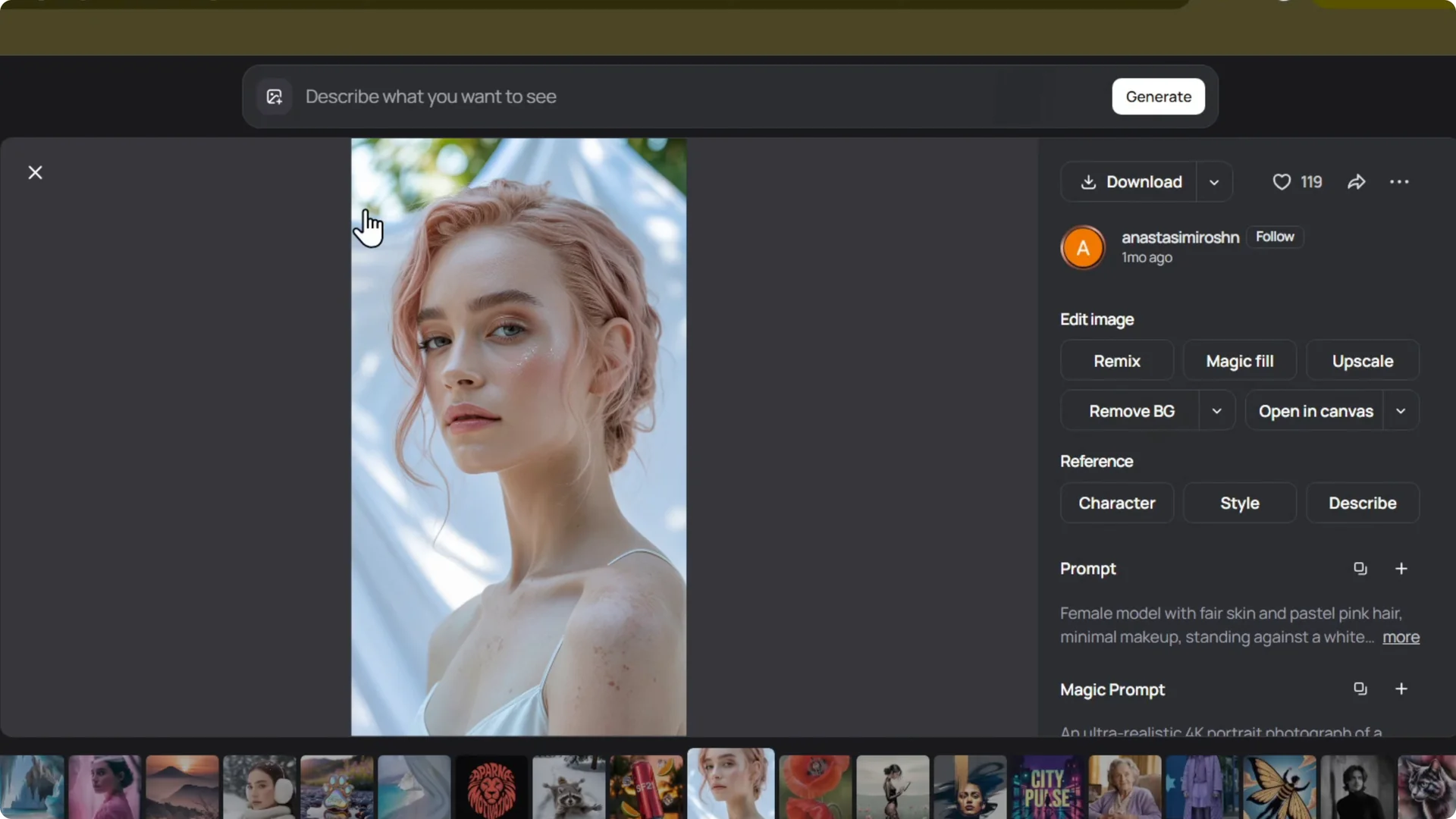
Here is how to remove background of an image in Ideogram. Click any image, designed by you or not.
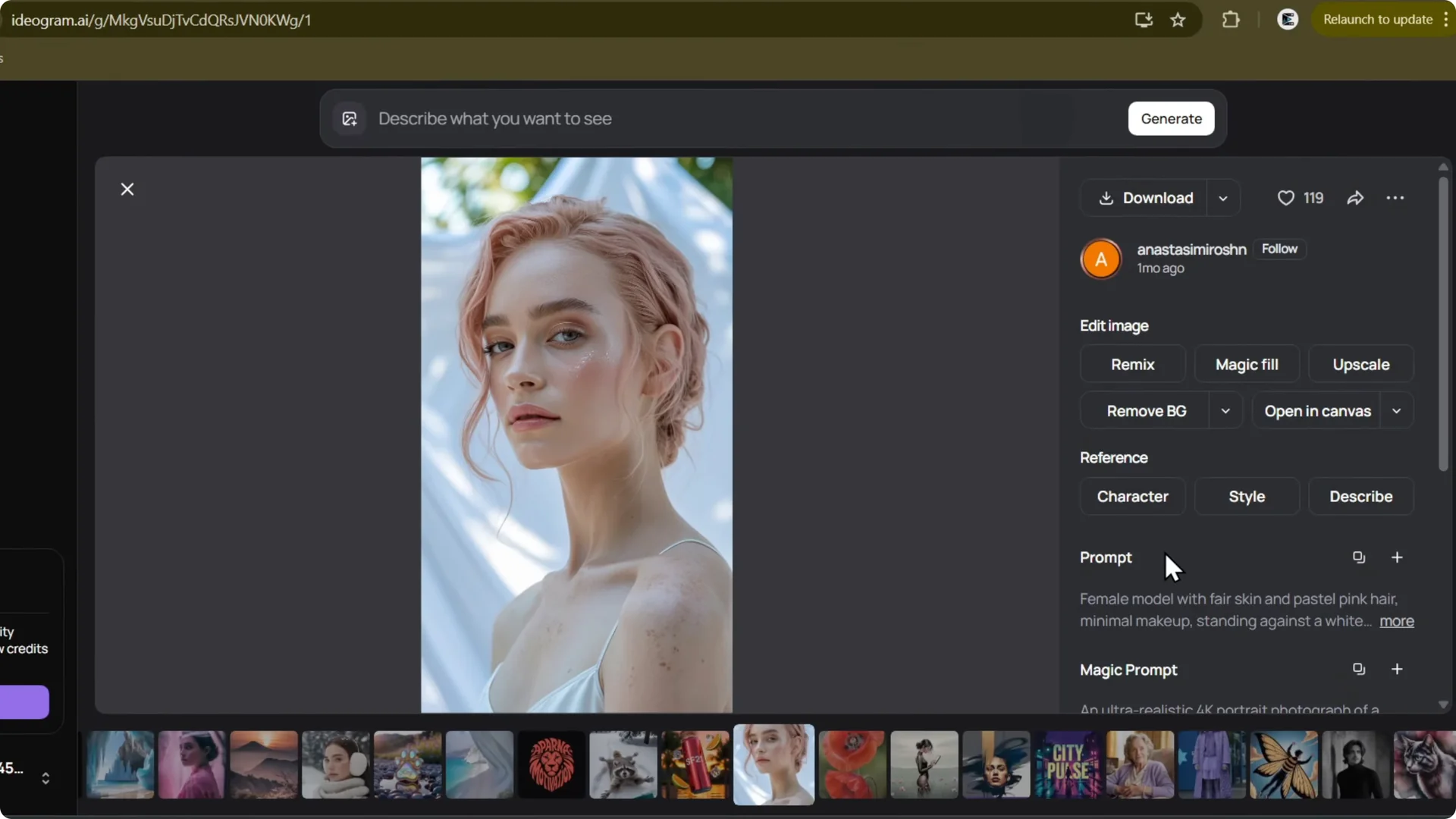
Open the image and you will see the Remove BG option. Click it and you’ll be able to remove your background.
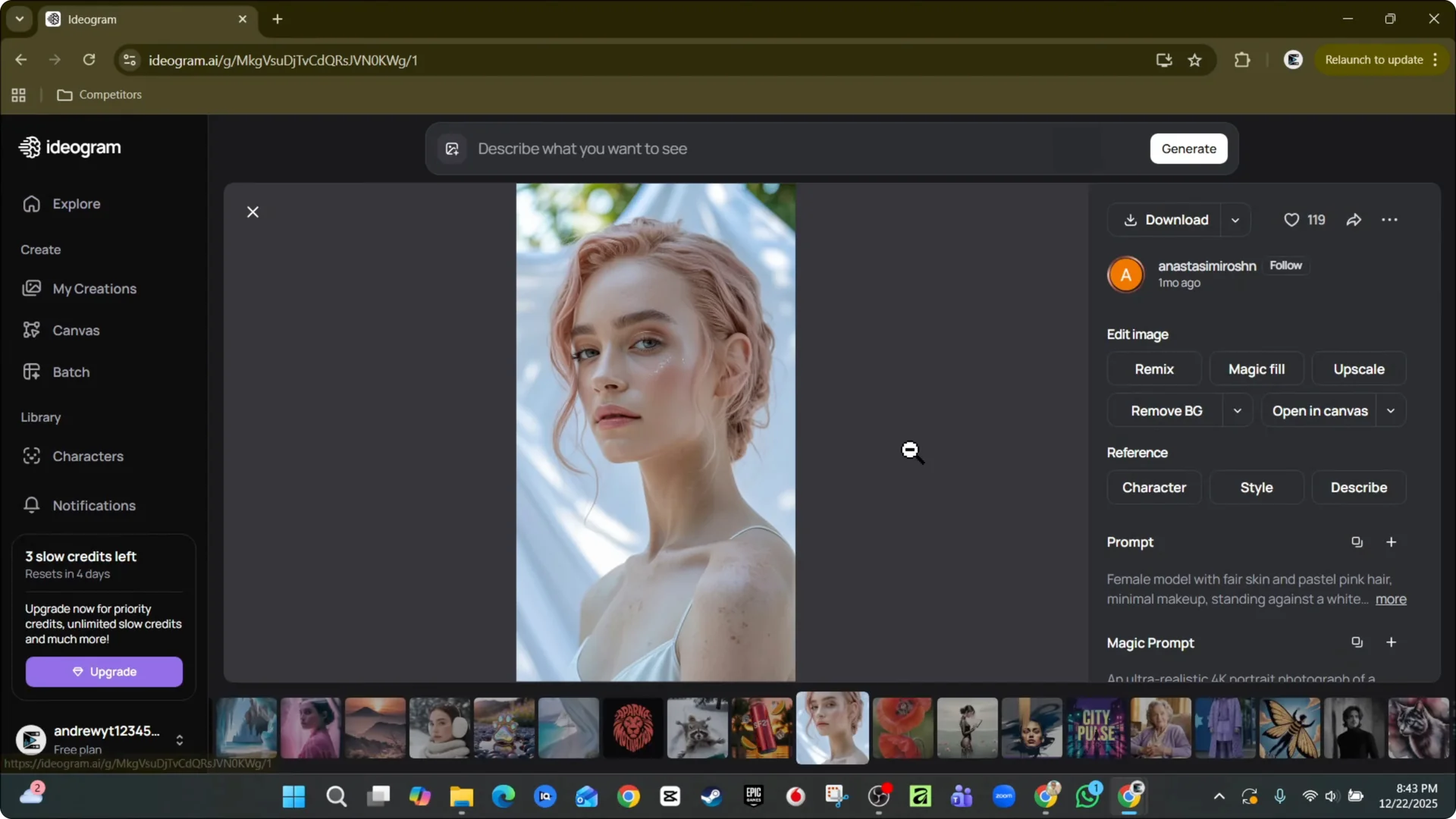
Ideogram Background Removal
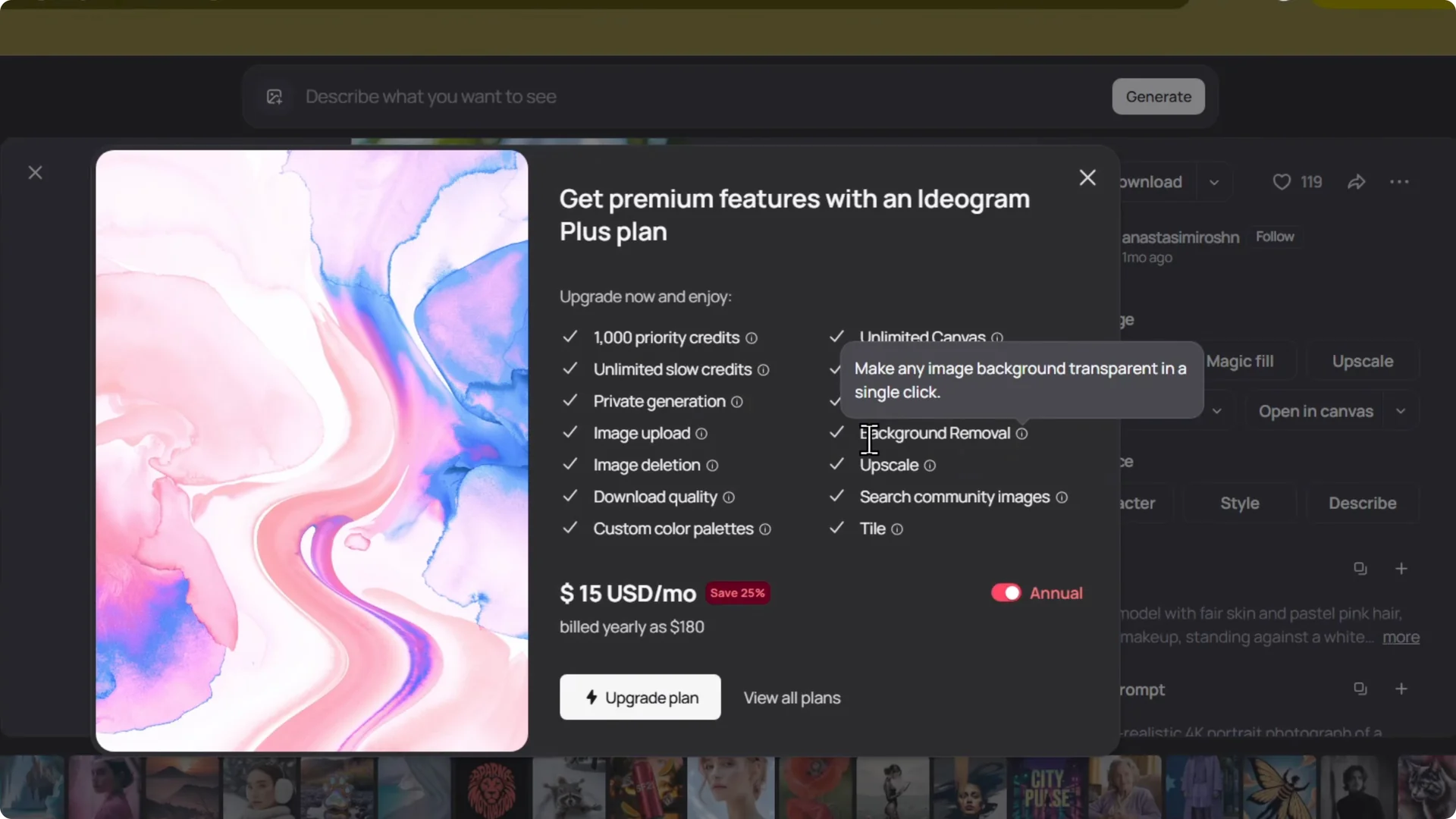
Plan requirement
Keep in mind you need the Plus subscription to use Remove Background. Background removal is available in the Plus plan. Once you have it, click Remove BG to remove the background of images.
Step-by-step guide
1) Click any image.
2) Open the image.
3) Find the Remove BG option.
4) Click Remove BG to remove the background.
Works in Explore and My Creations
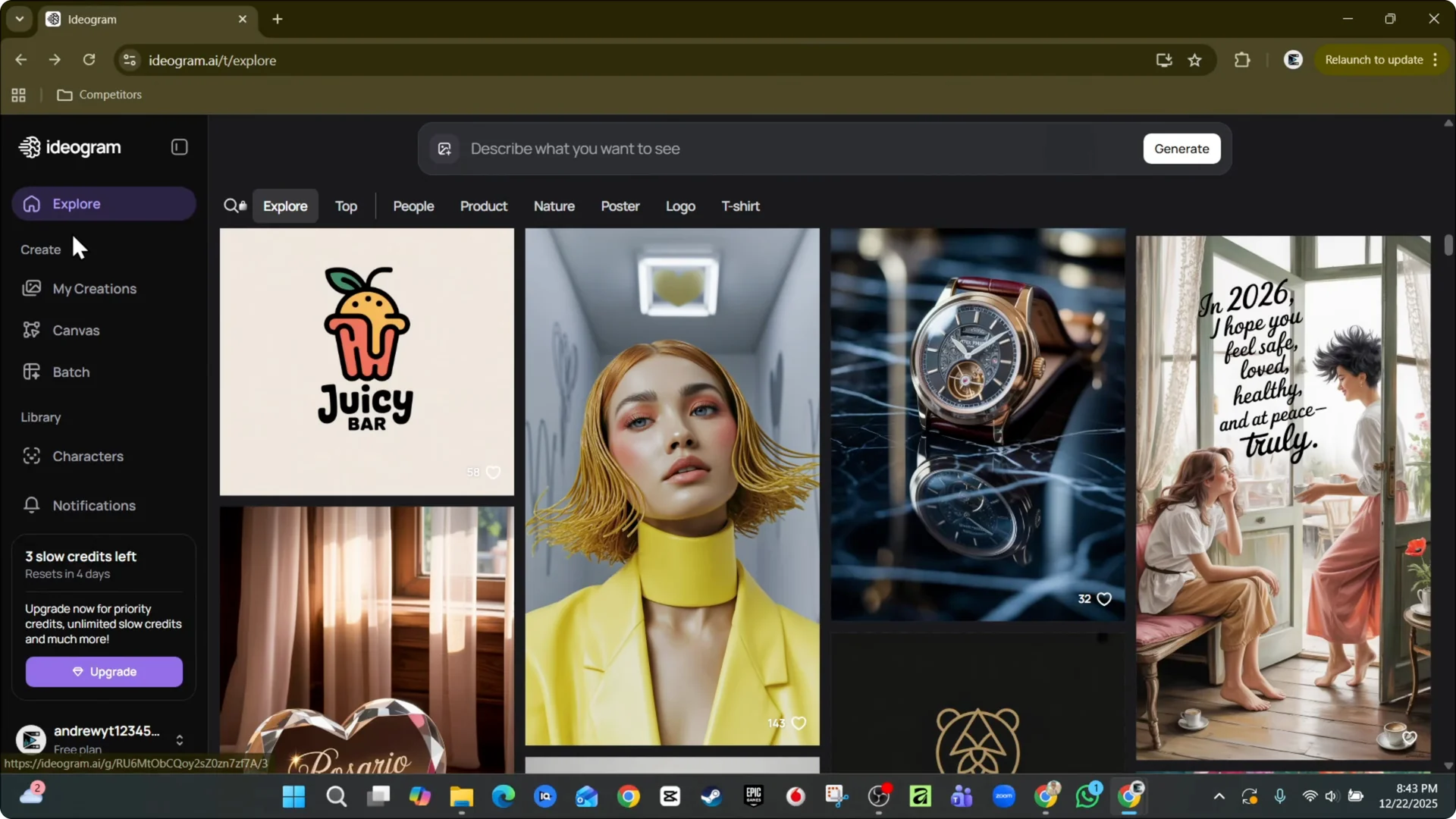
This works for images in the Explore section.
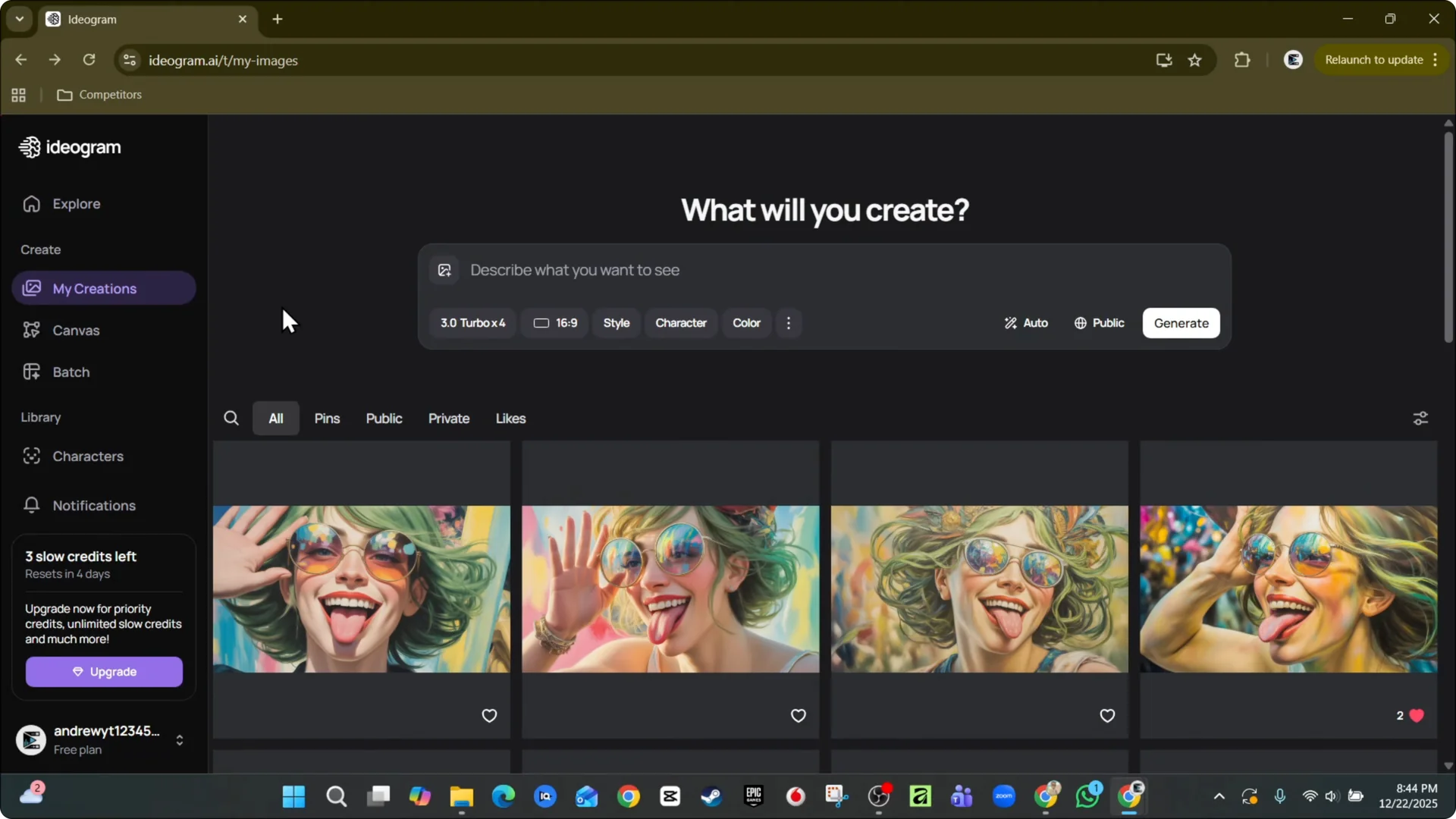
For your own images under your creations, go to My Creations.
Click an image and you also have Remove BG.
Final Thoughts
Open any image in Ideogram, use the Remove BG option, and the background is gone. The feature is part of the Plus plan and works on both Explore images and your own creations.