I’m going to show you how to add a color palette in Ideogram.
Getting Started with Ideogram AI Color Palettes
Find and open the Ideogram AI Color Palettes option
Once you’re in Ideogram on the export page where you describe what you want to see, look towards the bottom for the Add Color option.
Click it and you can choose between a bunch of color palettes.
Choose a built-in Ideogram AI Color Palette
If you don’t have an upgraded account, you can simply use one of the palettes they provided.

Just select a color palette you like. For example, choose the Melon palette.
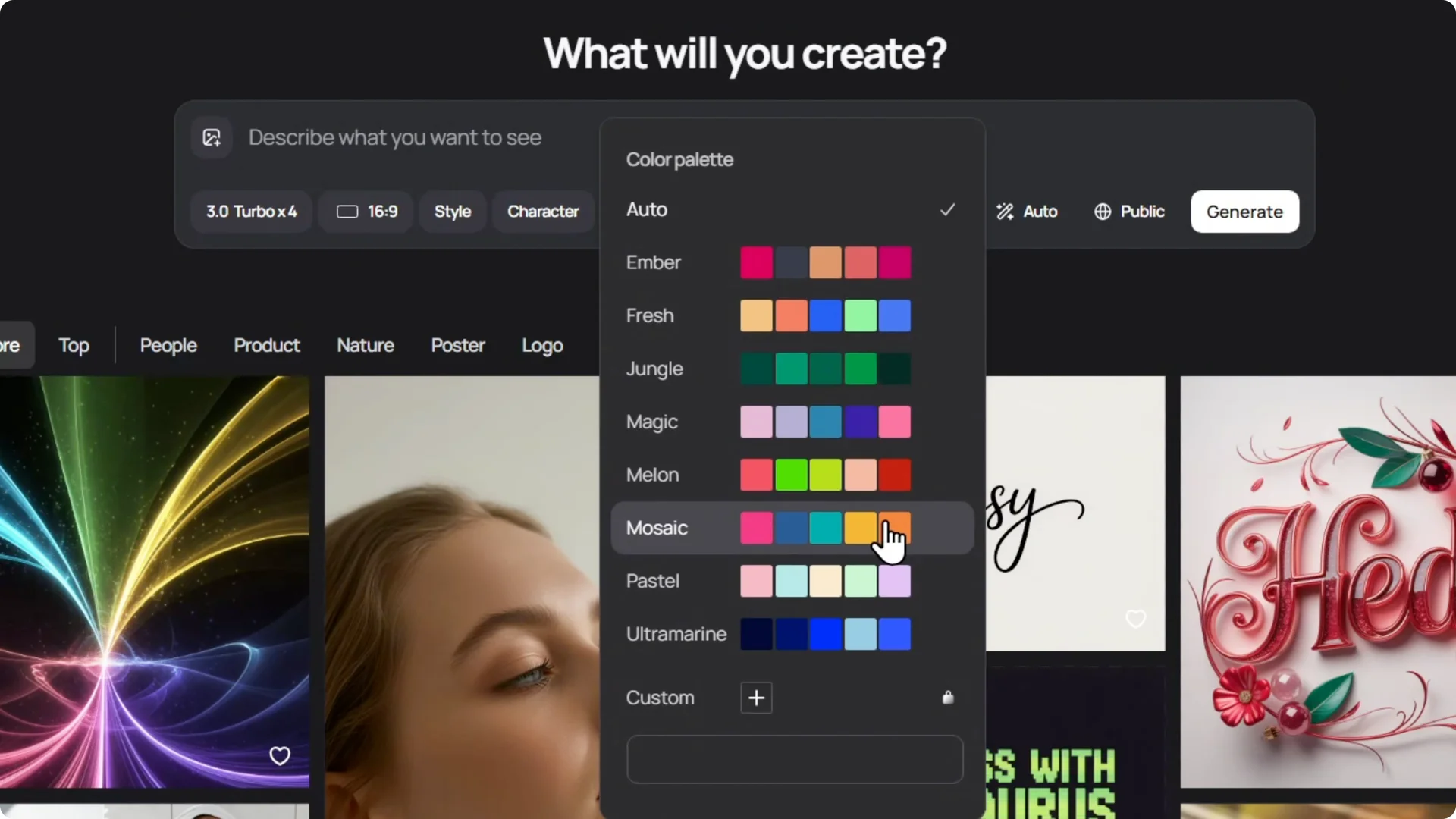
Select it and then click away and it’s added.
You can now design your images and it will work with the color palette you chose.
Add a custom Ideogram AI Color Palette (Plus)
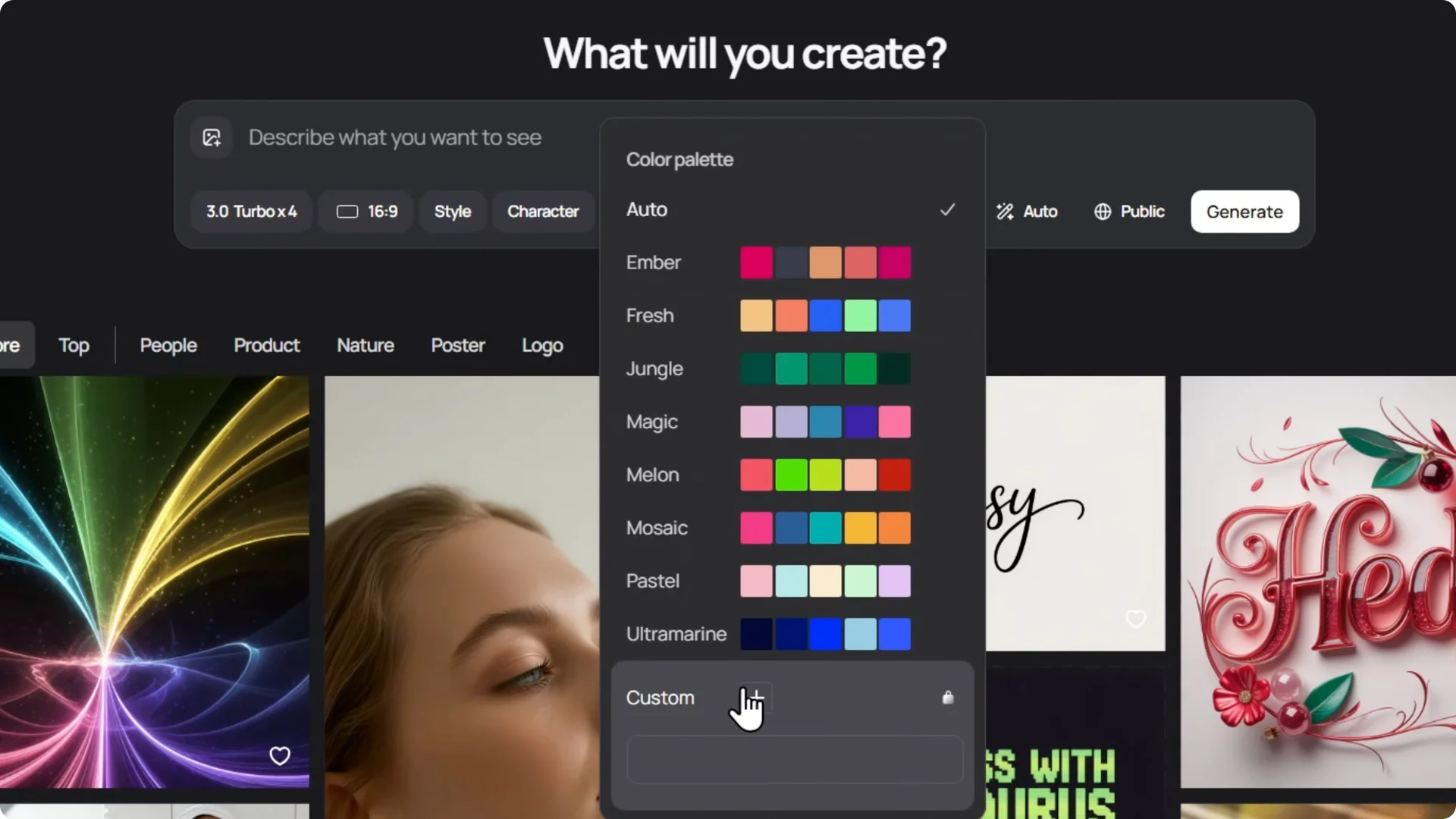
You can also add your own custom palette, but you need an upgraded account to do this. You need at least a Plus subscription.
Within the Plus subscription, custom color palettes are available
Final Thoughts
Pick from the built-in palettes or unlock custom palettes with Plus. Apply the palette from the Add Color option on the export page, then start designing. It keeps your images consistent with the colors you picked.