
One of the best ways to generate AI images with perfect style consistency is to use a color palette. The only AI that I have found that works for this at the moment is Ideogram AI.
Whenever I want to create images with the same colors for a brand kit or storybook pages, I always resort to Ideogram AI.
Here is exactly how to use the color palette feature to get consistent designs.
Ideogram AI Color Palettes: Getting Started
Log into Ideogram AI and go to the image generation screen.
You will see the Color option.
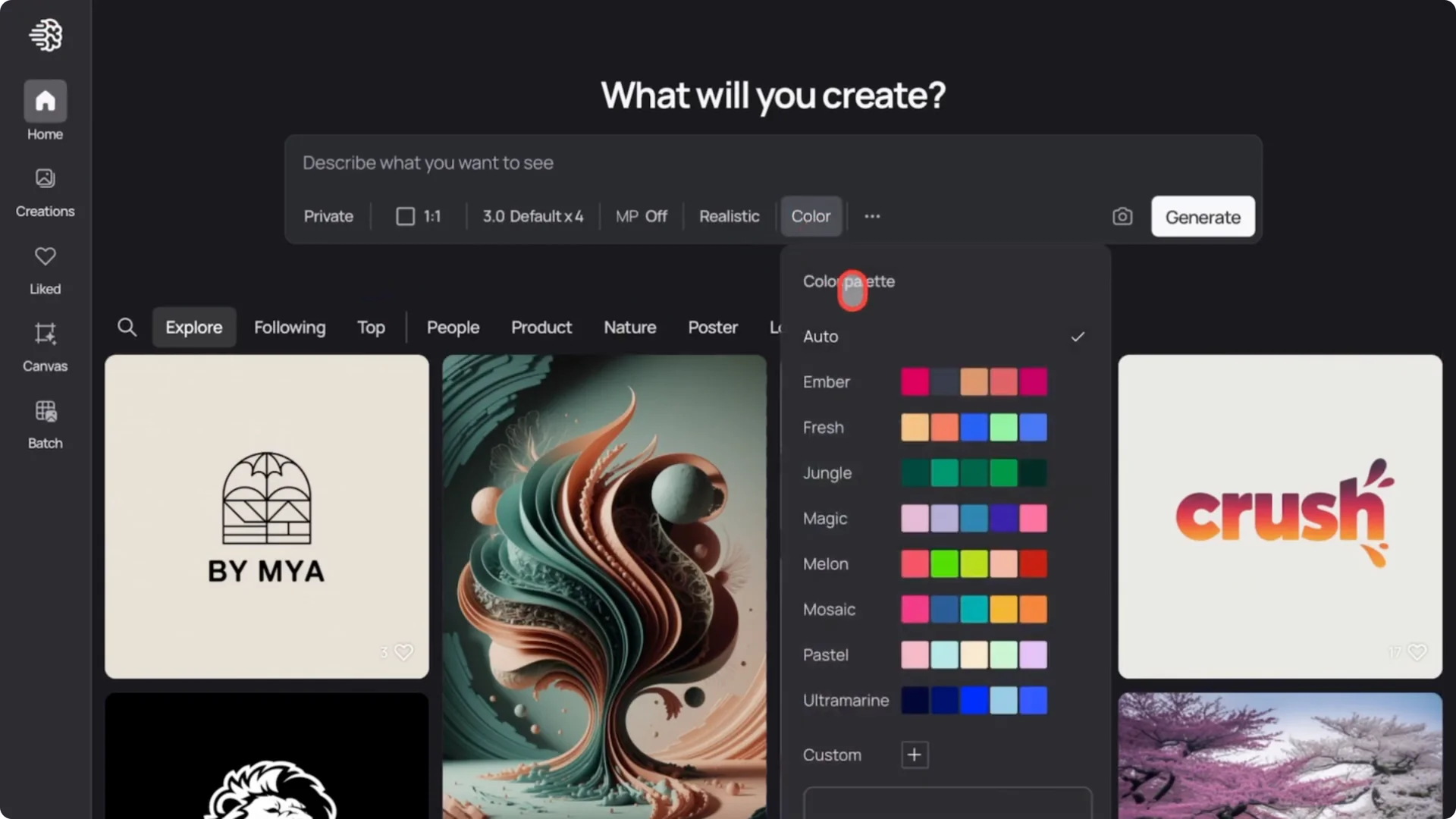
Click it and you will have the option to use Auto Color, or you can click on any of the system palettes that are available.
Add your prompt and generate an image using an existing palette to see the basics.
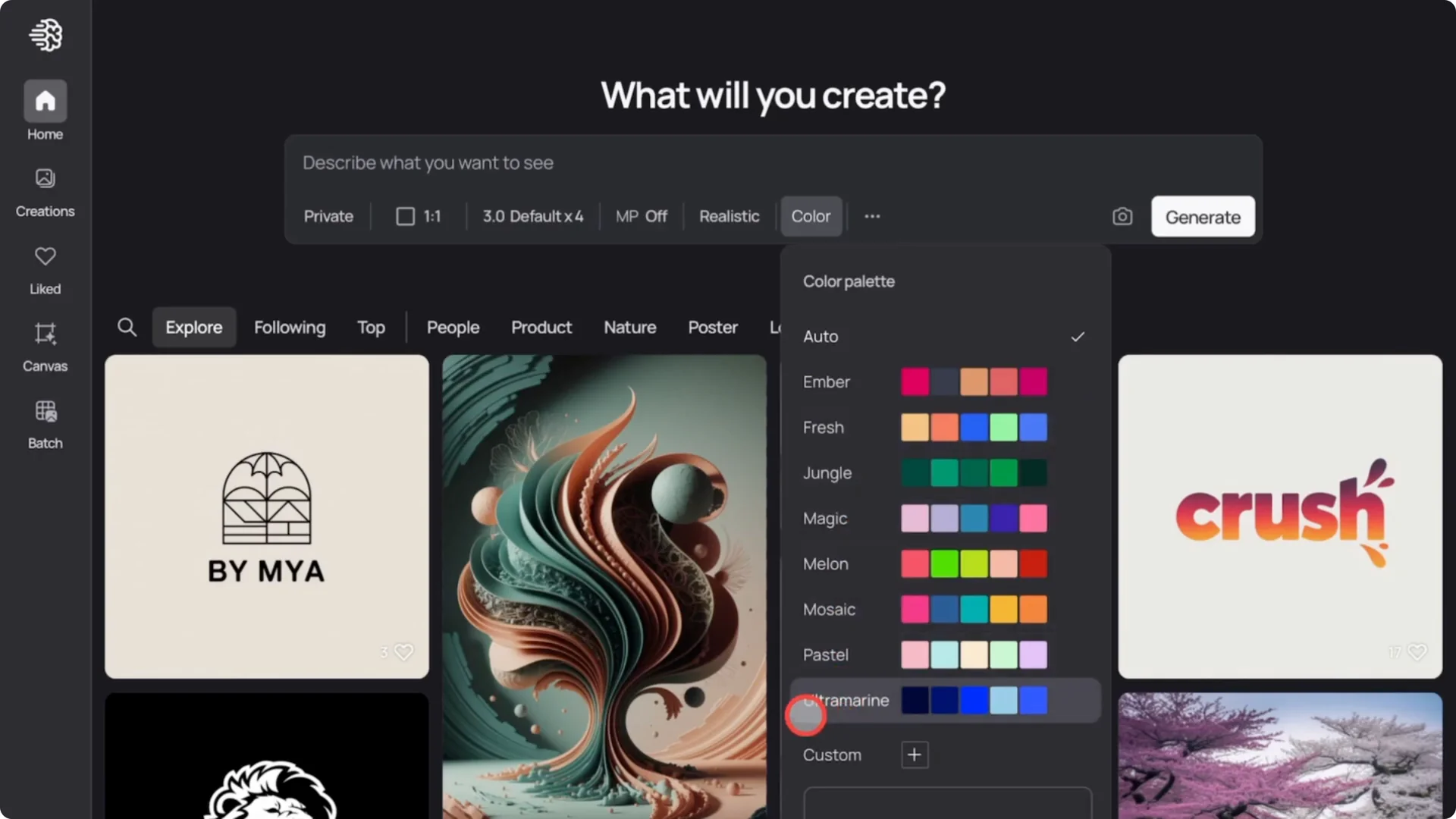
This blue themed palette keeps the colors consistent throughout all the images.
It stays the same even if you change the prompt.
This is the power of using a color palette for generating images.

Ideogram AI Color Palettes: Custom Palettes
Create a Custom Palette
To add a custom palette, click on Custom and then the plus button will appear.
You can use the selector to pick any colors and you can change the intensity, too.
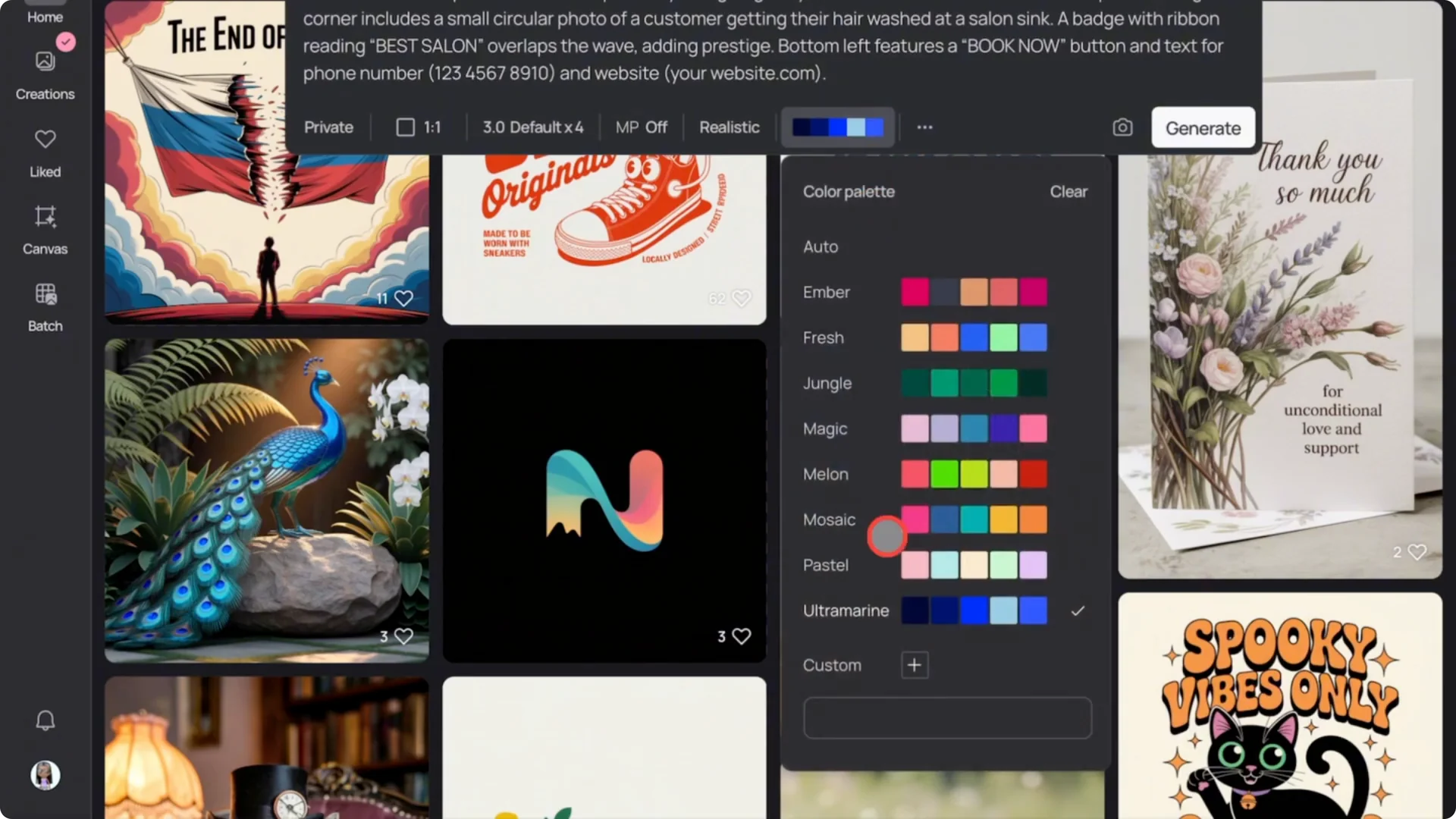
Alternatively, you can add the color code at the bottom. Clicking the plus button again allows you to add more colors.
There is a limit of five colors when using the custom palette.
Ideogram AI only allows one custom palette at a time, which means you cannot save it.
Source Colors for Your Palette
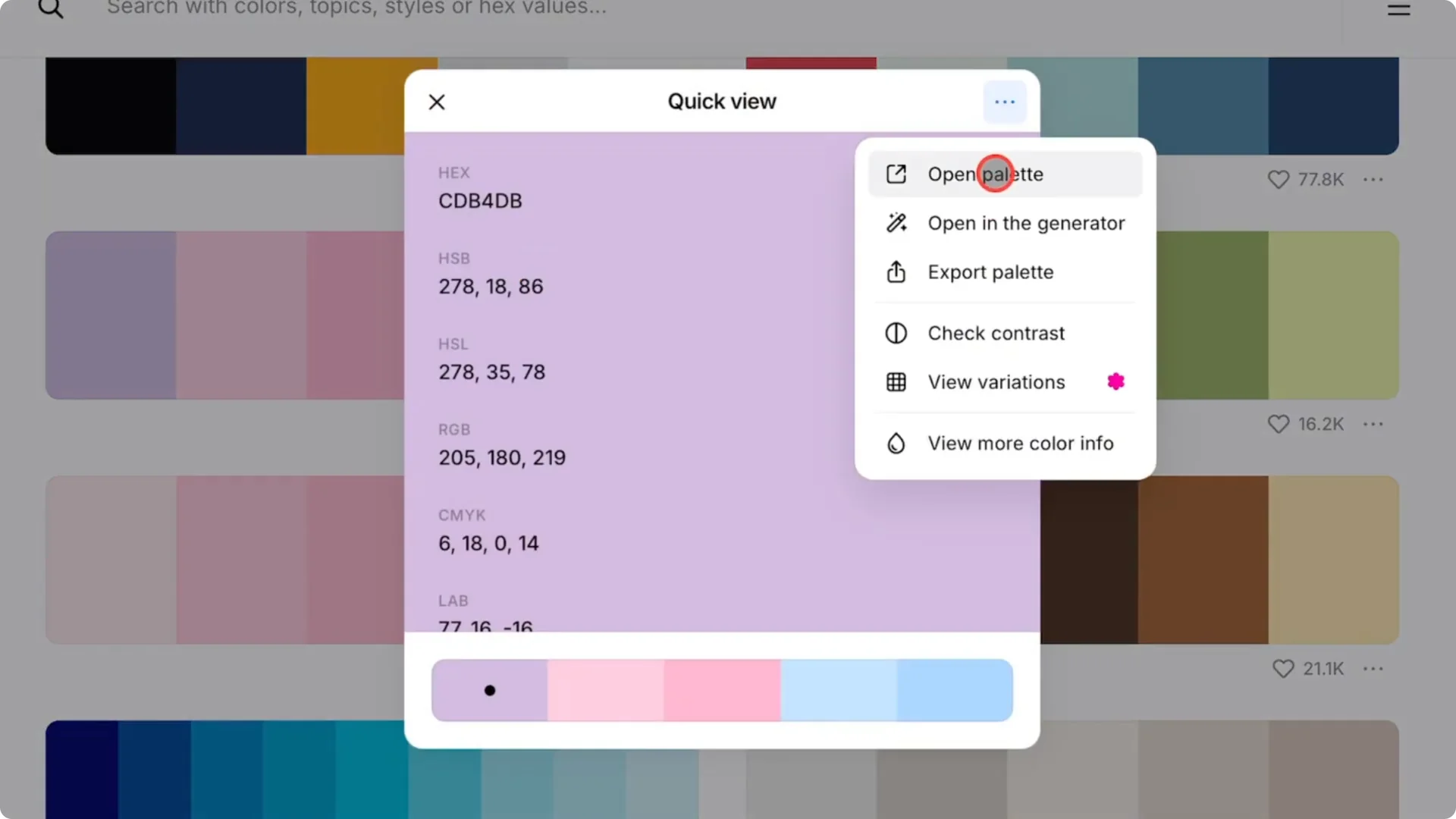
If you want to use a custom palette but do not know where to get your colors from, head over to coolers.com.
This website has tons of color palettes to choose from.
When you find one you like, click on it and easily copy the code to paste into Ideogram AI.
Regenerate With a New Palette
Regenerate the image using a new color palette and you will see the difference.
You can see the pinks and blues coming in.
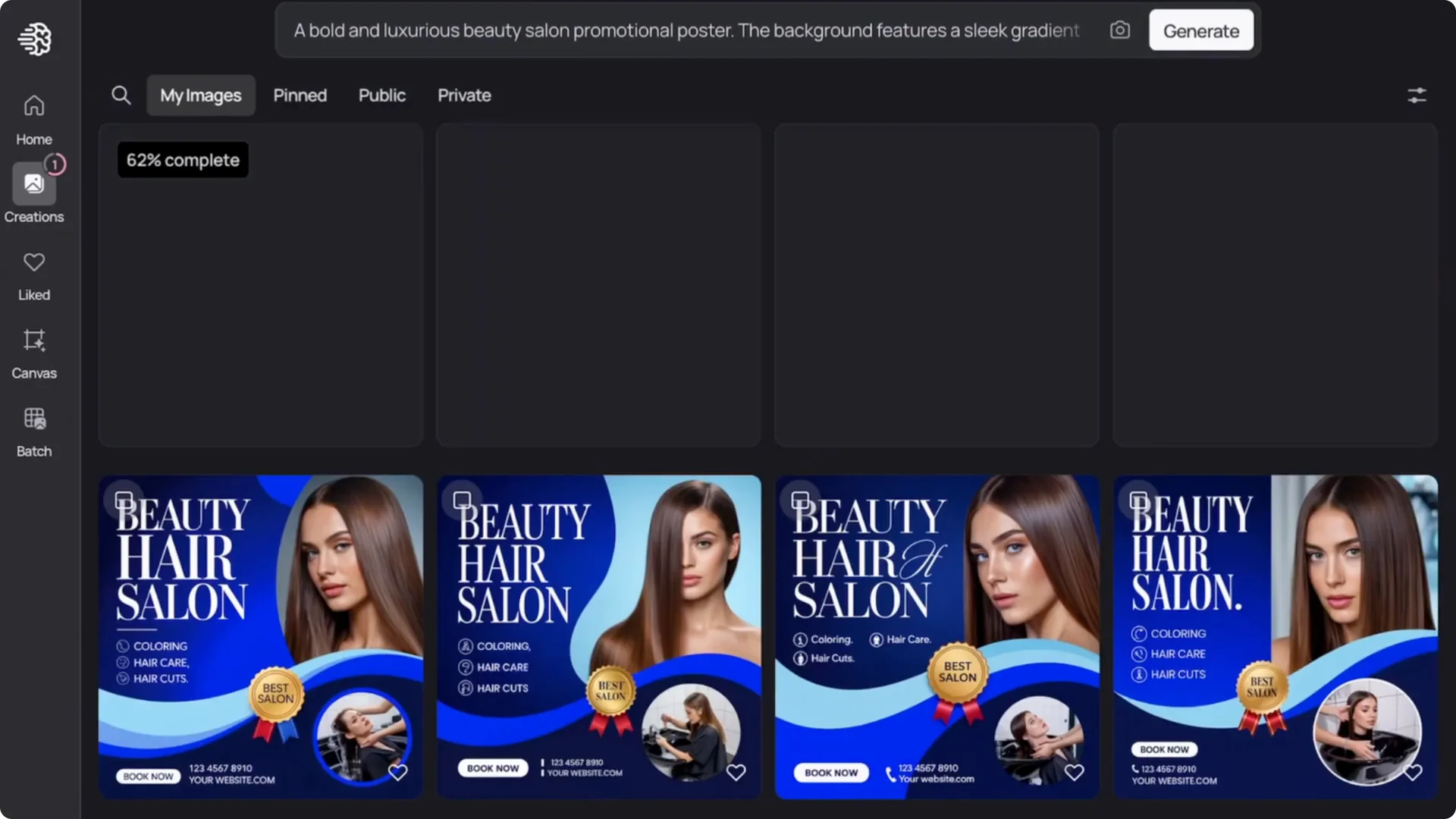
This is the easy way to use color palettes in Ideogram.
Ideogram AI Color Palettes: Best Practices
How Many Colors and Order Priority
You do not have to use all five colors. You can use two or three colors and that is perfectly fine.
You are not required to fill in all five for it to work. The priority of the colors is based on the order you list them.
First come, first served, so the colors listed first will be prioritized. Change the first two colors and you will see what I mean.
How the Model Treats Light and Dark Colors
Because the green and yellow colors I chose are bold compared to the pink and blue pastel tones, the AI usually uses the lighter colors for the background and the deeper colors as highlights or buttons. Most times you will notice that lighter colors are typically used for backgrounds.
Darker, bolder colors are used as secondary colors or highlights.
Black and White Are Always Available
Black and white are automatically added to the color palette. You do not need to specify them.
Even if there is no black in your palette, you may still see black text or buttons. For example, you might see a black button and text even though you did not include black in your prompt or color palette.
Reusing Palettes Across Sessions
Because the AI does not store the color palettes, you need to add it every time. The solution is to find the image you already generated with this palette, then click on the plus button next to it, and it will be automatically added in the prompt box.

You can also choose to copy it and paste it manually.
Prompt Color Guidance
When using color palettes, avoid specifying colors in your prompt. If you check the prompt I used, there were no references to specific colors, and that is very important.
You should not use a color palette while also telling the AI what colors to use. It makes it much harder for the AI to follow through properly.
If you absolutely must include colors in your prompt, make sure they do not contradict the colors in your palette. Otherwise, the AI may get confused and create a messy or inconsistent result.
Ideogram AI Color Palettes: Build a Palette From One Color
If you have just one color you want to use in your design but do not know which other colors will match it, go to mycolor.space. Paste your single color into the box at the top and it will generate many color palettes for you.
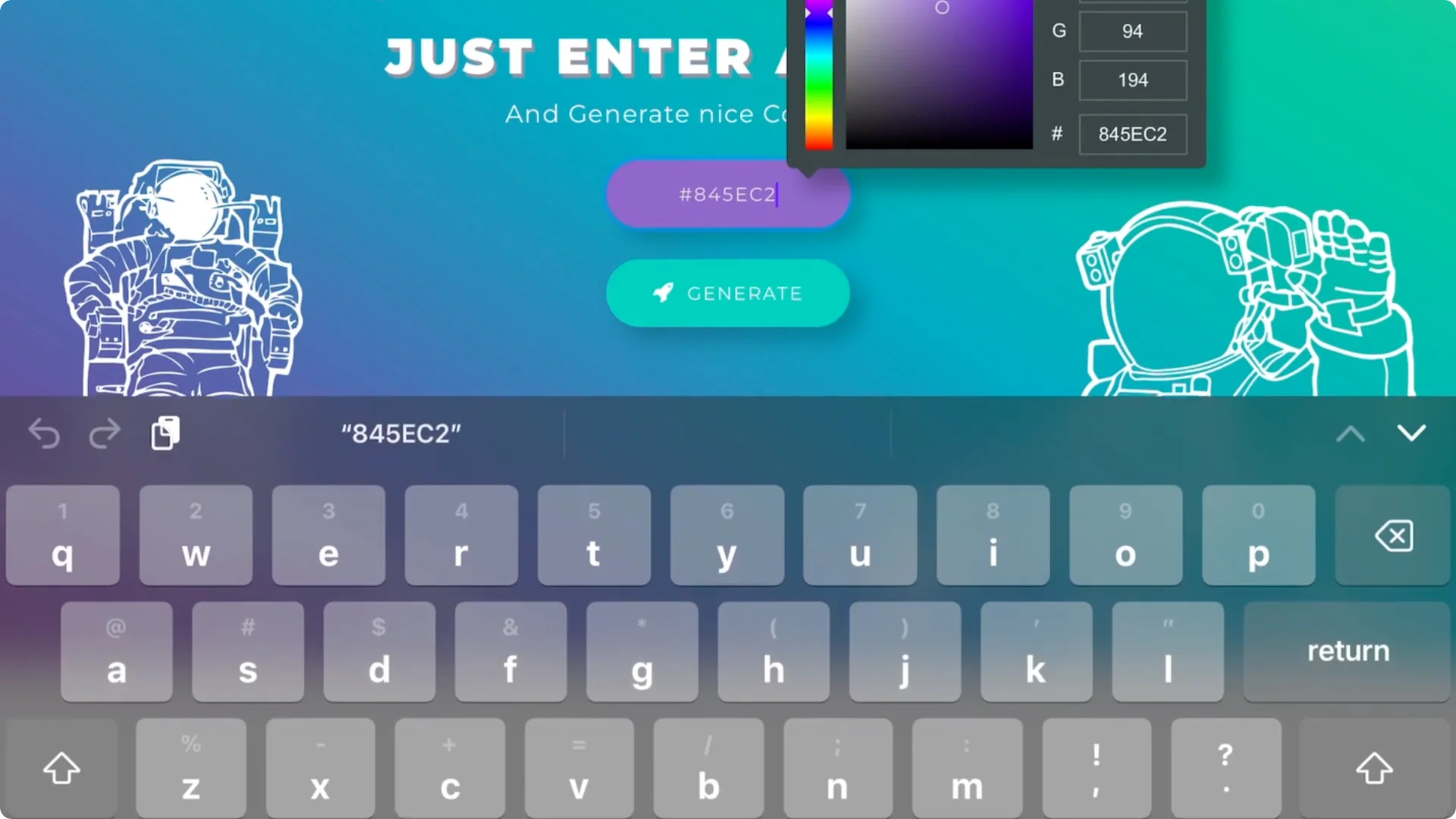
Take your main brand color, use this site, and it will give you tons of colors you can copy and paste into Ideogram AI to create consistent images.
Final Thoughts
Using color palettes in Ideogram AI is a simple and direct way to get consistent designs. System palettes make it quick to start, and custom palettes give you precise control.
Keep your palette order intentional, expect lighter colors to become backgrounds, remember black and white are always available, and avoid conflicting color instructions in your prompt.