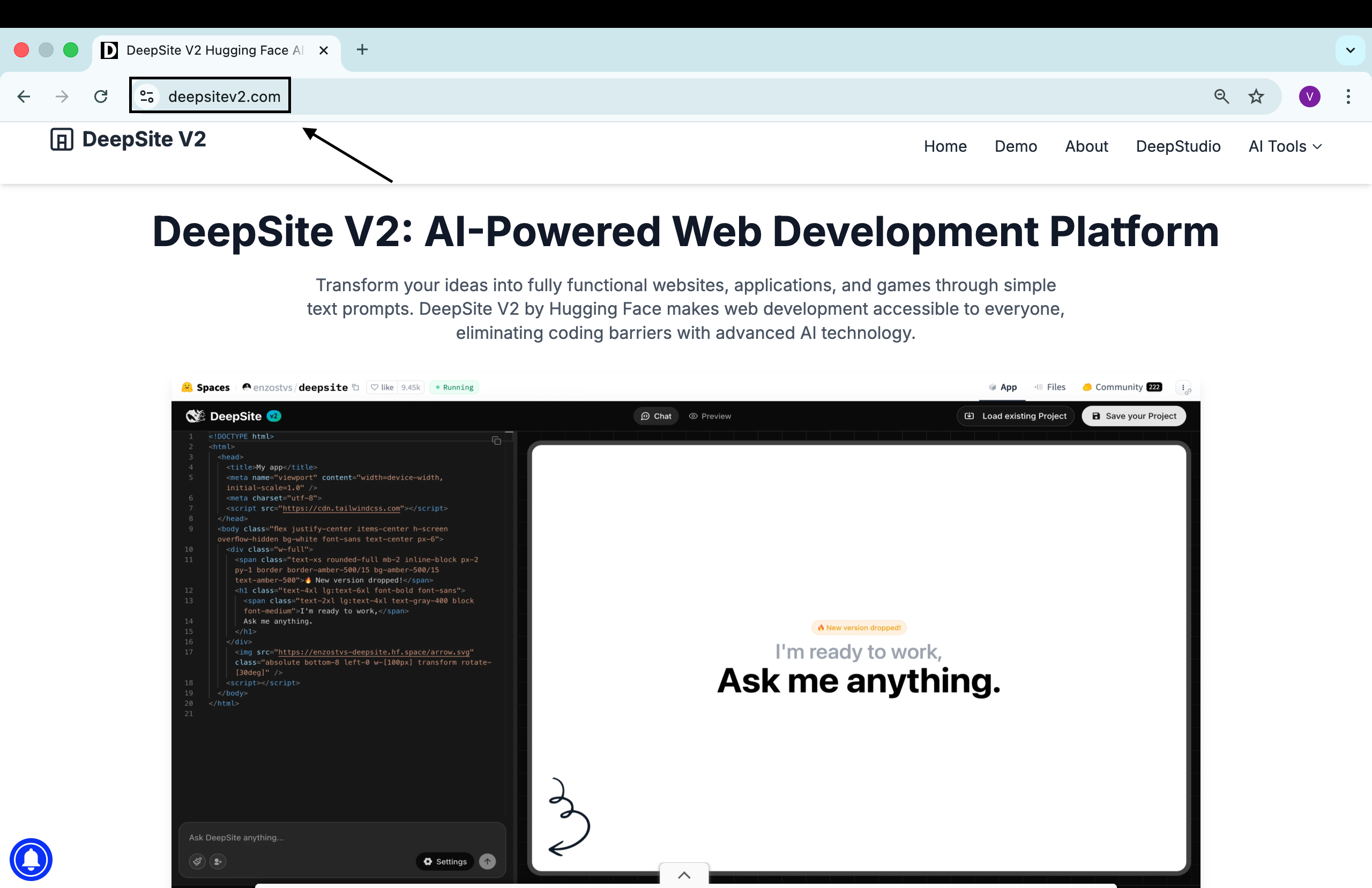
I jumped into Deepsite V2 to see what this website-building tool actually does and how it behaves when you ask it to make a real app. I’ll also point you to the official spot to try it yourself: deepsitev2.com
First impressions
When I opened my browser and typed the site address deepsitev2.com , Deepsite loaded right away. The interface presented a single window where I could start giving instructions. The main interaction is text-based: you give it a prompt and the tool builds a website or web app for you and shows code and a live preview side by side.
The experience felt direct: type, send, wait for the system to process, and then inspect both the generated code and the running app. You can preview the app on desktop and on mobile inside the same interface.
What is Deepsite V2?
Deepsite V2 is a web-based tool that builds websites and web applications from prompts. It generates code (I saw Tailwind CSS used in examples) and a running preview of the app. The tool integrates with hosting workflows and can connect to a third-party service to deploy or continue work on an existing project.
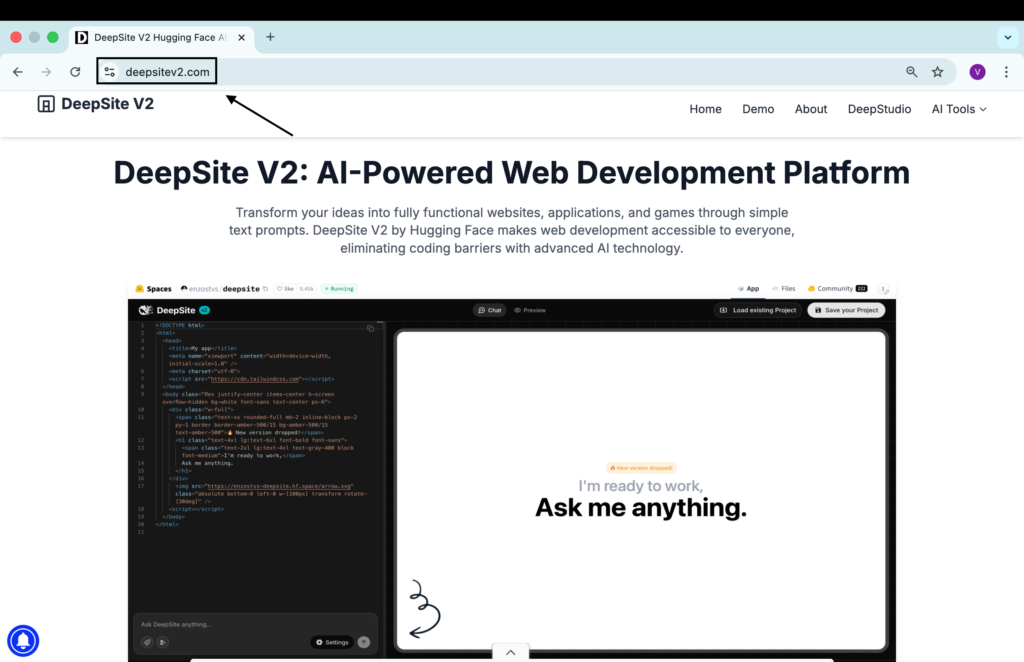
Here’s the high-level idea:
- You type instructions (a prompt) describing the site or app you want.
- Deepsite writes the code and renders a live preview.
- You can inspect the code, adjust settings, load existing spaces, and deploy to a hosting target supported by the platform.
If you want to test it yourself, visit deepsitev2.com.
Deepsite v2 overview
| Item | Notes |
|---|---|
| Entry point | Web browser |
| Primary workflow | Prompt → generated code + preview |
| Code output | Front-end code (uses Tailwind CSS in the examples I saw) |
| Preview modes | Desktop preview and mobile preview inside the UI |
| Hosting / deploy support | Connects to a 3rd-party space provider (login and authorize flow required) |
| Edit / load | Option to load an existing space/URL to continue working |
| Authentication flow | Email confirmation and an authorization step when connecting to the hosting provider |
| Copy/paste workflow | You can copy generated code and paste it into a named space to create a live instance |
| Best for | Rapid prototyping and simple web apps |
Deepsite V2 Key features
- Prompt-driven generation: Describe the app or website in natural language and the tool generates code and a live preview.
- Live preview + code panel: You get both the running app and the source code together helpful to inspect output.
- Tailwind CSS output: The examples show Tailwind being used for styling.
- Preview modes: Toggle between how the site appears on computer and on mobile within the interface.
- Load existing spaces: You can point Deepsite at an existing project space URL to keep working on it.
- Deploy integration: The tool can deploy to a hosting space — the flow requires logging into the hosting provider and authorizing Deepsite.
- Email confirmation & authorization: To connect your host account, you’ll go through a confirmation email and an authorization step.
- Copy & paste to create space: Generated code can be copied and pasted into a new space that you name, which becomes a live instance accessible via a link.
How I used Deepsitev2.com — step by step
Below is a stepwise description of the workflow I followed from opening the site to creating a live instance. I removed any example-specific demo values per instructions, so this is the general process I followed.
- Open the site
- I entered the Deepsite address: deepsitev2.com in my browser and opened the main page.
- Start a new prompt
- The interface presented a text field where I could type instructions. I wrote a prompt asking it to act like a professional web developer and to build a modern web app with certain behaviors and UI elements (the prompt can be as detailed as you want).
- Send the prompt
- After I submitted the prompt, the system began processing. A status indicator showed that the AI was thinking.
- Wait for generation
- The tool produced code on the left panel and a running preview of the app on the right panel. The preview reflected the generated application and the code panel contained the corresponding source.
- Inspect preview and code
- I inspected the preview to see layout and interaction, and checked the code to see how the app was composed. The output used Tailwind CSS for styling and included DOM and UI elements for form inputs and buttons.
- Preview on desktop and mobile
- The UI included a mode to preview how the app would look on a computer and another to see mobile rendering. I toggled between them to verify responsiveness.
- Address minor layout issues
- I noticed a copyright overlay that partially covered content at the bottom of the preview. The interface allows you to give instructions back to Deepsite to adjust layout or move elements — it’s possible to fix such details by updating the prompt.
- Load an existing space
- The interface provided a “Load space” option where you can enter a space URL. This is useful if you already have project space hosted and want to import it to continue editing.
- Authorize deployment to host
- To deploy, you click the deploy option which triggers a login flow with the hosting provider. The login required entering email and password and then checking your email for a confirmation link.
- Confirm email and complete authorization
- I checked for the confirmation email, followed the verification steps, and completed a human-check challenge if required by the host provider. After verifying my email, I returned to Deepsite and completed the authorization step by granting access.
- Name and create a space
- Once authorized, I could name a space and create it. The code and preview from Deepsite then became associated with that new space.
- Copy & open in a private window
- I copied the space URL, opened a private/incognito browser window, and pasted the link to see the live app running independently.
- Iterate
- Any changes made in Deepsite can be updated and will reflect in the linked space. You can refresh the preview to see changes after you edit the prompt or code.
Notes on the deployment flow
- The deployment step uses a third-party account flow. You sign in, confirm your email, complete an authorization consent screen, and then Deepsite can create or update a named space for you.
- The email confirmation and authorization are handled by the hosting provider. Expect a standard verification email and possibly a simple human verification step.
- After authorization, Deepsite prompts you to name the space; once created, the link becomes a live instance that runs the generated app.
Example UI elements
The interface I used had these visible elements:
- Prompt input area — where you describe the app you want.
- Code panel — shows generated source code.
- App preview — a live rendering of the generated app.
- Preview controls — buttons to switch the preview between desktop and mobile views.
- Load space — a place to paste an existing space URL to continue working.
- Deploy / Login — triggers the third-party host login and authorization workflow.
- Copy code — copy button to copy the generated code or space link.
What the generated app looked like (high level)
- Form-like interface for user input (for reporting or submitting content — the tool can build forms).
- Use of Tailwind CSS classes for layout and styling.
- Basic client-side interactivity like submission and success feedback messages.
- A clear separation of code and preview panes so you can inspect both easily.
Where Deepsite fits in a web workflow
| Stage | Deepsite role |
|---|---|
| Idea → prototype | Rapid generation from prompt |
| Prototype → inspect | View code + live preview to evaluate generated output |
| Prototype → host | Connects to host to create a live space |
| Edit → iterate | Update prompt or code and refresh the preview |
| Reuse → continue editing | Load an existing space URL to continue work |
Practical tips from my session
- Be explicit in the prompt. The tool follows the instructions you give — the more specific you are, the closer the generated app will be to your intent.
- Use the preview modes to check responsiveness right away.
- If an element overlaps or a label covers content, mention that in a follow-up prompt to get a corrected layout.
- Before deploying, make sure you are ready to confirm and authorize with your hosting account (you will need to access the confirmation email).
- Copy the space link and open it in a private window to verify the deployed instance behaves the same outside the editor.
How to use Deepsite step-by-step guide
- Open a browser and visit the Deepsite address.
- Type a clear prompt describing the site or app you want (role, function, pages, UI elements).
- Submit the prompt and wait for the generation to finish. The interface will show a “thinking” indicator.
- Inspect the returned code and preview. The app runs on the right and code appears on the left.
- Toggle previews to check desktop and mobile appearance.
- Refine the prompt if layout or functionality needs adjustment.
- Use “Load space” to import an existing project if you want to continue or reuse prior work.
- Deploy by clicking deploy and logging in to the hosting provider when prompted.
- Confirm your hosting account via the confirmation email and the authorization prompt.
- Name the space and create it so the generated app is accessible via a live link.
- Open the live link (for example, in a private window) to verify the final result.
- Iterate as required — editing prompts or code will let you update the live instance.
FAQ
Q: Do I need to know code to use Deepsite?
A: No. The tool is prompt-driven and will generate code and a live preview based on the instructions you provide. However, if you know code, you can inspect the generated code and make manual edits.
Q: What styling framework does it use?
A: In the output I saw, Tailwind CSS was used for styling. That may be the default approach for many generated outputs.
Q: Can I load an existing project?
A: Yes. Deepsite has a “Load space” option where you can paste an existing project URL to continue working on it.
Q: How does deployment work?
A: Deployment connects to a third-party hosting provider. You log in, confirm your email, and authorize access. After authorization you can name a new space; the generated code gets associated with that space and becomes a live link.
Q: Is there an email verification step?
A: Yes. When connecting to the hosting provider you will likely need to check your email, click a confirmation link, and possibly complete a simple human verification challenge.
Q: Can I preview mobile and desktop?
A: Yes. The interface provides separate preview modes for how the site looks on a computer and on mobile within the same editor.
Q: Will the generated app be immediately available on the web?
A: After you authorize the hosting provider and create a named space, the link becomes a live instance that you can open independently.
Q: Can I copy the generated code and host it elsewhere?
A: Yes. There’s a copy function for the code; you can paste it into your own hosting or local environment if you prefer.
Q: What should I do if layout elements overlap or are obscured?
A: Give a follow-up instruction in the prompt asking the tool to move or reposition elements. The editor responds to iterative prompts, or you can edit the code directly.
Limitations and practical considerations
- The editor uses a specific hosting provider flow for deployment; you must be prepared to log into that provider, confirm your email, and authorize access.
- You might encounter UI elements in the preview (for example an overlay or copyright notice) that need prompt-based adjustments or direct code edits.
- While the generation is fast, complex apps will still require testing and possibly manual refinement after the initial generation.
Closing thoughts and where to try it
I found DeepsiteV2 to be a fast way to move from idea to a running web prototype. It presents code and a live preview side by side, supports importing existing spaces, and links to a hosting flow that creates a live instance after authorization. If you want to try it yourself, visit deepsitev2.com to experiment with prompts and see what it builds for you.
If you want, I can help craft efficient prompts to get the exact layout and features you need, or help translate one of your app ideas into a detailed prompt ready to paste into Deepsite.