
Background removers are plentiful. Some are better than others, and some are not that great. PhotoRoom’s background remover is pretty great. One of my favorites is ClipDrop, but unless you pay for ClipDrop you’re limited to what you can do – I believe you can only use it 10 times per day.
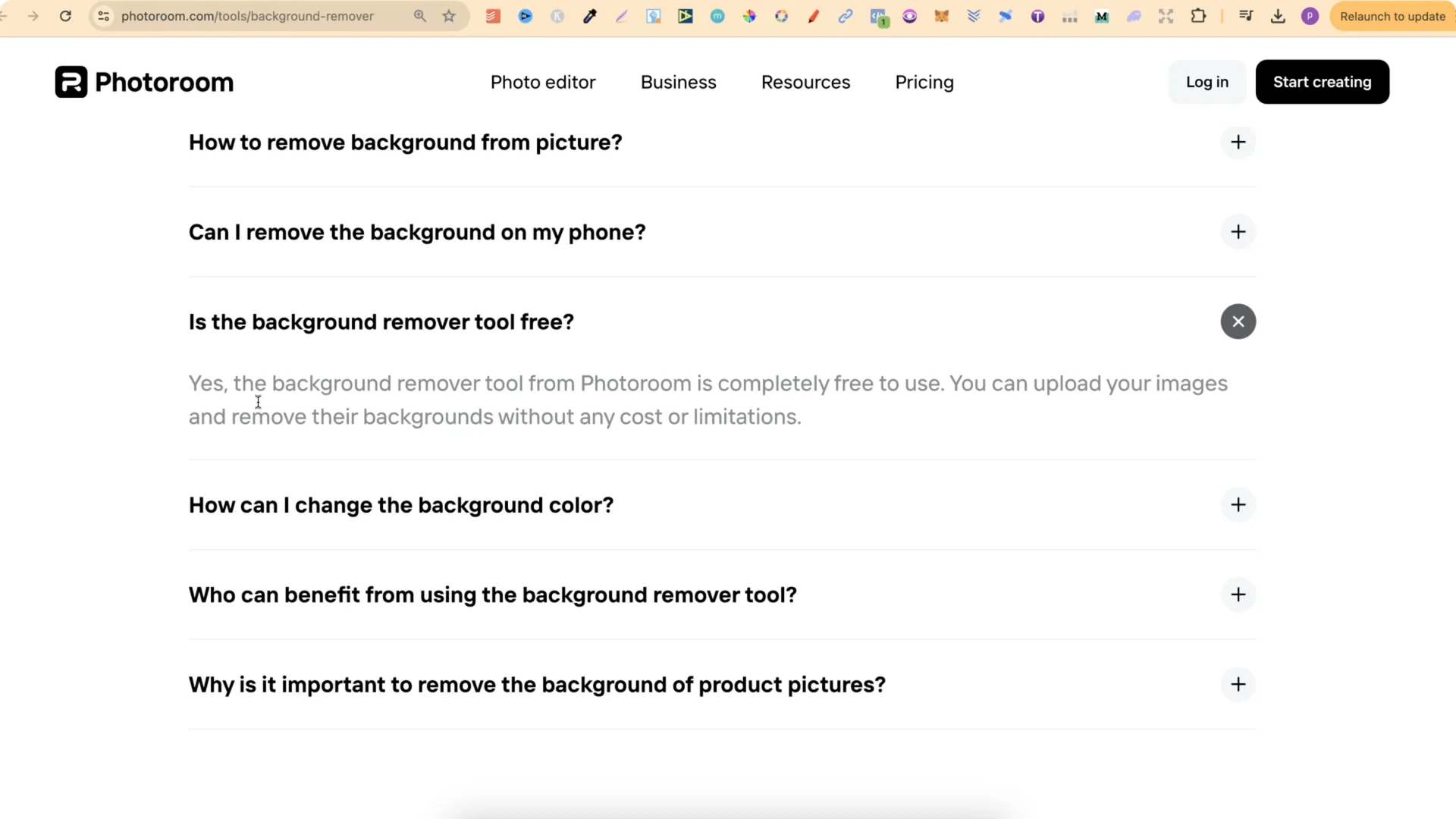
At PhotoRoom, the background remover tool is completely free to use. You can upload your images and remove their backgrounds without any cost or limitations, so you can use this an unlimited amount of times. In my tests it does a pretty good job. It is not as good as ClipDrop, but it is a solid free alternative.
PhotoRoom Background Remover: What It Does Well
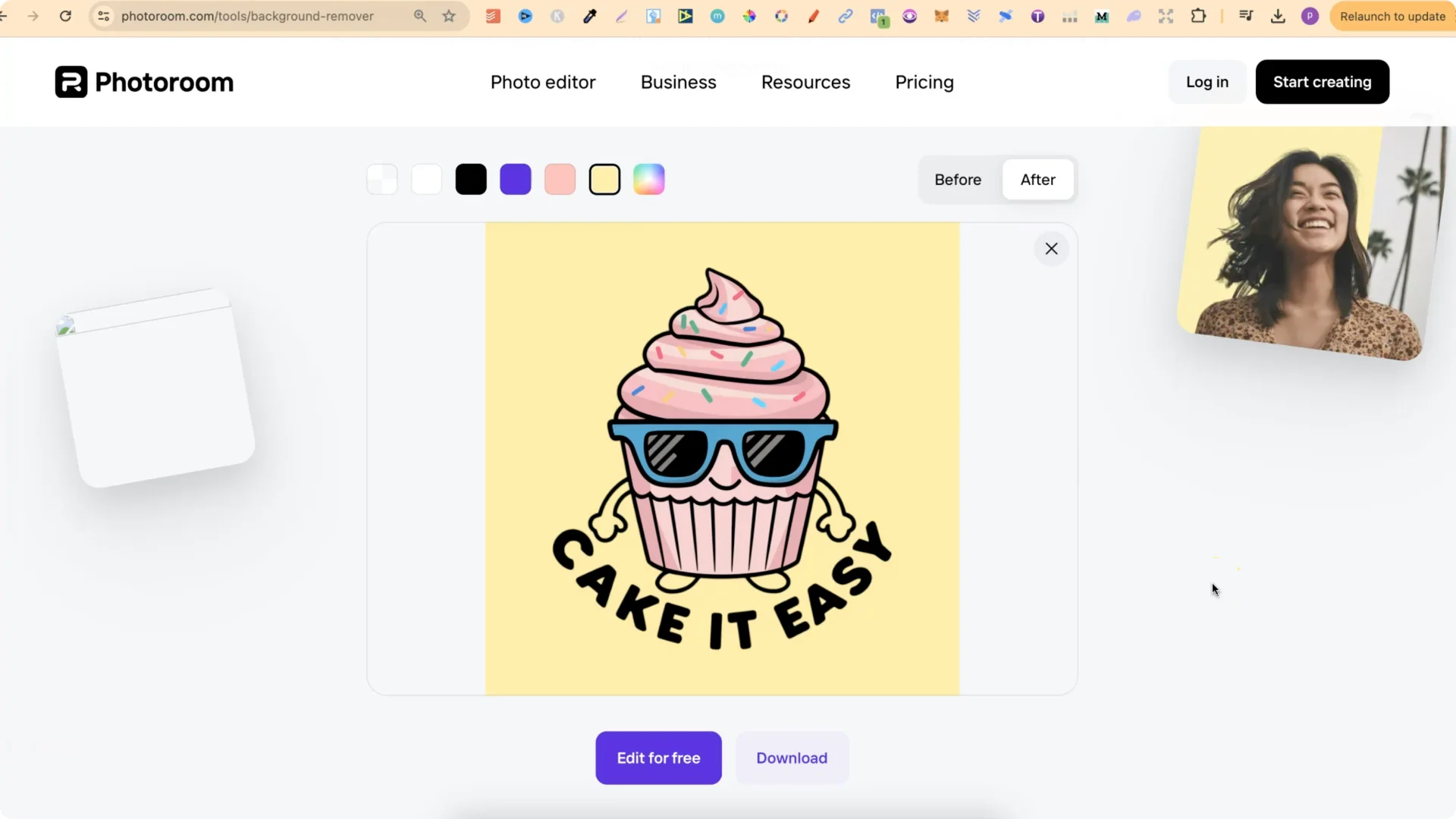
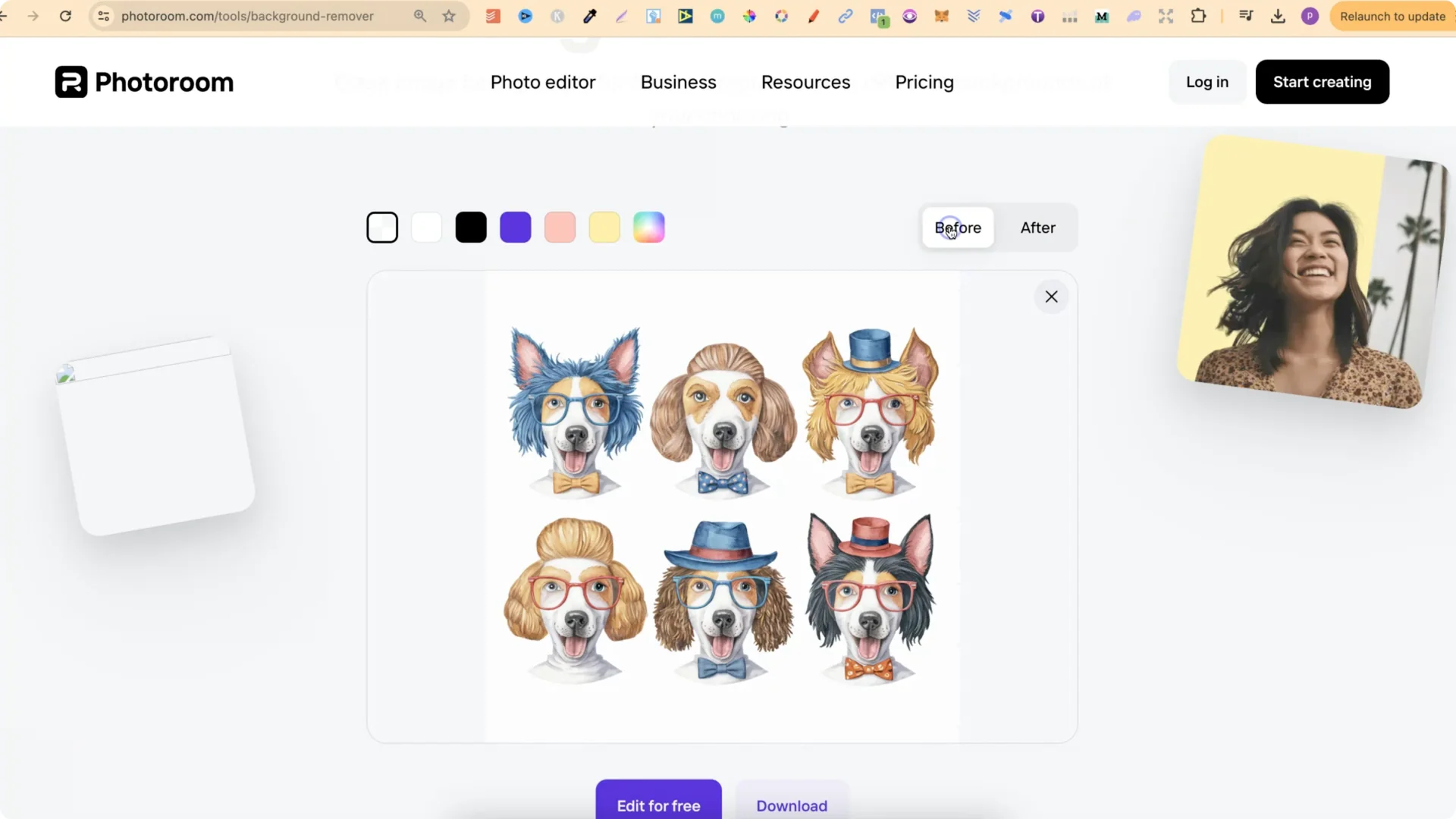
– Transparent
– White
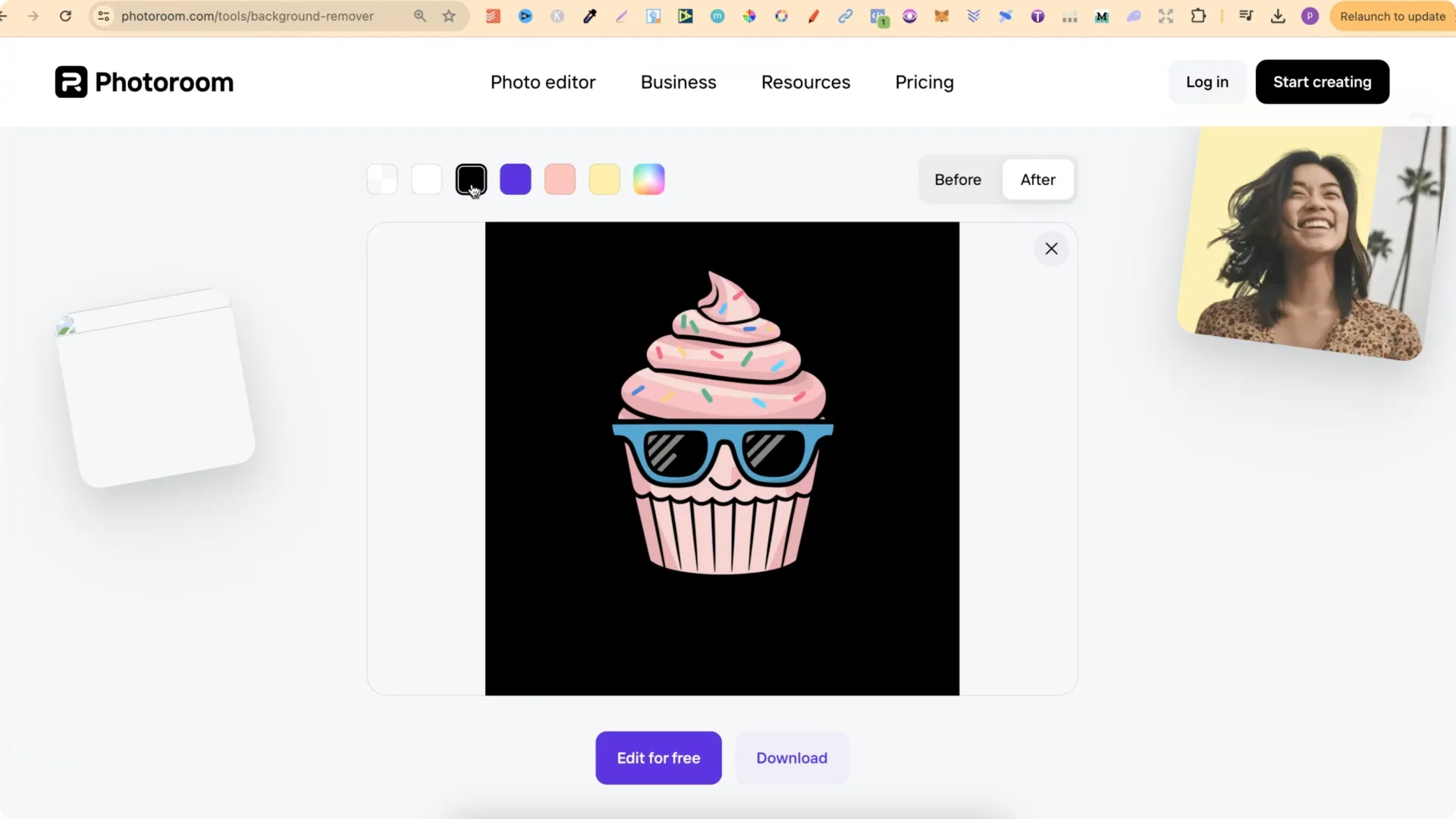
– Black – not ideal if you have black writing
– Blue, pink, yellow
– Any custom hex color
How to Use PhotoRoom Background Remover
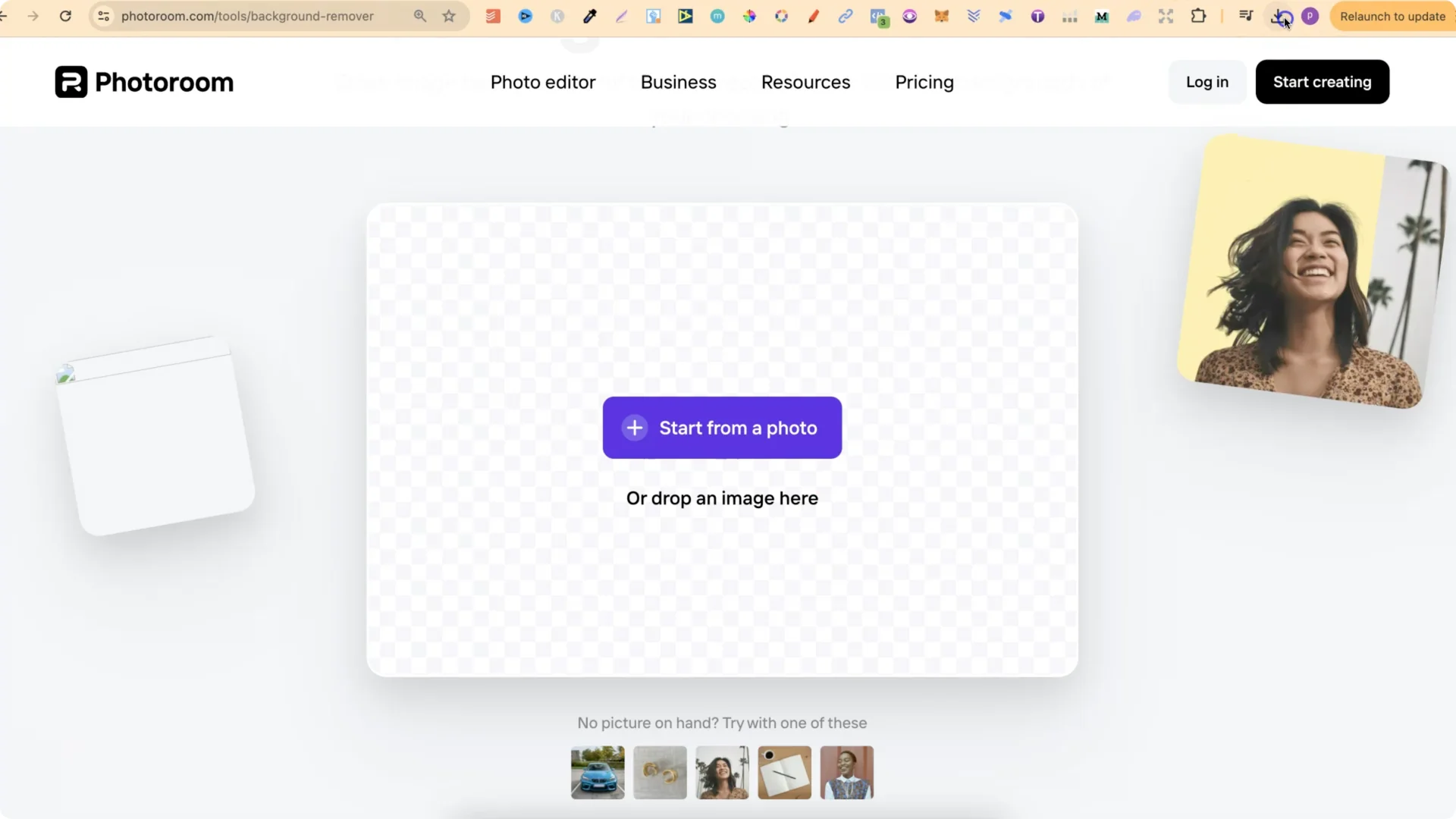
1. Take an image and drop it into the tool.
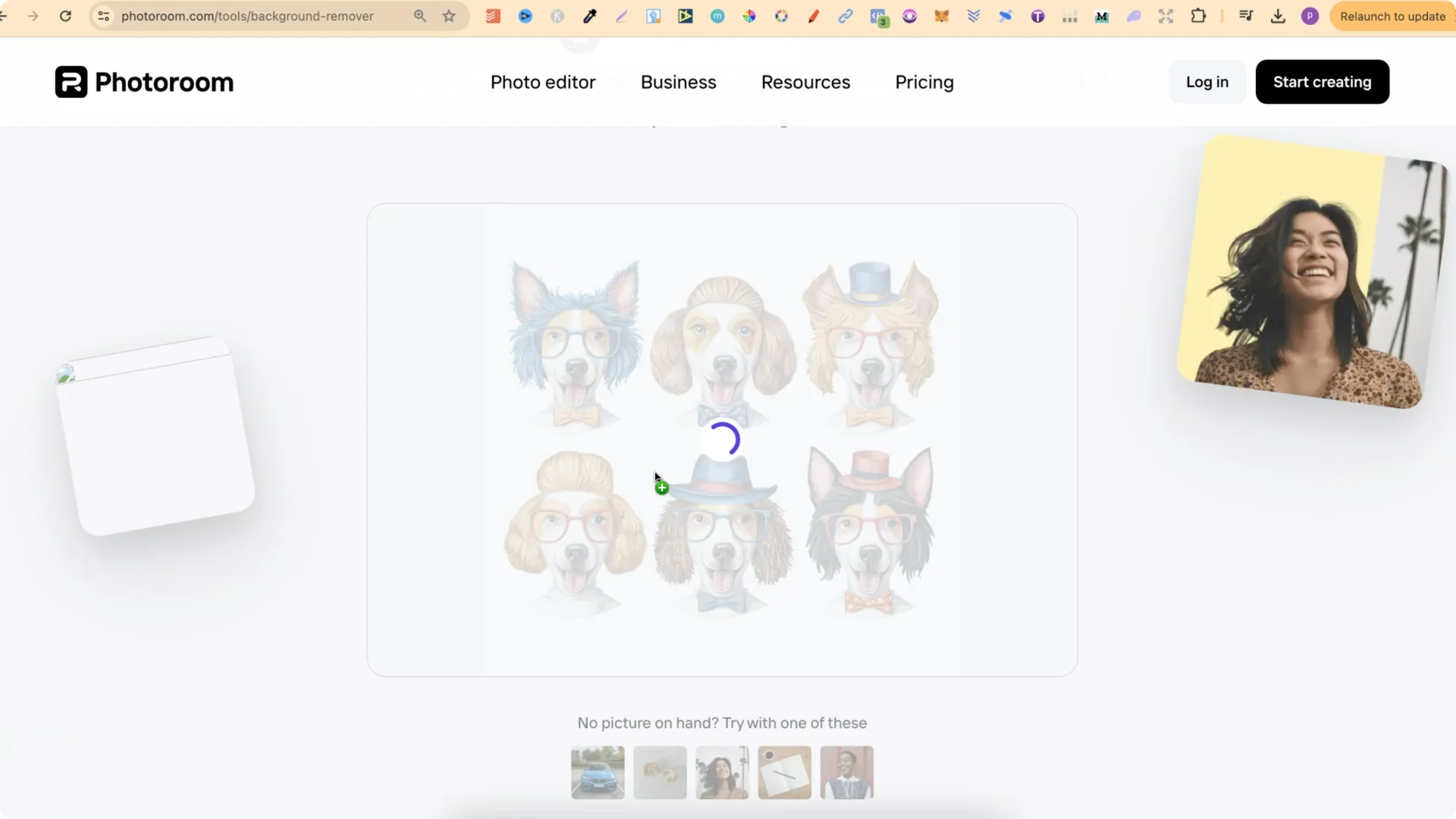
2. Wait a few seconds – it processes quickly.
3. Check the before and after.
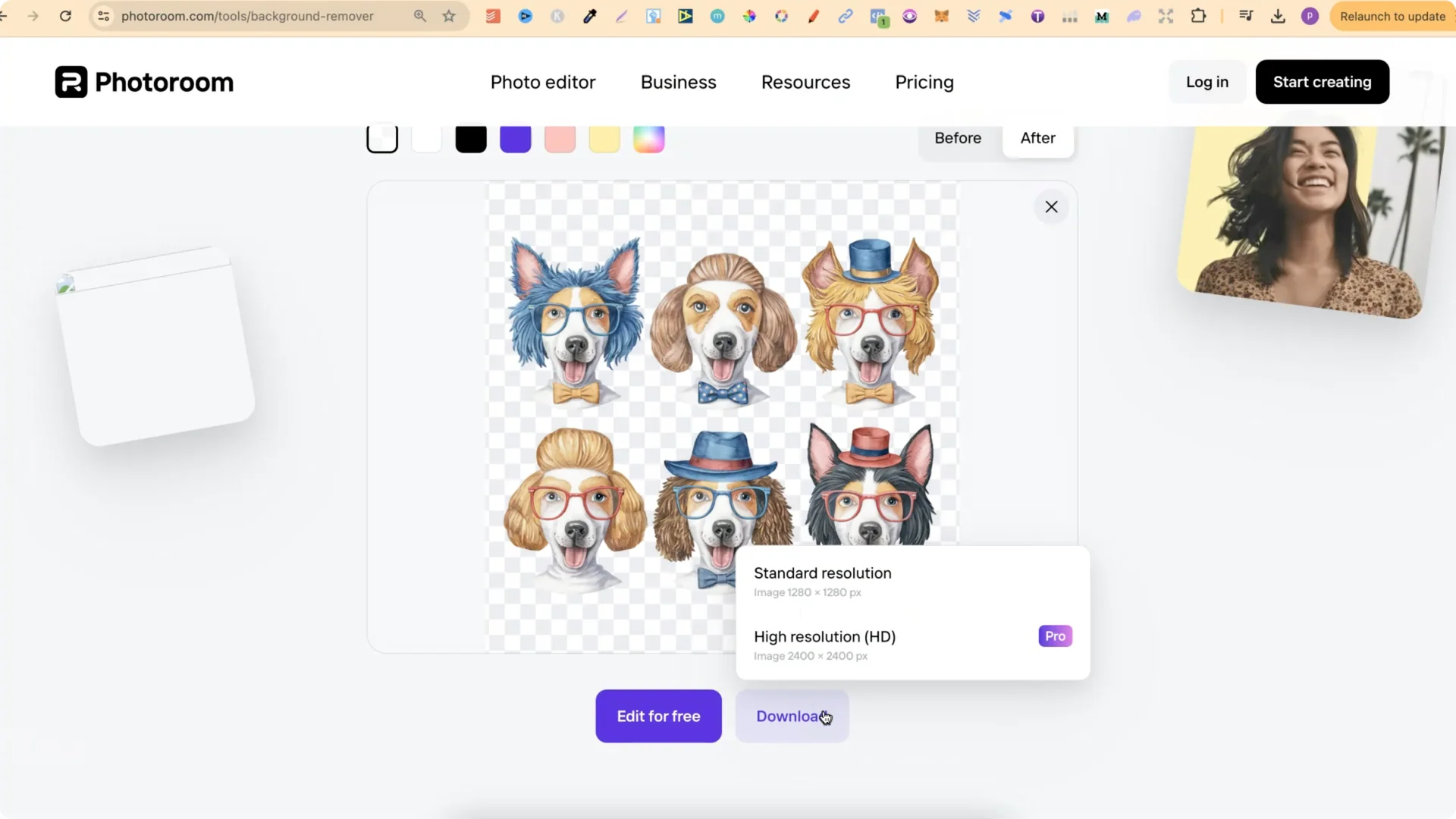
4. Click Download.
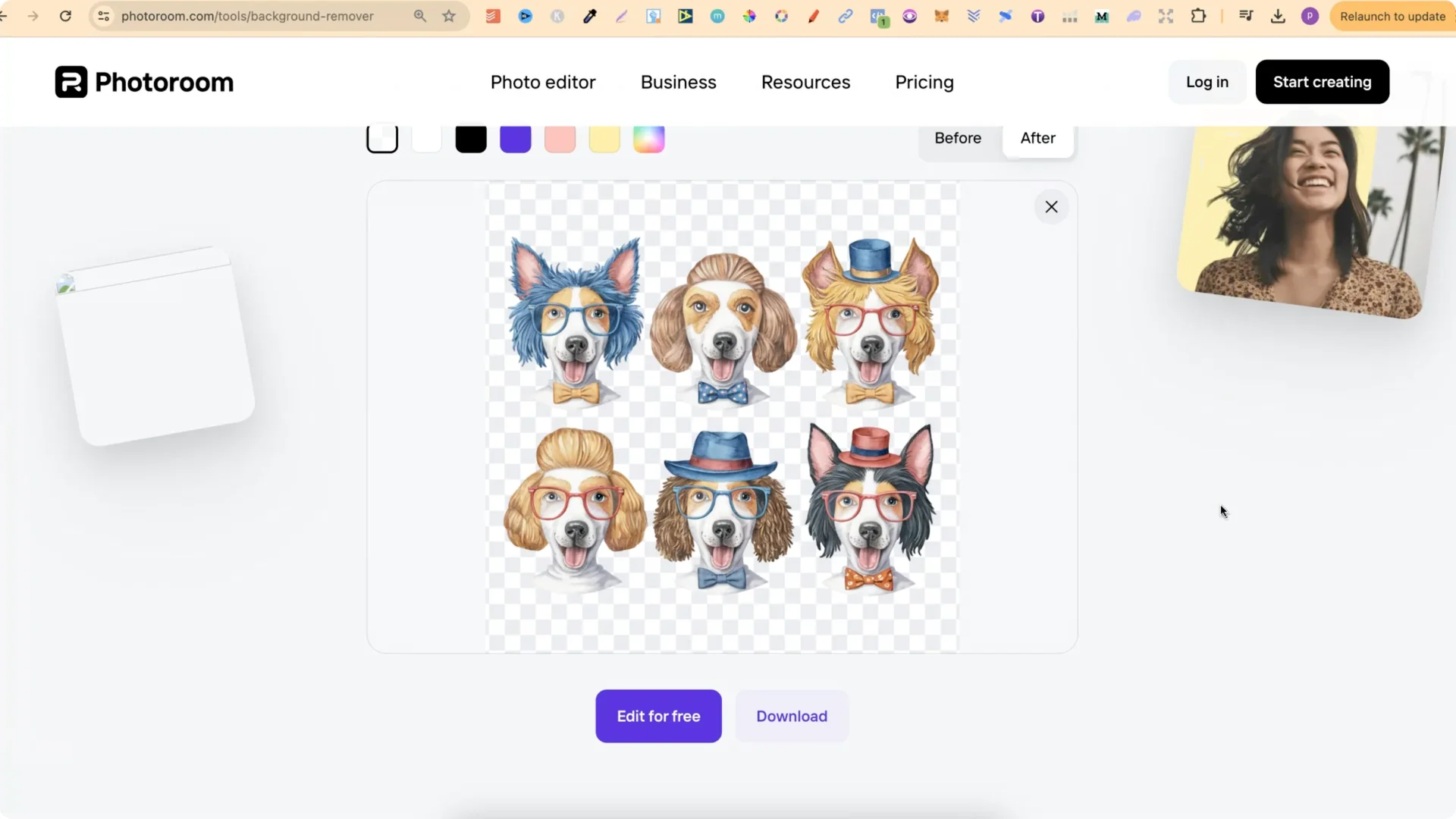
Note: On the free plan you can only choose the standard resolution.
Upscaling Tip After Removing the Background
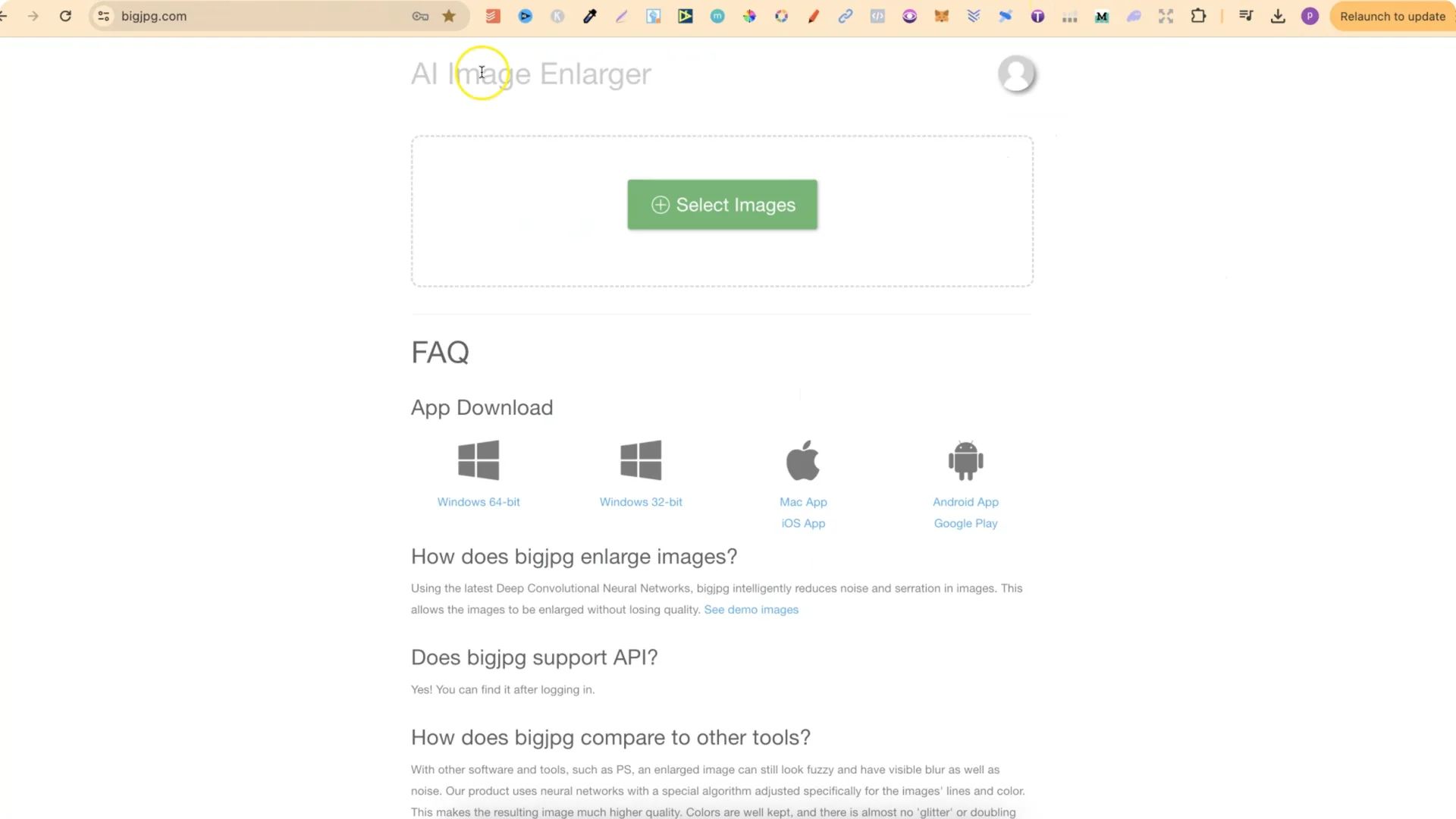
Because you can only get the standard resolution, upscale your images after you have removed the background.
Other PhotoRoom Tools
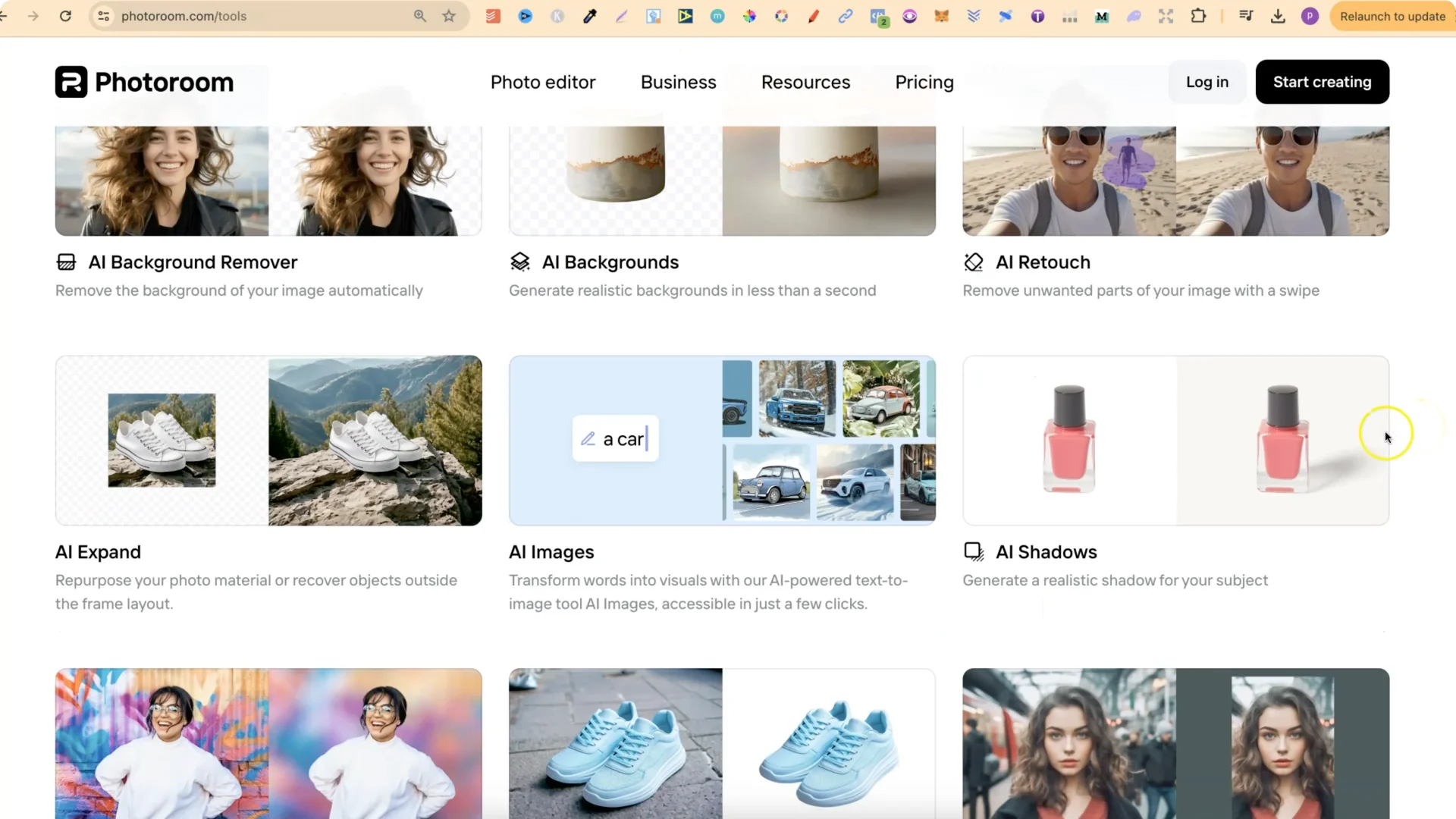
PhotoRoom also offers:
Final Thoughts
PhotoRoom Background Remover is free and unlimited, does a pretty good job on simple images, lets you swap background colors quickly, and works fast. Keep in mind the standard resolution limit on the free plan, and upscale after removal if you need higher quality. There are plenty of other helpful tools in PhotoRoom too.