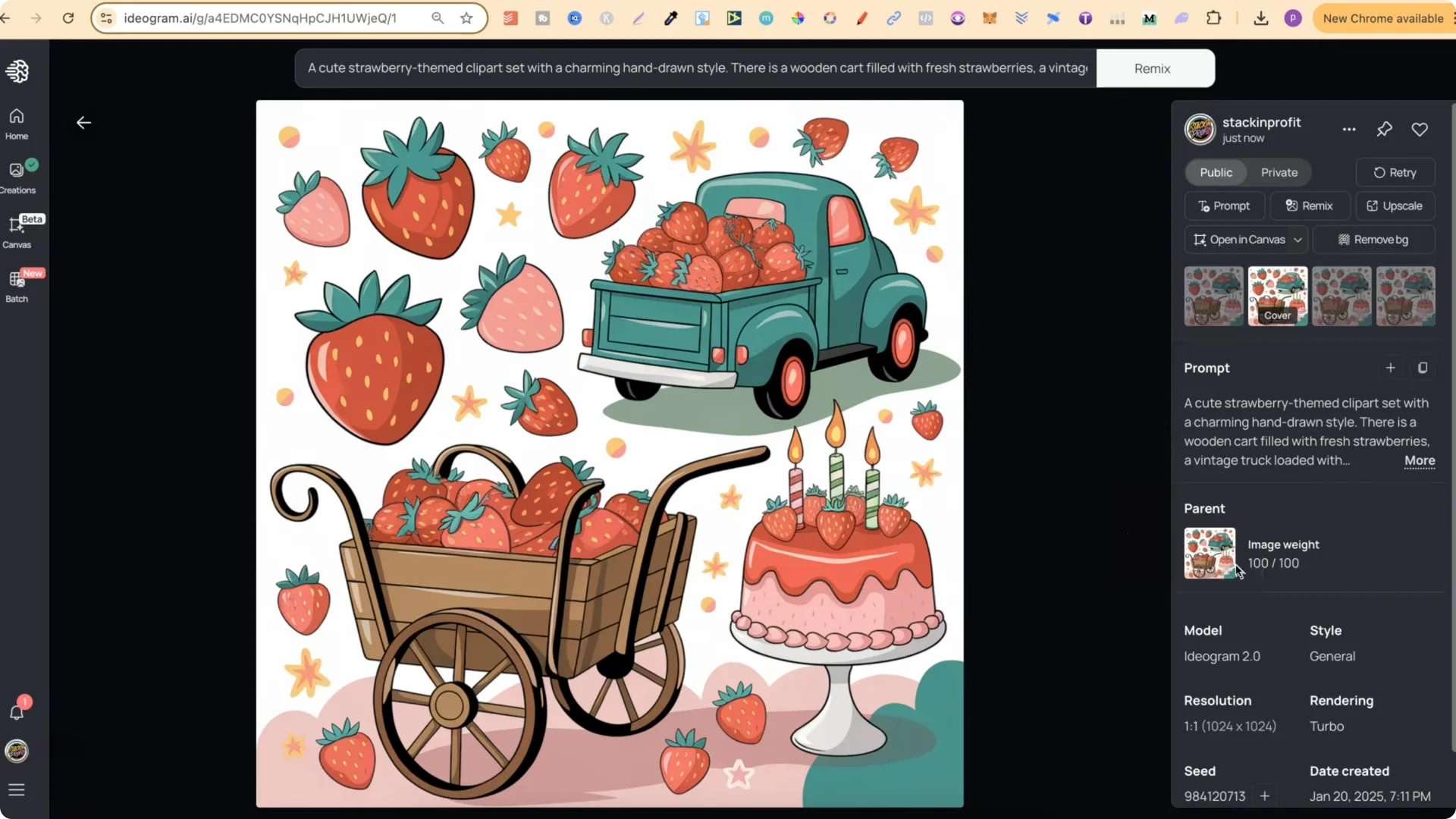
I have a lot of designs on my Ideogram public profile – clip art sets, Valentine’s Day, St Patrick’s Day, and lots of coloring pages. If you click into one, you will often see Image Weight 100 but no parent image. I do this on purpose to keep everything more organized.
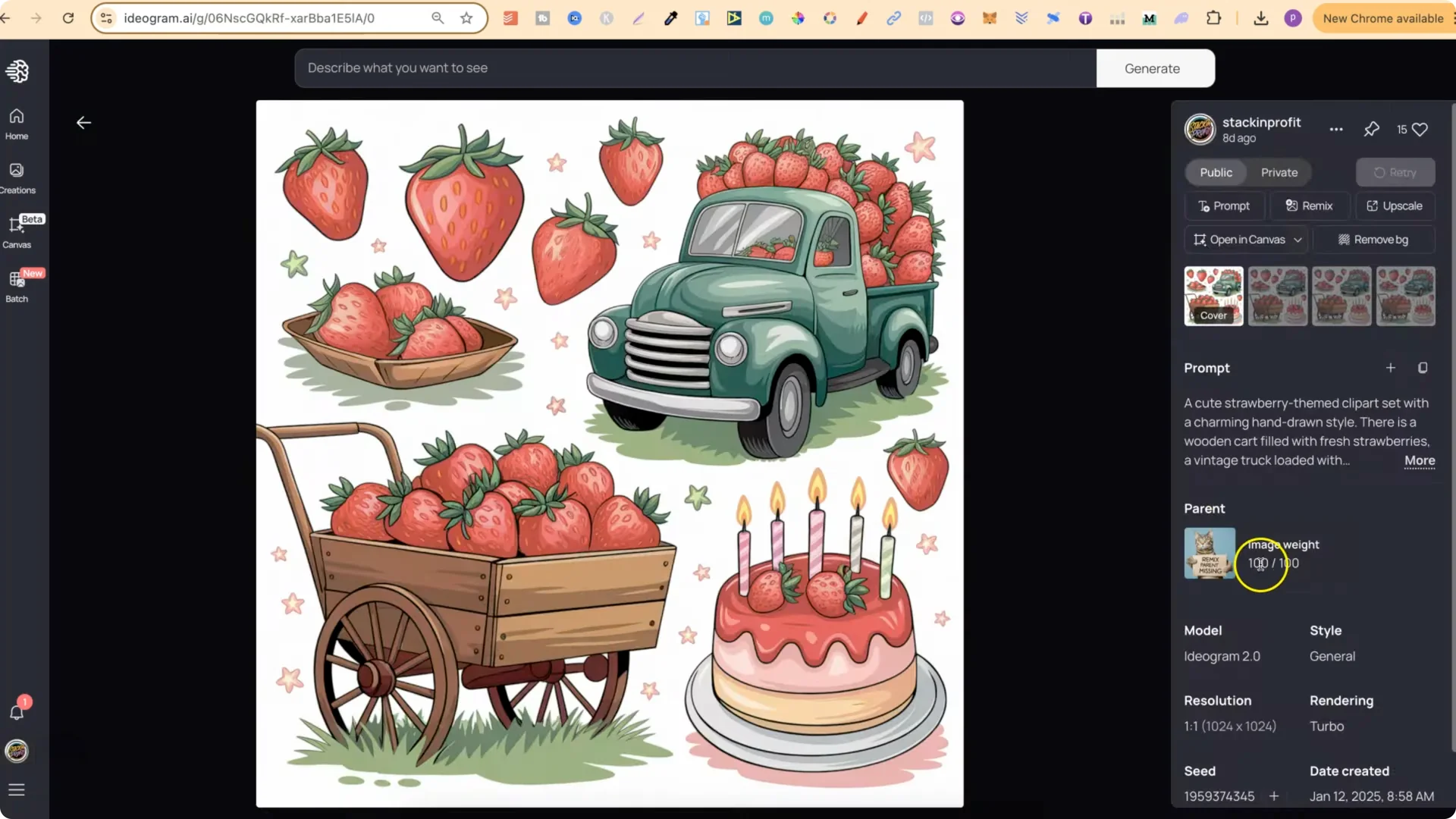
I get asked why so many of my images look like remixes while showing remix parent missing, and if it has any relevance to how the images are created. Here is exactly how and why I do it.
Organizing Ideogram Generations: Why you see “Image Weight 100” and no parent
Every generation in Ideogram creates four different images. I make my gallery look like each set is practically the same on purpose. It saves me from opening each set and checking four variations to find the one I liked.
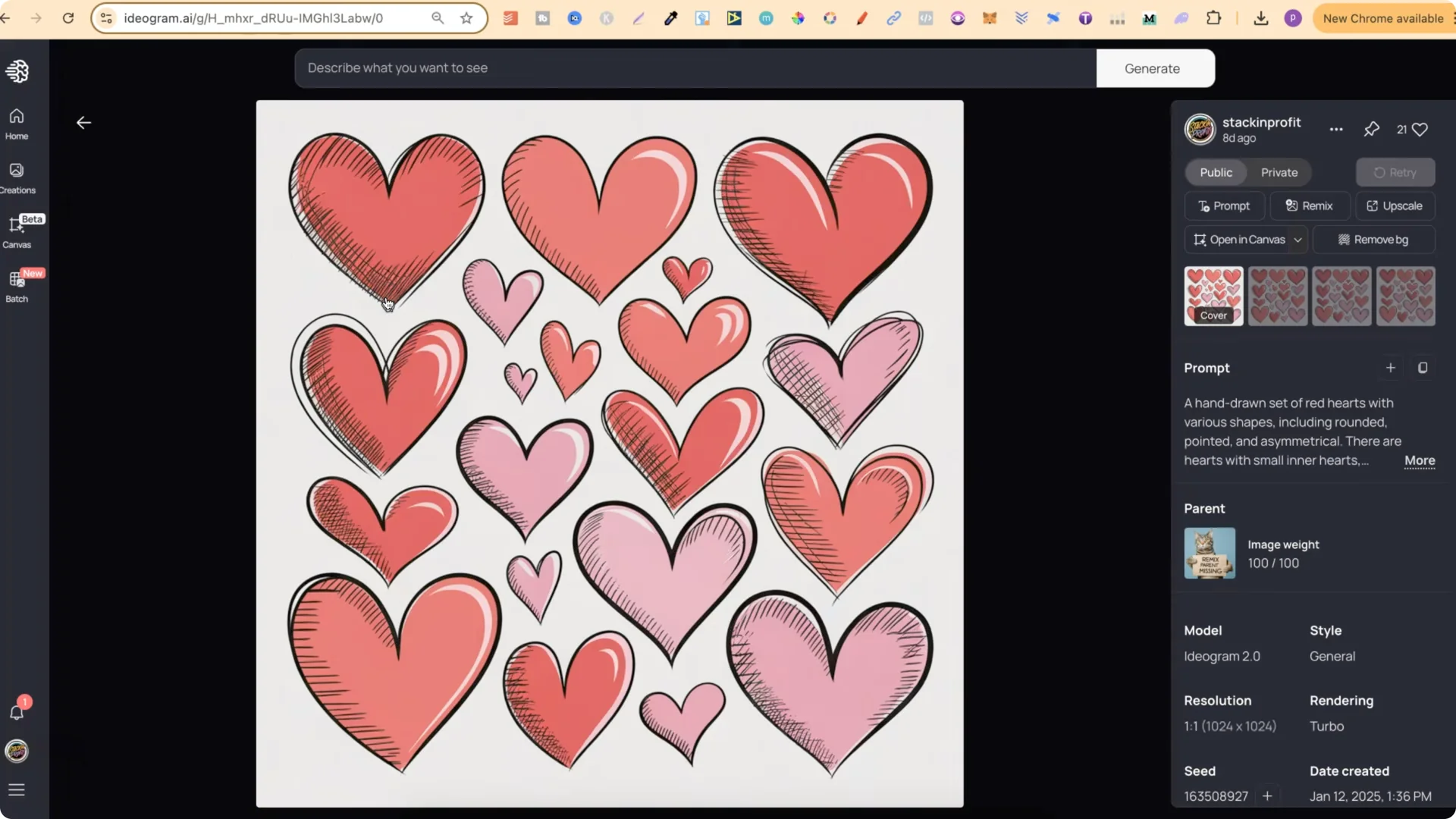
By finding the best image in a set of four, remxing it at 100 image weight, and deleting the original four, I end up with a new set where all images are essentially the same. That is why you will see Image Weight 100 and no parent image.
Organizing Ideogram Generations: My workflow
– Use your prompt.
– Turn Magic Prompt on.
– Set it to public.
– Use Model 2.0 and Turbo.
– Click Generate.
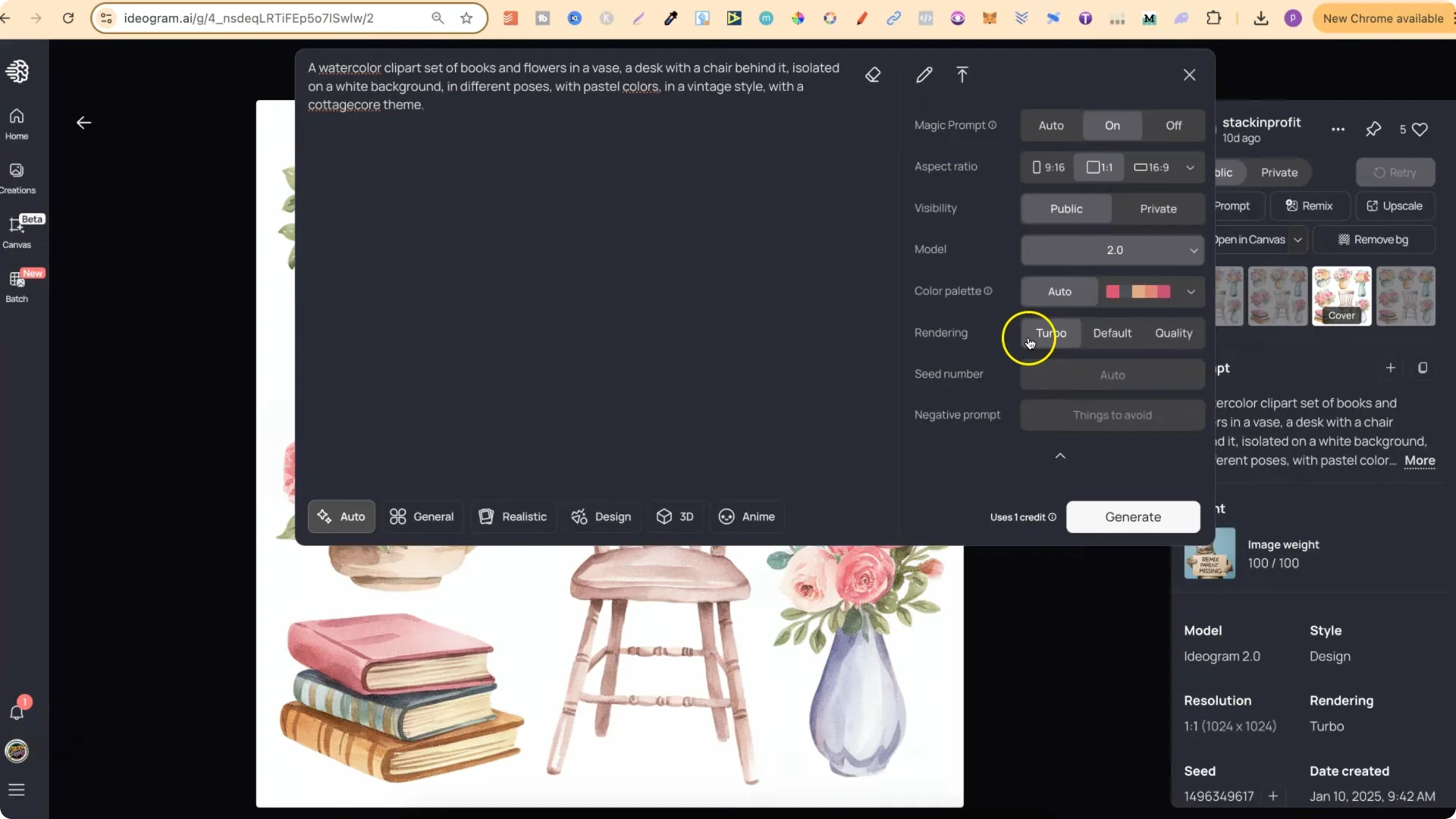
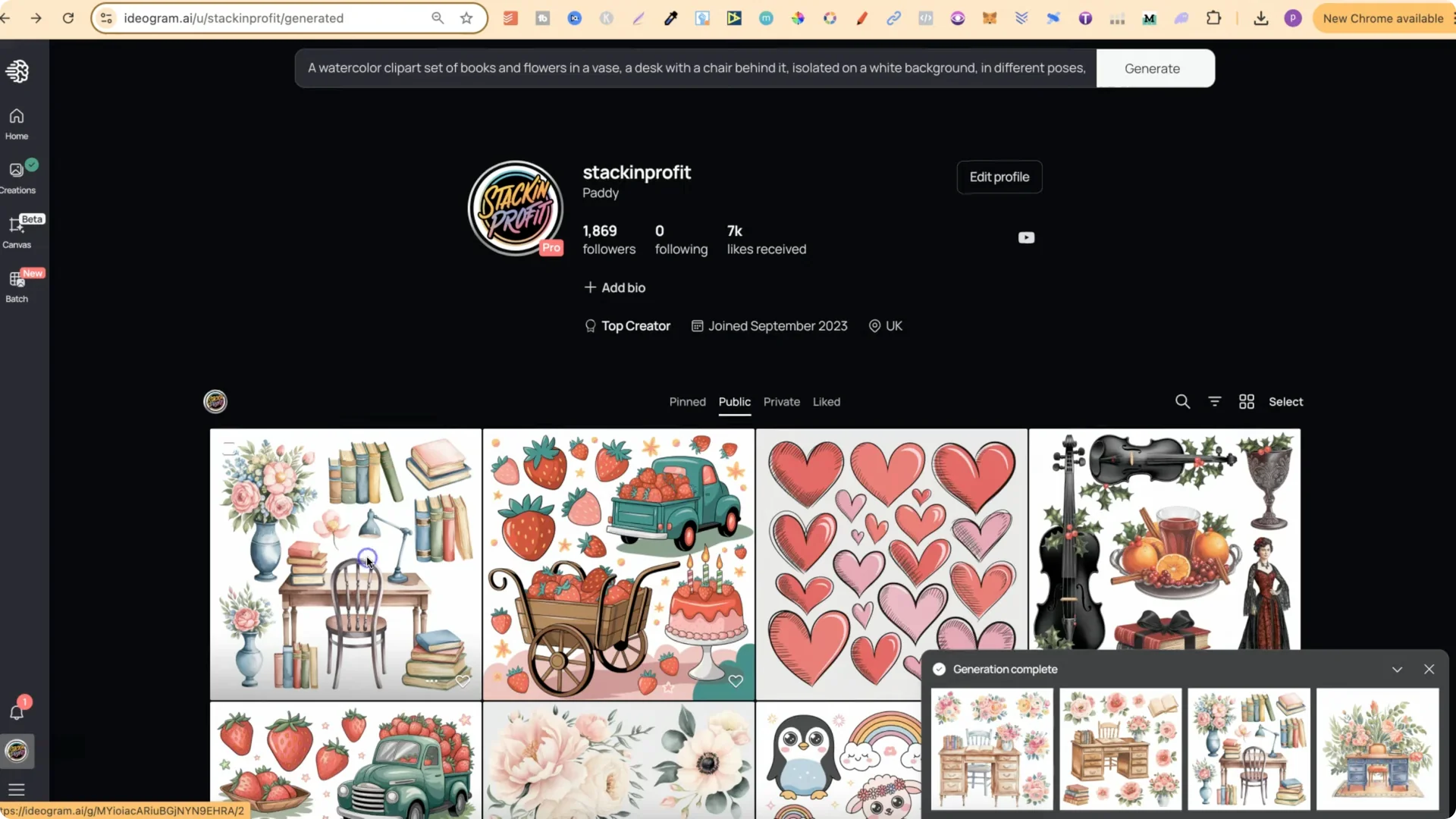
– Click Remix at image weight 100. This keeps practically the same image across all four results.
– Turn Magic Prompt off for the remix because the image is already what you want.
– Click Remix.
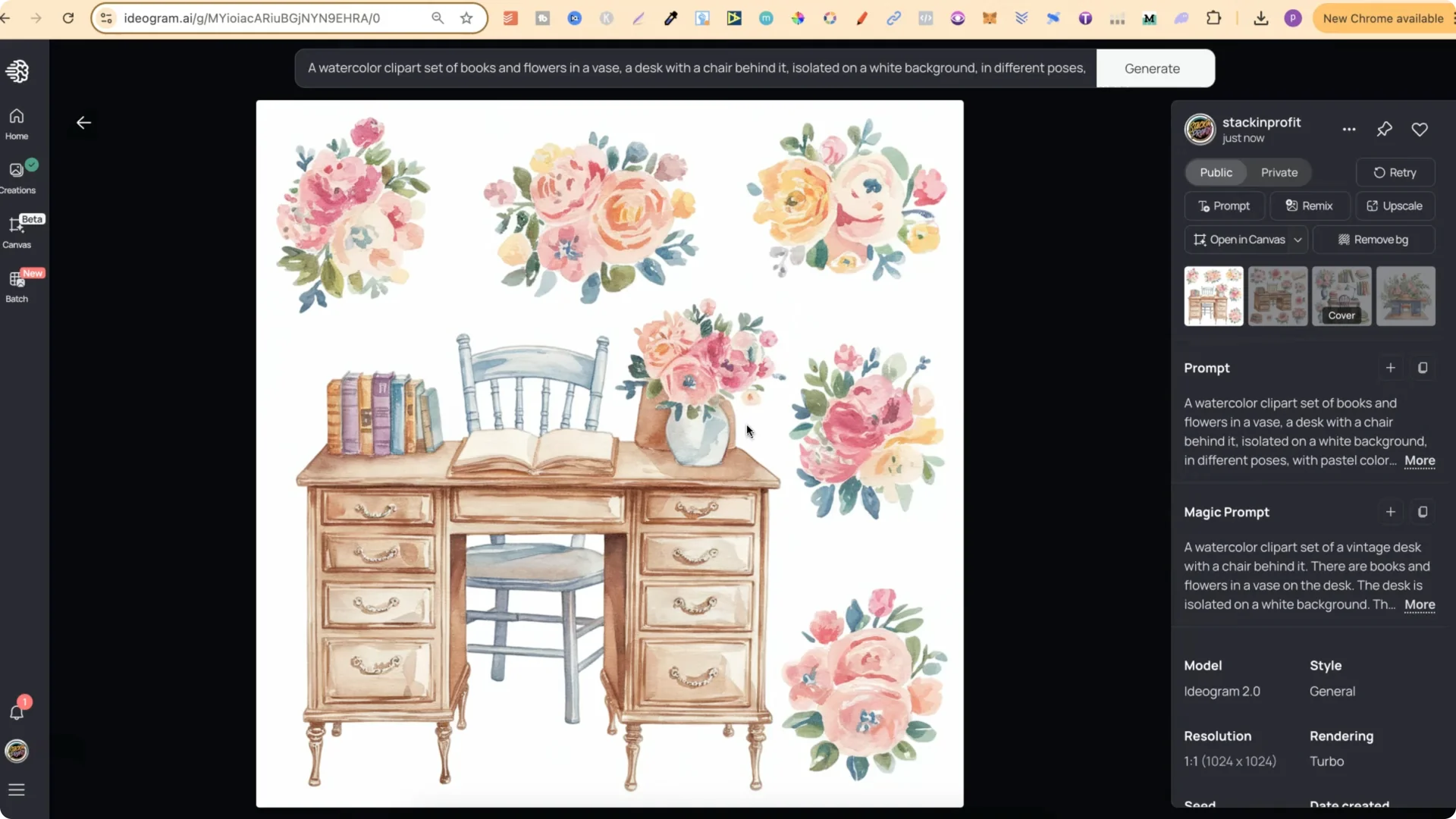
– Delete the original four-image generation.
– The new generation will now show Image Weight 100 with no parent image because the parent was deleted.
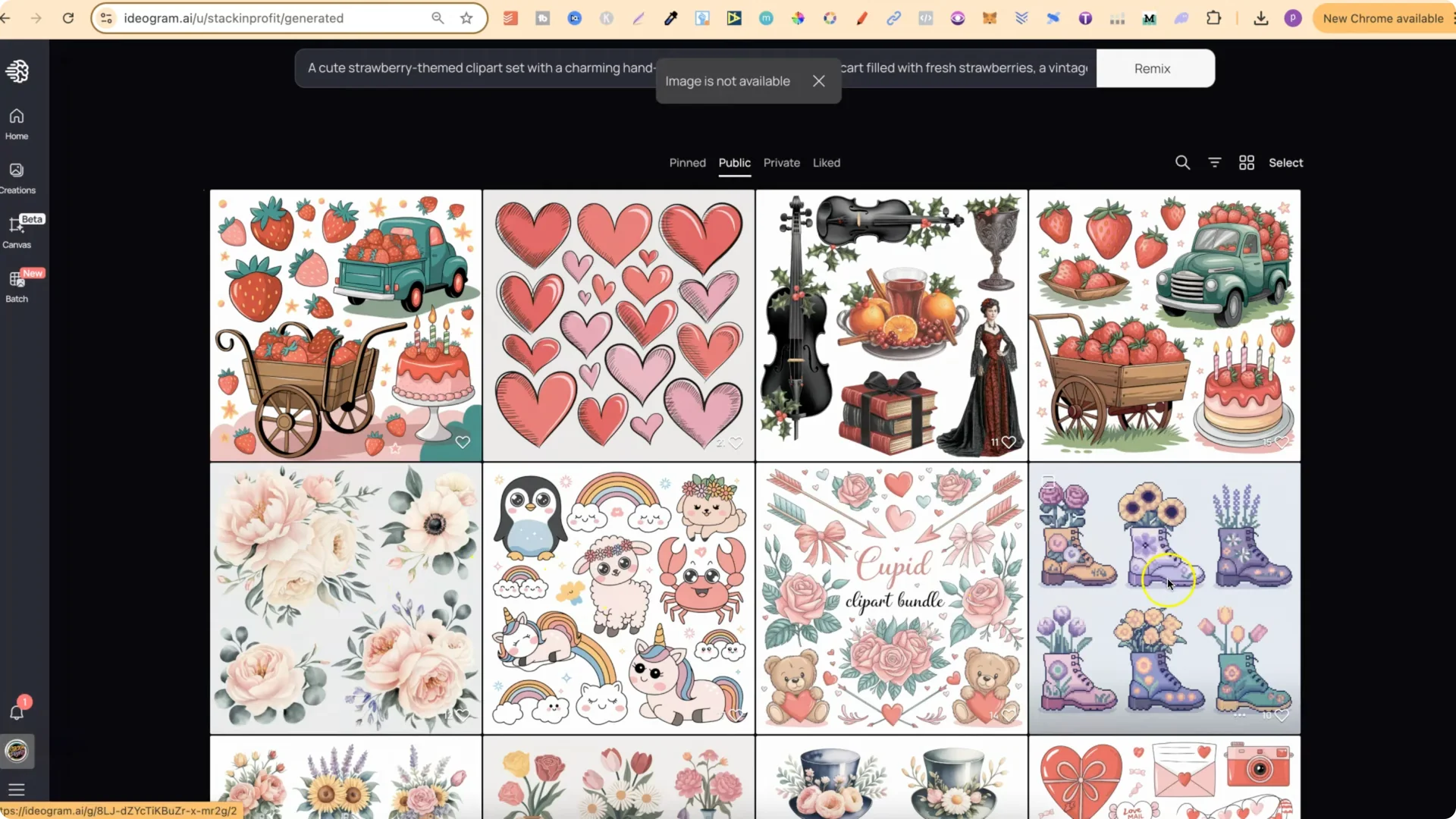
What this looks like in practice
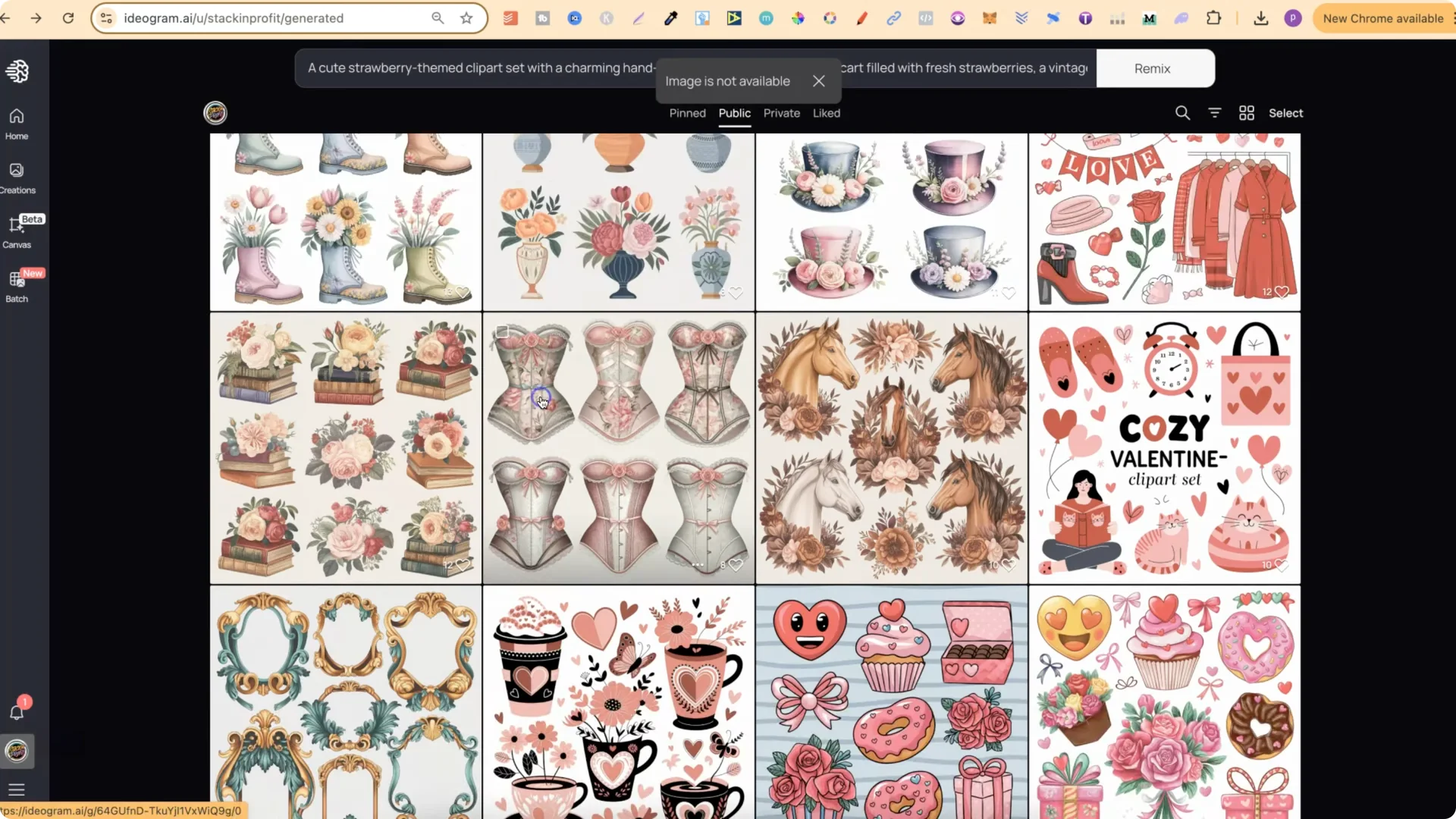
Notes for Organizing Ideogram Generations
Final Thoughts
Each Ideogram generation gives you four images. By choosing the one you like, remixing it at 100 image weight, and deleting the original four, your gallery becomes much easier to scan and manage. This simple workflow keeps everything organized and lets you identify your designs at a glance.