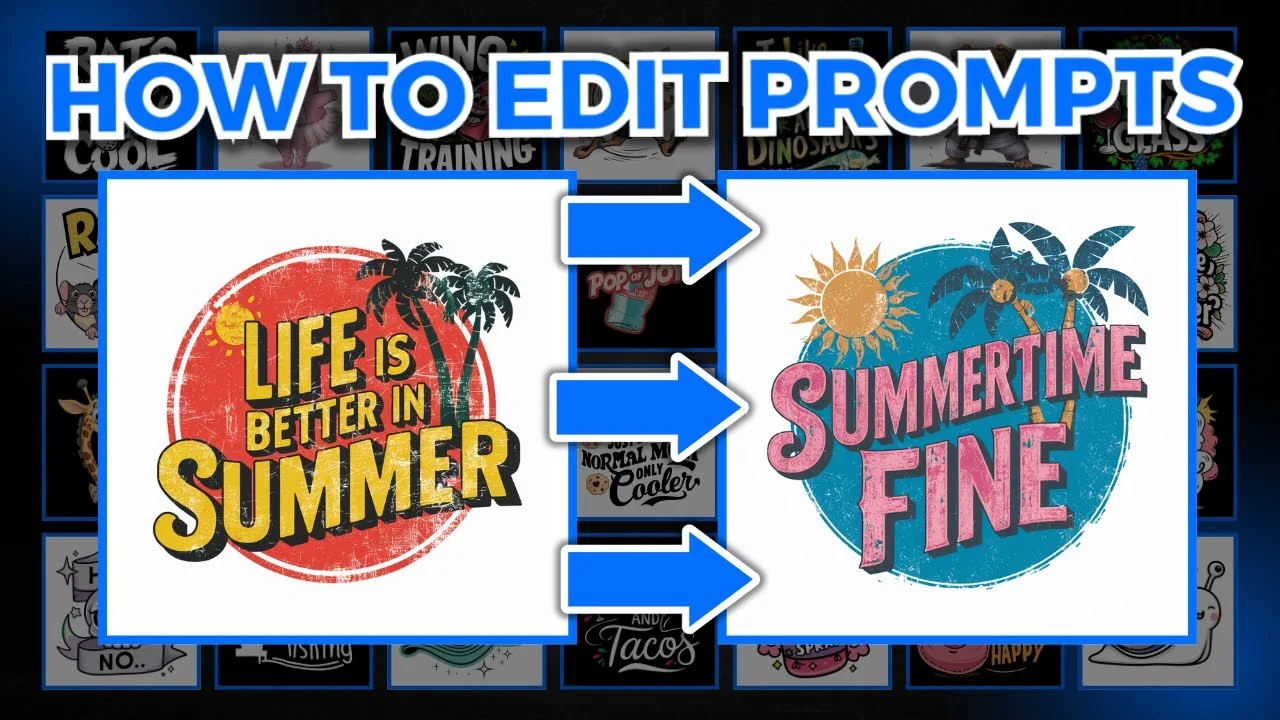
Here’s how to edit and modify Ideogram prompts so you can make your designs much more unique to you. Most people find a prompt they like and directly copy it to generate images. It takes seconds to mix it up and get a brand new design.
Every prompt on Ideogram is interchangeable, and you can change those prompts within seconds. Instead of copying a prompt directly and generating from there, start changing things up. If it’s a quote design, change out the quote. Change the color palette. Swap or add objects. There’s a lot you can do to make an Ideogram prompt more unique.
Why Ideogram Prompt Customization Matters
Using prompts as a base for new designs is the key. Never just copy and paste. By switching quotes, colors, and elements, you keep the idea while making a fresh version that fits your style.
Modify a Quote Design Step by Step
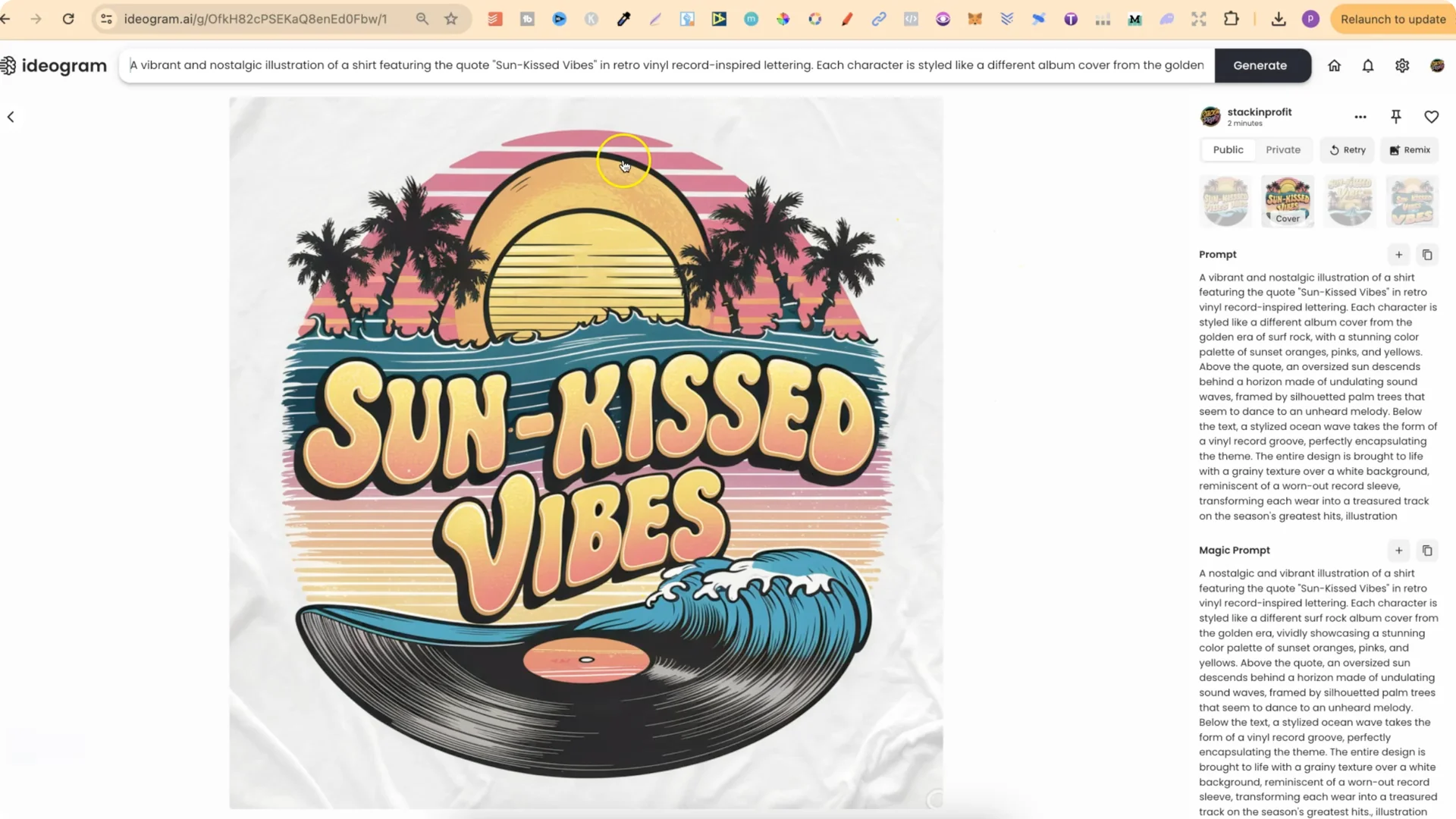
This example starts with a summer quote design. We’ll replace the quote, adjust colors, and generate new outputs.
Get a quote
- If you’re going to use quotes, always do your due diligence and check for trademarks.
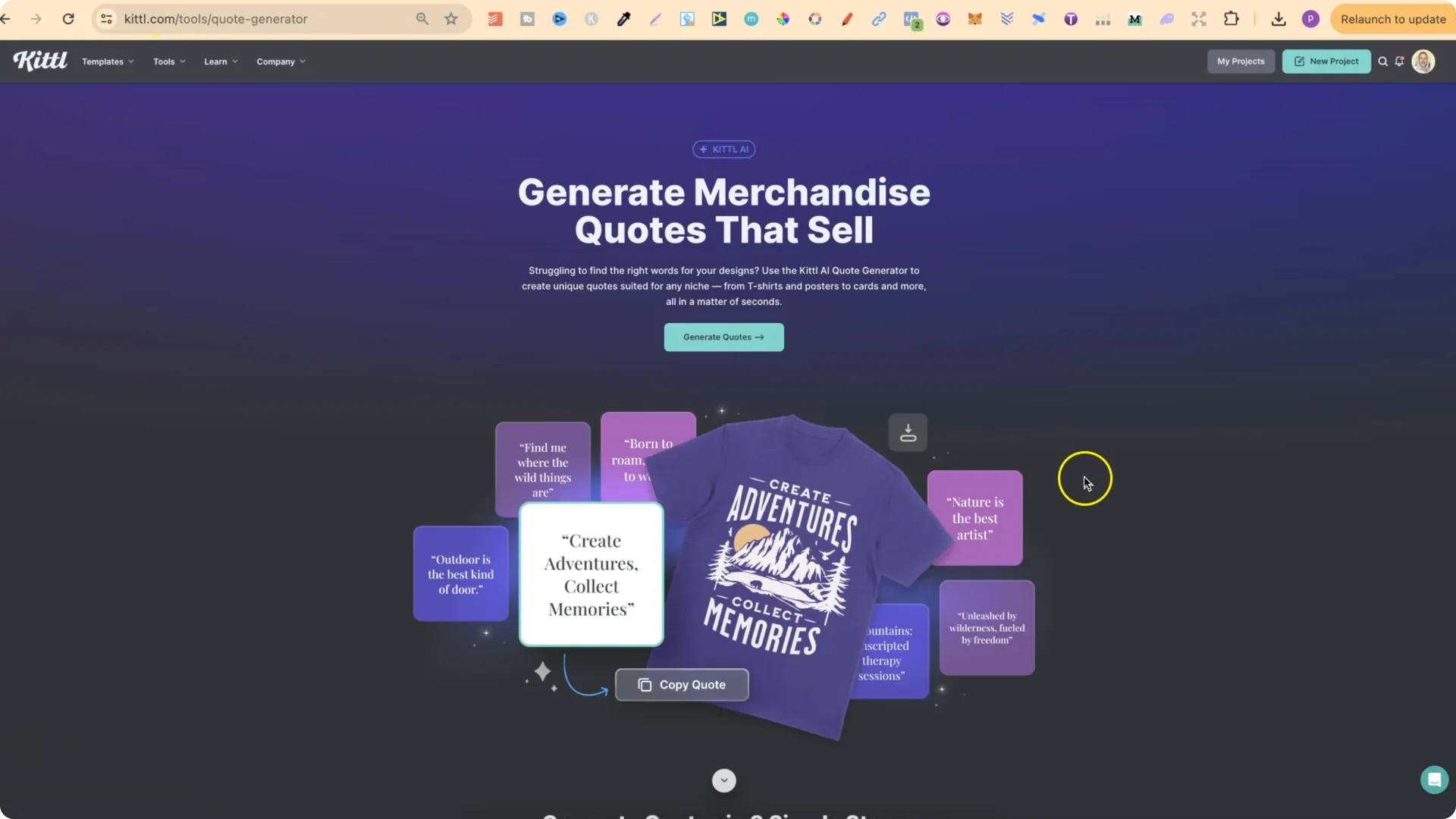
- You can get quotes using Kittl or ChatGPT.
- In Kittl: go to Tools, then AI Quote Generator.
- Click Generate Quotes. If you don’t see what you want, type what you want.
- For this example, type “summer,” click Continue, choose a style like Funny, keep it at 2 to 4 words, then click Generate Quote.
- This quote generator does use your Kittl credits, and only one per generation.
- Take a quote you like. For example: “Sunkissed Vibes.”
Swap the color palette
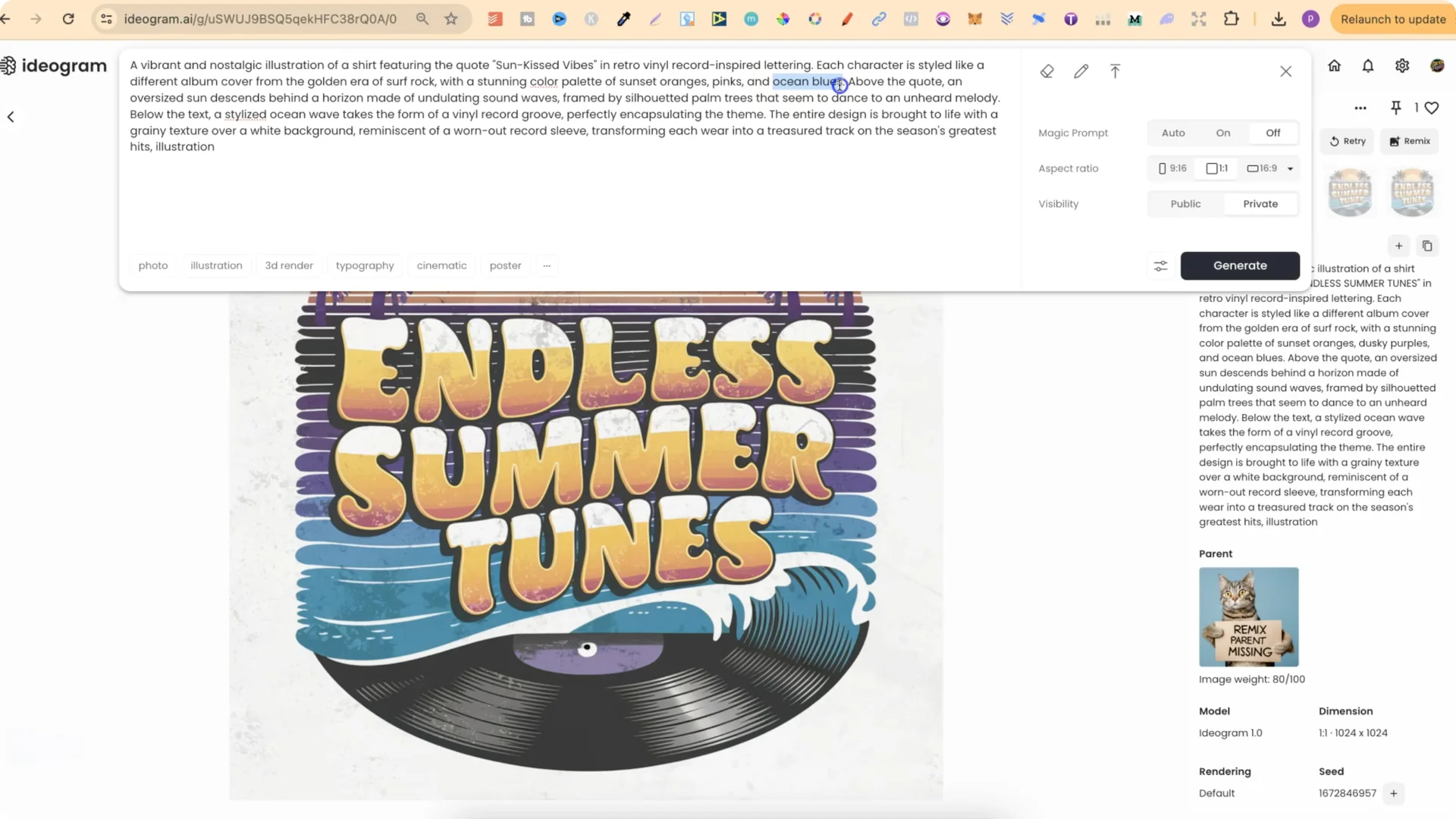
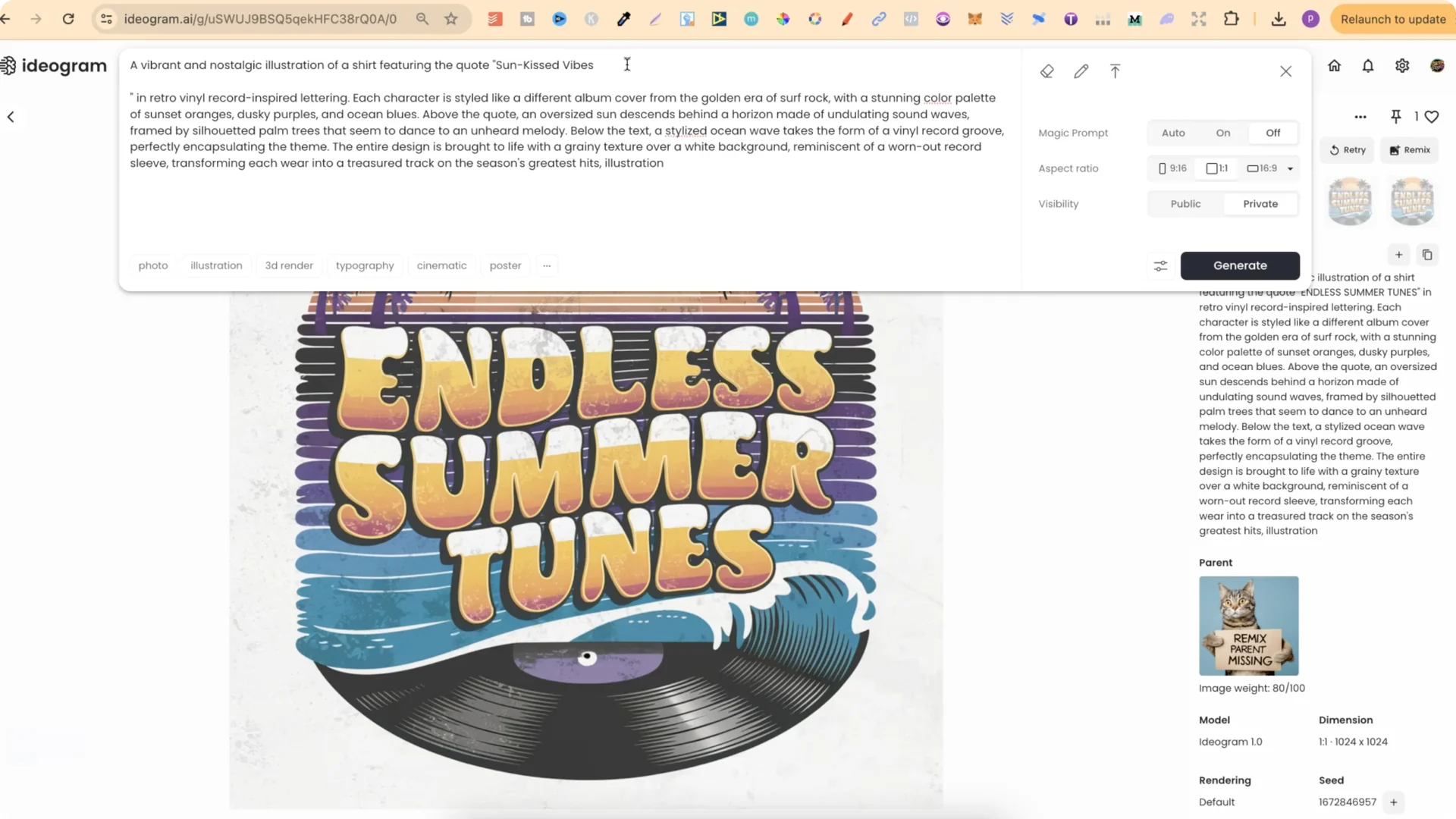
- In Ideogram, replace the original quote with your new quote.
- Because the original has a sunset background with orange, keep the orange if you want that vibe.
- Change dusky purples to pinks, and add yellows.
Generate with Magic Prompt
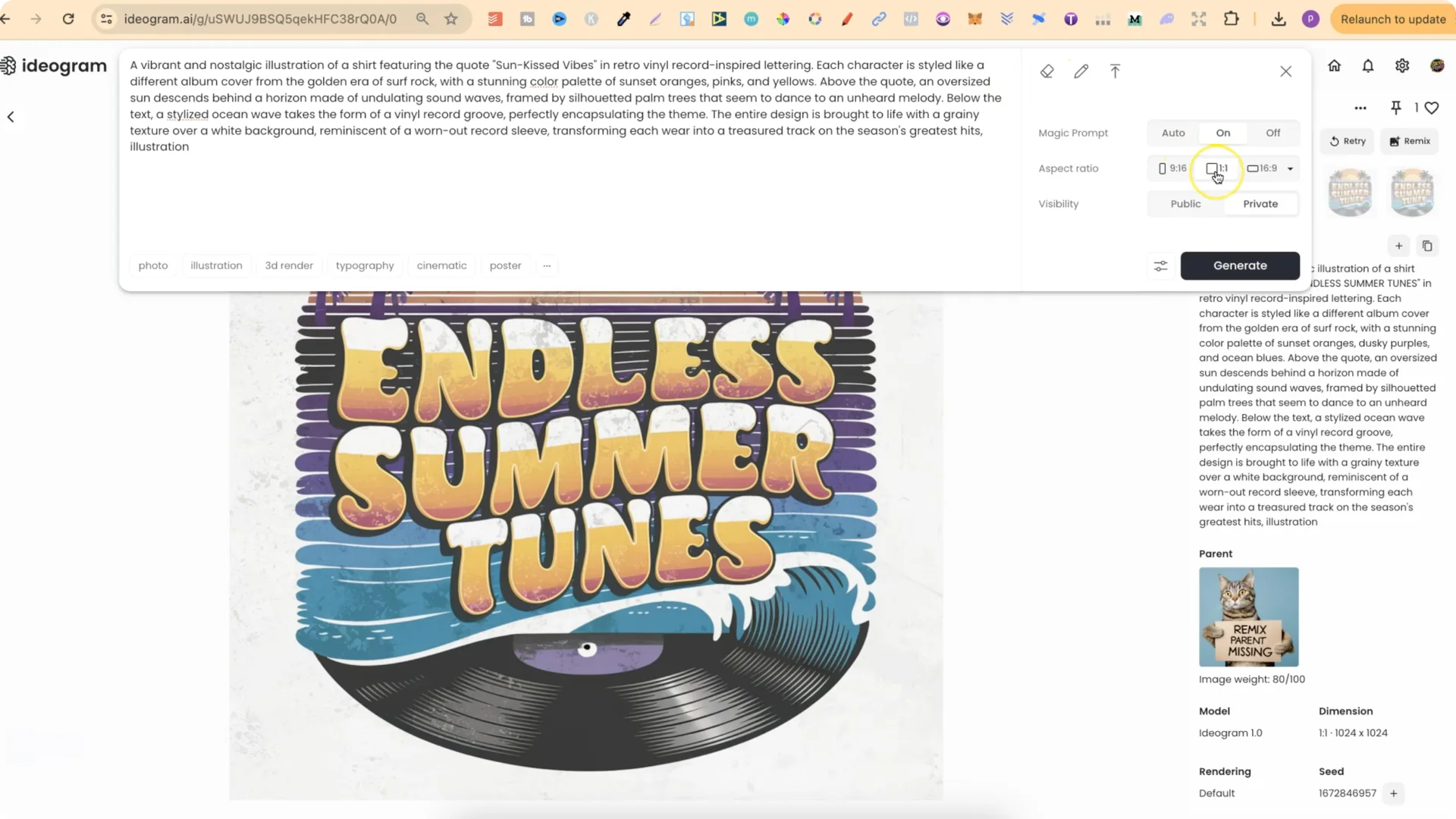
- Turn Magic Prompt on.
- Set aspect ratio to 1×1.
- Set visibility to Public if you want it in your public view.
- If the prompt already ends with “illustration,” don’t add it again.
- Click Generate and review the results.
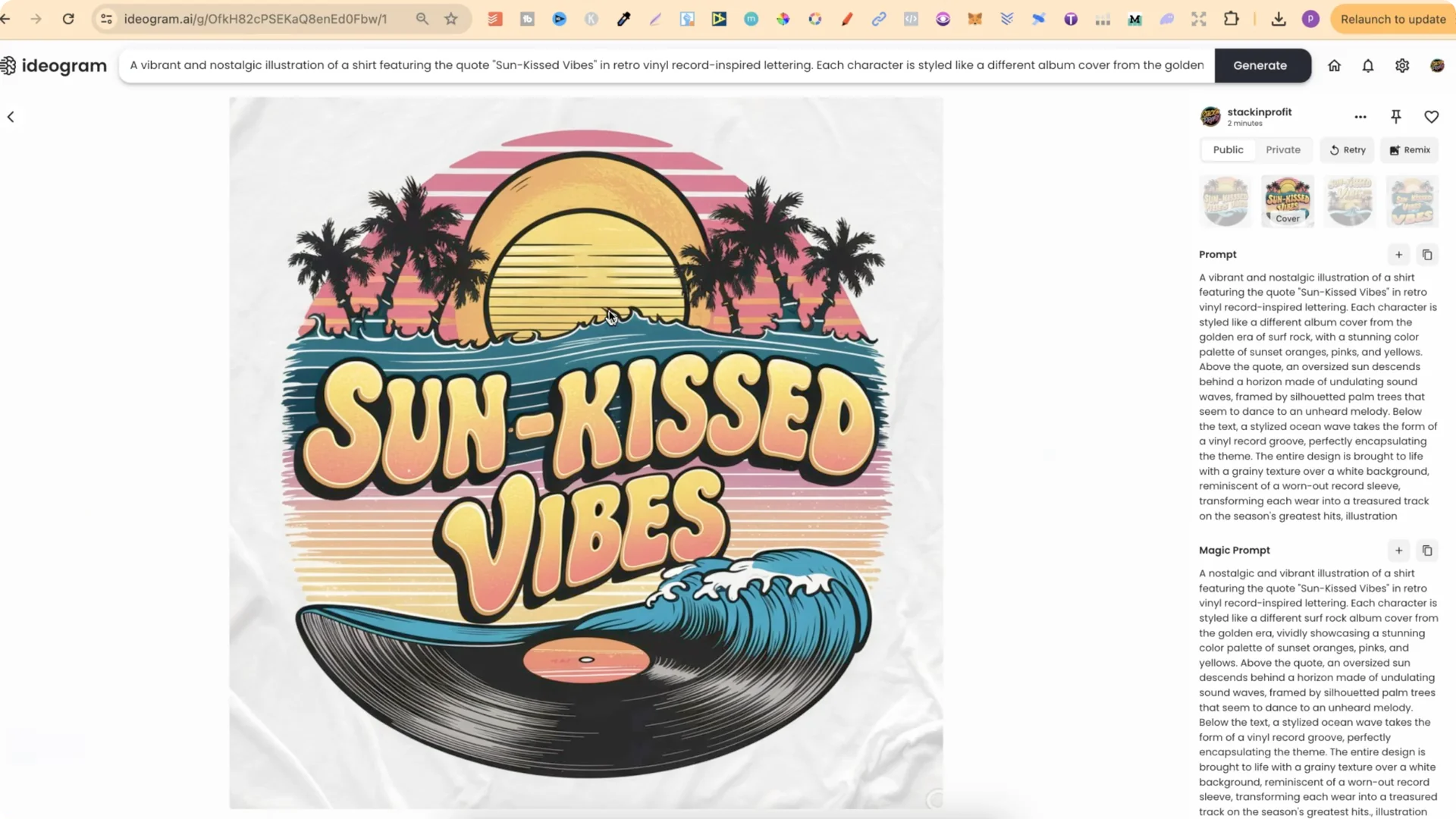
That’s how you can easily modify and edit prompts in Ideogram.
Ideogram Prompt Customization: Second Summer Example
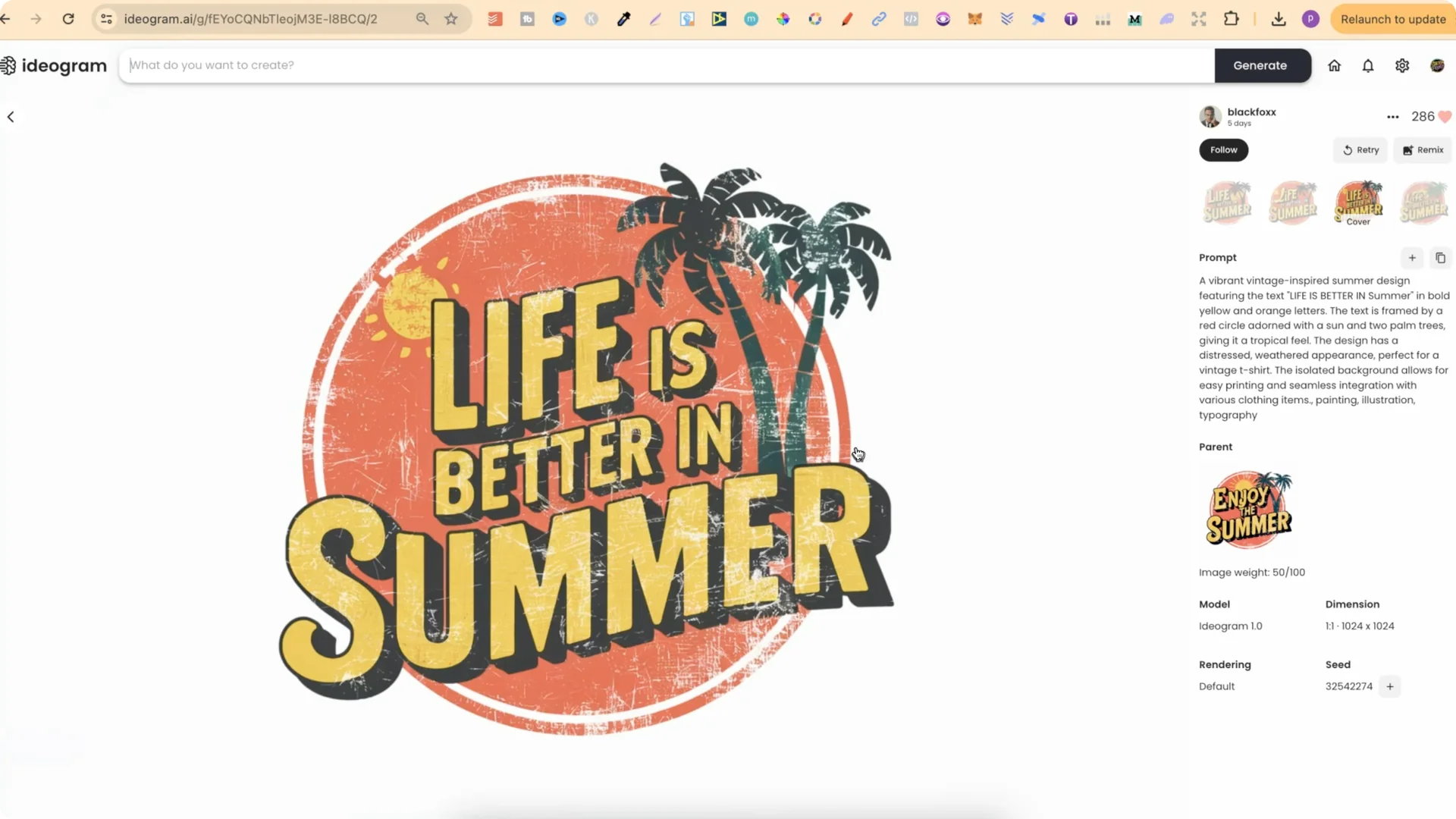
For a second example, start with a liked summer design and bring its prompt into the editor. Choose a different quote from the quote generator. For instance: “Summertime fine.”
Adjust typography and framing
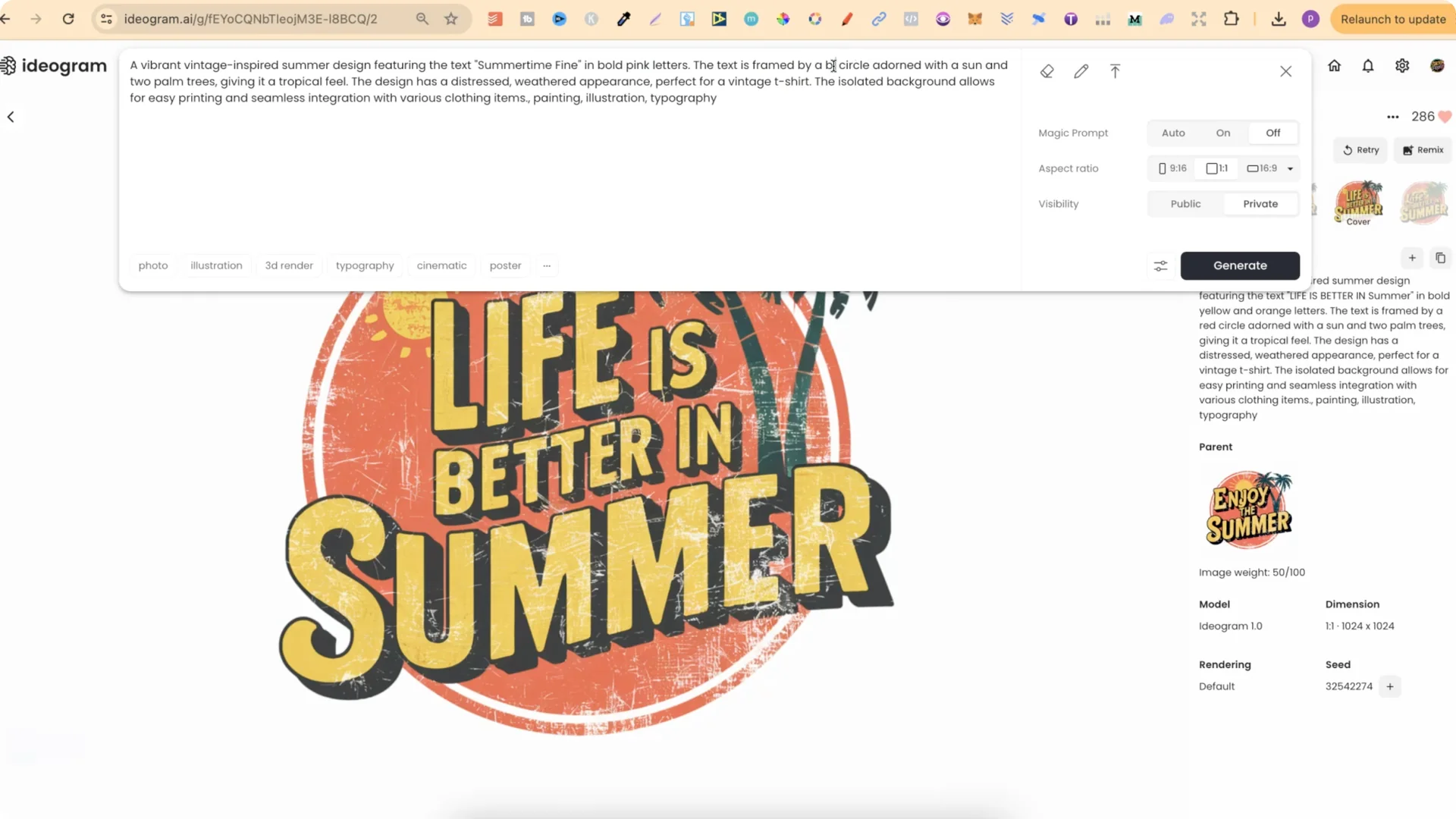
- Change “in bold yellow and orange letters” to “in bold pink and blue letters,” or just “in bold pink letters.”
- Update framing: “the text is framed in a blue circle with a sun and two palm trees.”
- Use Magic Prompt.
- Use “illustration,” and if the prompt mentions “typography,” include that too, but remove duplicates.
- Set to Public if desired, then generate.
Generate and compare
- Pick the best output. Make sure it’s spelled correctly.
- Compare the newer version to the original. If it’s not different enough, play around with the colors more, add a few things, or take things out.
- Remember: use the prompts as a base for new designs. Never just copy and paste.
Build a Catalog From the Community
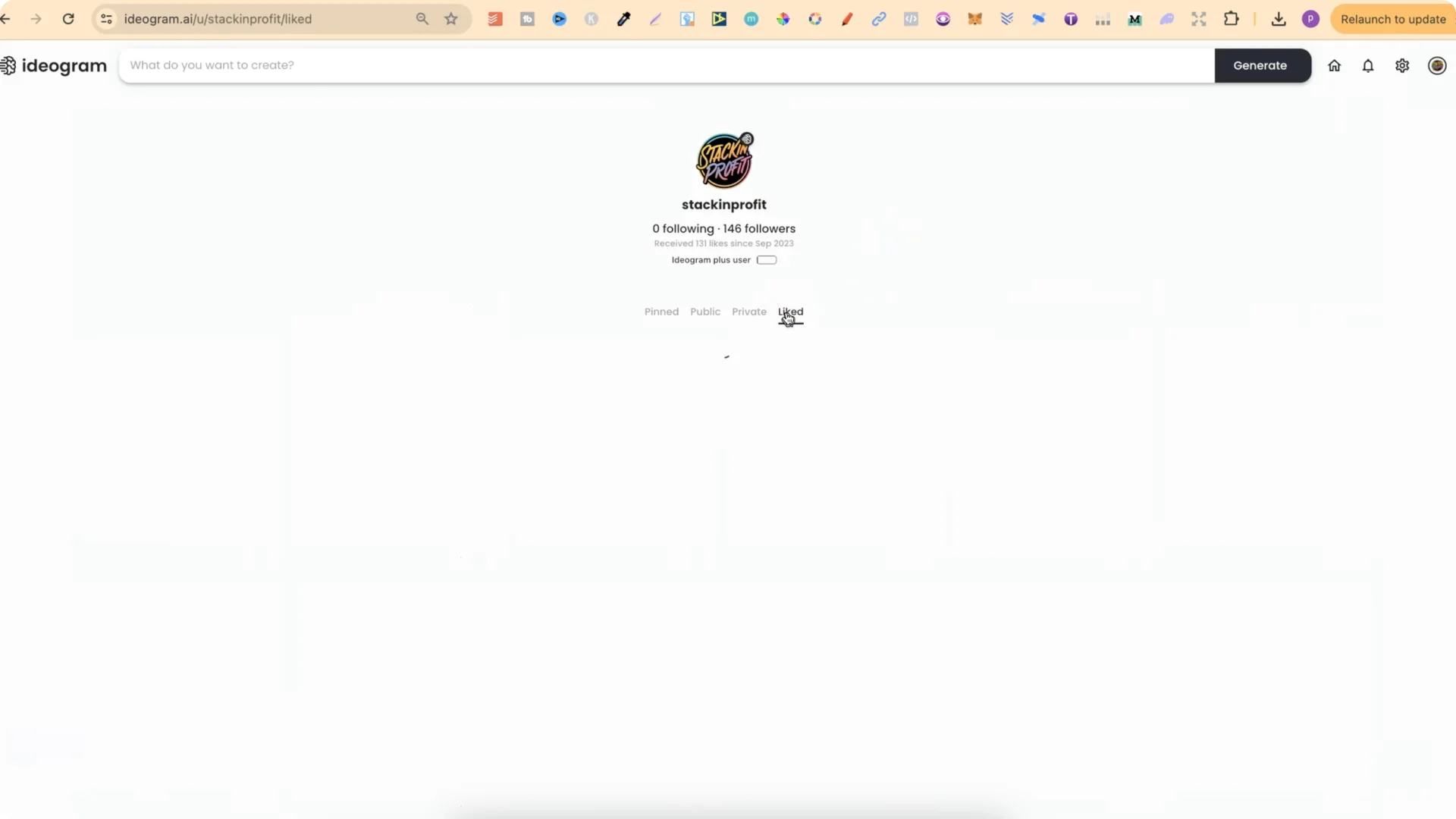
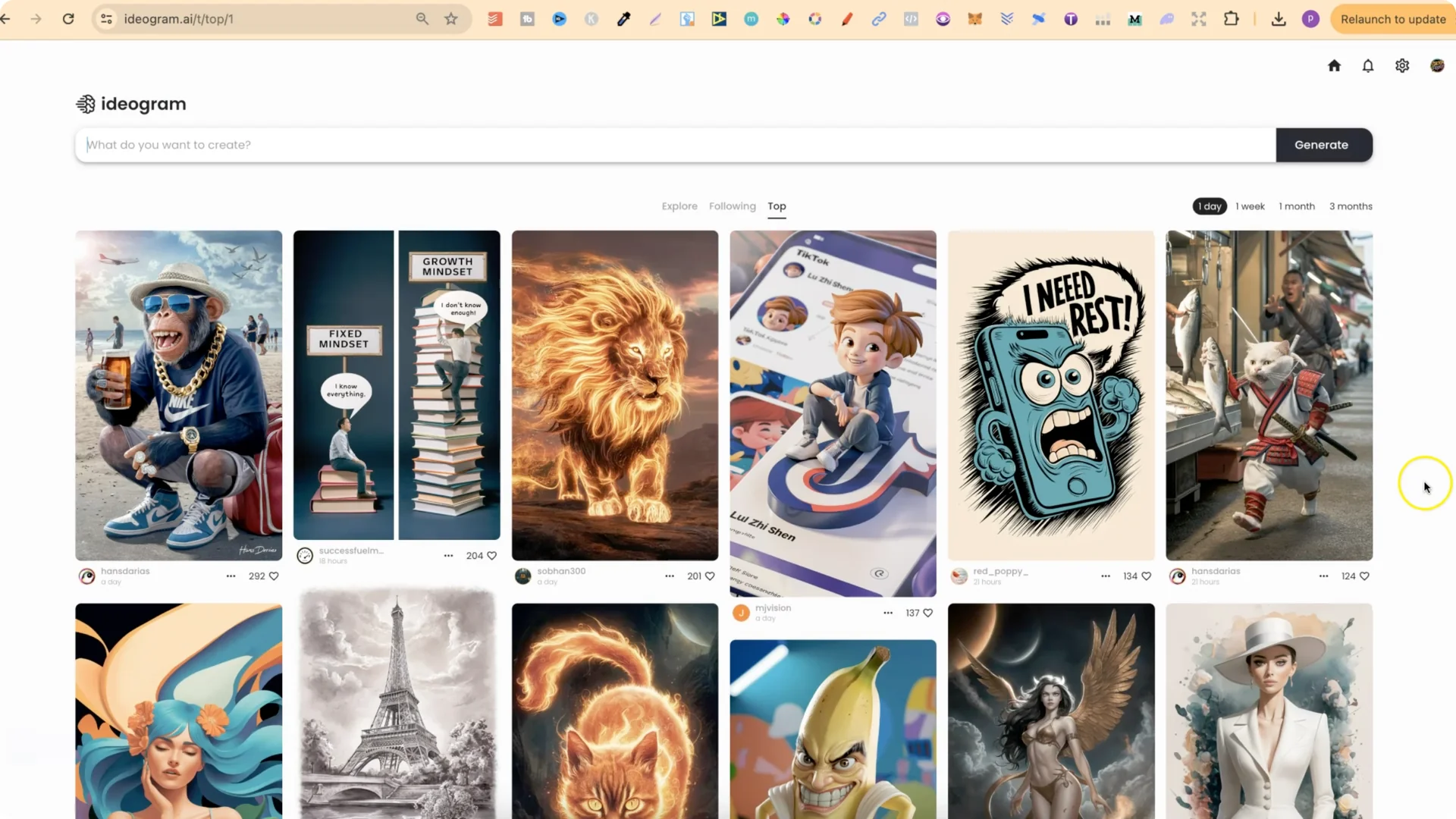
You can browse the community and sort top designs by 1 day, 1 week, 1 month, or 3 months. Scroll through, and if you like a design, heart it. In your profile under Liked, you’ll see every design you’ve hearted. Build a catalog of other people’s designs so you always have prompts you can edit, modify, and make your own.
I also create lots of different prompts on my public profile. There are t-shirt designs and single graphics that work well as stickers. All of these are interchangeable, and you can tweak them the same way.
Final Thoughts
Prompts are interchangeable and easy to customize. Change the quote, adjust the color palette, modify typography and framing, add or remove elements, and use Magic Prompt to help refine results. Use prompts as a starting point, not a final destination, and build a personal catalog from community favorites so you always have strong bases to edit and make your own.