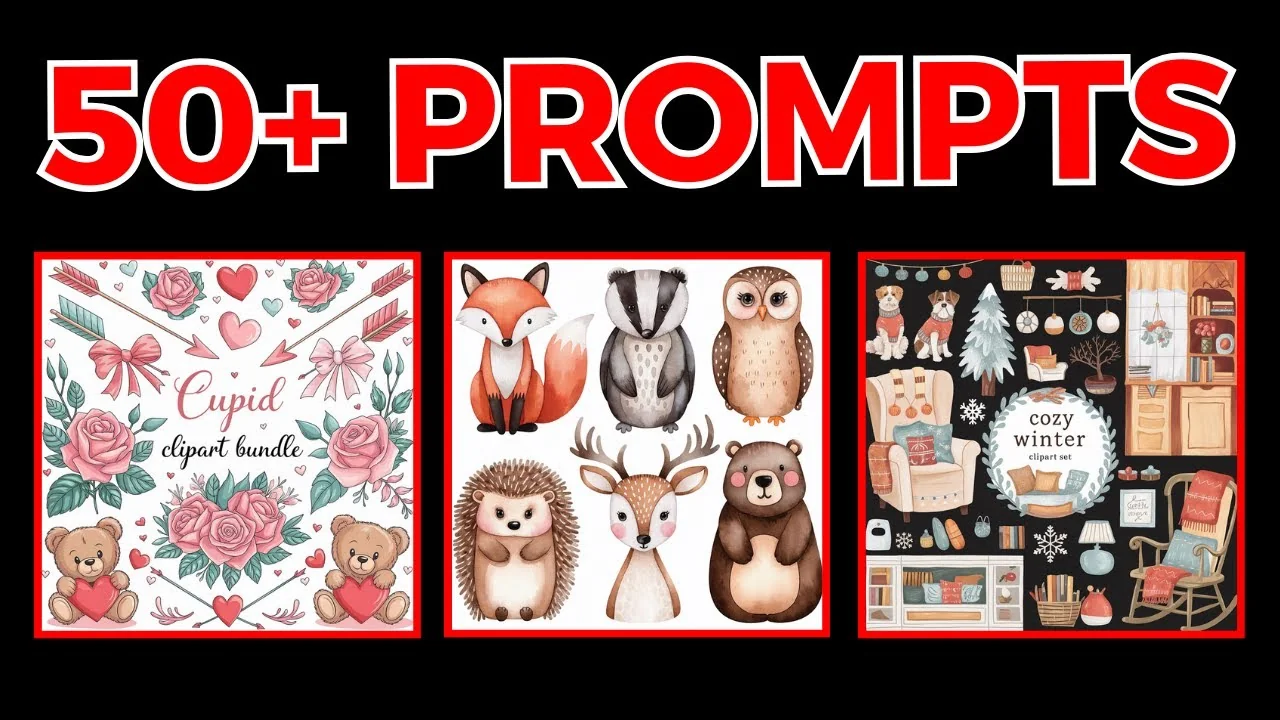
If you’re using Ideogram to create clip art, I have 50 plus clip art bundle prompts to share. These designs are on my public profile, and you can open any design to view the exact prompt I used.
Ideogram AI Clipart Prompts – How to Use Them
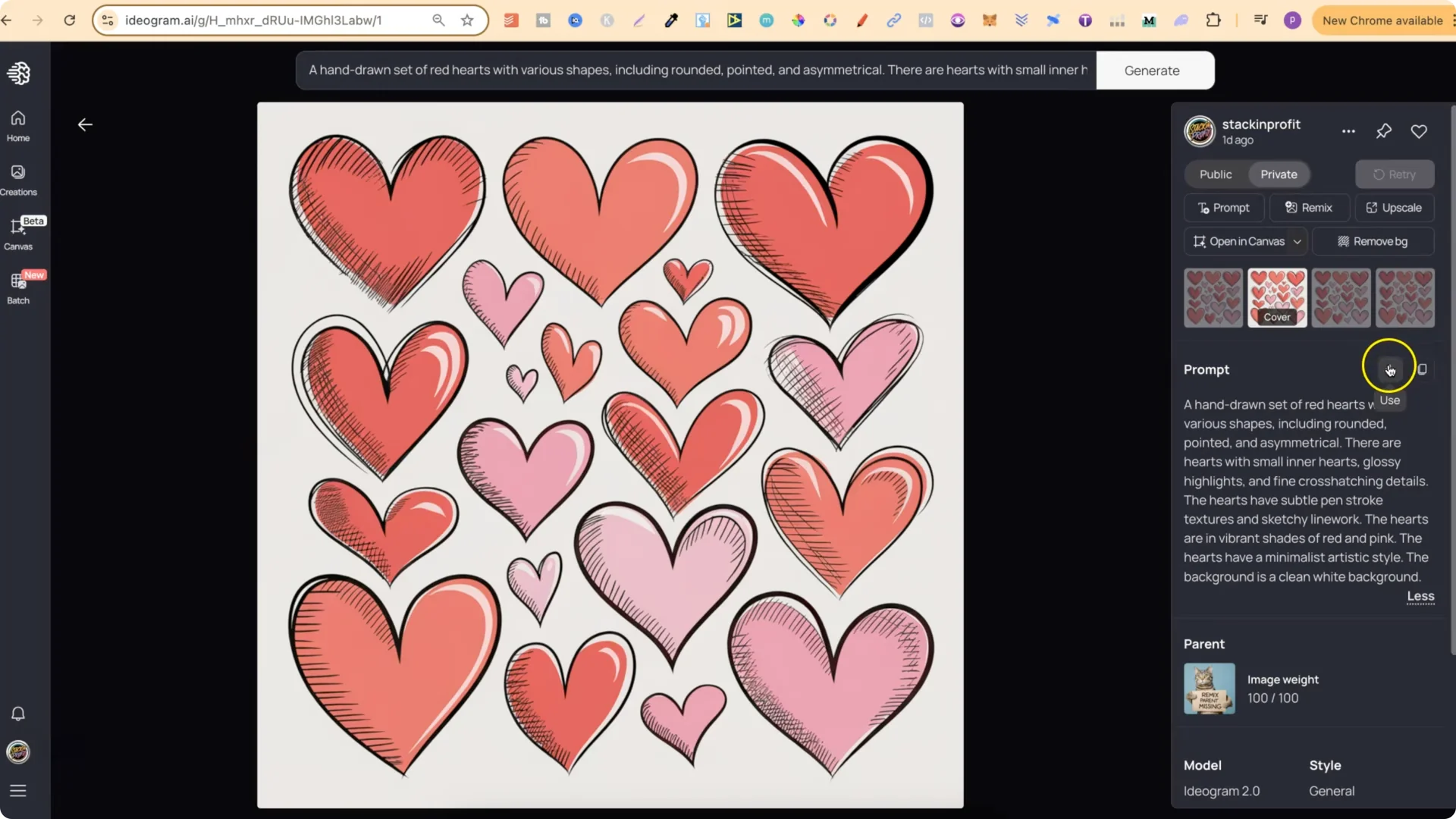
I highly recommend never remixing any of my designs, because you’ll get very similar results. If you put the image weight all the way up, you’re practically going to get the exact same design.
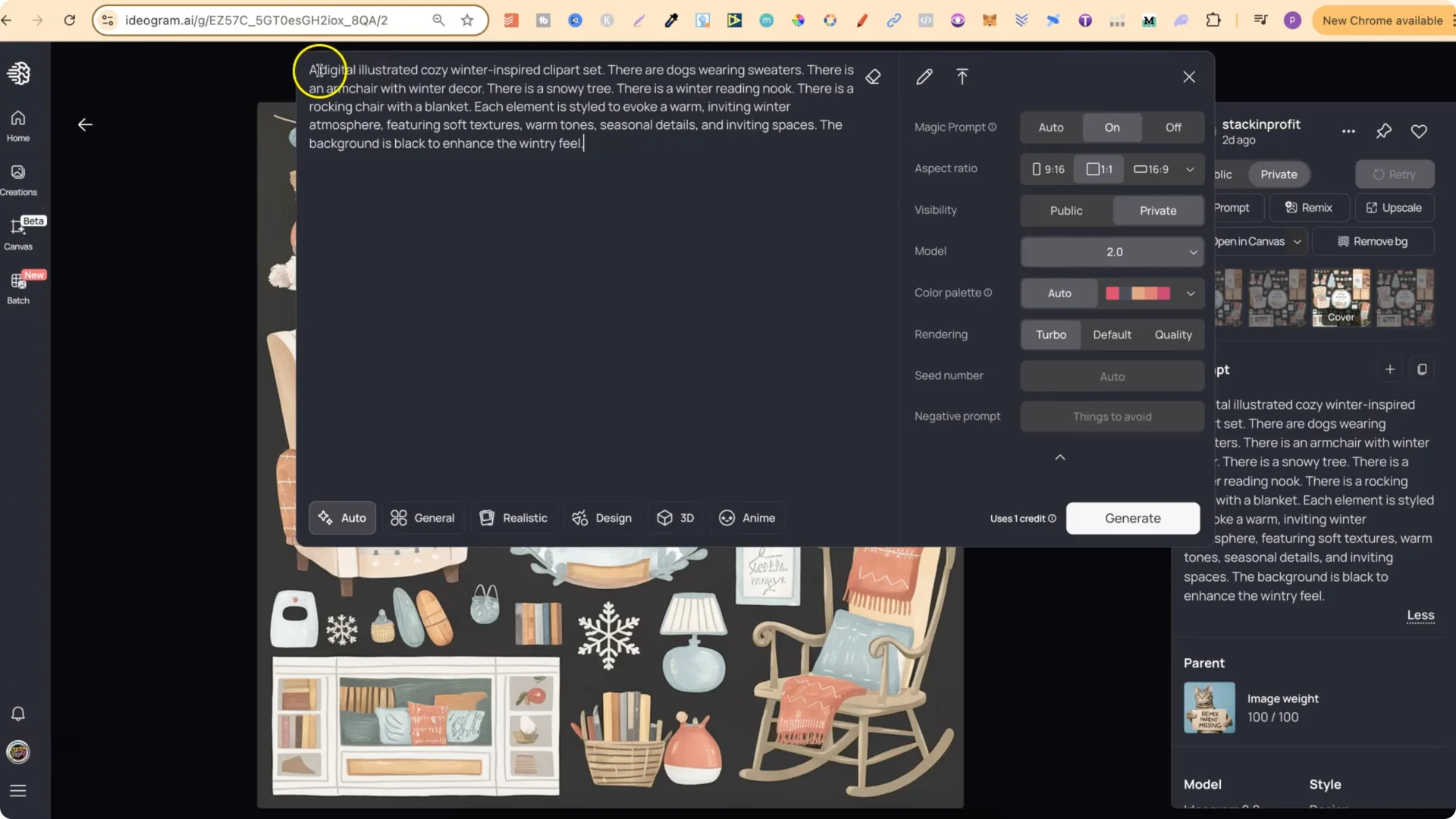
What I do recommend is using the prompt itself. Click the little plus icon to add the prompt. Adjust anything you want, such as colors. For example, if the prompt uses red and pink, try red and yellow or pink and purple. Click Generate to get completely new designs.
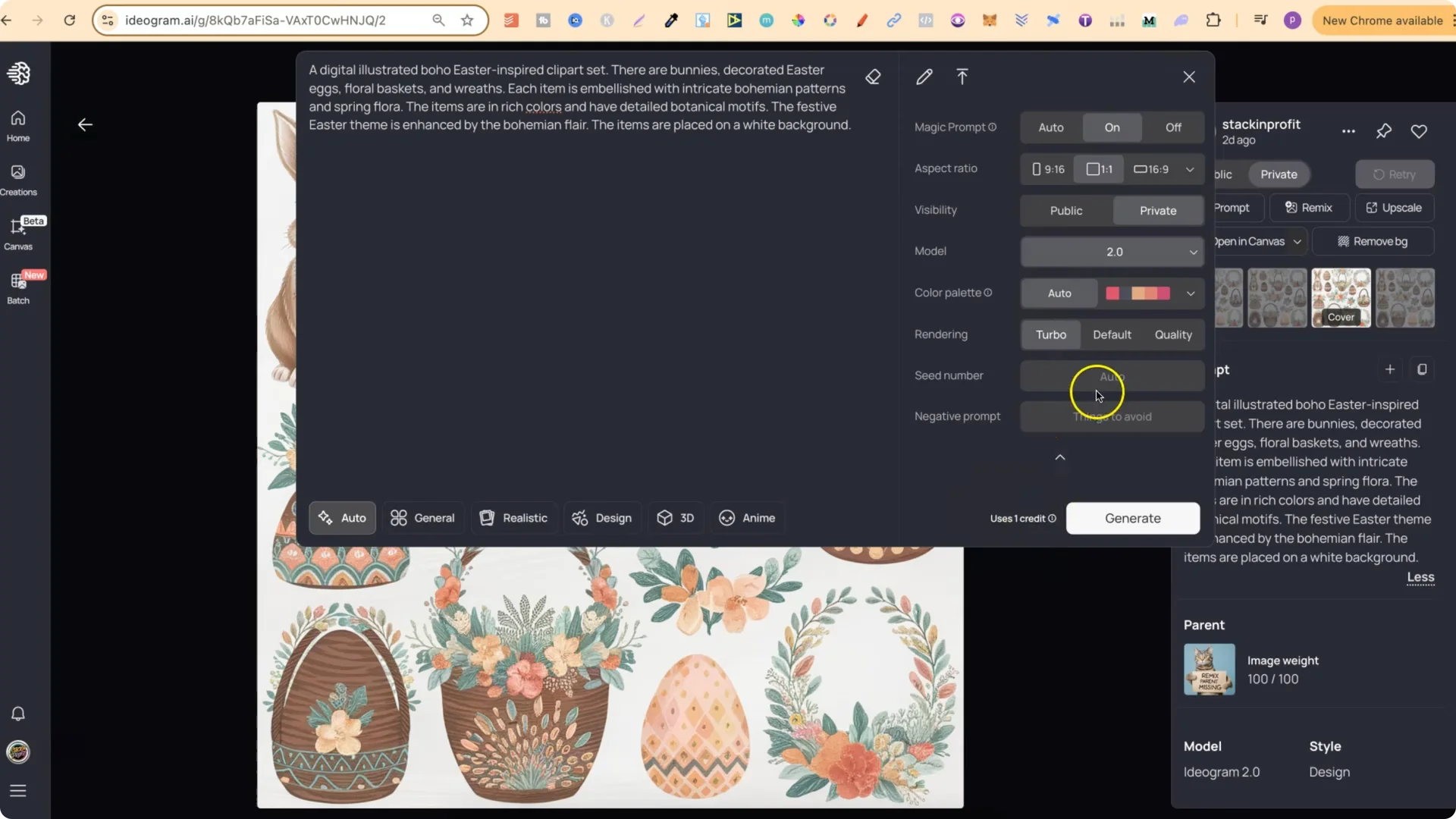
Suggested Settings for Ideogram AI Clipart Prompts
– Turbo uses the least amount of credits. Turbo uses 1, Default uses 2, and Quality uses 3. I always use Turbo and I’ve never had any issues.
Ideogram AI Clipart Prompts – A Prompt Generator I’m Building
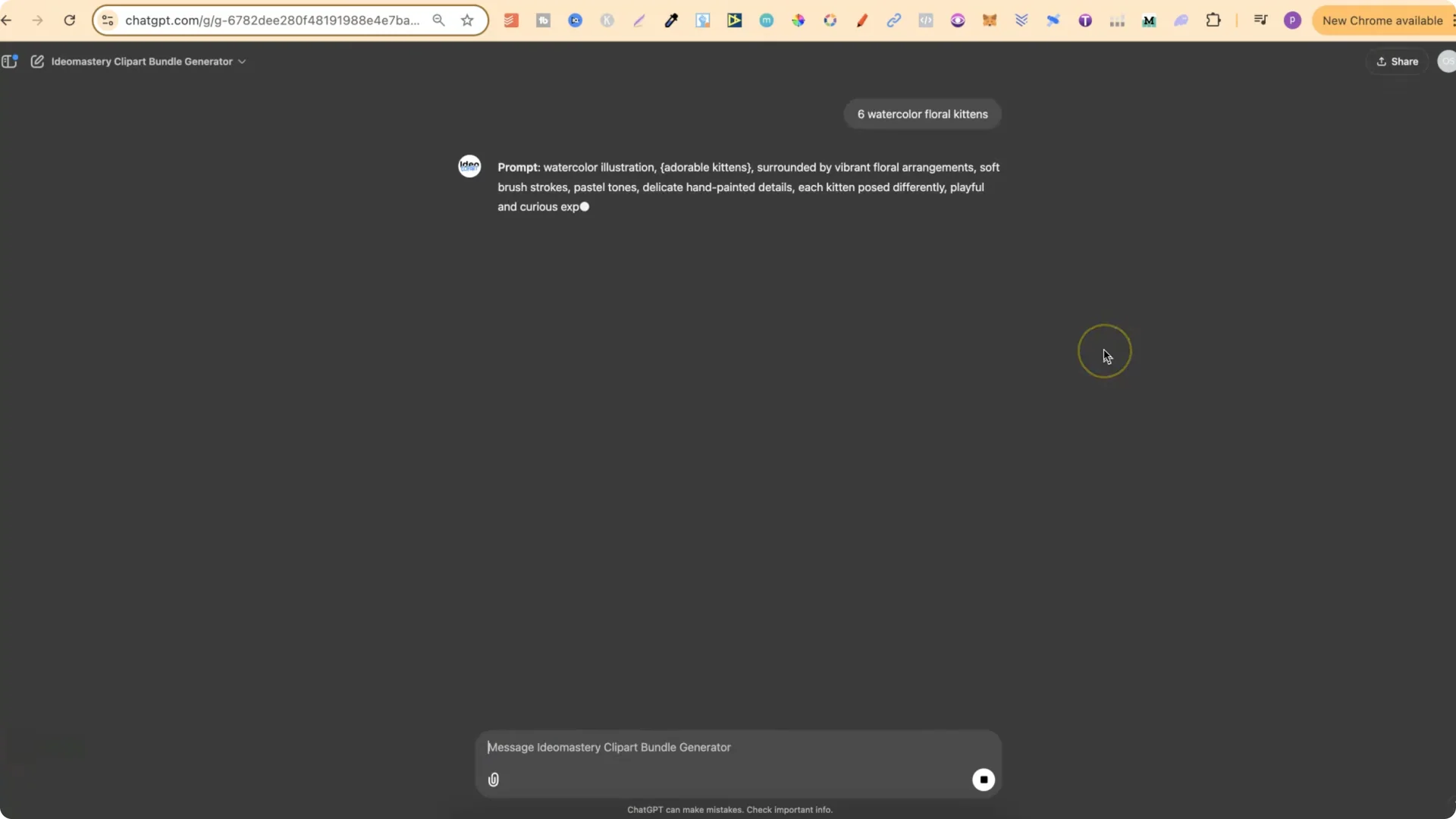
I’m in the process of creating a clip art bundle prompt generator. The top examples on my profile were created with my generator, and the others are what I created to train the GPT on. I was able to create the GPT using a prompt structure, and it’s going pretty well.
This generator is designed to work for both Midjourney and Ideogram. It’s easy to use. You just type what you want – for example, six watercolor floral kittens – press enter, and it returns a fully formatted prompt you can use in Midjourney and Ideogram. It also gives a breakdown of the prompt.
This will be available in my Ideo Mastery course. I’ll be releasing it this month. There are other GPTs in there as well, including a t-shirt prompt generator and a sticker prompt generator.
Ideogram AI Clipart Prompts – Examples and Results
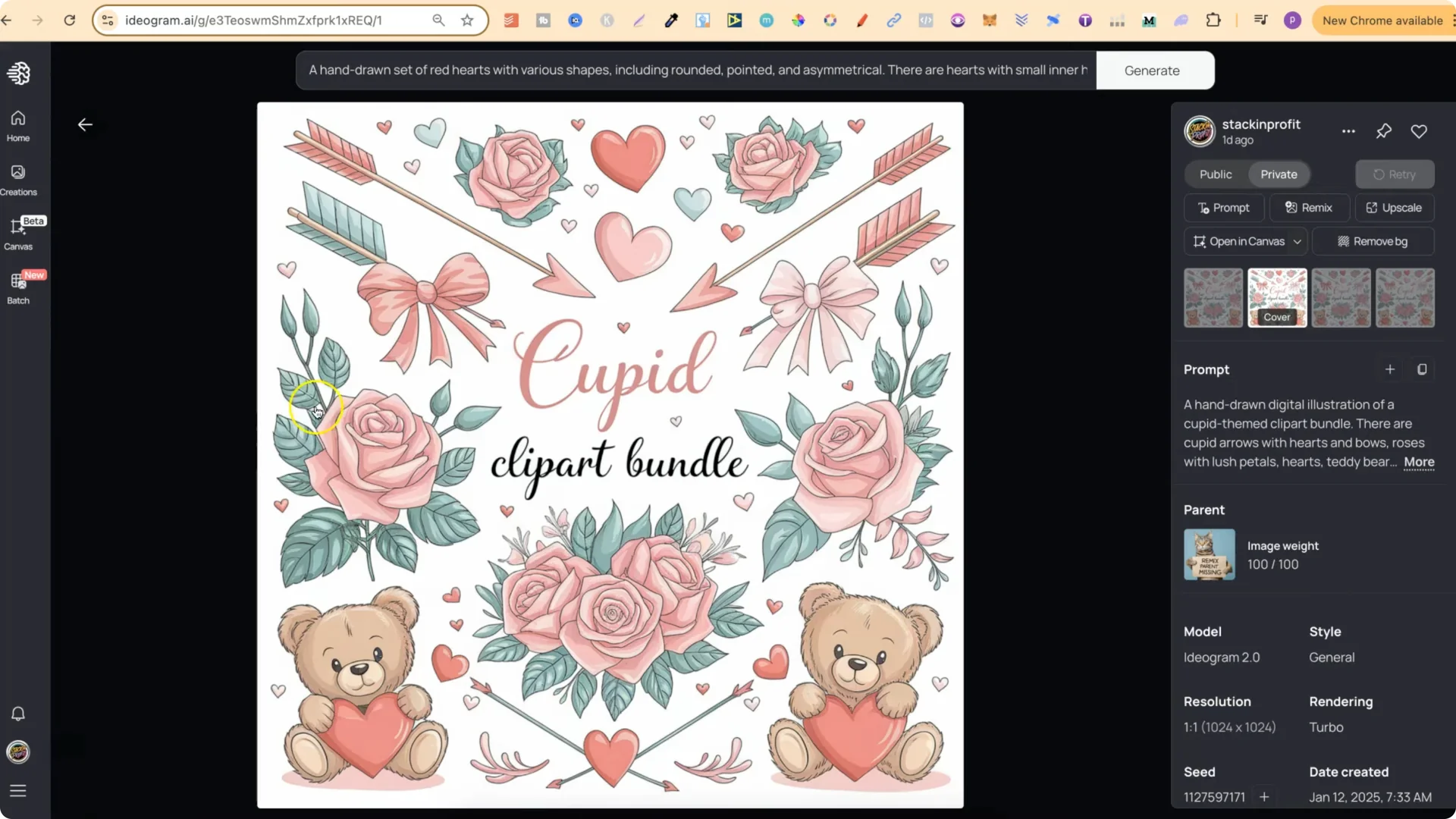
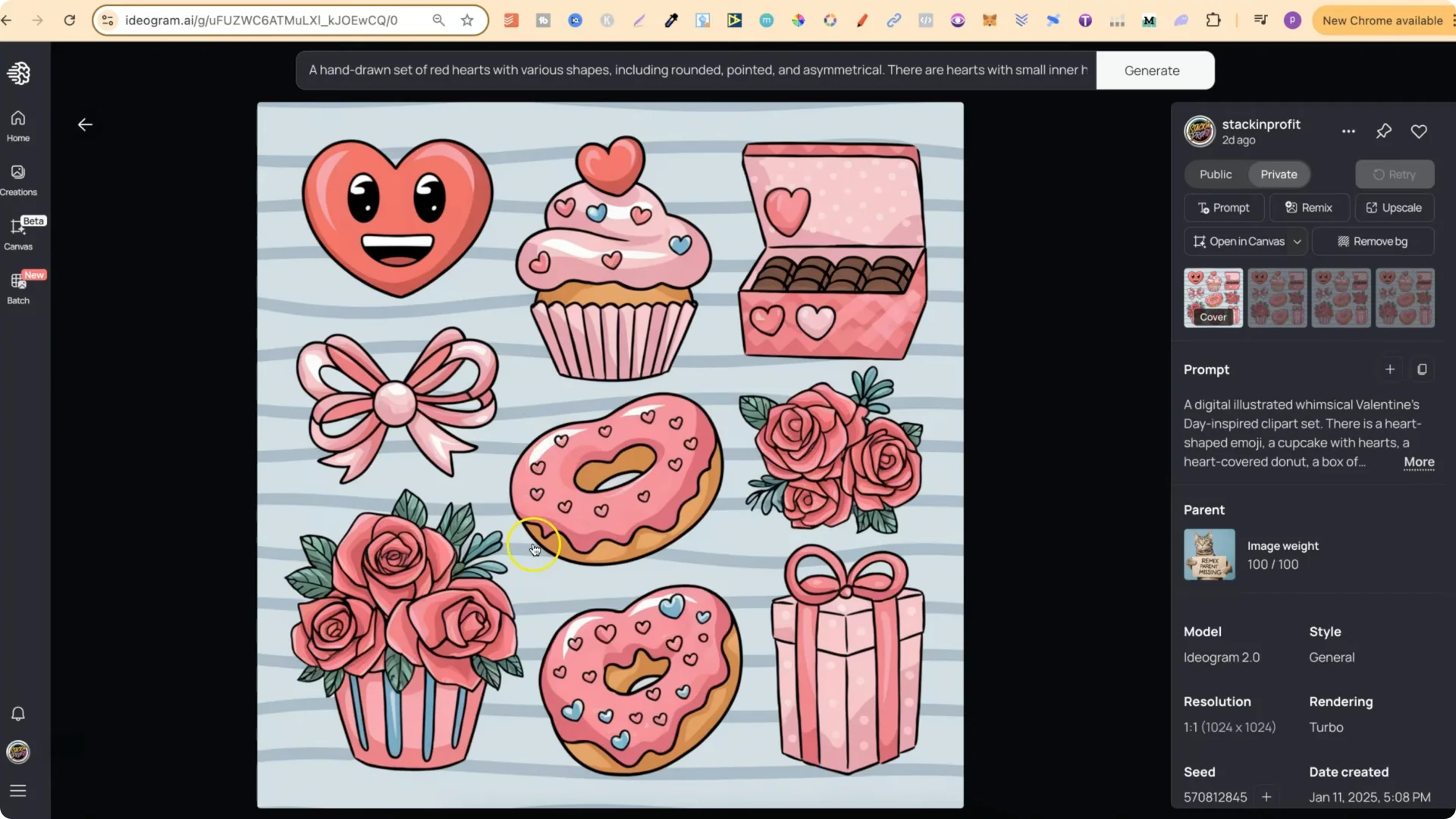
Here are some of the sets that turned out really well:
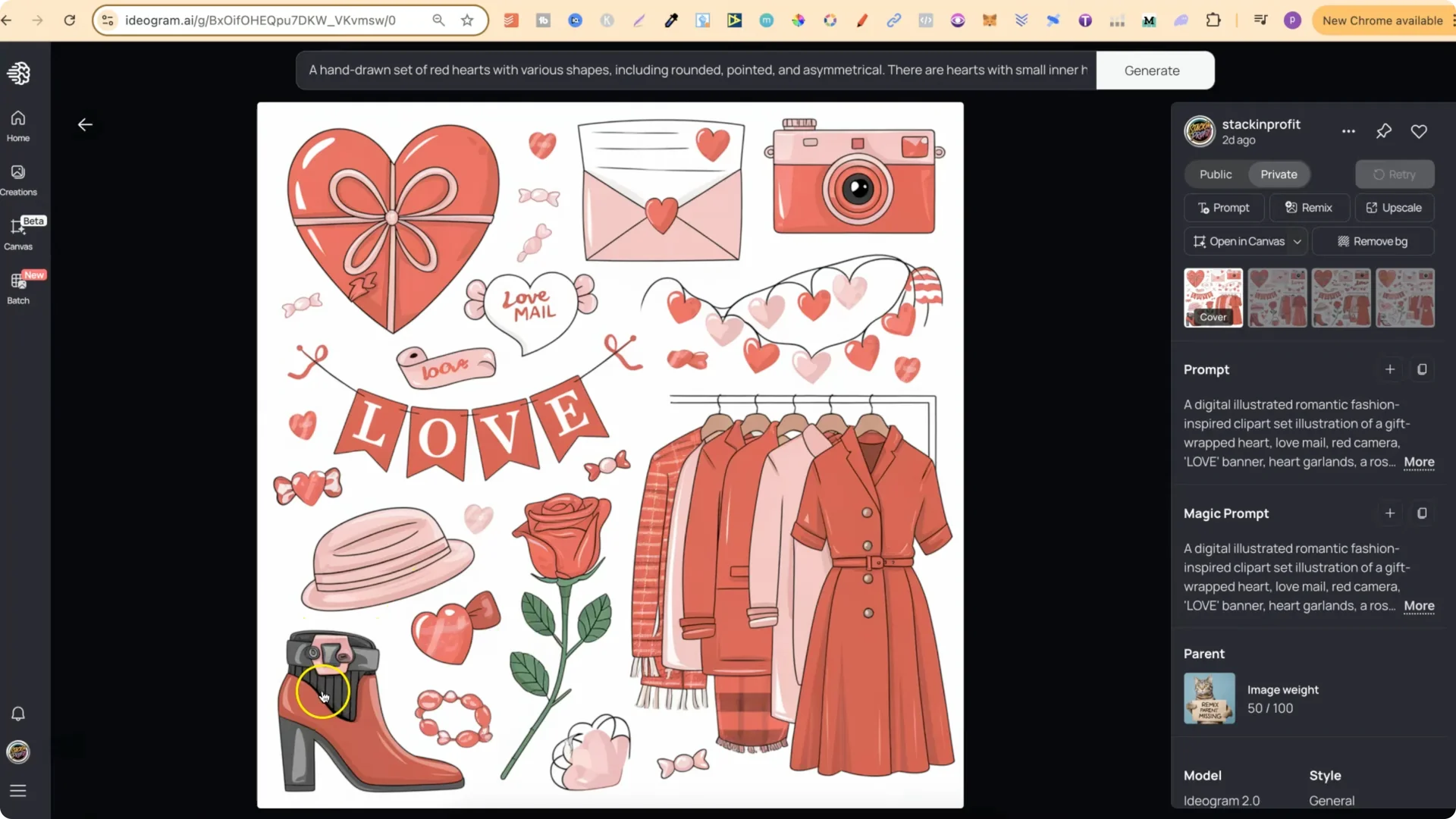
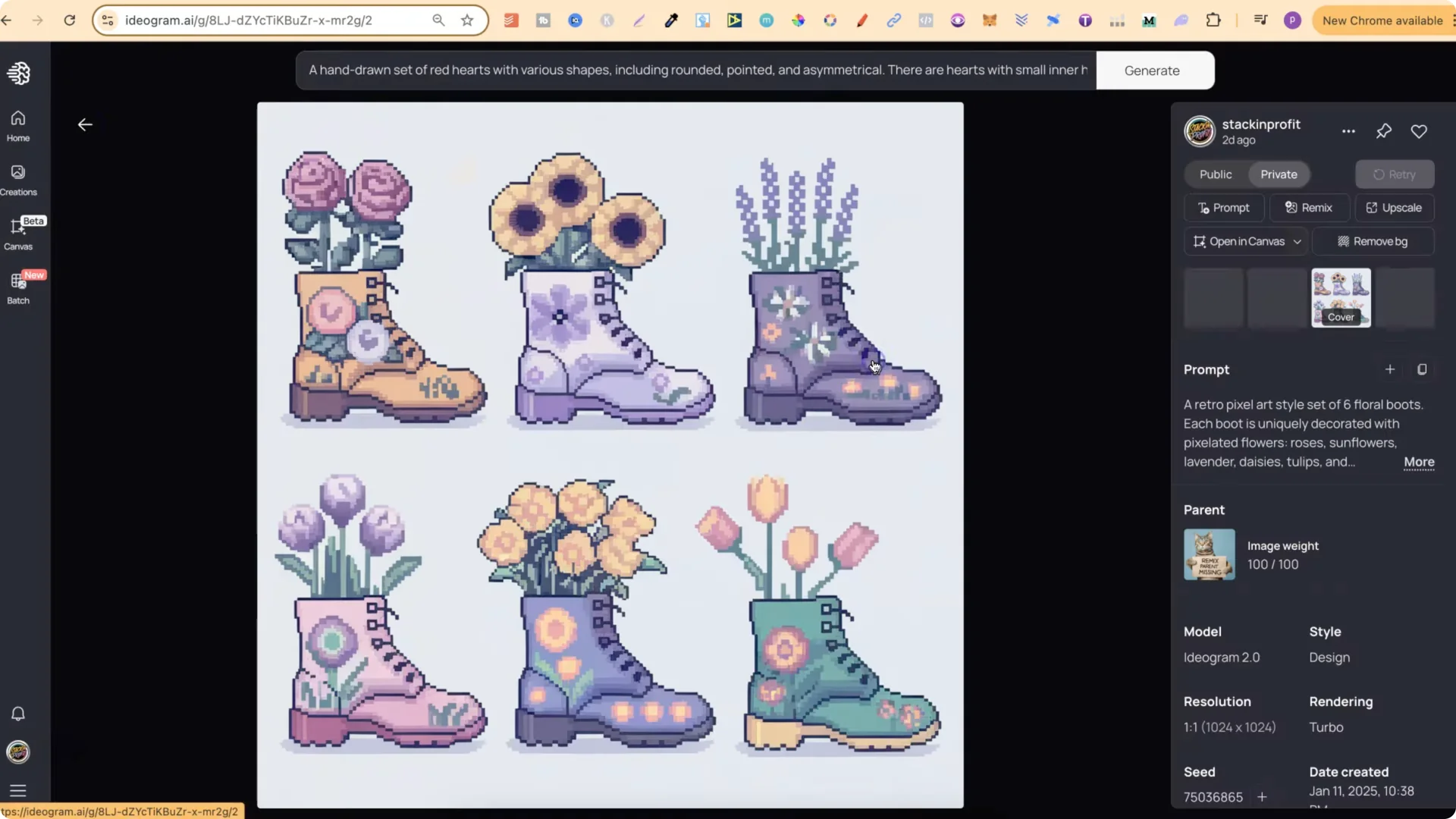
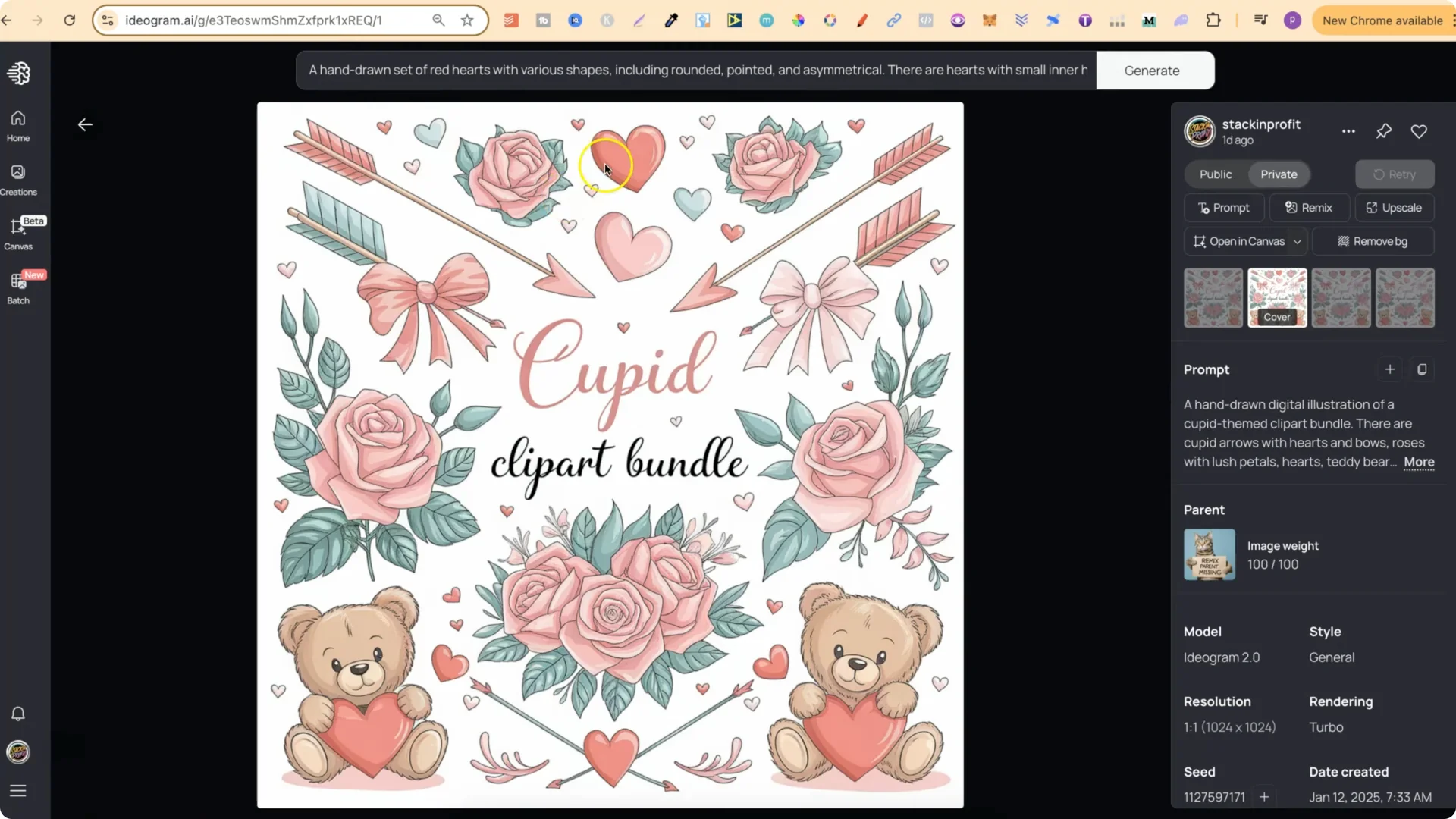
One funny thing I noticed: sometimes Ideogram adds text like “cozy winter clip art set” even when the prompt doesn’t mention any writing. That’s not a big problem, because you can still use all of the elements.
Ideogram AI Clipart Prompts – How to Sell Clip Art Bundles Correctly
I’ve spoken about selling clip art bundles before, and there was a misconception. I don’t mean exporting the full generation grid and selling that as a single image.
Here’s the process I recommend:
1. Create the generation in one go in Ideogram so you get a consistent style across all elements.
2. Upscale the generation.
3. Break the design apart into each individual element.
4. Prepare clean, transparent PNGs of each element.
5. Package all elements into a folder and a zip file.
6. That folder of individual elements is what you would sell.
Thicker outlines make background removal easier, so background variations in the generations are not a big deal when you edit and format the elements.
Final Thoughts
You can use my Ideogram AI clipart prompts directly, avoid remixing, switch up colors, and generate fresh sets quickly. Use Model 2.0 with Turbo to save credits. The examples show strong results across themes like florals, fashion, seasonal sets, pixel art, and woodland animals. I’m also building a prompt generator based on a structure that works in both Midjourney and Ideogram, which will make creating consistent clip art bundles even easier.