You can make your images private on Ideogram. If you have a Plus subscription, you can change the visibility of existing creations or set privacy before generating.
Ideogram Image Privacy
To make an existing image private, go to My Creations on the left side and find the image you want to change.
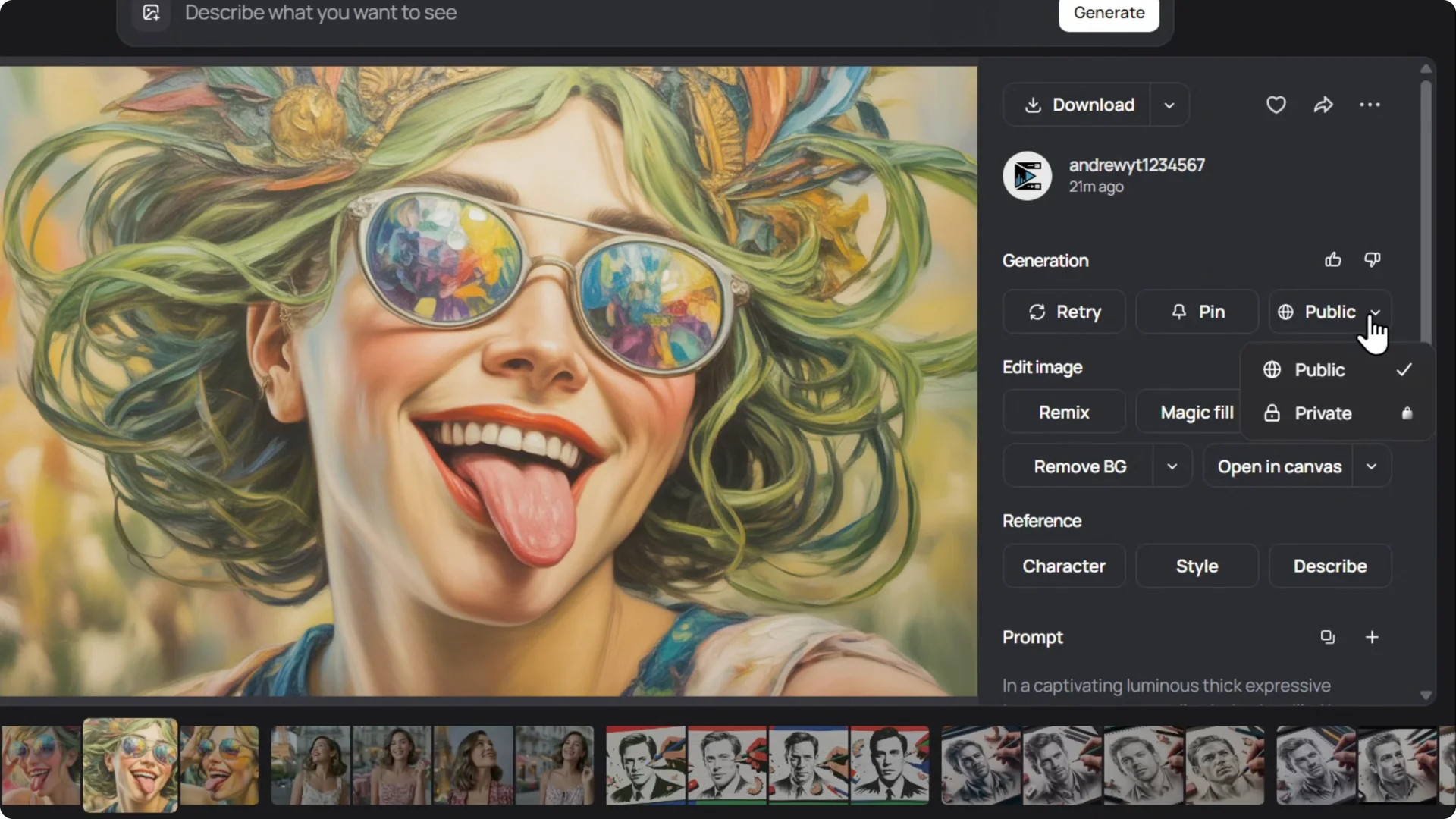
Click the image, and on the right side look for the visibility option labeled Public.
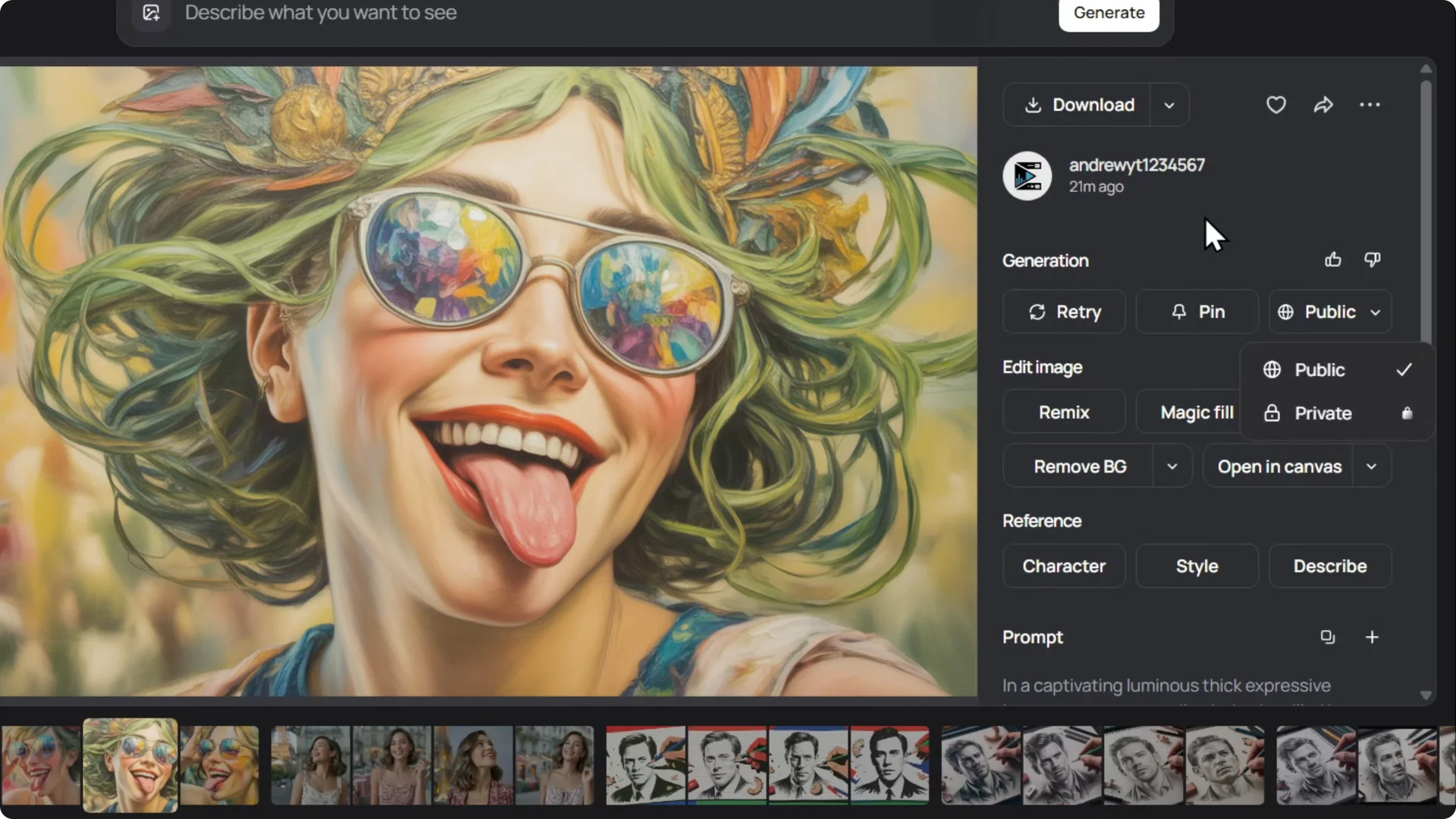
Open the dropdown and select Private.
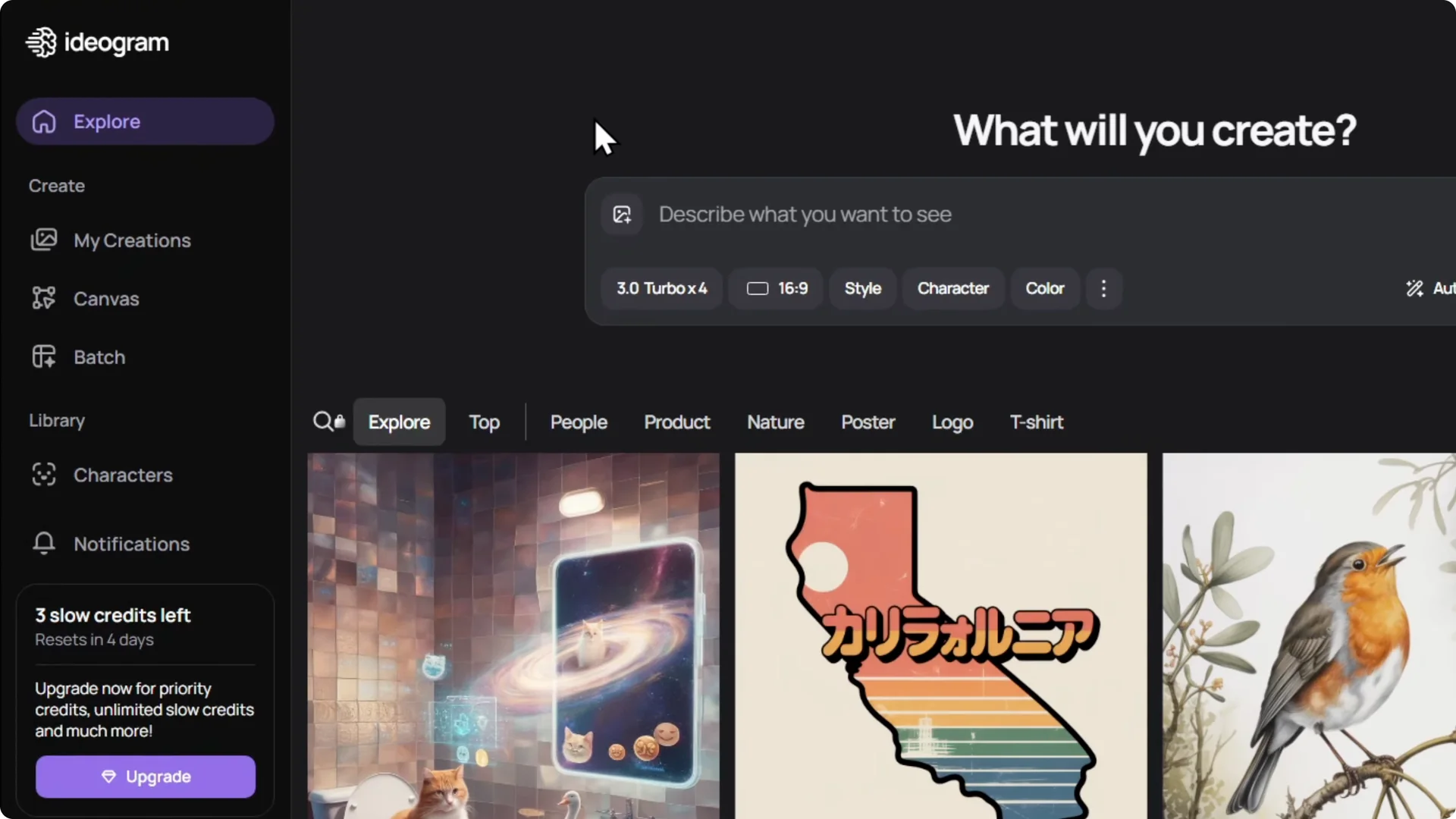
You need a Plus subscription to use the Private setting.
Once you have it, select Private and your image will be set to private immediately.
Ideogram Image Privacy: Set Privacy Before You Create
If you’re starting a new design from a prompt in Ideogram, enter your prompt first.
On the right side, you will see the visibility set to Public.
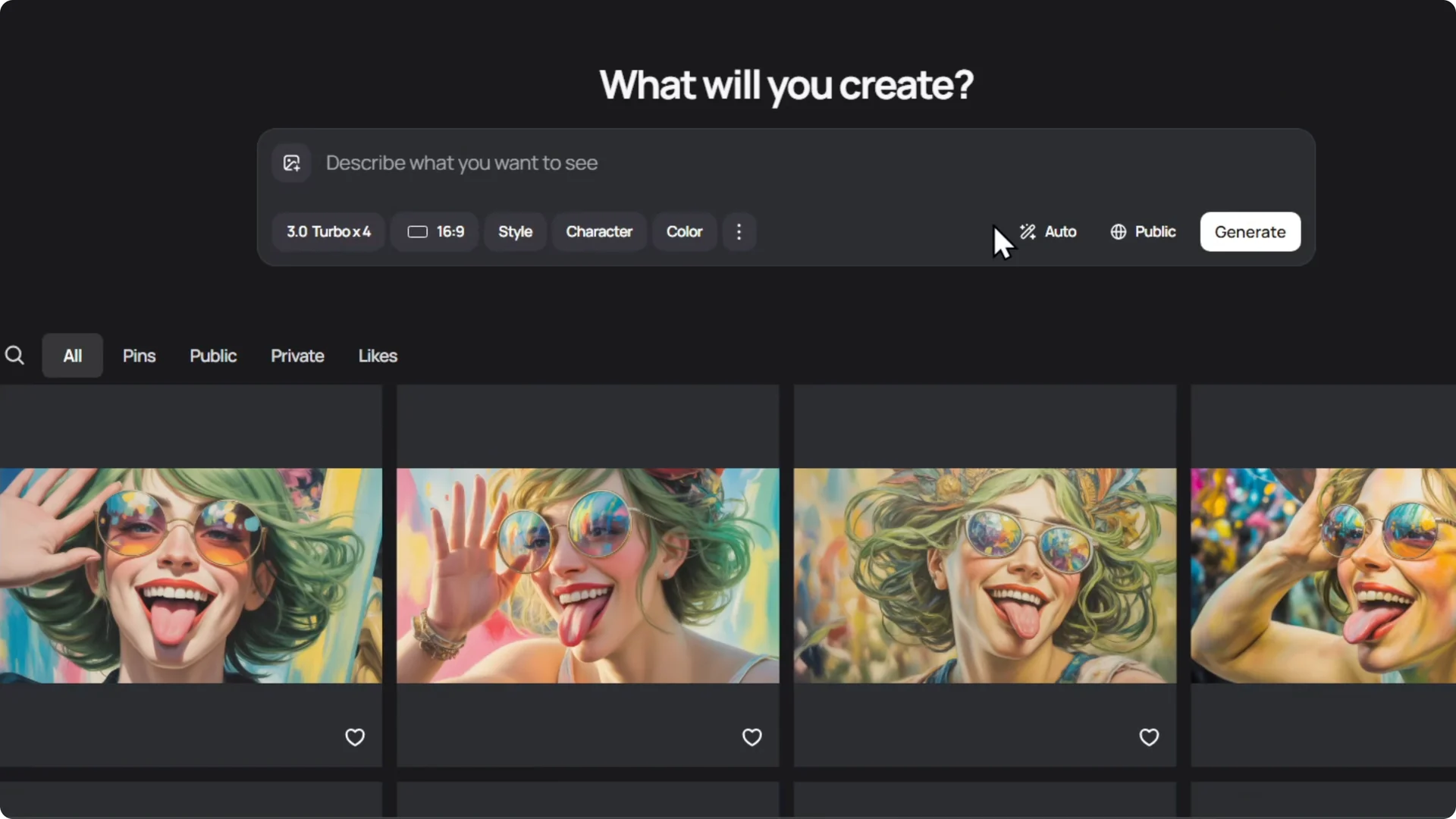
Change it to Private before generating. Any images created in that session will automatically be private.
Final Thoughts on Ideogram Image Privacy
You can control visibility on a per-image basis after creation or set it to Private before generating. A Plus subscription is required for the Private option. Set privacy early if you want all outputs in a session to stay private.