The new Canvas tool is currently in beta and available on Basic, Plus, and Pro plans. I wanted to create an image of a person holding a drink and replace that drink with my own product while matching the lighting and blending naturally.
Ideogram does not directly support product reference, but you can do it with Magic Fill and a reference image.
Here is the exact process I follow to get consistent results.
Ideogram Canvas Product Placement:
Generate the main image
Generating an image in Ideogram is straightforward. Open the generate window and start by typing a basic prompt. If Magic Prompt is turned on, it will enhance your prompt with more context, details, and stylistic elements.
You can choose from a wide selection of aspect ratios or input a custom one if you have the Plus or Pro version.
You can make your image public or private, and this is where you select that option. For more on privacy controls, see Keep Images Private Ideogram.
There are color palettes that influence which colors will be prominent in your image. You can pick from the presets or create your own custom palette.
Additional options include rendering quality, seed number, and negative prompting for things you want to avoid.
For this example, I entered: a young man smiles holding a splash burst soda can outdoors on a sunny day with a blue sky and greenery above him.
The tagline is displayed like an ad while the can sparkles with vibrant refreshing colors. Click Generate and review your results.
I liked one of the outputs and sent it to Canvas to alter it. Click the three dots on the image and select Edit in Canvas.
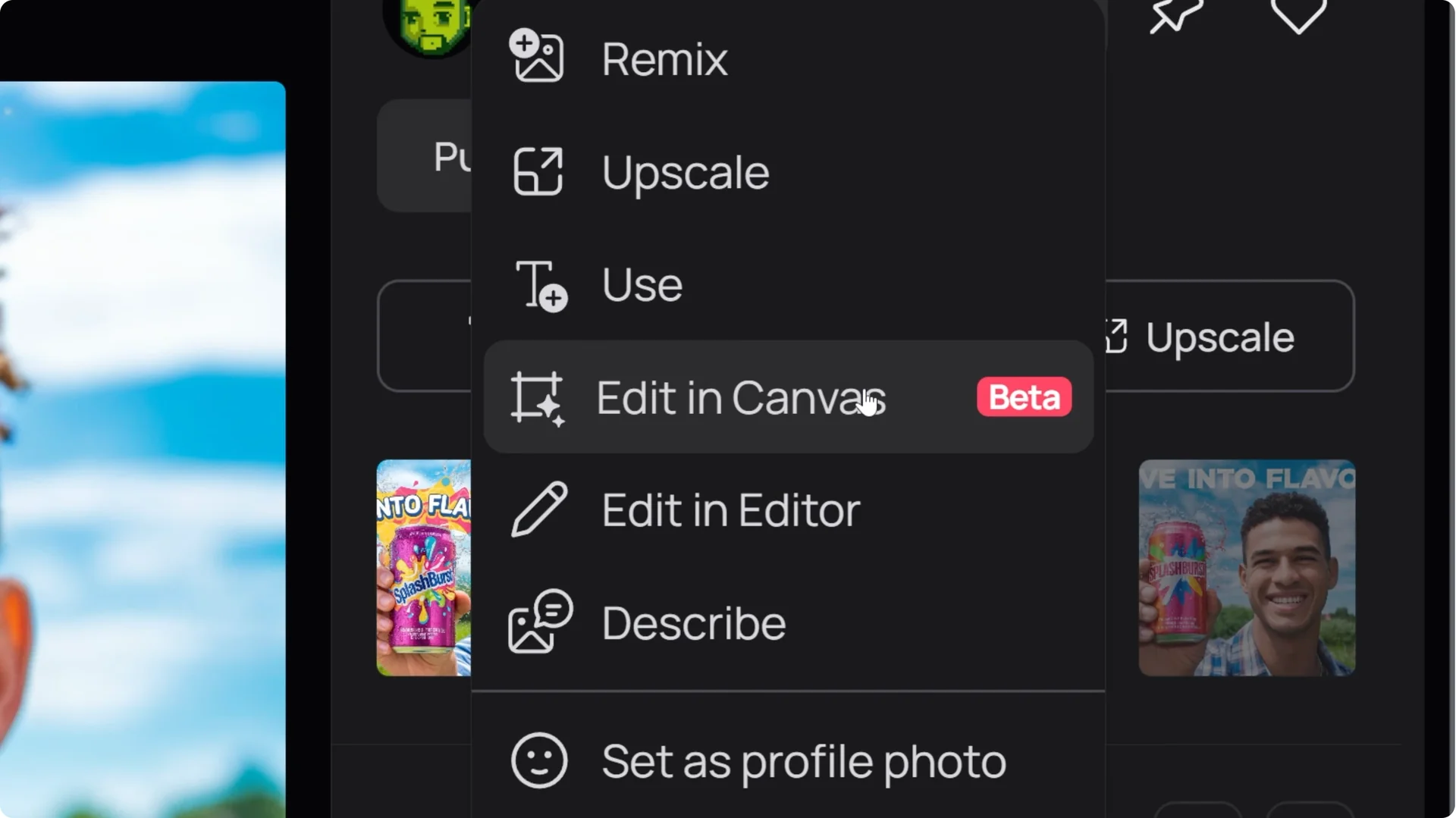
The Canvas window opens with your image, and you can also view previous Canvas projects and label them for easier organization.
If you are working with portraits and need consistent faces across images, see Master Ideogram Pro Ai Headshots.
It pairs well with this workflow when your subject appears in multiple creatives.
Prepare and upload your product
Although the soda can looks great, I needed it to be a specific design. I generated a fake soda brand for this example, but it can be any brand like Coke Zero. Make sure the product is clearly visible.
Bring in your product image by clicking Upload and selecting the file from your device.
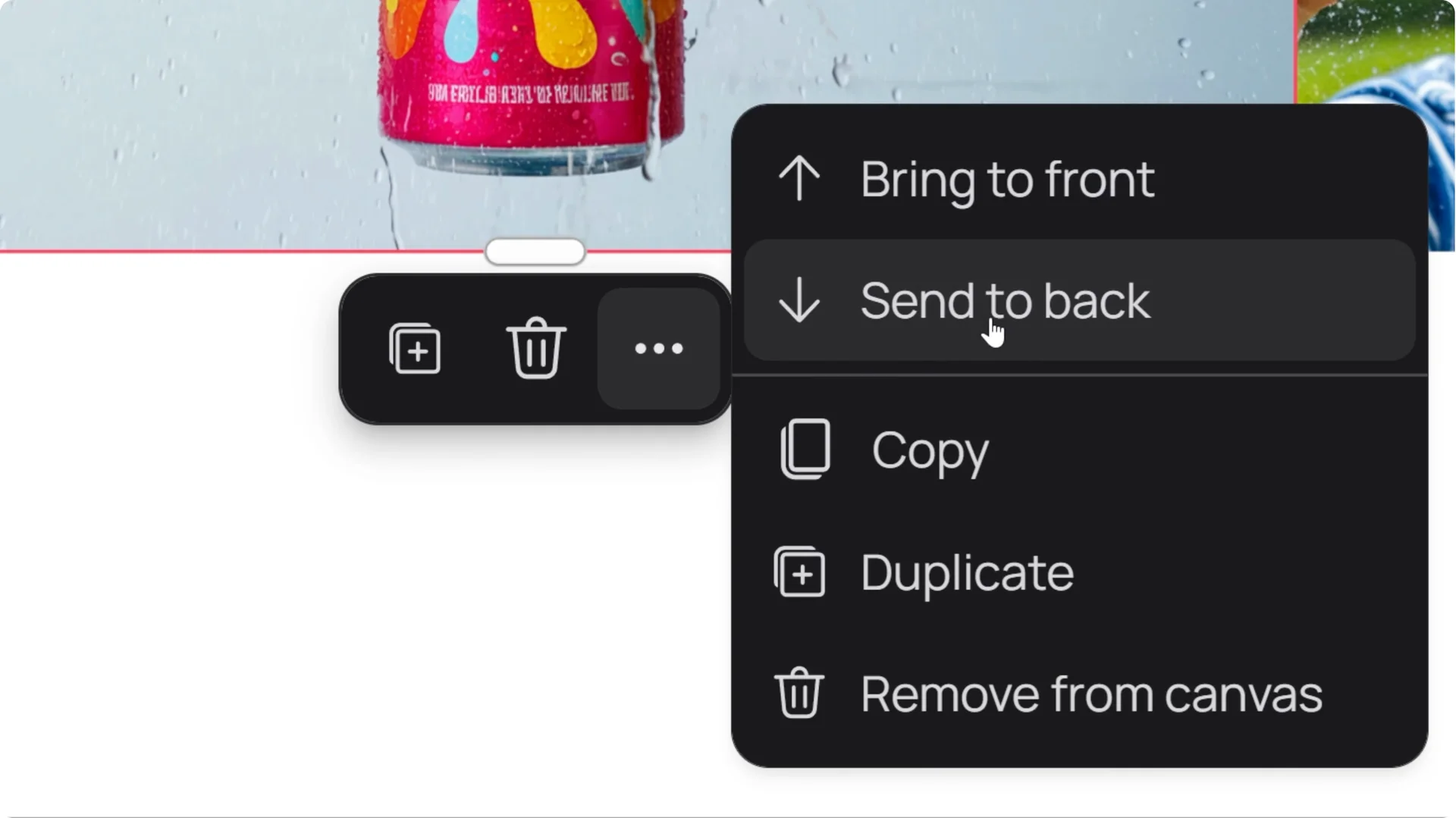
Make sure your product image is not covering the main image by sending it to the back through the three-dot menu.
Place the product on the side so it stays in full view.
Replace the object with Magic Fill
Use the Magic Fill tool to swap the can. Choose either the lasso or rectangular tool to select the area you want to change. A pink and purple overlay shows what you selected.
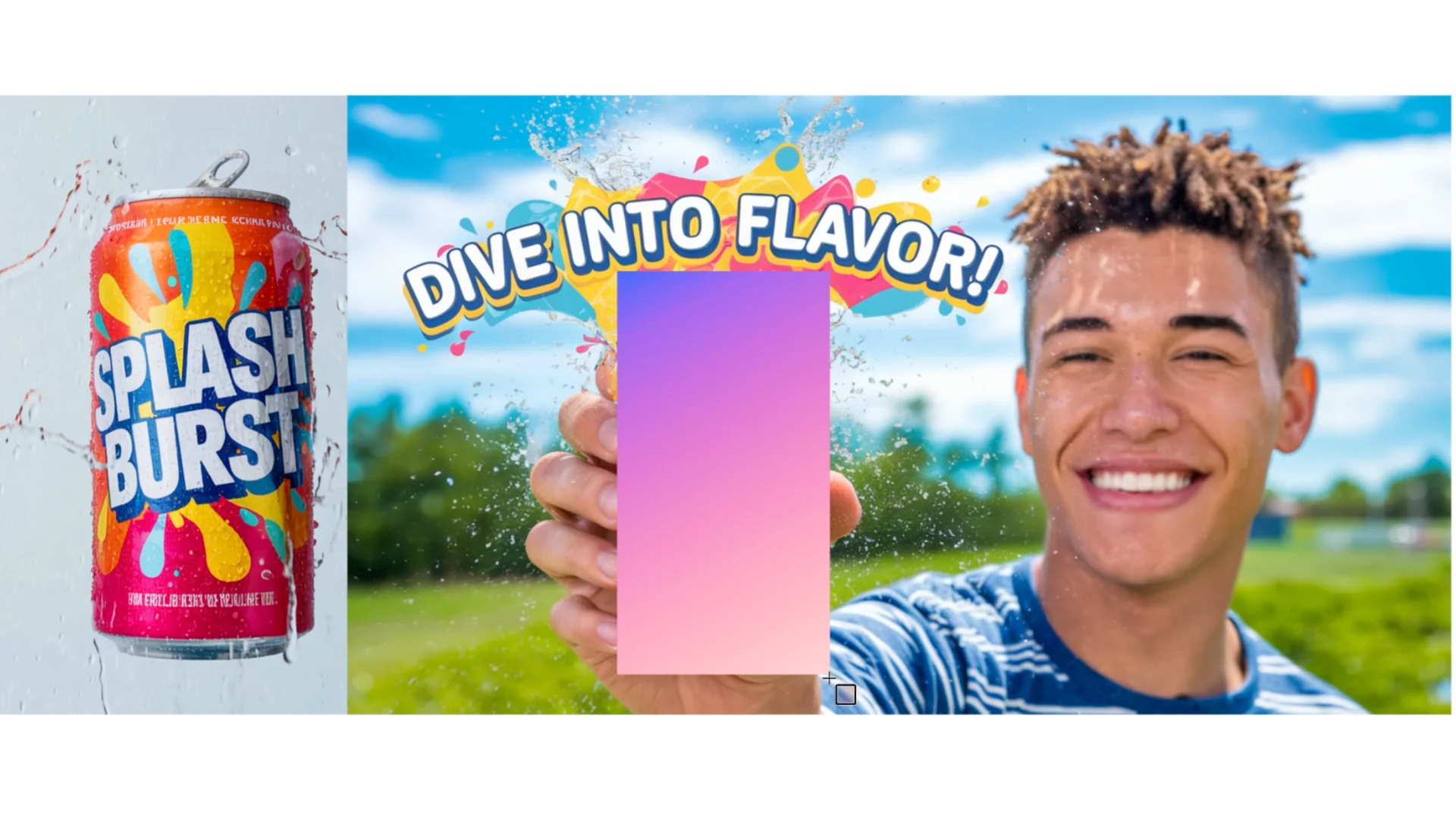
Click Next to open the pink and purple bounding box. Adjust the frame so both your product and the can you want to replace are inside the frame.
Keep the frame as small as possible because everything in this box is a fixed resolution, and a smaller frame produces more detail.
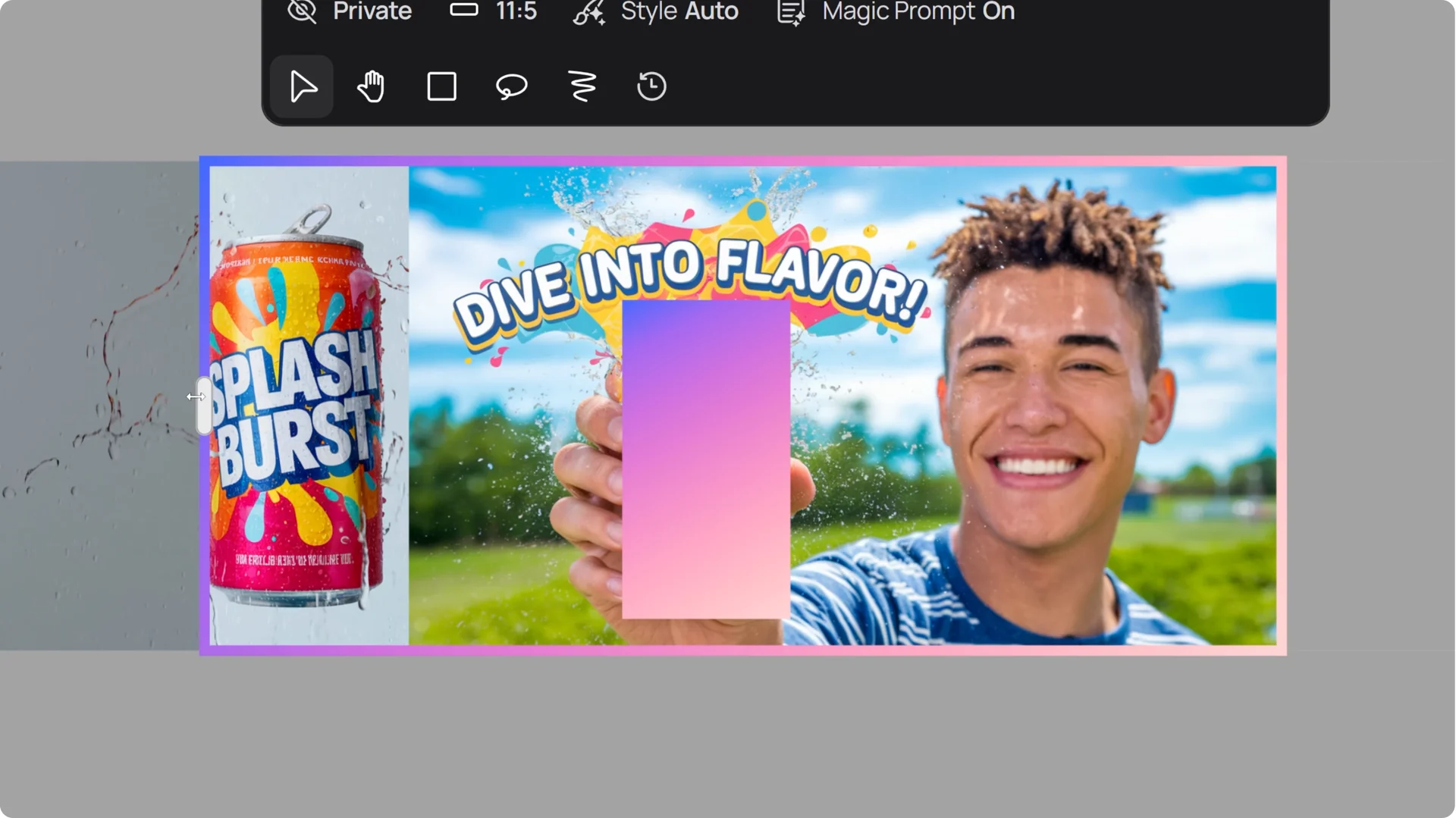
Enter a prompt, and remember that better descriptions lead to better outcomes.
For example: On the left side, a can of soda is shown on a white background.
Also describe the original image or adapt your original prompt so the scene stays consistent.
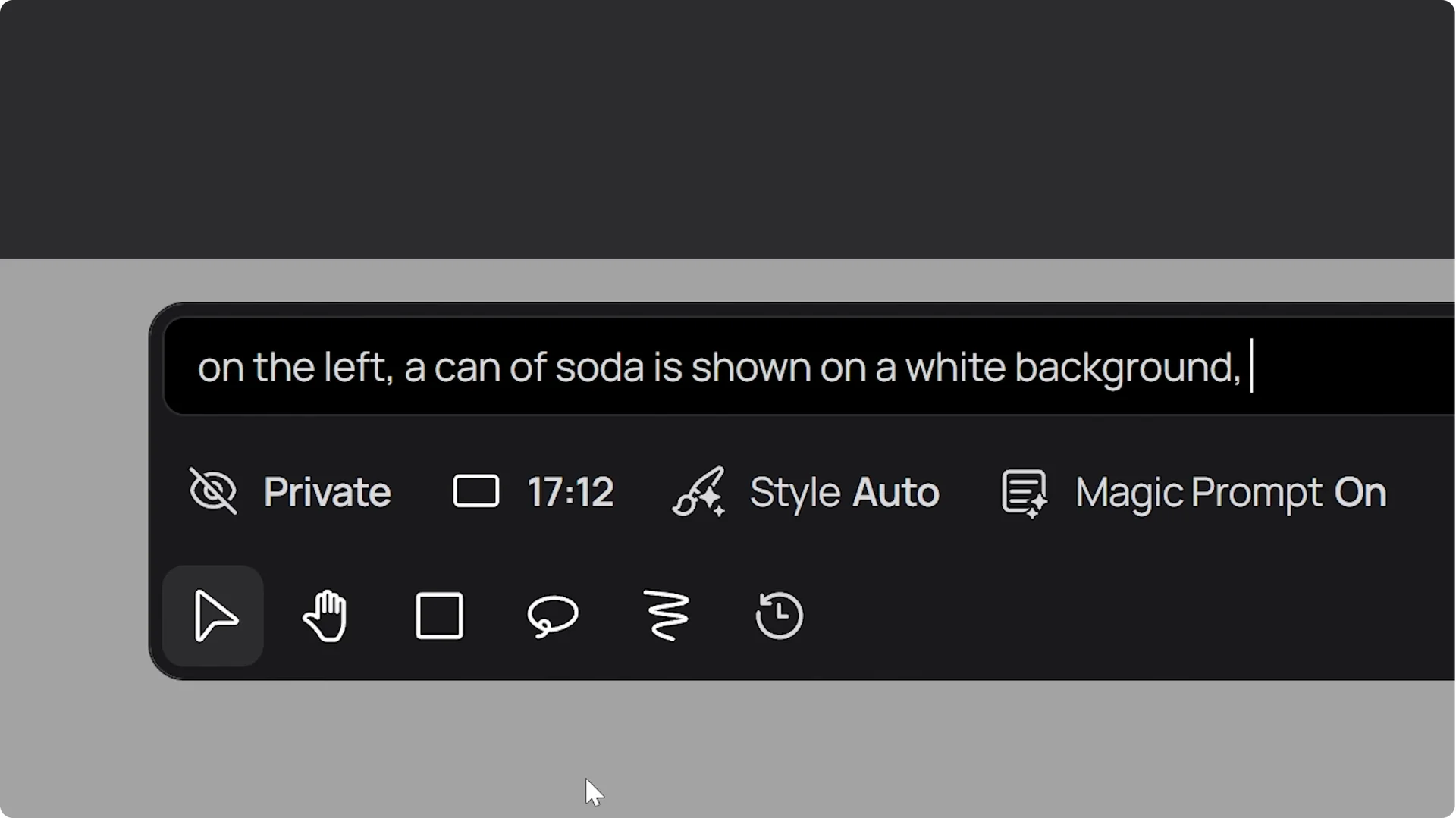
Click Magic Fill and wait a few moments.
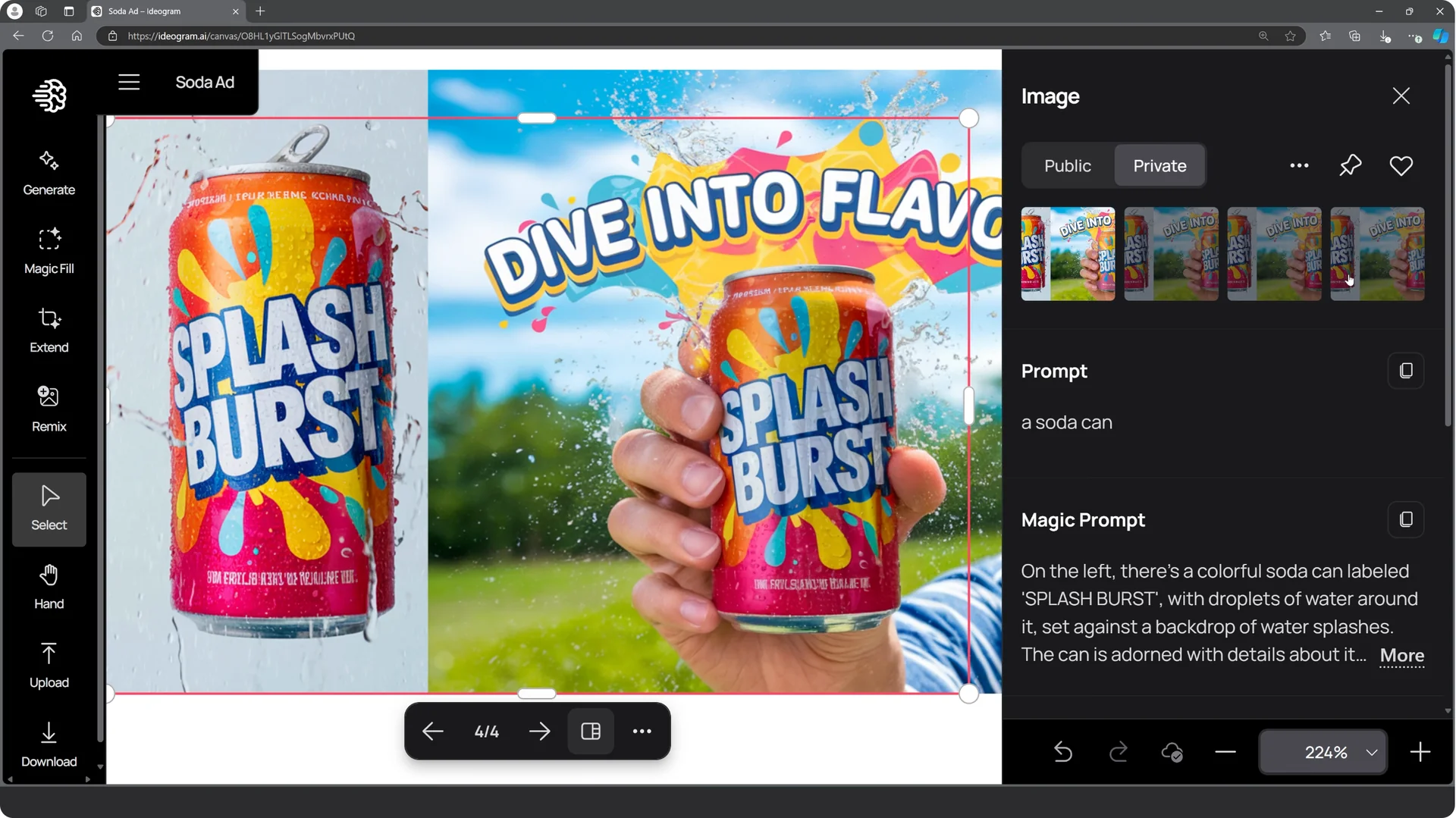
When it finishes, click the area you just generated to see four options to choose from.
I love how the lighting matches the environment perfectly.
For additional prompt inspiration when crafting ad-ready phrasing and product details, see Ideogram Ai Print On Demand Valentines Prompts.
The structure of those prompts translates well to product-focused compositions.
Download your result
Click the Download icon. An outline appears so you can select the area you want to download.
Make sure only your main image is selected.
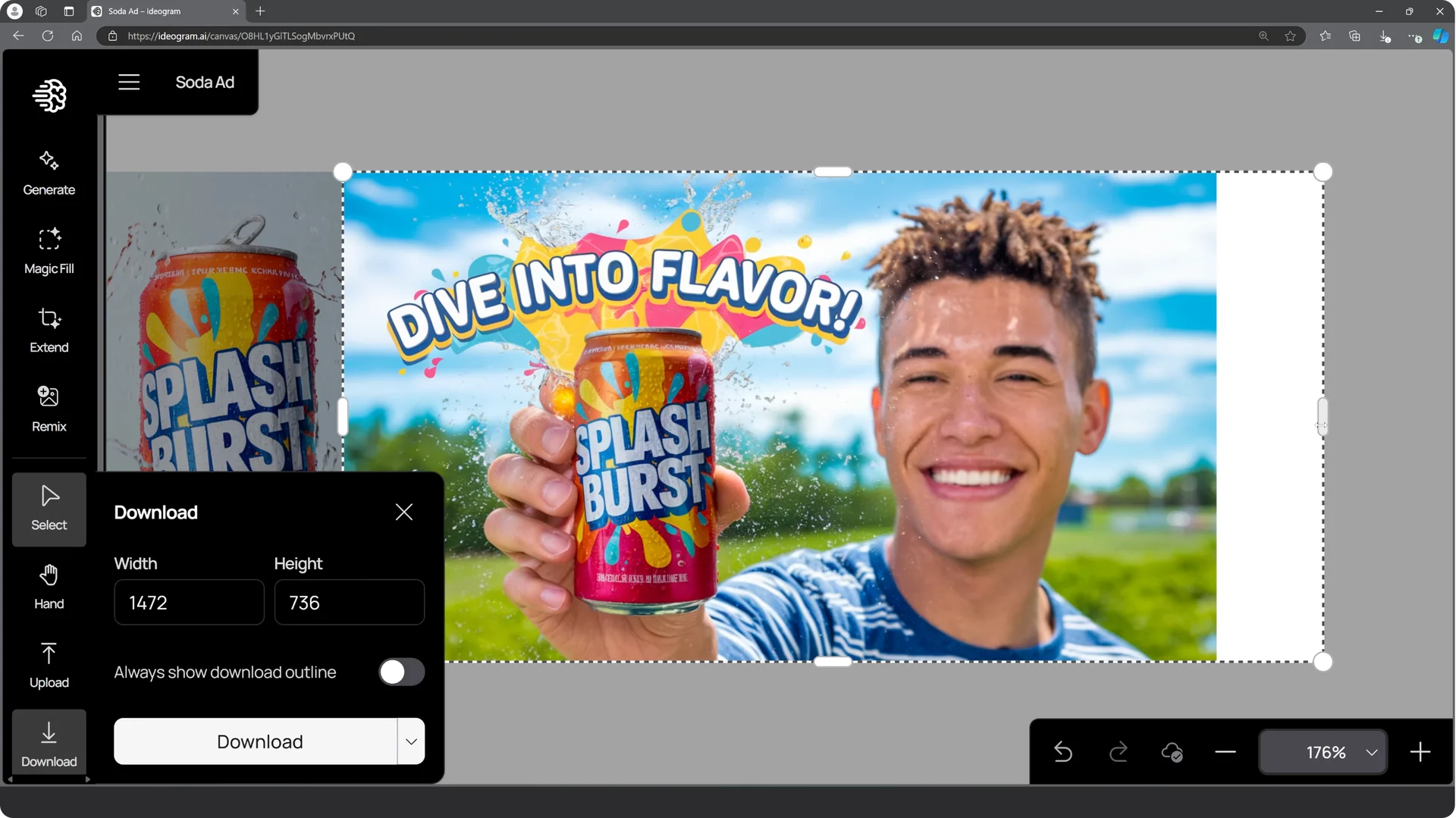
Open the format menu and choose JPEG or PNG.
Download your final image.
Final thoughts
Generate your base image, upload a clear product reference, select the target area, and frame both the original object and your product inside the Magic Fill box. Write a precise prompt, run Magic Fill, pick your best variant, and export in your preferred format. This workflow makes product placement feel natural while keeping the scene consistent.