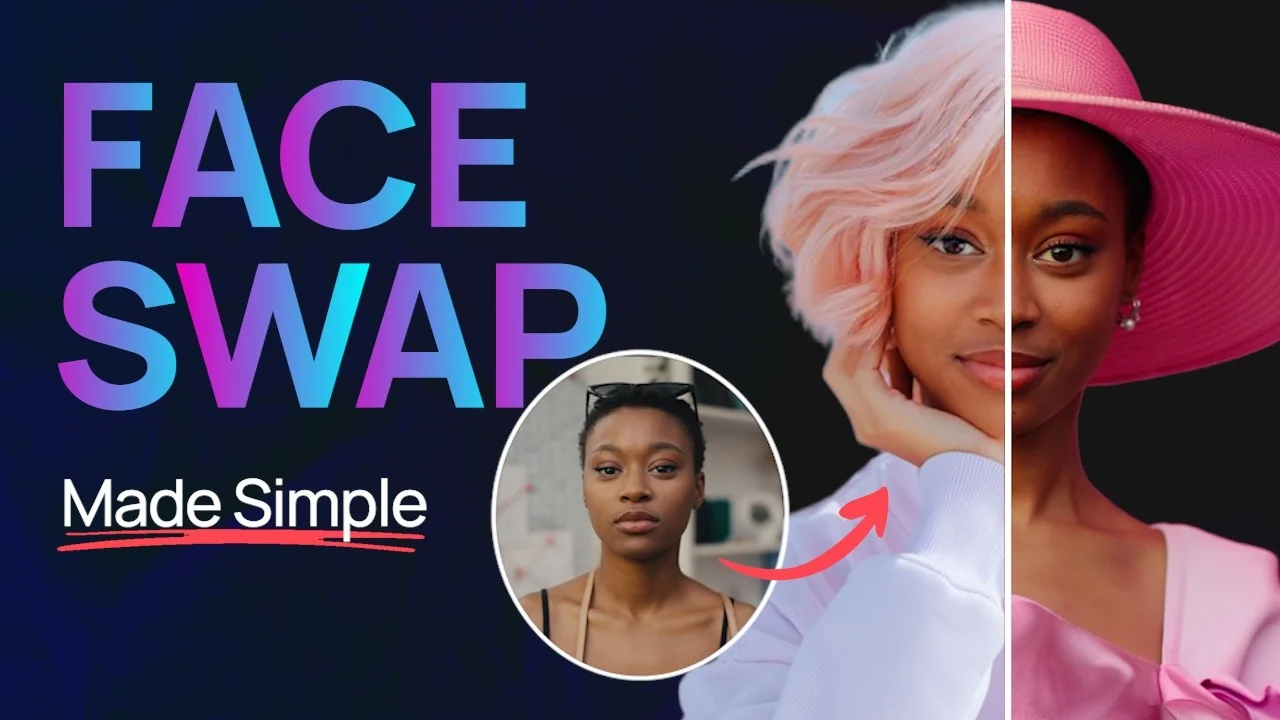
Addio just launched their new character feature and with it comes the ability to use Magic Fill to do easy face swaps. The results are so good. I’ll show you just how easy it is.
From the homepage, head to Character on the left-hand panel and create your first character. I’m going to use the camera to take a selfie.
Now we have our character reference.
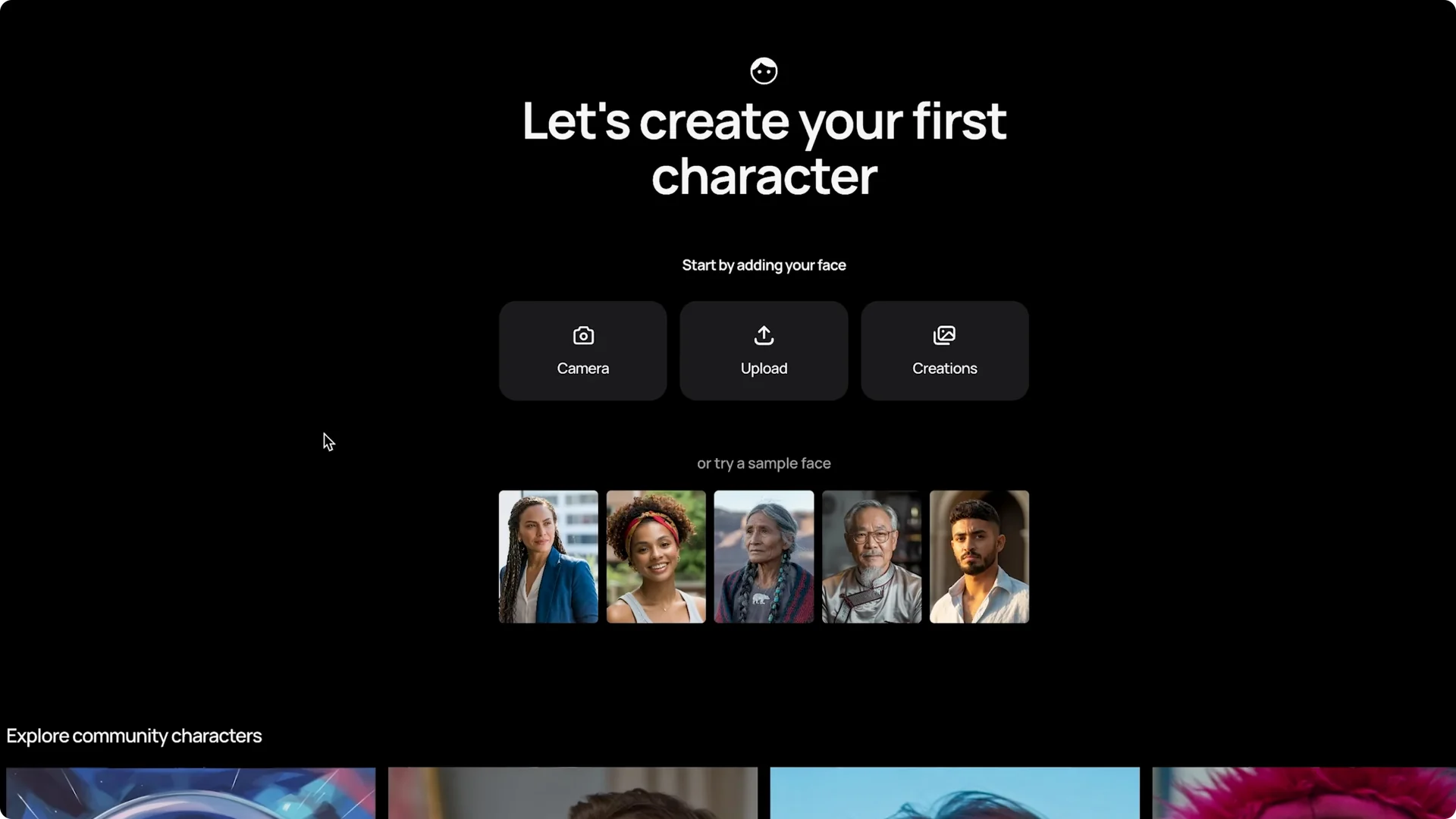
Get started with Ideogram Magic Fill Face Swap
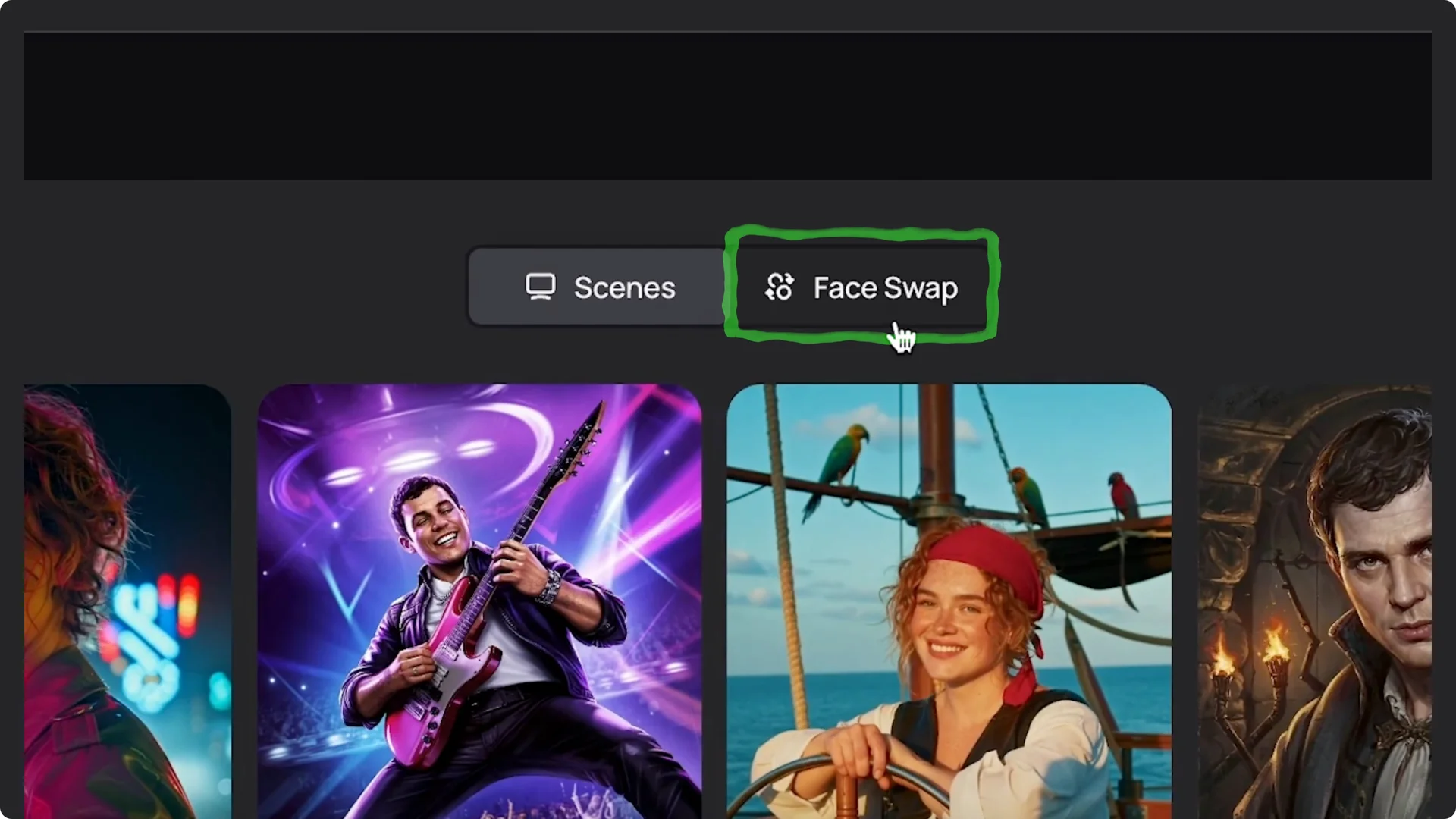
First, check out the templates.
Click over to Face Swap.
It looks like there are some famous memes.
I’m going to try out the Kiana one first. I may have had it sent to me a few times. Hit Magic Fill.
While that’s queuing, let’s try Willy Wonka and the Drake one. Not bad. I’ll keep it as my sad meme.
Willy Wonka. I look good in a top hat. Drake one looks pretty solid.
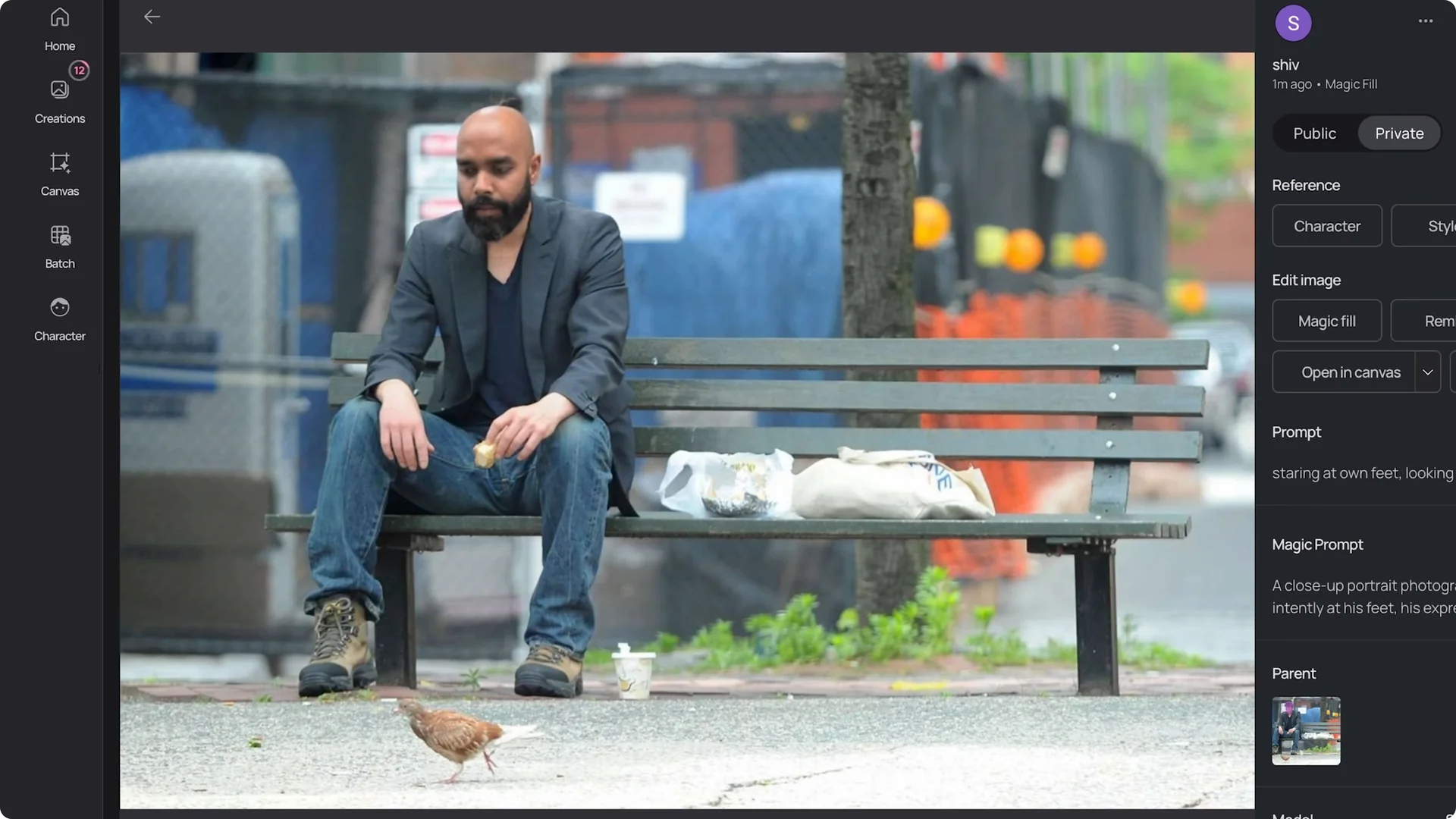
I like the lighting in it. Nice.
Custom swaps with Ideogram Magic Fill Face Swap
What if you want to do a face swap that isn’t from an existing template? I’m going to upload my own meme. I’m going to use one from The Office.
Upload and choose Magic Fill.
I want to be Michael Scott in this image. Here we can highlight over his face.
I’ll adjust the stroke size. I definitely want to keep that.
Color over his face, and when you’re happy, hit Next.
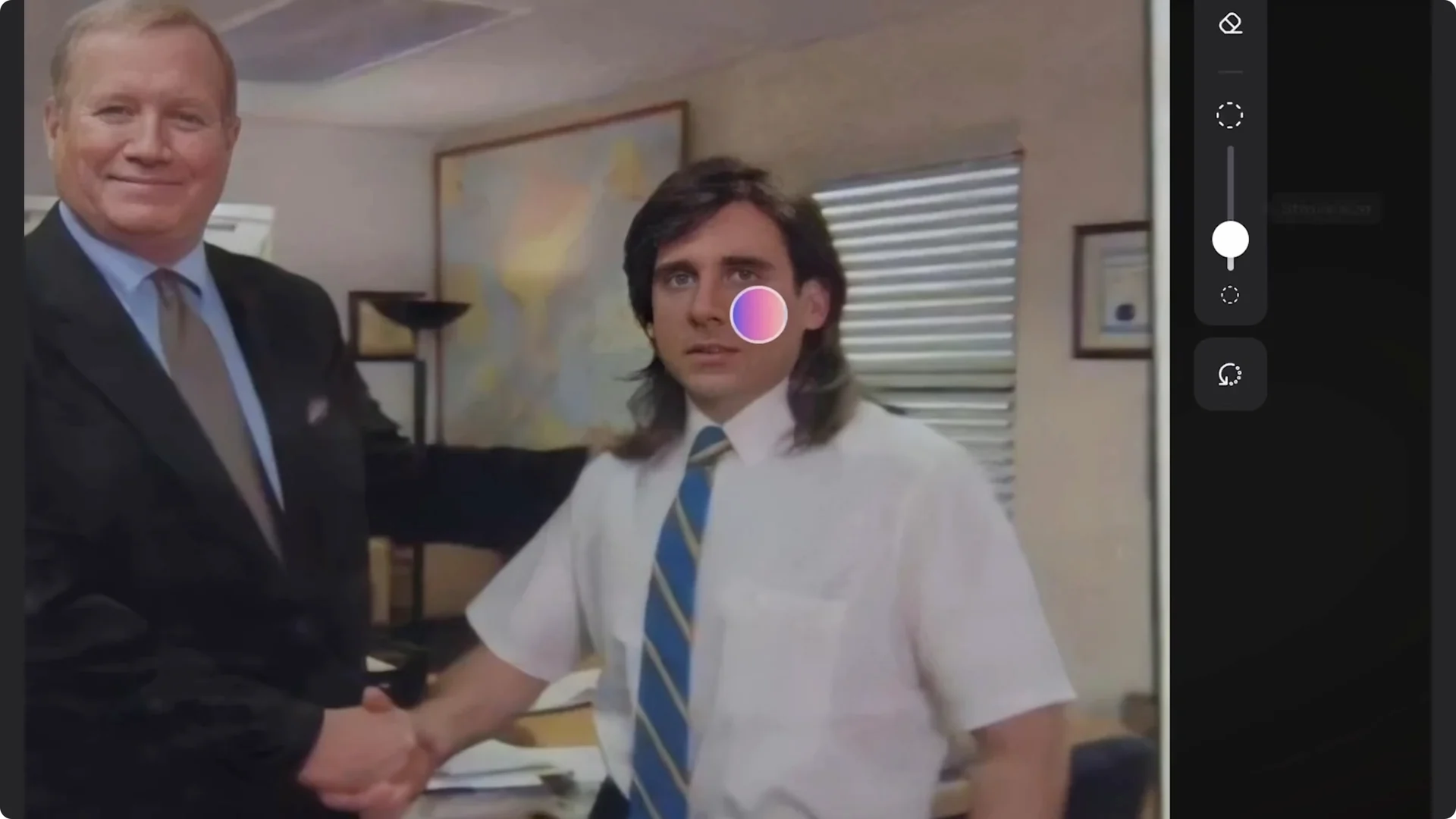
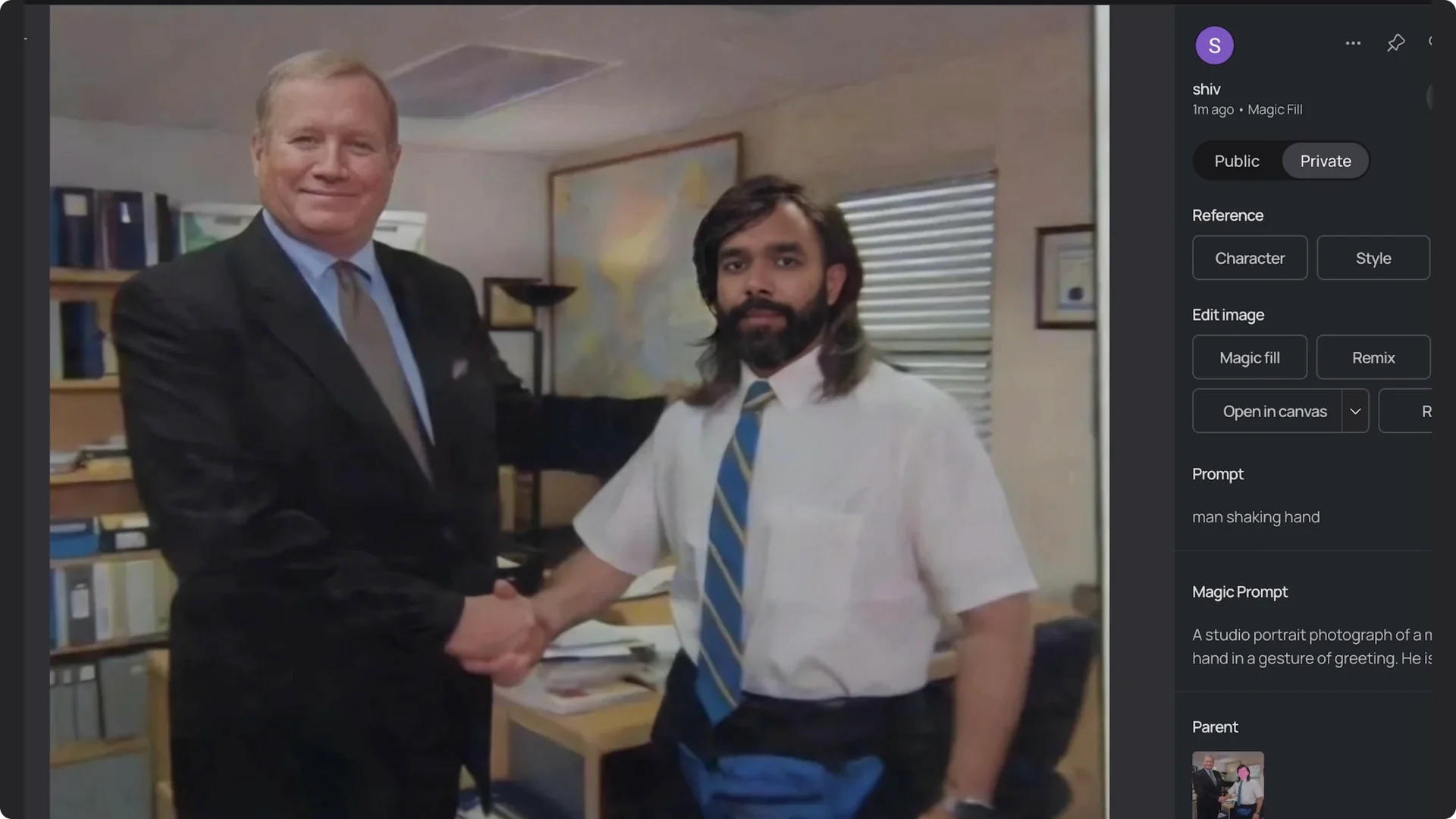
I’m just going to type in man shaking hand as the description.
Then hit Magic Fill. A few seconds later, we have our face swap.
It’s so funny. Look at that hair.
Read More: Mastering Ideogram AI for Consistent Kids Storybook Characters
Multiple faces in Ideogram Magic Fill Face Swap
Why stop there?
Why don’t we swap out the boss also.
I’ll select Magic Fill on the right panel.
We’re going to do the same as before, except to the other person.
Grab the Select tool and highlight over the face. I’m going to keep the hair also.
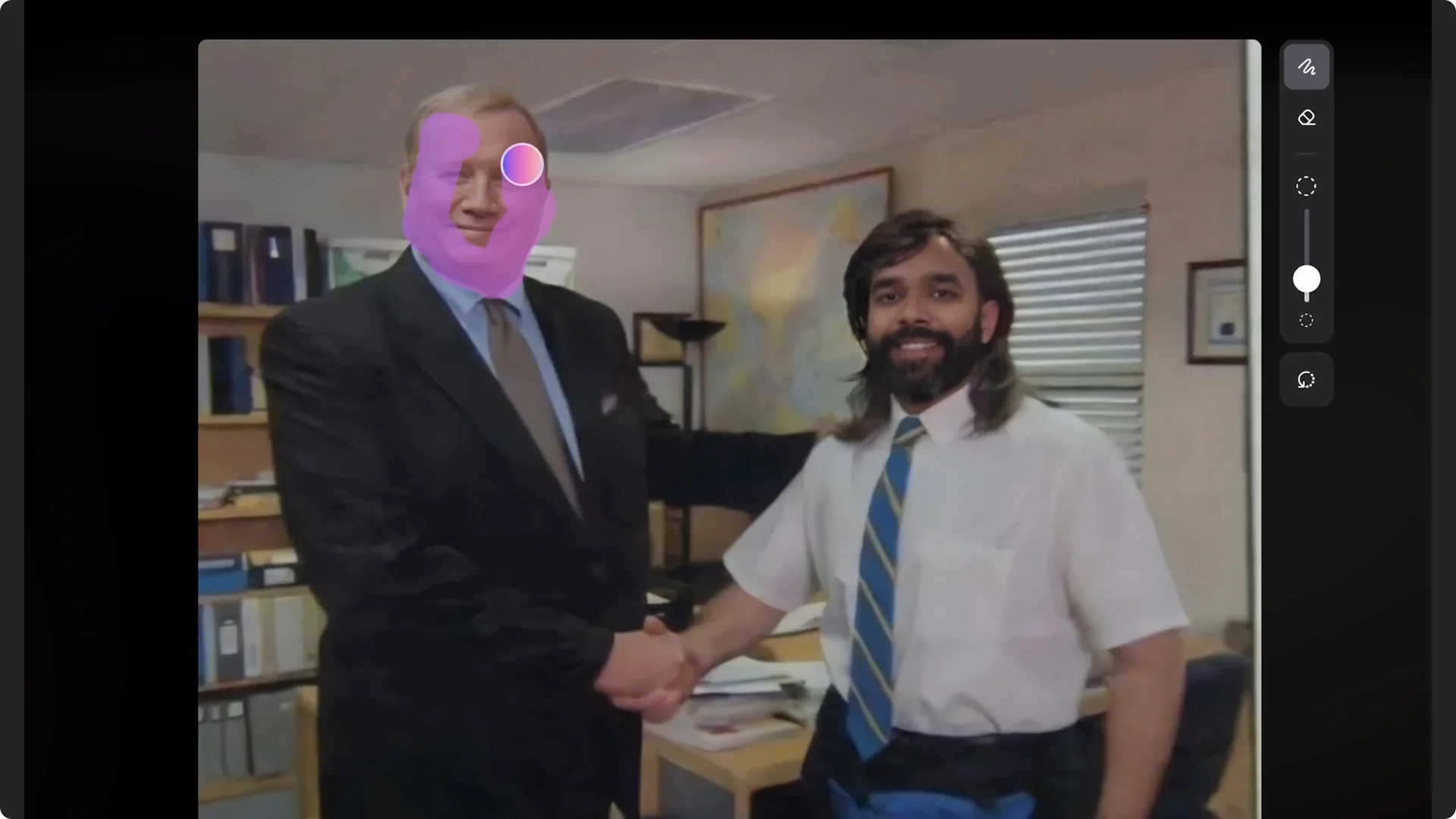
I feel like that’s a key part of the meme.
When we’re good, hit Next.
Now I’ll remove myself as the character.
Click the Character button to add a new person. I’ll choose my buddy Tristan from my saved characters and hit Magic Fill.
Just like that, we’re in The Office meme.
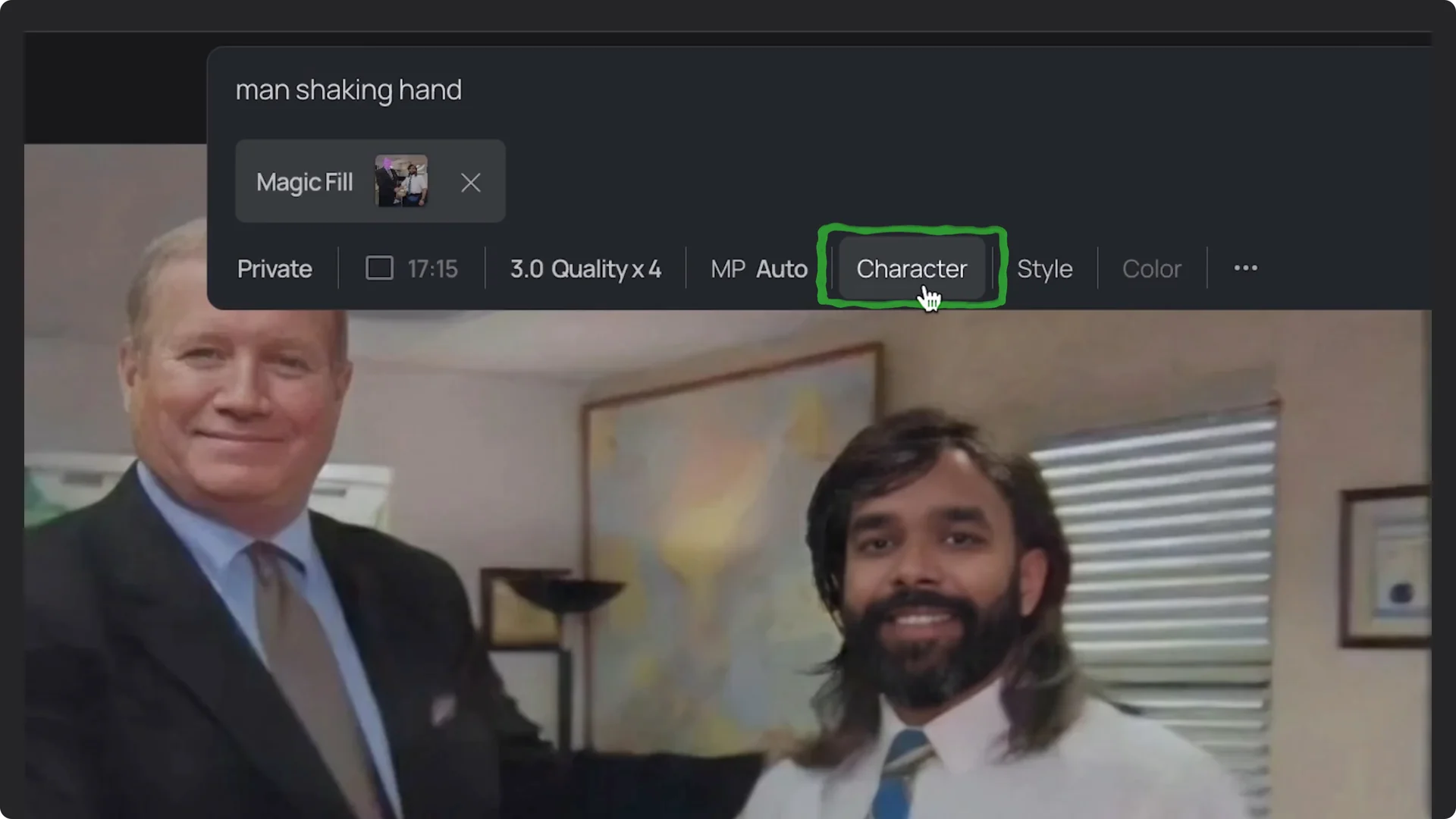
No Photoshop needed. The hair is so good.
Stylish example with Ideogram Magic Fill Face Swap
Let’s do another example. This time, I’ll do something more stylish. For a character, I’ll upload a new person.
Click on Character, New Character, Upload, and select the file.
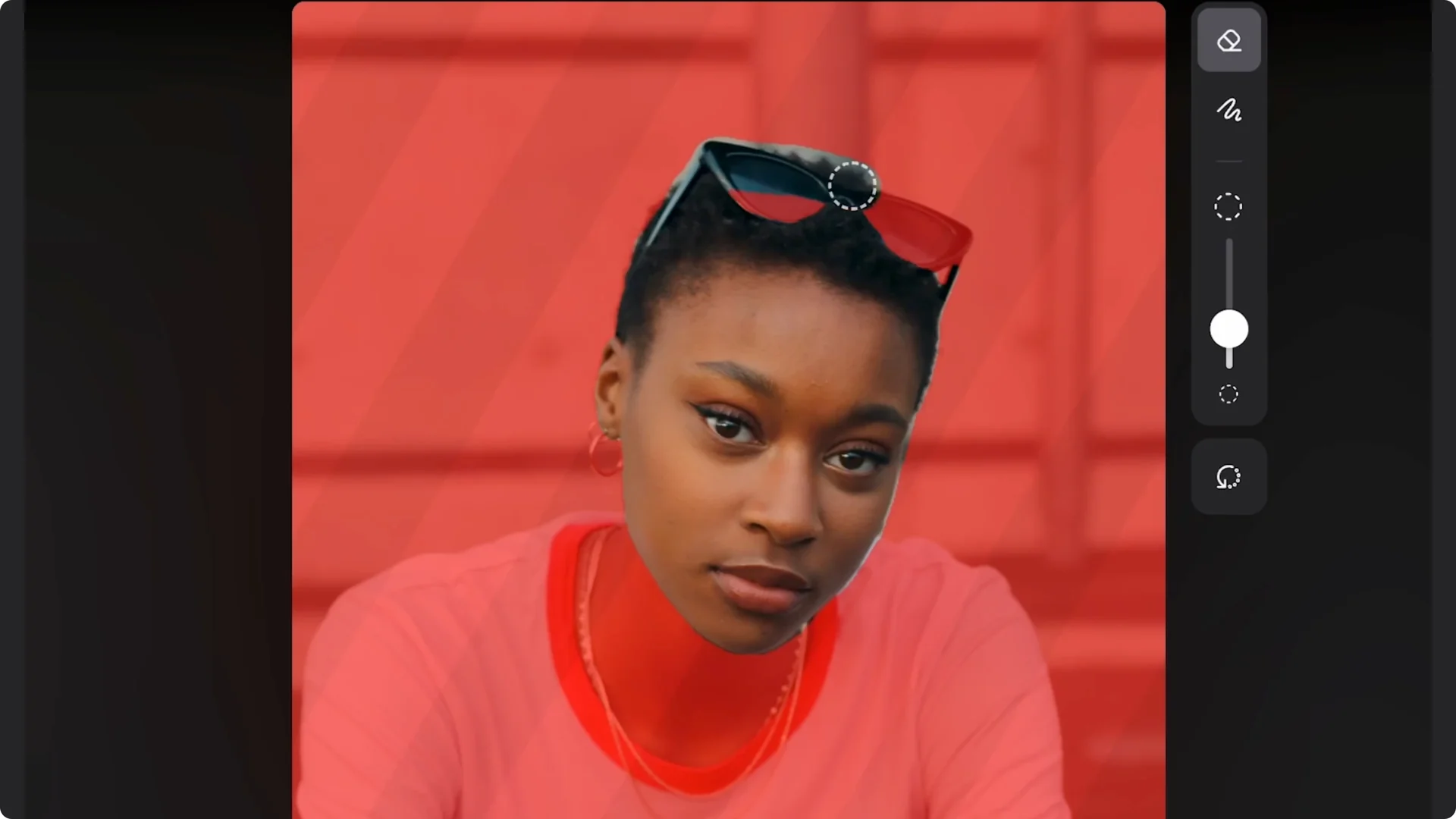
If you click on the character box, it opens the mask editor.
For this image, I’d like to keep his sunglasses.
I’ll come over to the tools panel and adjust the stroke size.
I’ll adjust the mask to include those sunglasses. Then hit Save Edits.
For my base image, I’ll upload a fashion shot. Under Edit Image, select Magic Fill. From there, it’s the same as before.
Highlight over her face, but I’m going to keep her earrings. I’ll be a bit more meticulous. This tools panel makes it easy to customize your mask.
There, that looks good. Hit Next. I’ll type in model for my description.
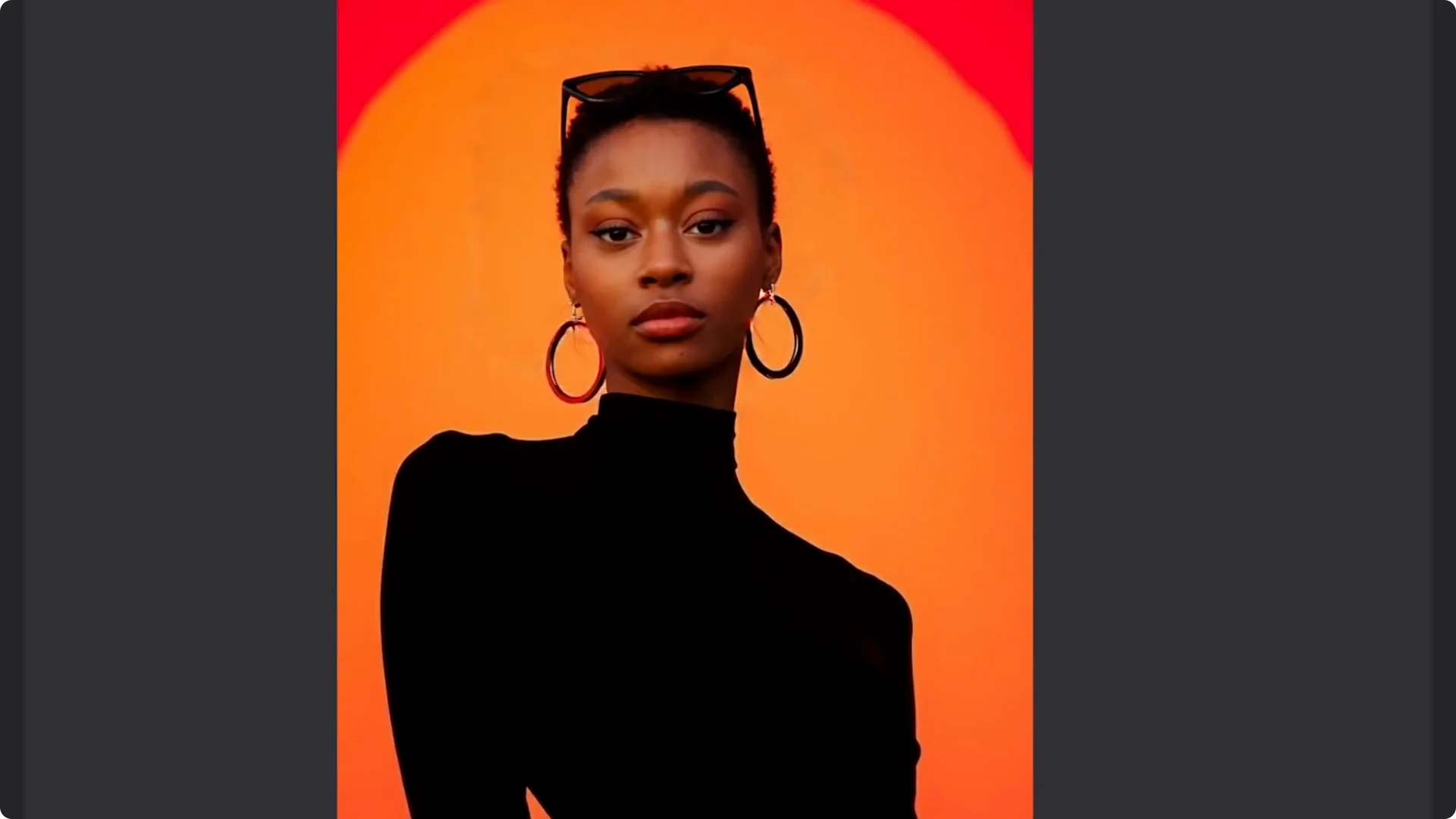
Magic Fill can do its magic. Voila, our character in a random fashion shot. Easily done.
It kept her sunglasses and even matches the lighting on her face to the original image.
Read More: Mastering Ideogram Character Consistency from a Single Image
Final thoughts
Templates make it fast, and custom masking lets you keep details like hair, sunglasses, and earrings. You can swap multiple faces in one image and control exactly what stays. That’s how you use Magic Fill face swap.