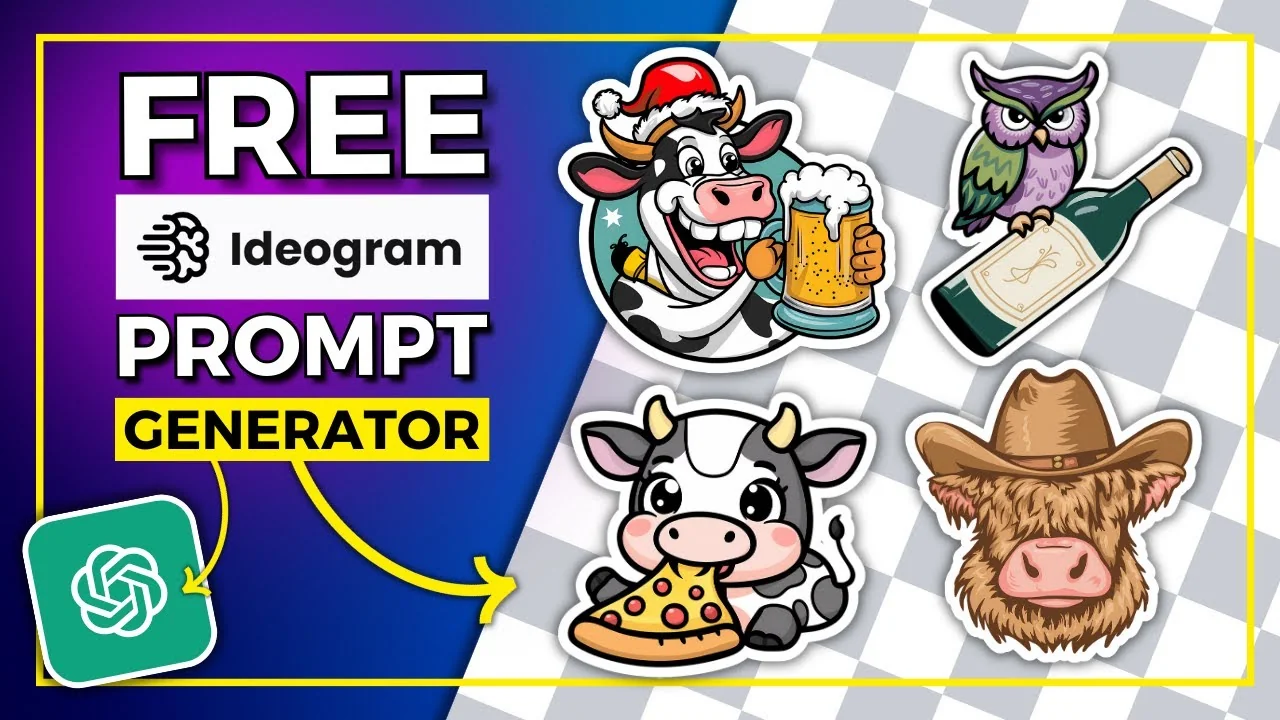
If you create stickers using Ideogram and you have ChatGPT, I want to share this prompt generator I use.
Type in what you want, and you get five variations for sticker prompts. Bring those over to Ideogram, paste them in, and you get some really nice stickers.
I’ve been playing around with the prompt generator and it creates some really nice stickers. It doesn’t work 100% of the time, but you will get some really nice results. Some outputs look a little off, but others look really good.
Ideogram Sticker Prompt Generator: What It Is
I played around with a t-shirt prompt generator and changed it around a bit, and now we have this sticker prompt generator specifically for Ideogram. These prompts are what we’re going to use to create sticker graphics for my print on demand business.
Set Up the ChatGPT Instructions
The setup is in two parts.
- Part 1: We’re going to turn you into an idea AI sticker prompt generator. These prompts are what we’re going to use to create sticker graphics for my print on demand business. I am now going to feed you some information. Do you understand? Just respond with yes.
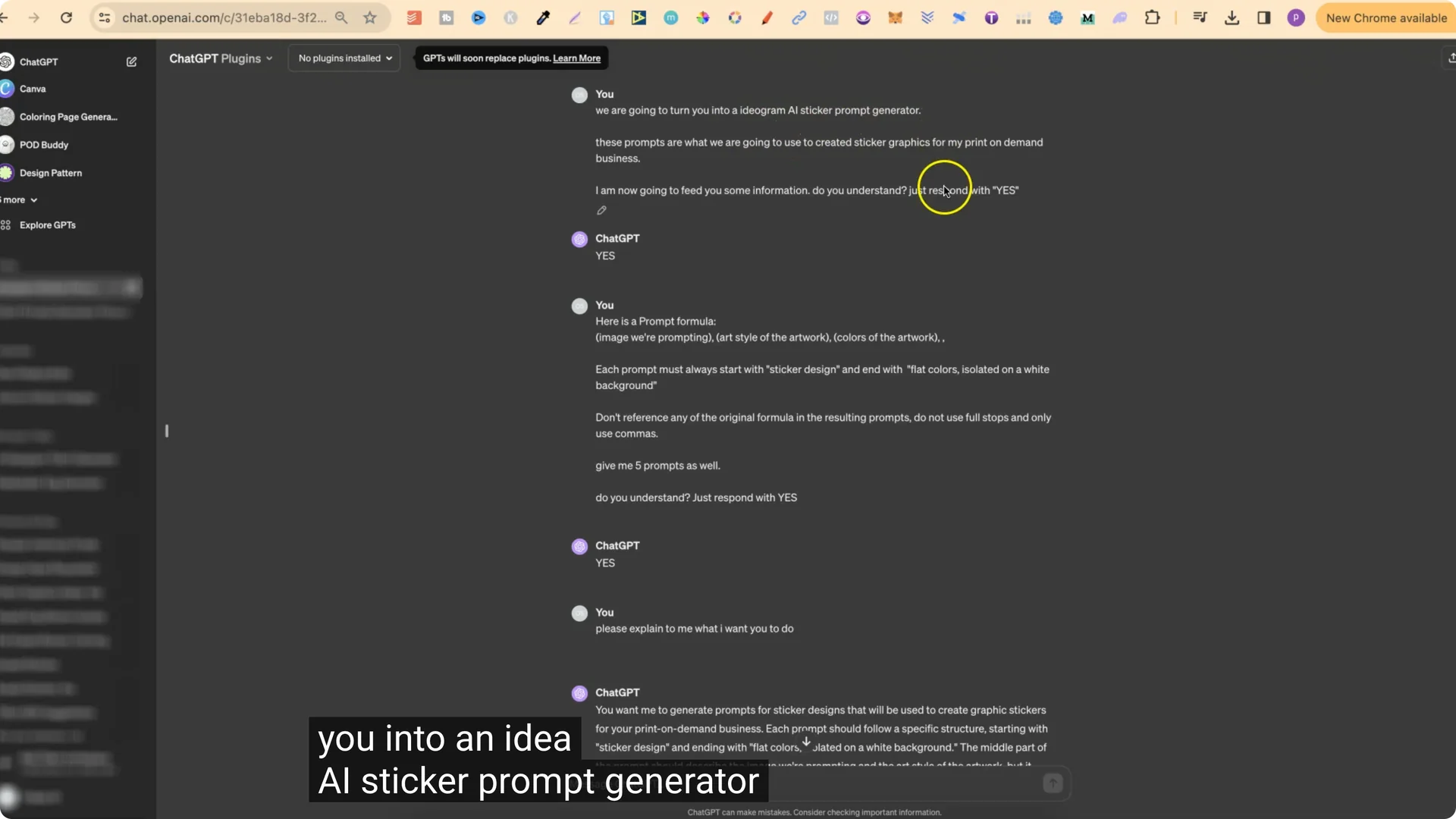
- Part 2: This is the prompt formula. It starts with image we prompt in, art style of the artwork, then colors of the artwork. Each prompt must always start with sticker design and end with flat colors isolated on a white background. Don’t reference any of the original formula in the resting prompts. Do not use full stops and only use commas. Give me five prompts as well. Do you understand? Just respond with yes.
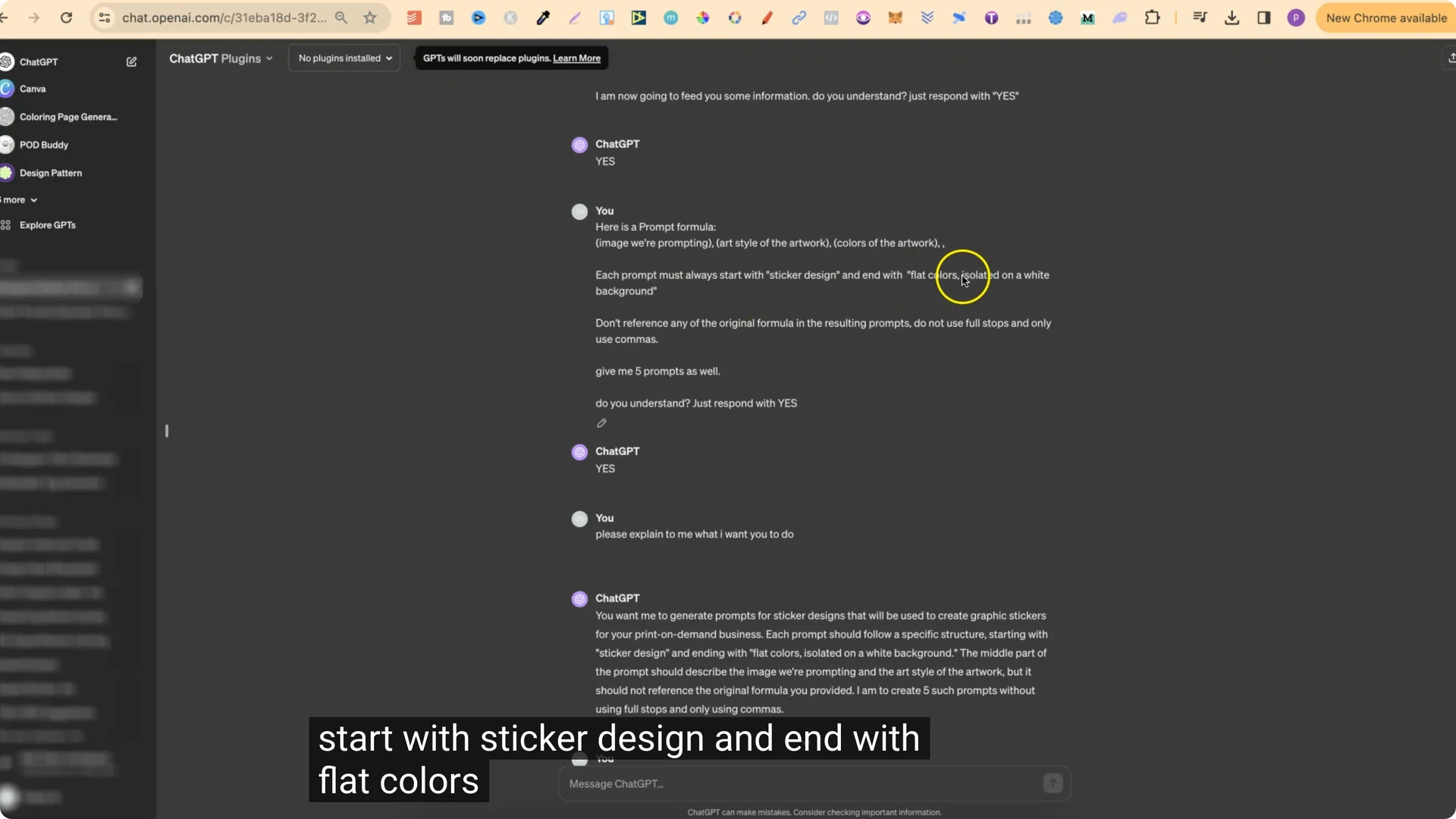
Then I put please explain to me what I want you to do. It explains that, and then we can type in anything we want and it’s going to create five variations for prompts for that niche.
Research First, Then Plug In Your Niche
The best way to use this is do all of your research first. Figure out what you want to sell or what you want to create, and then plug that in.
- If people are searching for books and frogs, type that in.
- If they’re searching for wine and owls, put that in.
Use the Ideogram Sticker Prompt Generator in ChatGPT
Reuse the same chat for new niches
To use this over and over again instead of always putting in all of these prompts:
- Click on the last one where we put the niche.
- Edit it with the little pen.
- Type what you want and save.
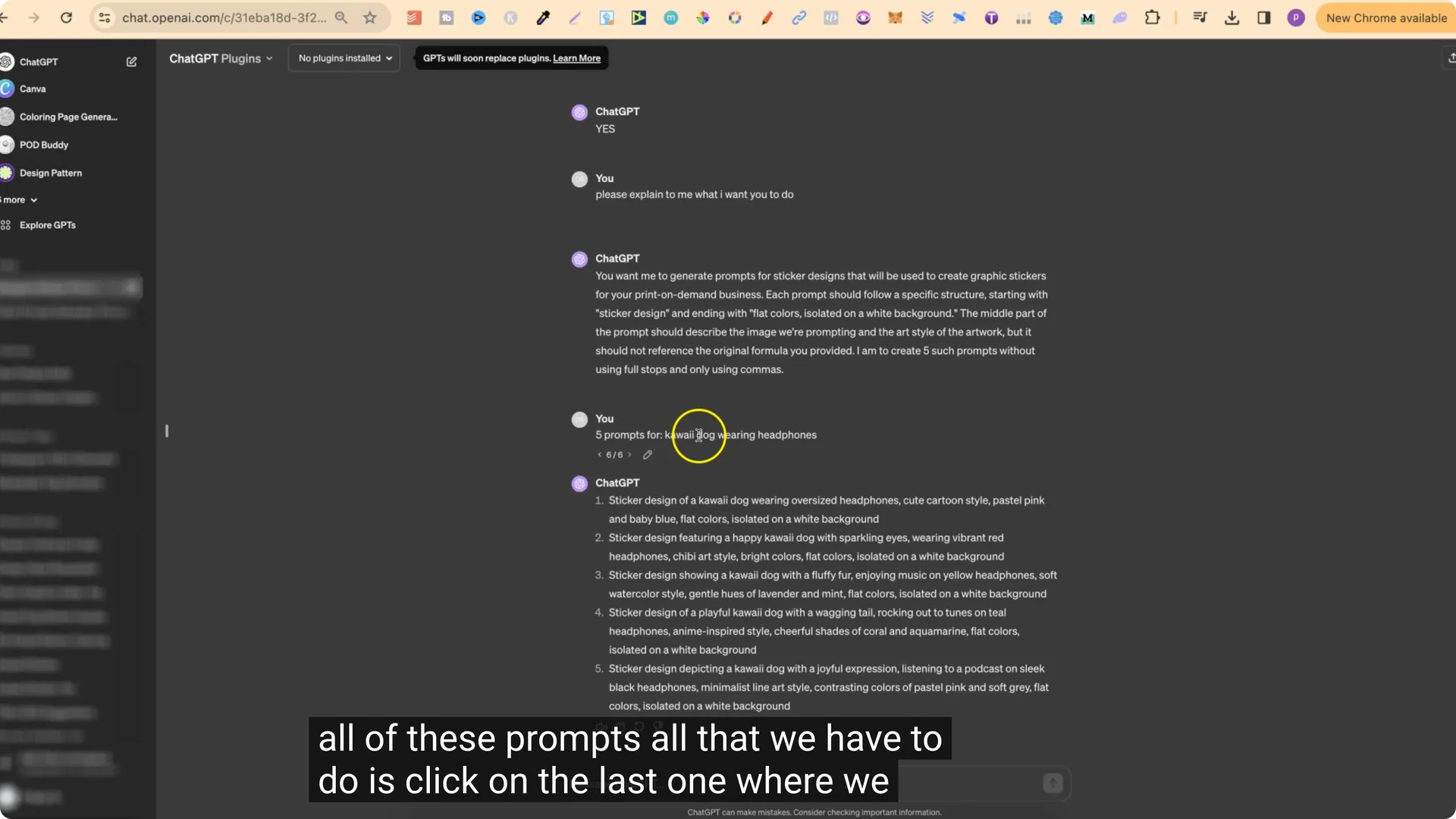
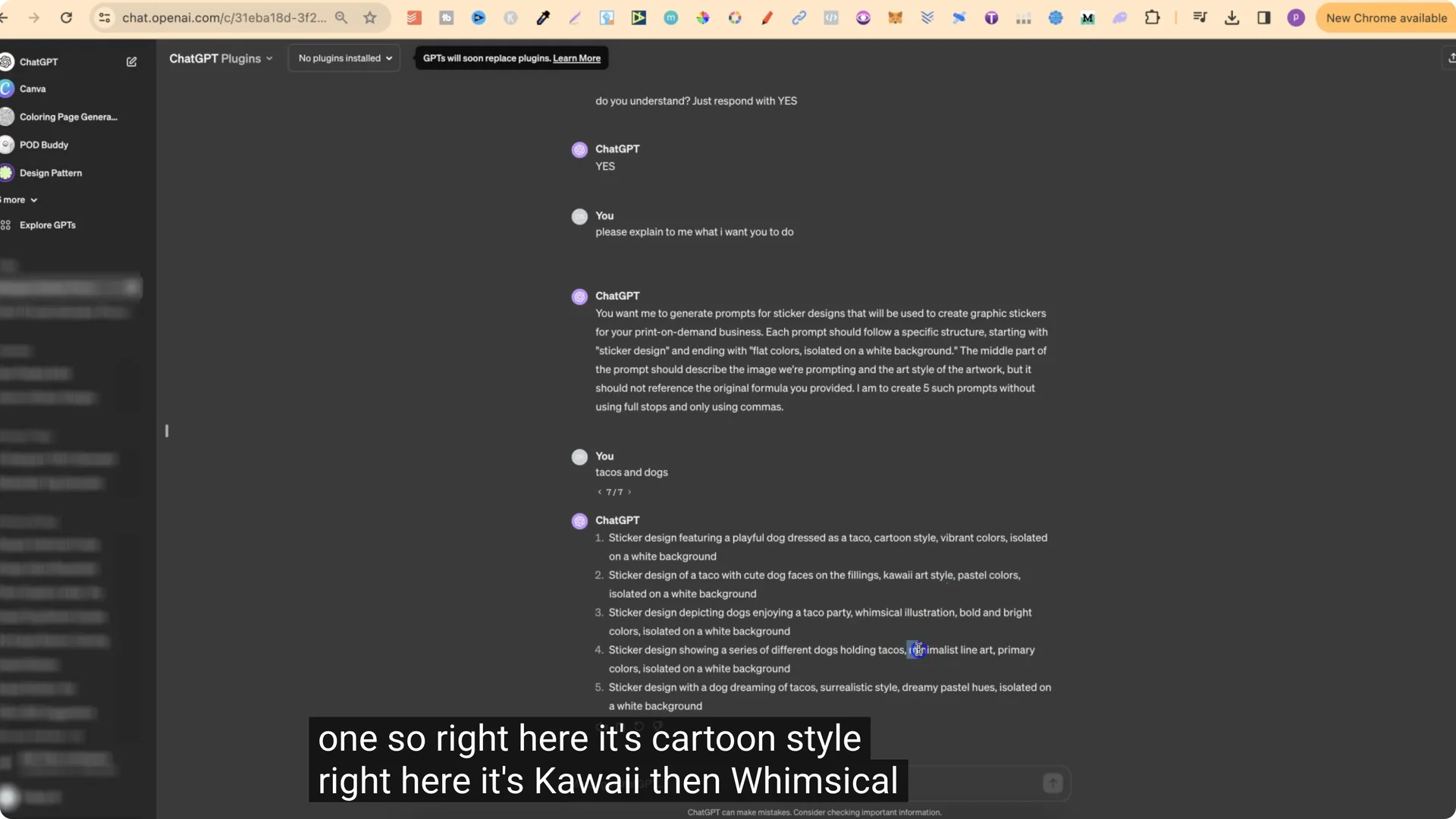
Example: I put in tacos and dogs. It gave five different prompts, and the style is different on every single one: cartoon style, Kawaii, whimsical, minimalistic, surreal or surrealistic.
Fix it when you do not get five prompts
Sometimes it won’t give five prompts. If that happens:
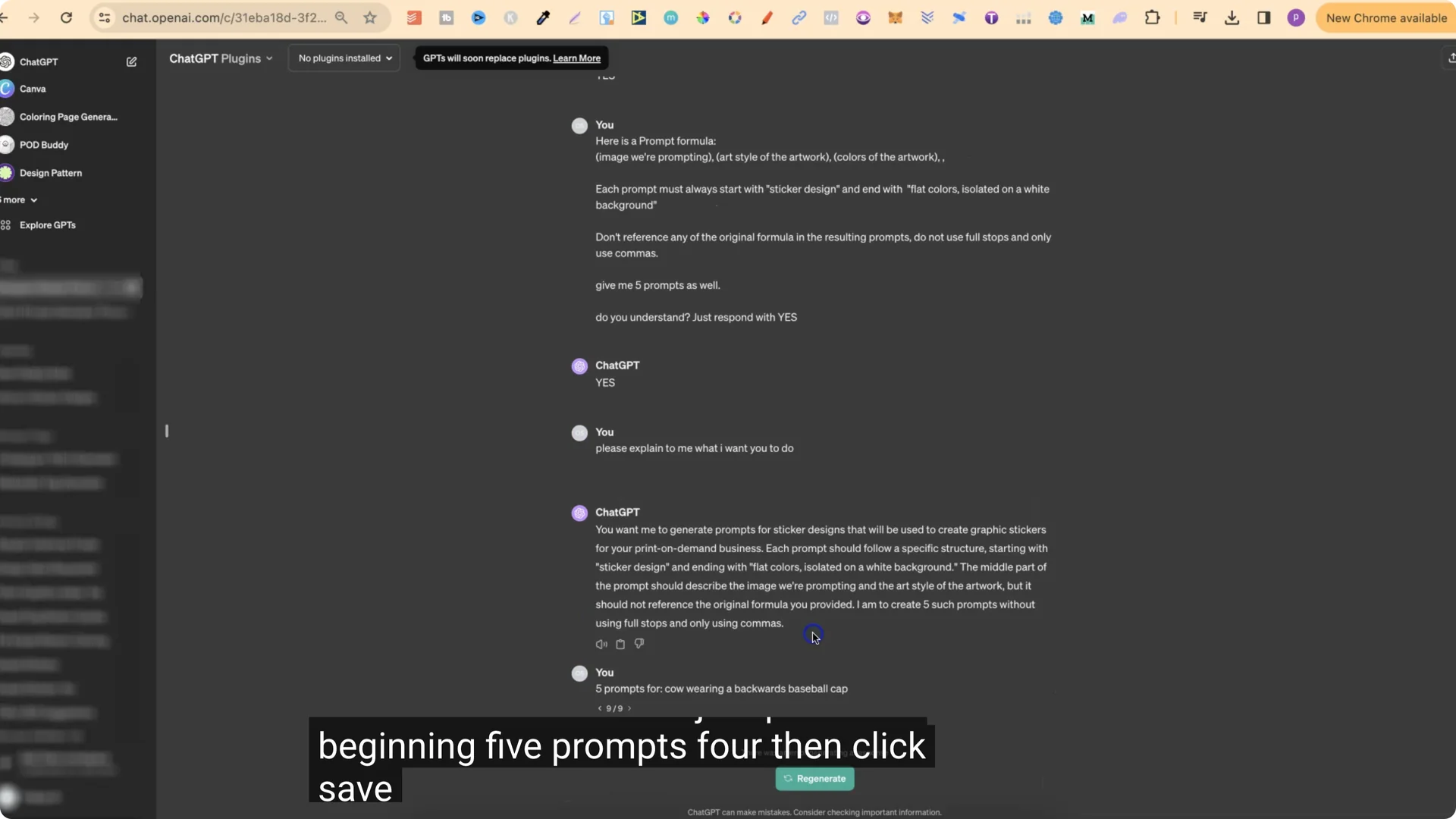
- Add this at the beginning of your instruction: five prompts for, then put the niche after.
- Save and it will return five.
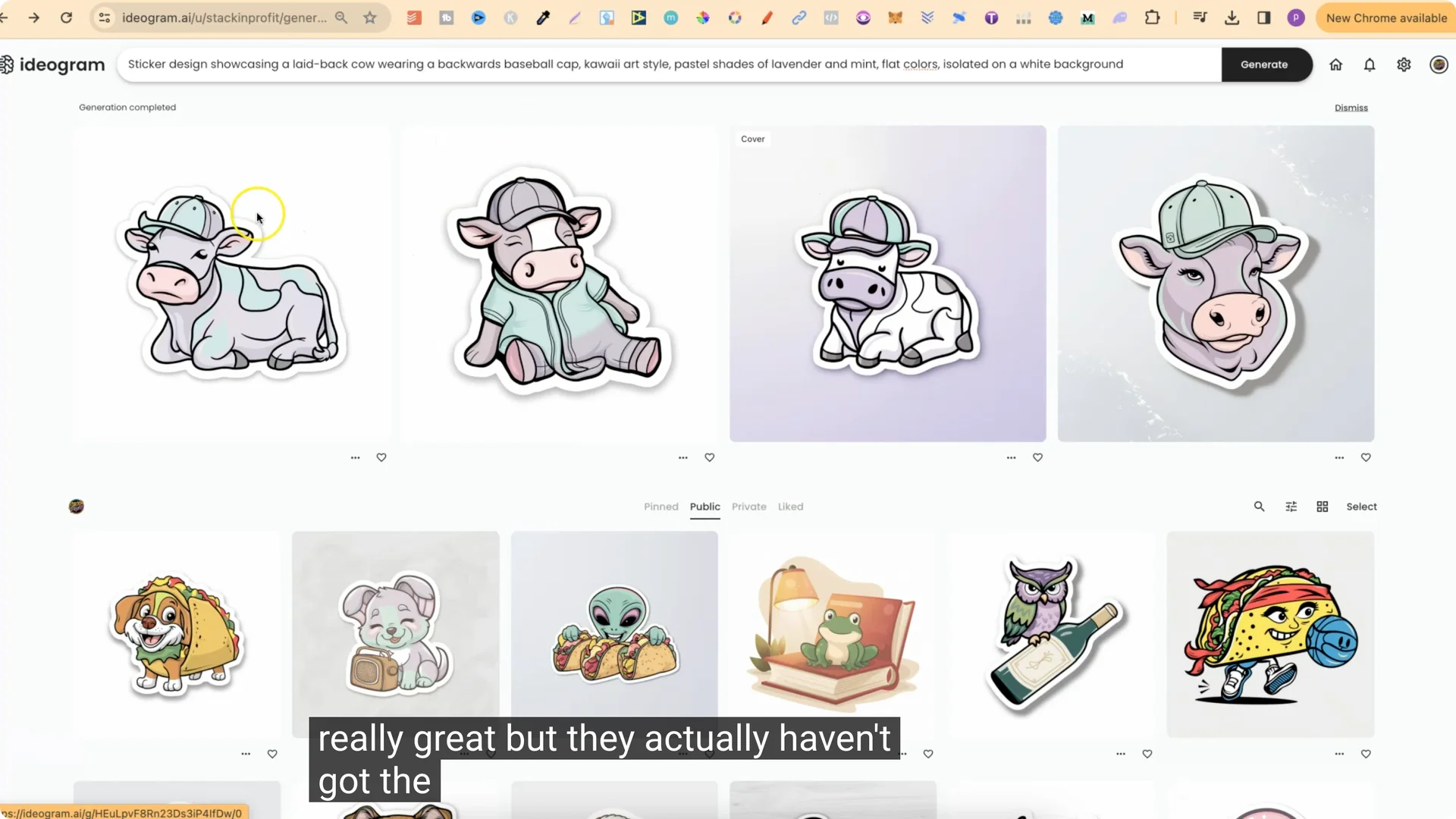
Example: I did a cow wearing a backwards baseball cap. It only returned one at first. I added five prompts for at the beginning and it returned five.
Generate Stickers in Ideogram
Step-by-step
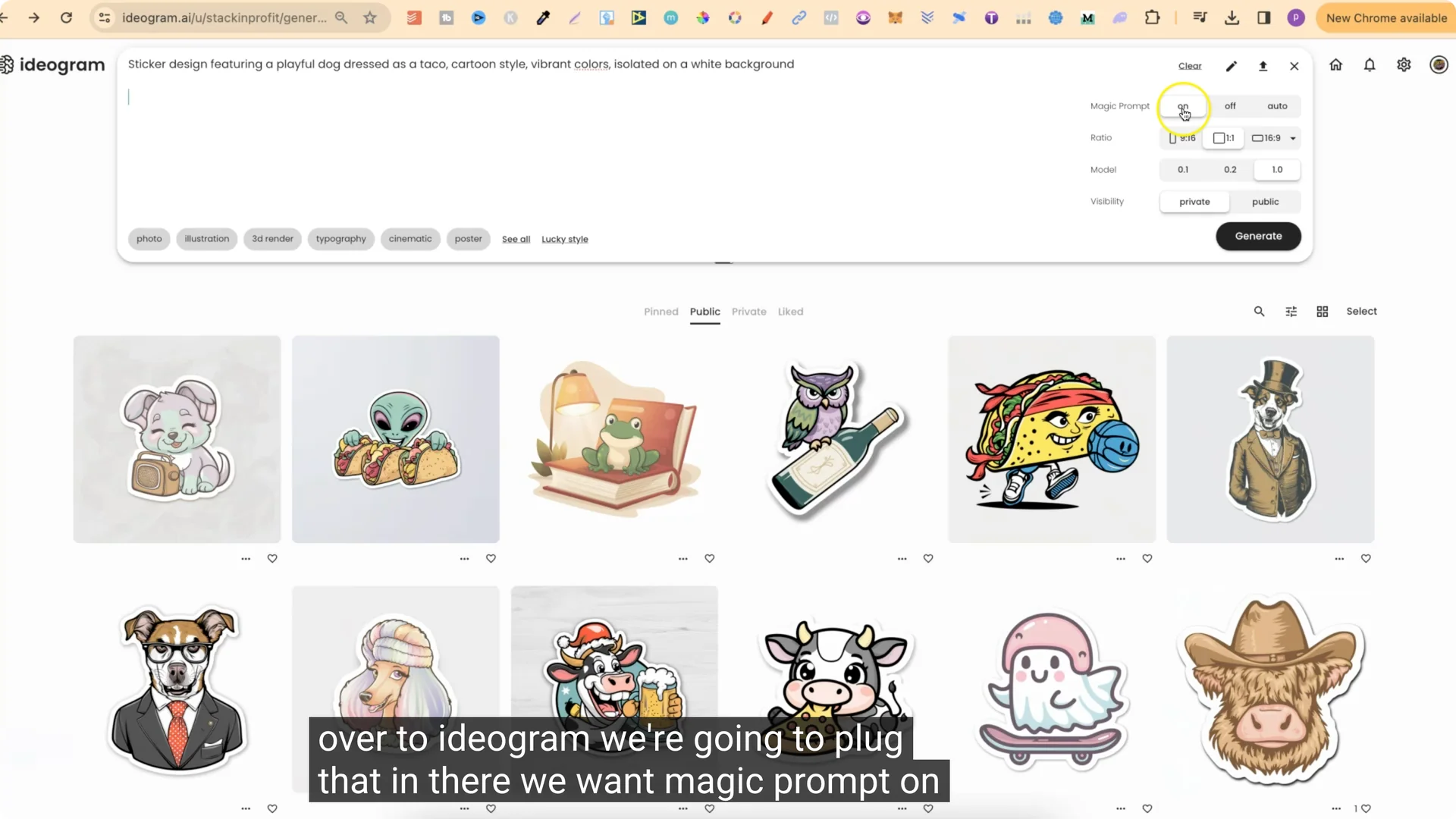
- Take a prompt from ChatGPT. For example: sticker design featuring a playful dog dressed as a taco.
- Paste it into Ideogram.
- Turn Magic Prompt on.
- Set aspect ratio to 1×1.
- Use Model 1.0.
- Set visibility to Public if you want.
- With all of these prompts, always put illustration in the prompt.
- Click Generate.
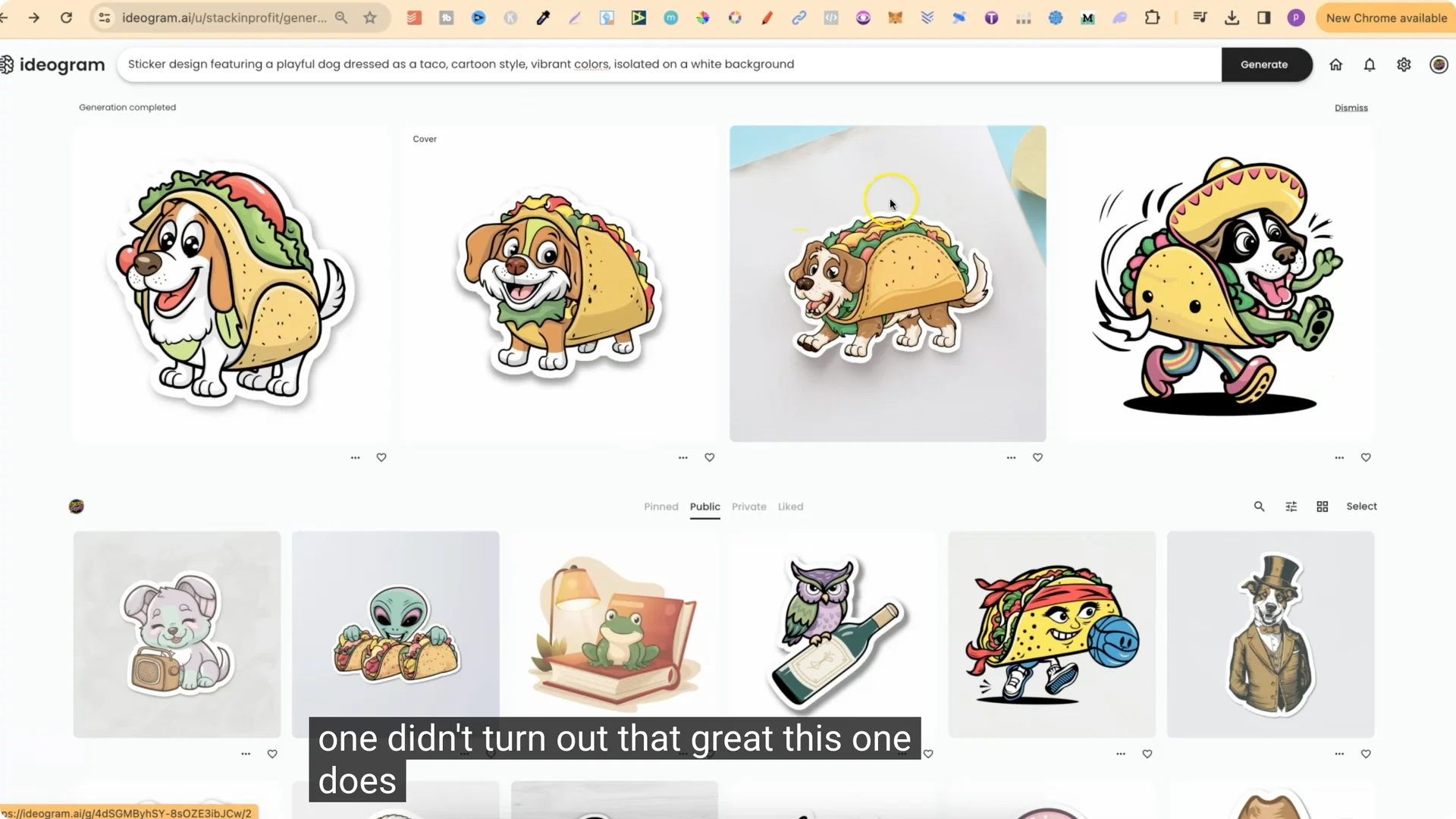
Results will vary. Sometimes one variation won’t turn out great, but others look good. Extra bits around the sticker do not matter because you can remove those when you edit the stickers.
Another example
- Take a prompt like sticker design showcasing a laidback cow wearing a backwards baseball cap Kawaii art style.
- Paste into Ideogram with the same settings and generate.
These can look really great. Sometimes a detail like the backwards cap might be missed. If you like the design but not the colors, come back to the prompt, change the colors, and generate again.
Styles You Can Get From the Prompts
ChatGPT will use lots of different styles you can use. The ones I used included:
- Kawaii style
- Cartoon style
- Cozy art style
- Pop art style
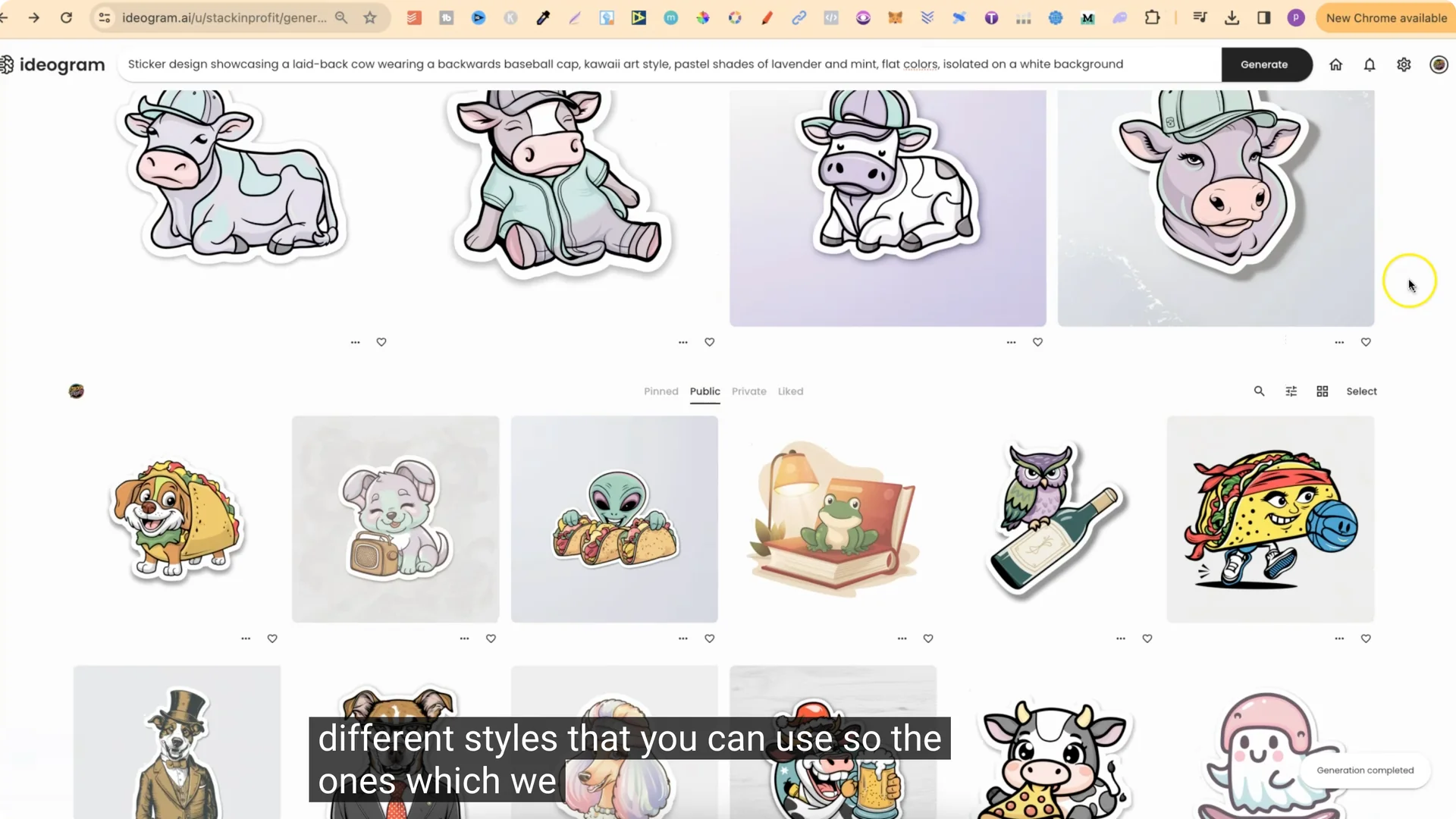
You can get some really great simple prompts for creating stickers.
Optional: Use the Prompt Structure Manually
If you want, you can just use this prompt structure:
- Start every prompt with sticker design.
- Explain what you want.
- Add an art style.
- Add the colors.
- End with flat colors isolated on a white background.
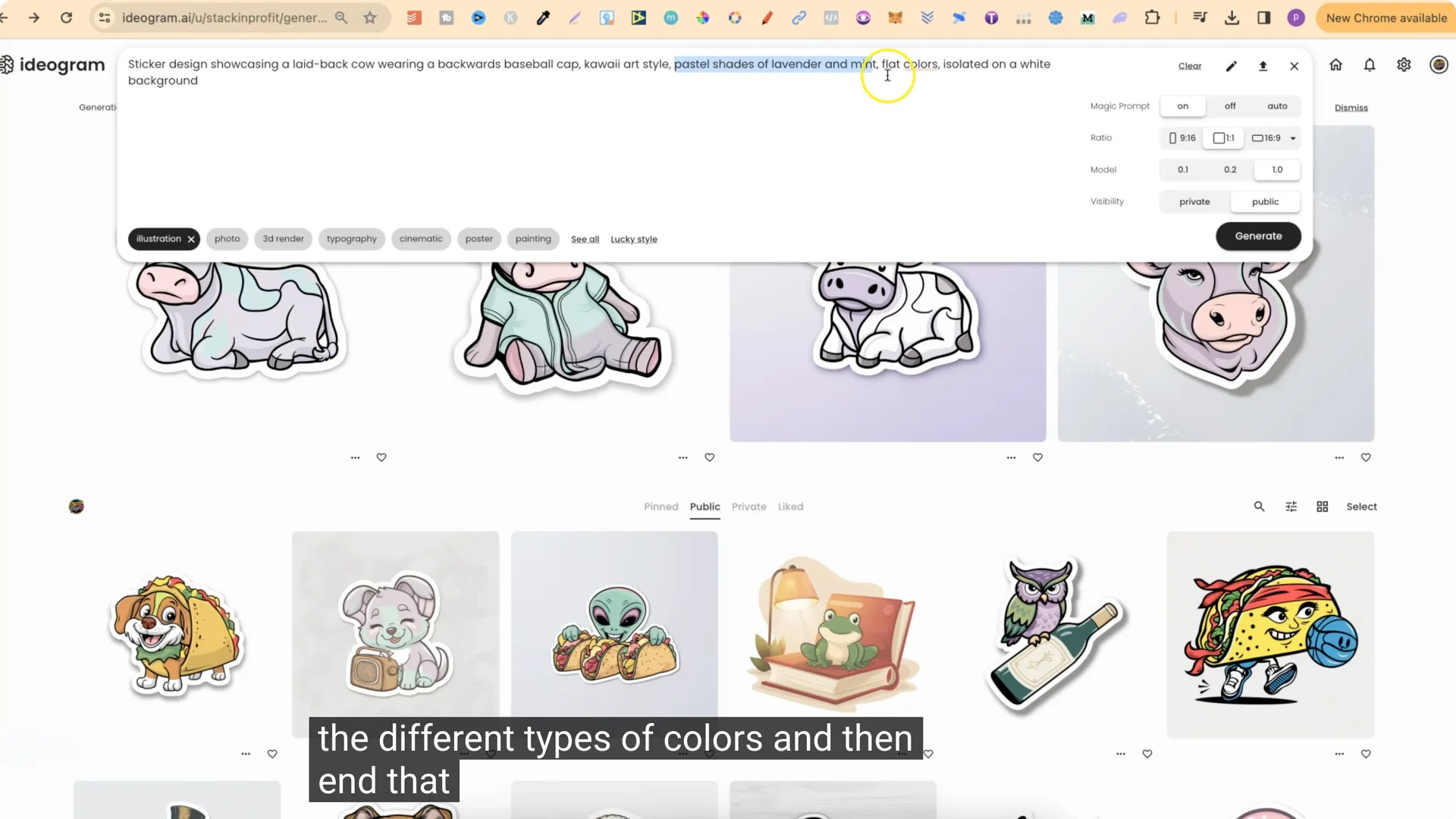
It’s totally up to you. Come through and try it out.
Final Thoughts
Set up ChatGPT once with the Ideogram Sticker Prompt Generator and reuse it for any niche by editing your last input. Aim for five varied prompts, paste the best one into Ideogram with Magic Prompt on, 1×1, Model 1.0, and include illustration. Expect some variation in quality, tweak colors or styles in the prompt, and keep exploring niches like books and frogs or wine and owls for new sticker ideas.