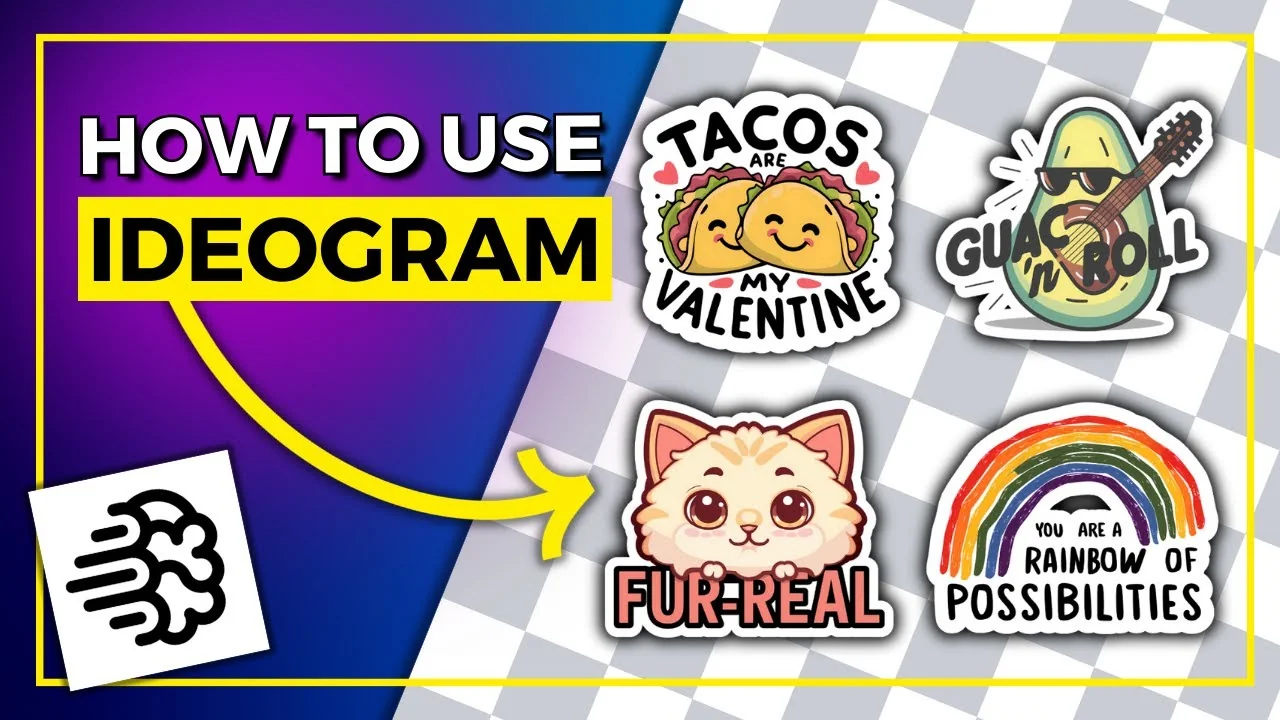
I’ve been playing around with Ideogram 1.0. The designs look really nice. Here’s a quick overview of the software, a walkthrough of the gallery and profile features, how I work with prompts and Magic Prompt, and the exact prompt structure I use to create clean, vector-friendly designs.
Ideogram 1.0 Tutorial: Plans and Pricing
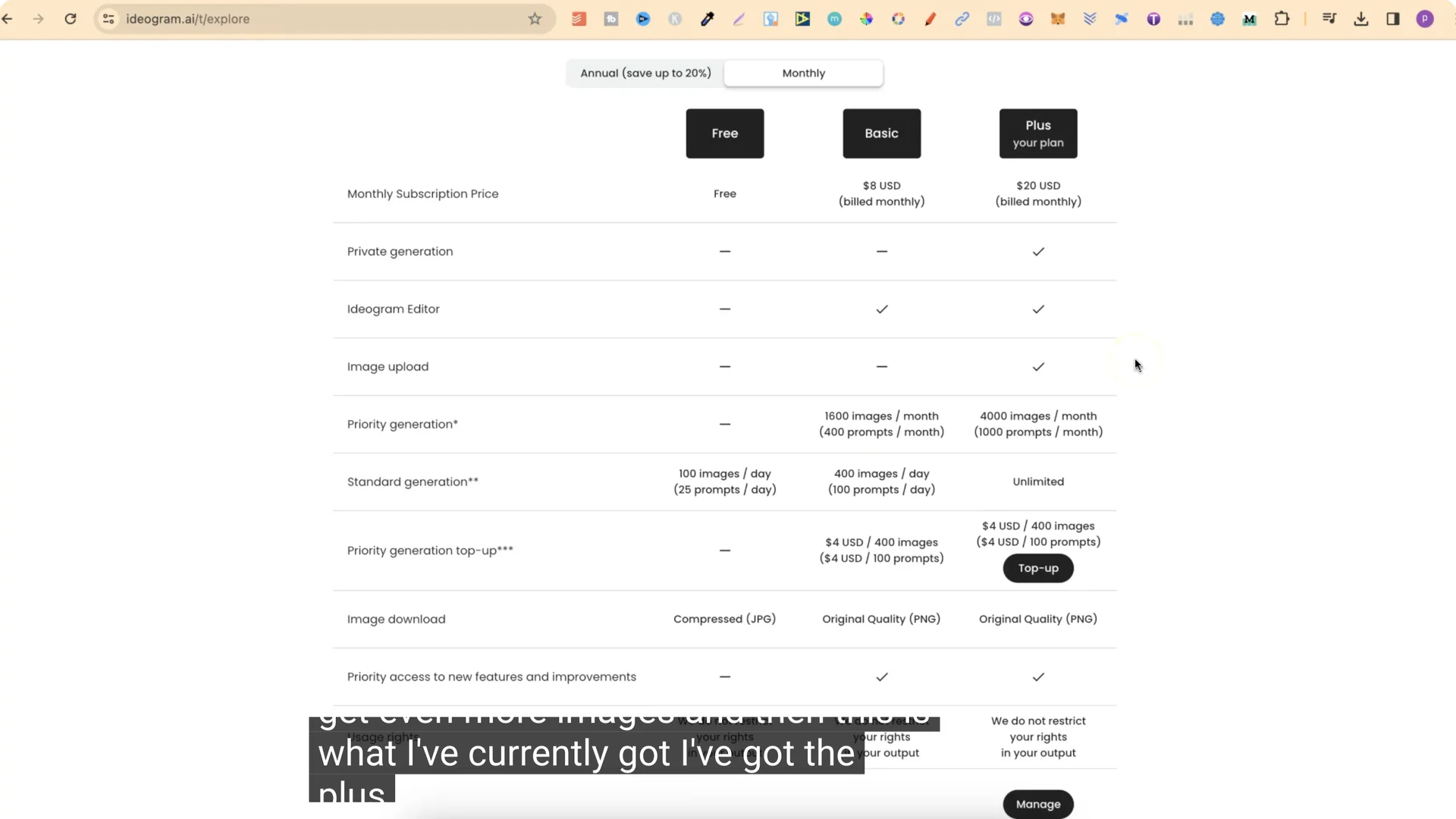
- Free plan: 100 images per day with 25 prompts. One prompt creates four images.
- Basic plan: $8 per month with more images.
- Plus plan: around $20 per month. The key feature for me is the ability to keep everything private.
Ideogram 1.0 Tutorial: Gallery and Home
You can browse the gallery to see what people have been creating.
Tabs and Browsing
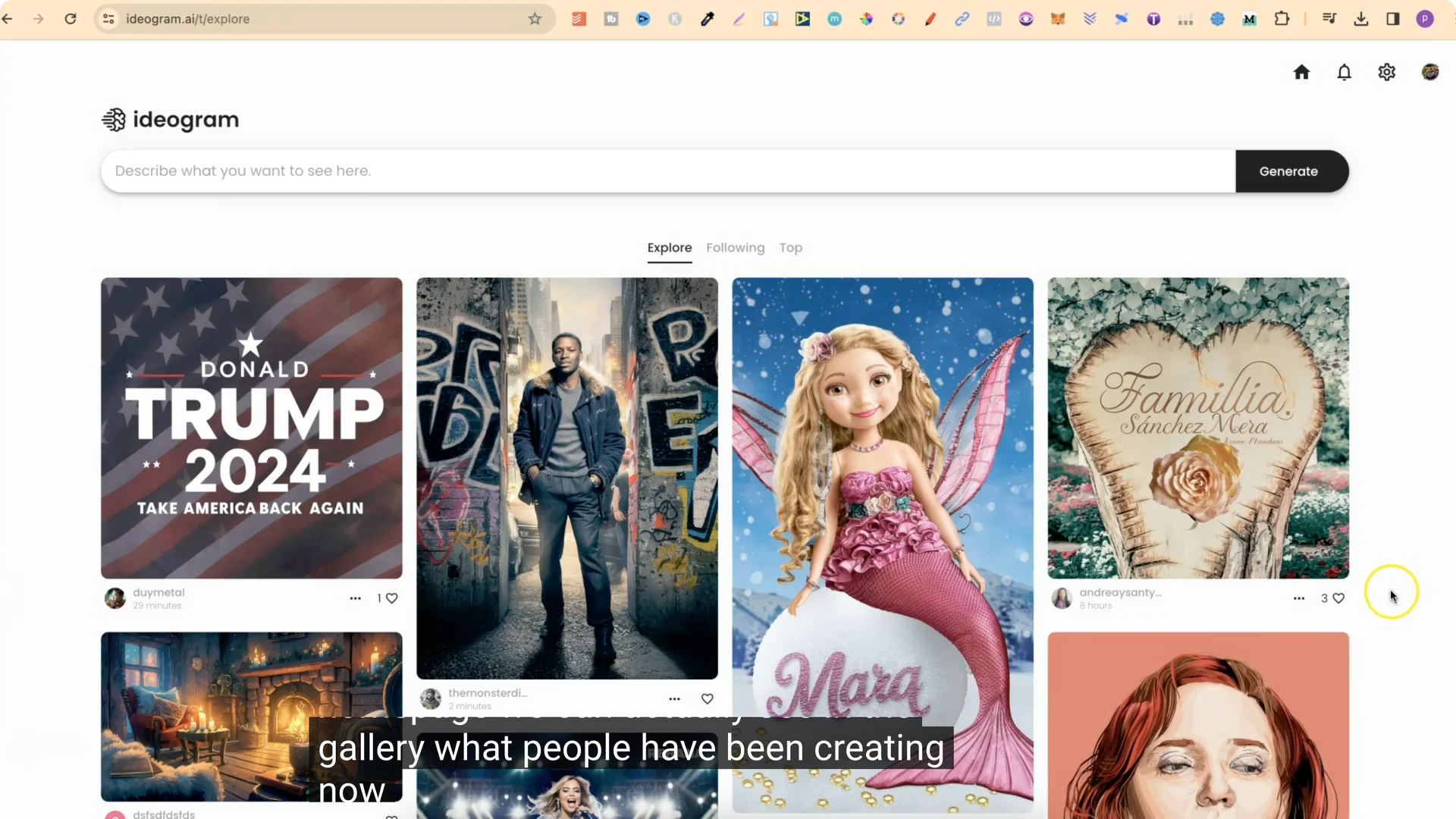
- Explore shows recent creations from across the platform.
- Following shows work from people you follow.
- Top highlights top creations.
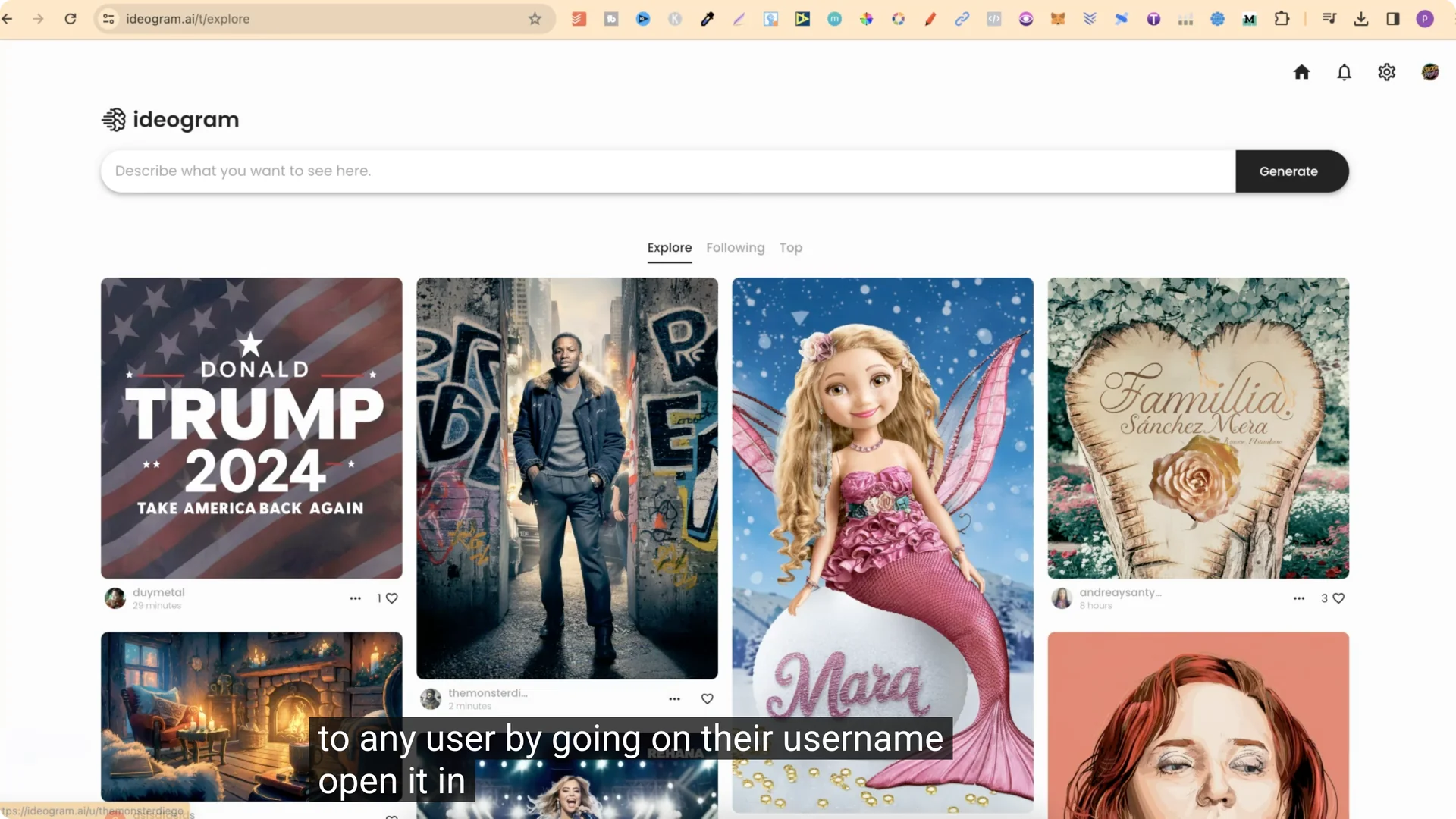
You can click a username to open a user profile in a new tab and follow them from there.
Saving, Viewing, and Remixing
- Heart any design to save it. It will appear in your saved list.
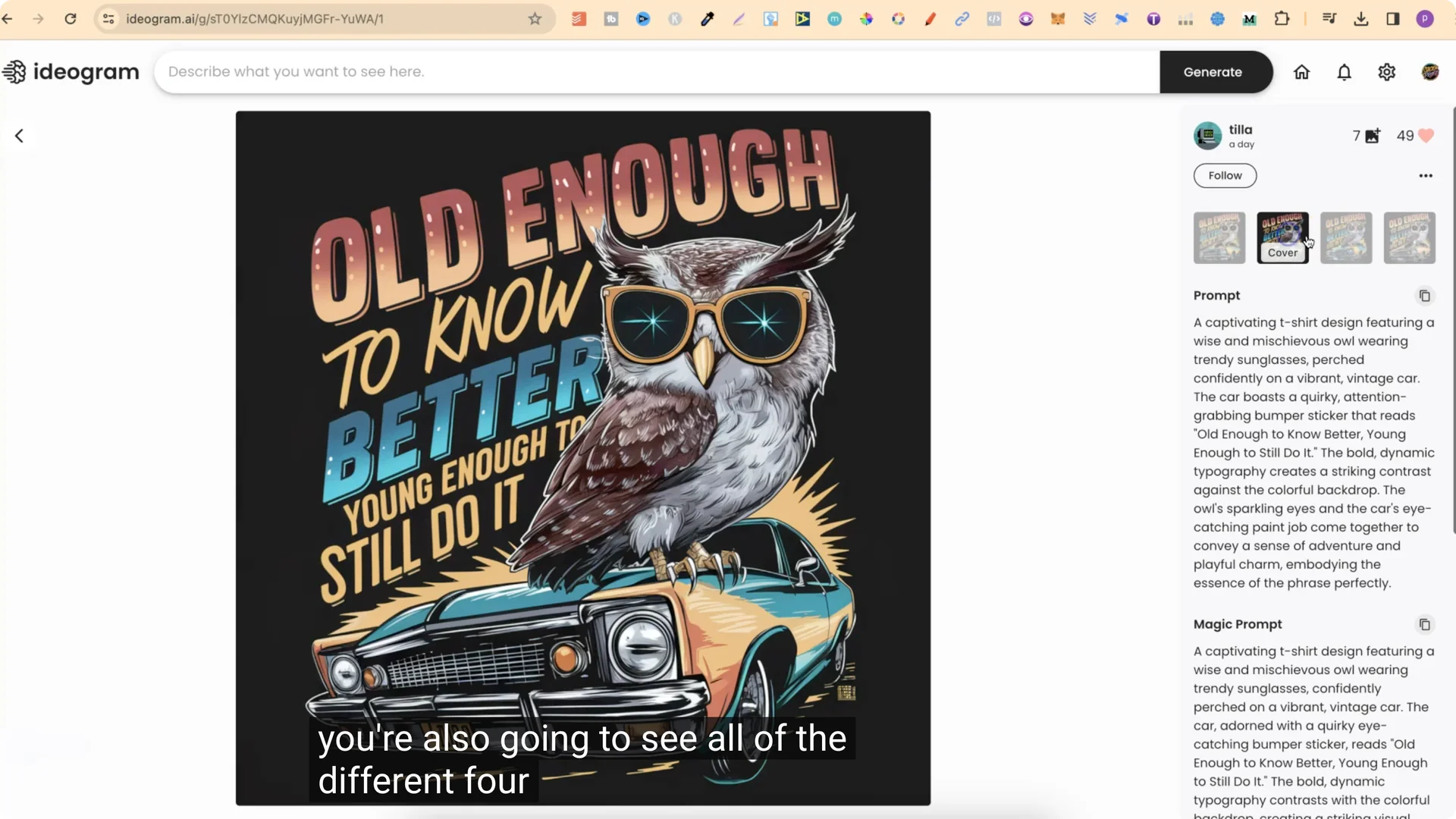
- Click a design to see:
– The prompt used.
– The Magic Prompt version.
– All four images generated from that prompt.
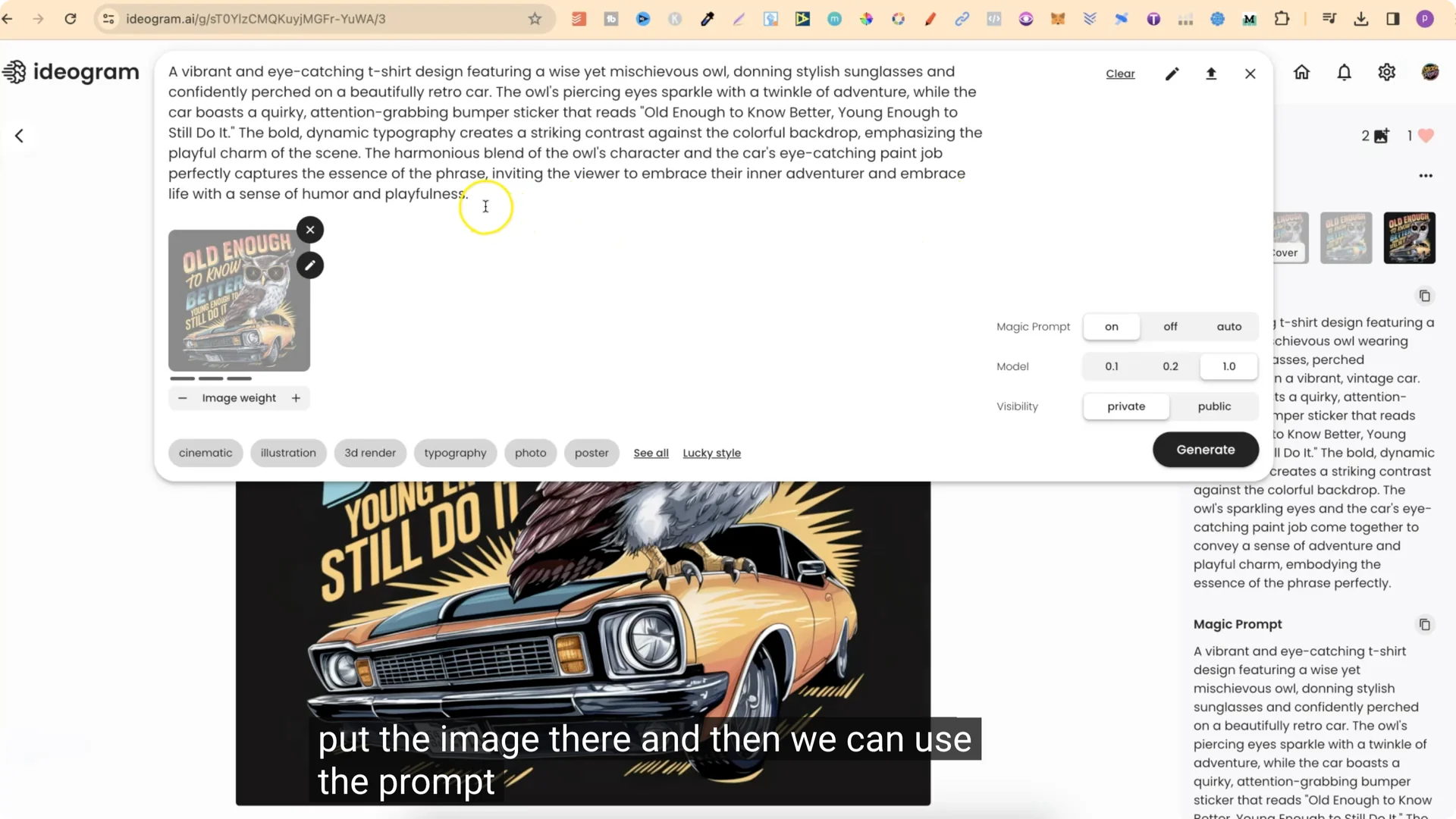
- From the design view, you can follow the creator, heart the design, or remix it. Remix loads the image and prompt so you can add to or adjust the prompt.
Ideogram 1.0 Tutorial: Profile, Pins, and Likes
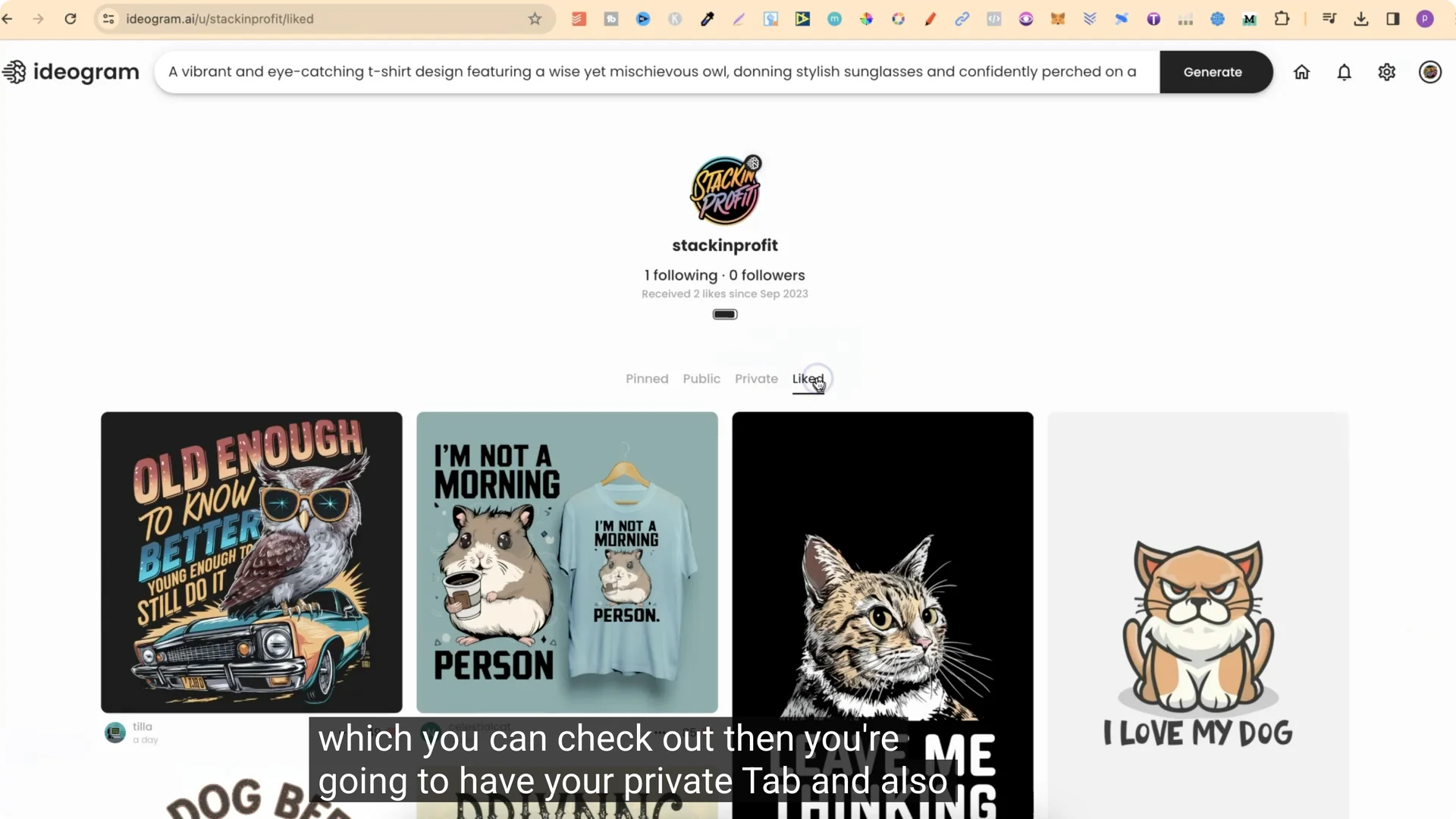
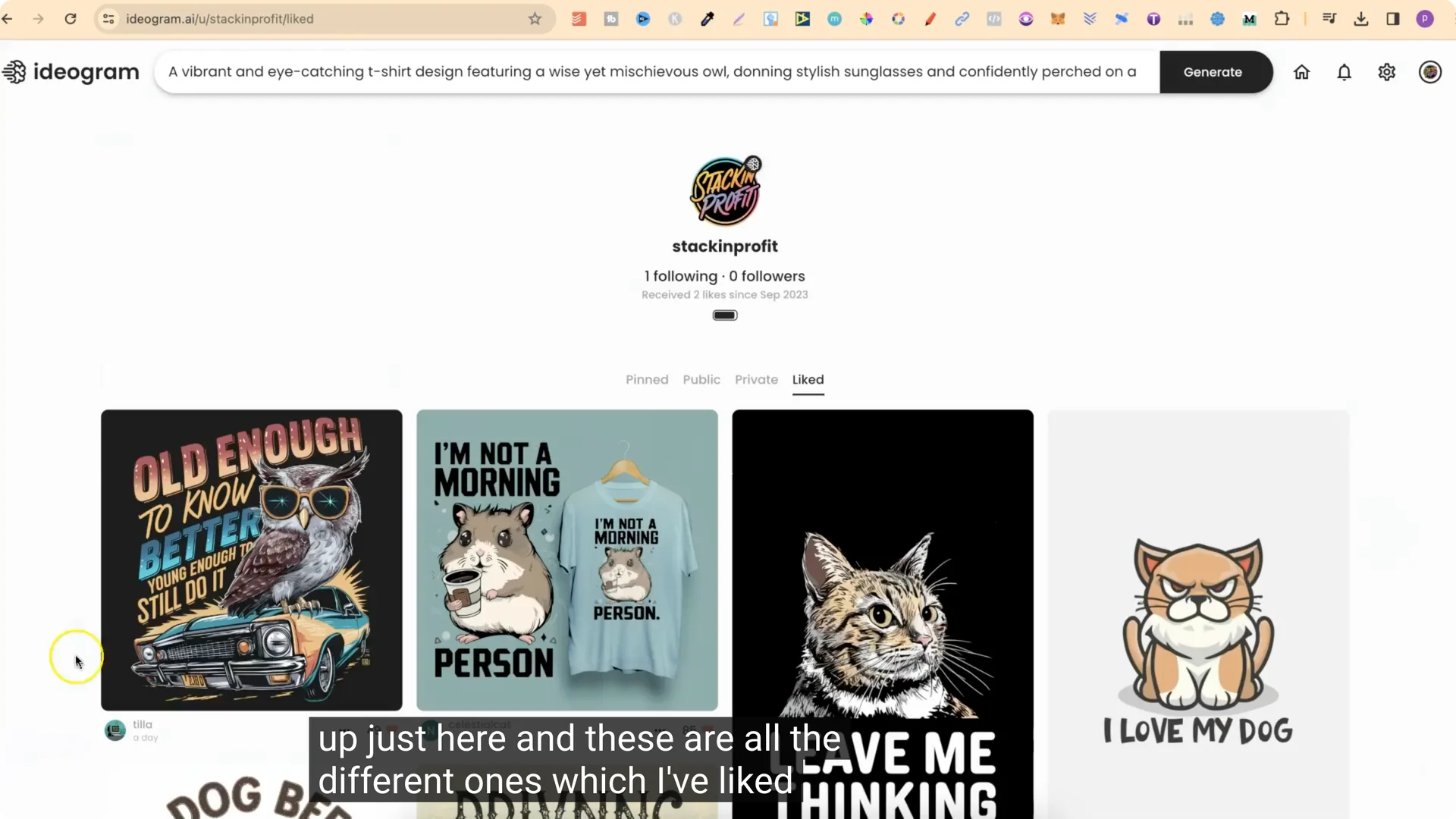
Your profile shows anything you’ve pinned, all your public creations, your private tab, and your liked designs. When you like a design, it appears in your liked list.
Ideogram 1.0 Tutorial: Using Prompts and Magic Prompt
Copying and Reusing Prompts
- Click a design you like.
- Click Copy to grab the prompt.
- Paste it into the prompt box to start from that setup.
You can upload your own image and use the editor to edit images as well. I haven’t really played around with that.
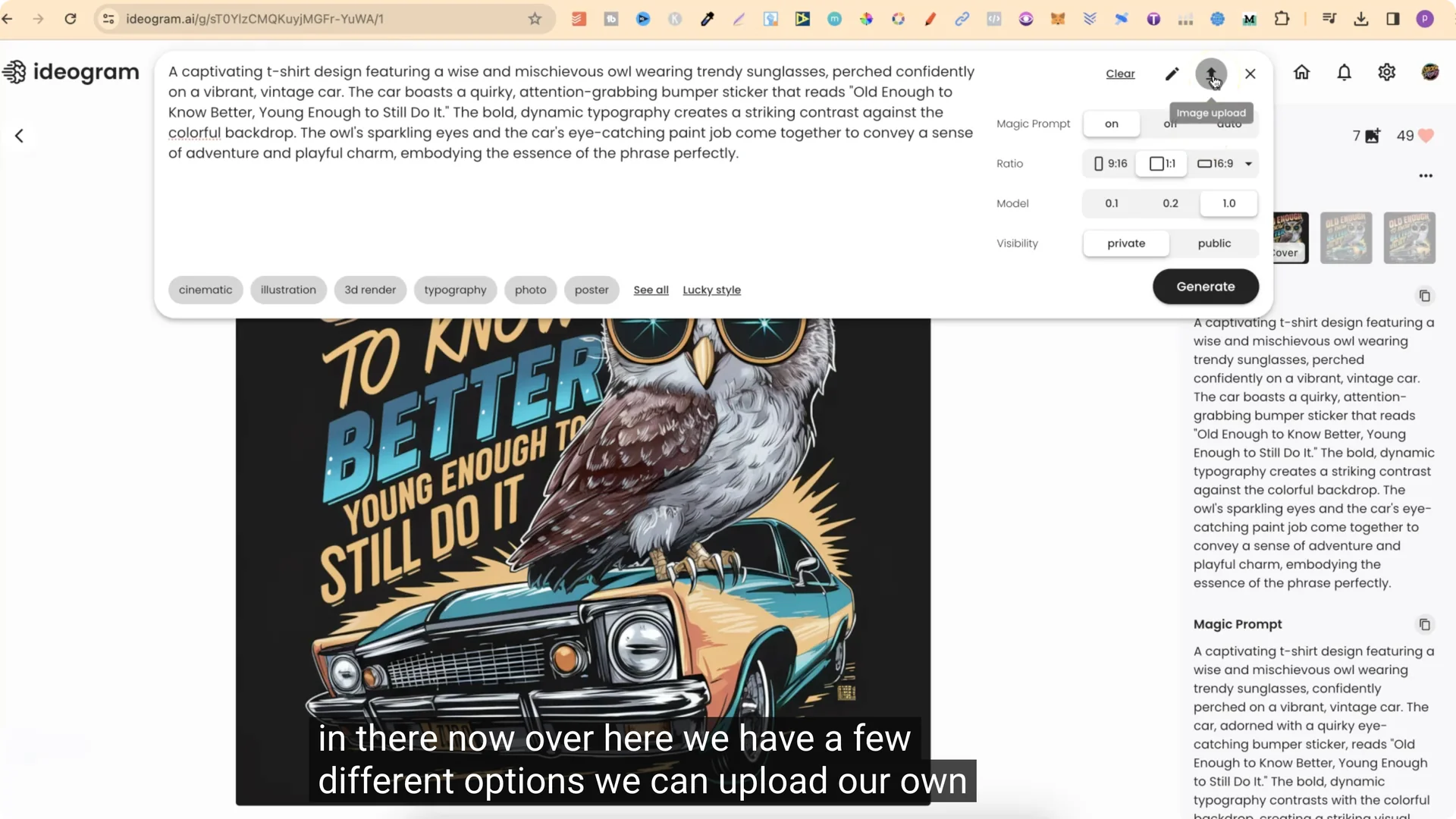
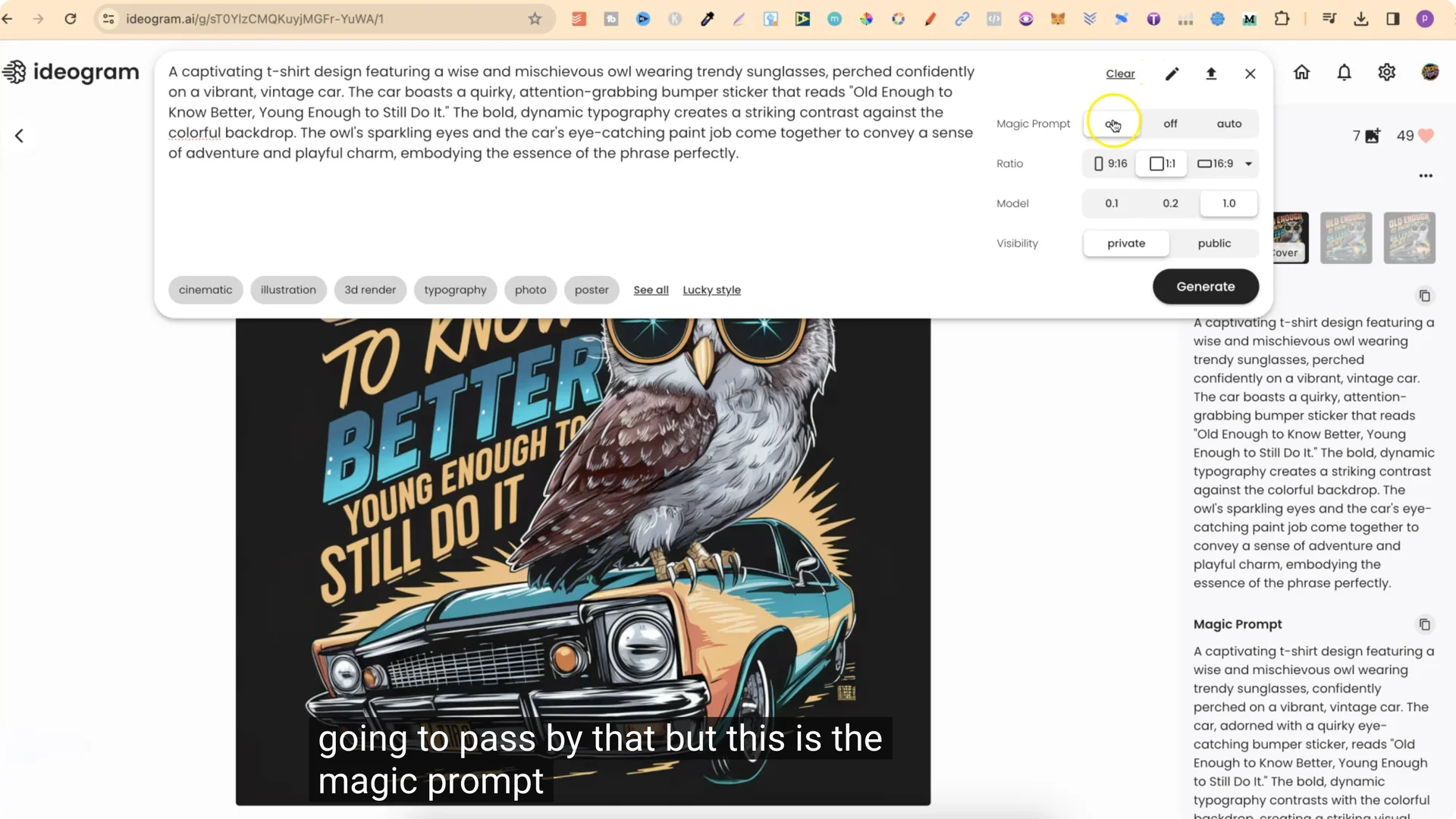
Magic Prompt Settings
- Magic Prompt: Off, On, or Auto.
- Off uses your exact prompt.
- On adds detail to your prompt and can improve results.
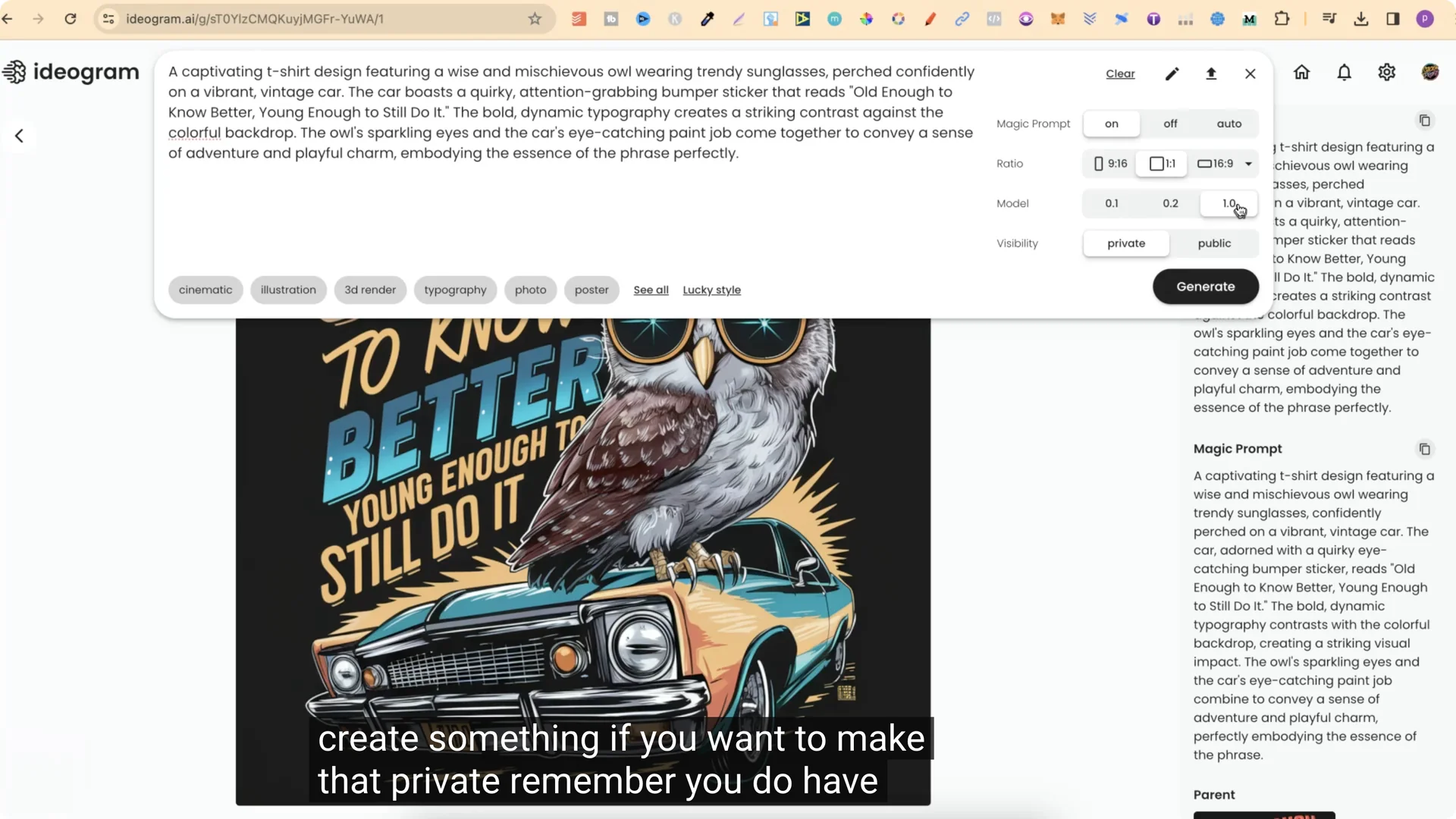
You’ll see both your original prompt and the Magic Prompt version side by side.
Ratios, Model, and Privacy
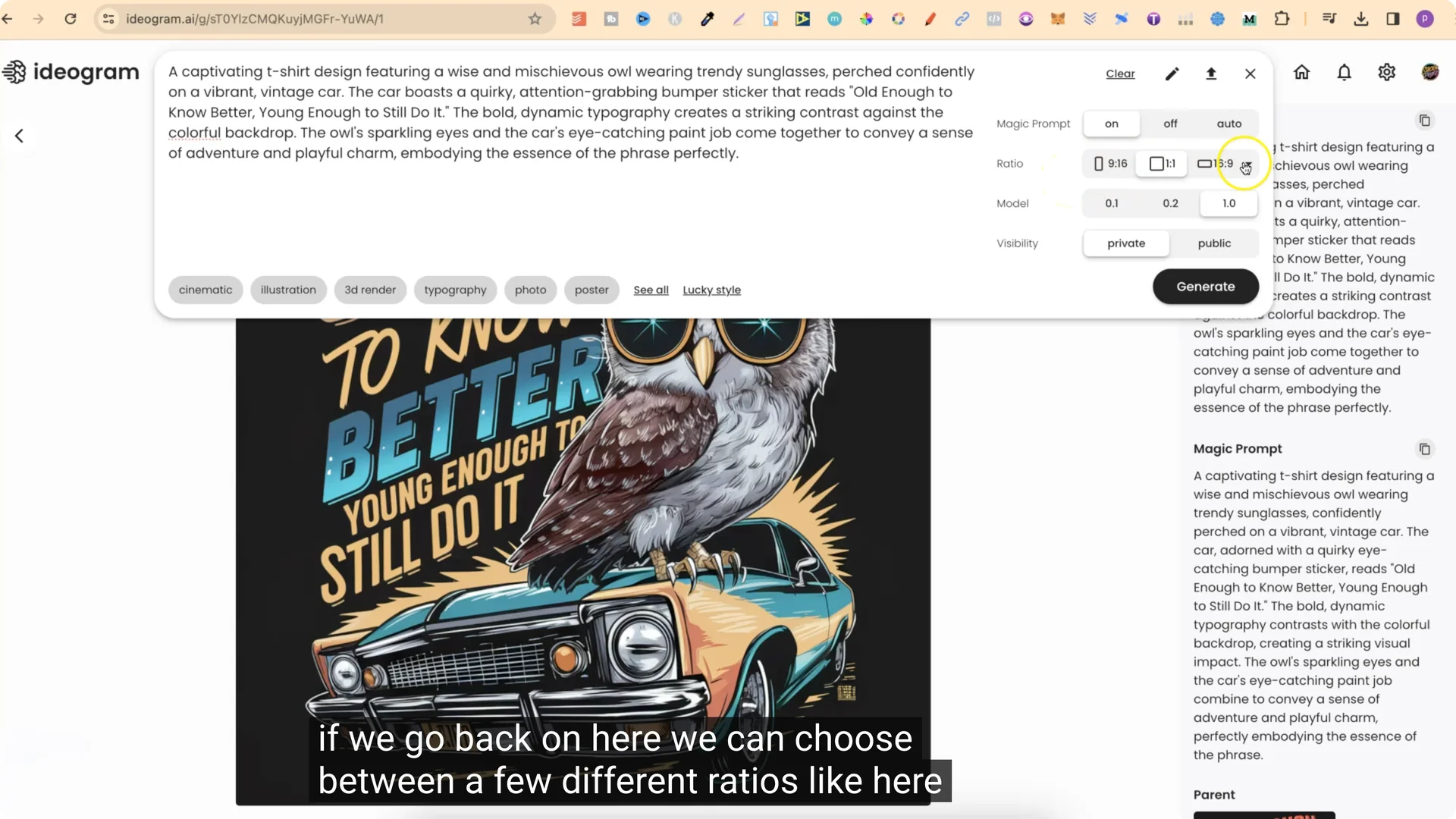
- Choose from a few different aspect ratios.
- Pick the model version. To use the latest, make sure 1.0 is turned on.
- Set your creation to private or public. Private requires the top plan.
Ideogram 1.0 Tutorial: My Prompt Structure
I like to keep my prompt structure very simple. This makes it easy to tweak designs quickly.
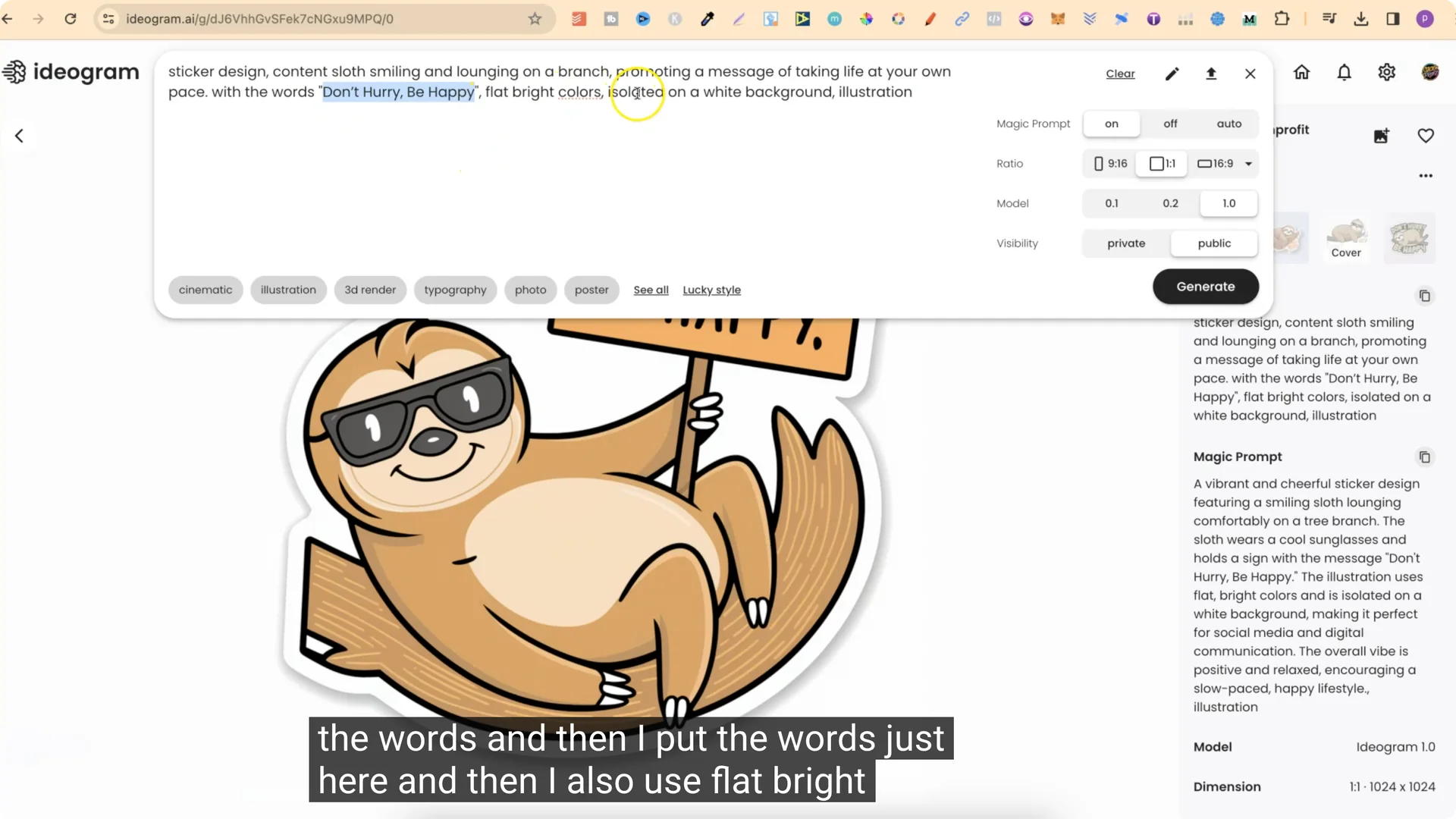
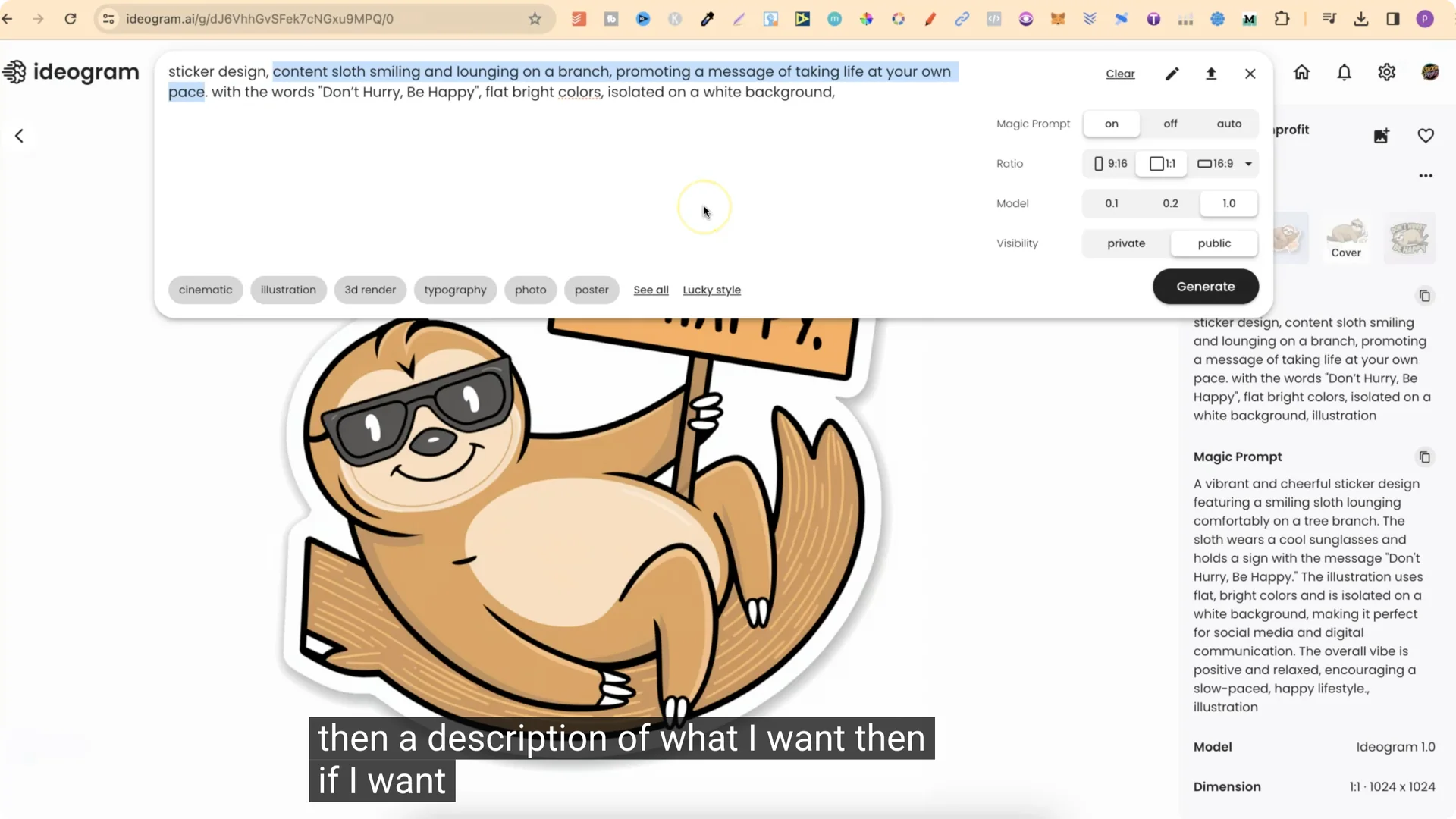
Base structure I use:
- sticker design
- [detailed description of what I want]
- with the words [exact words I want in the design]
- flat bright colors isolated on a white background
- illustration style selected
Why this works:
- Swapping “sticker design” to “t-shirt design” instantly pivots the output.
- If I want words in the design, I include “with the words” and add them exactly.
- If I don’t want any words, I remove that part.
- I use flat bright colors because it makes vectorizing the image much easier.
Step-by-step to reuse my structure:
1. Start with “sticker design” or “t-shirt design.”
2. Add a clear description of the subject and style cues.
3. Add “with the words [your exact phrase]” if you need text in the art.
4. Add “flat bright colors isolated on a white background.”
5. Set style to illustration.
6. Turn Magic Prompt on to enrich the details.
Ideogram 1.0 Tutorial: Examples and Results
SLO Sticker Example
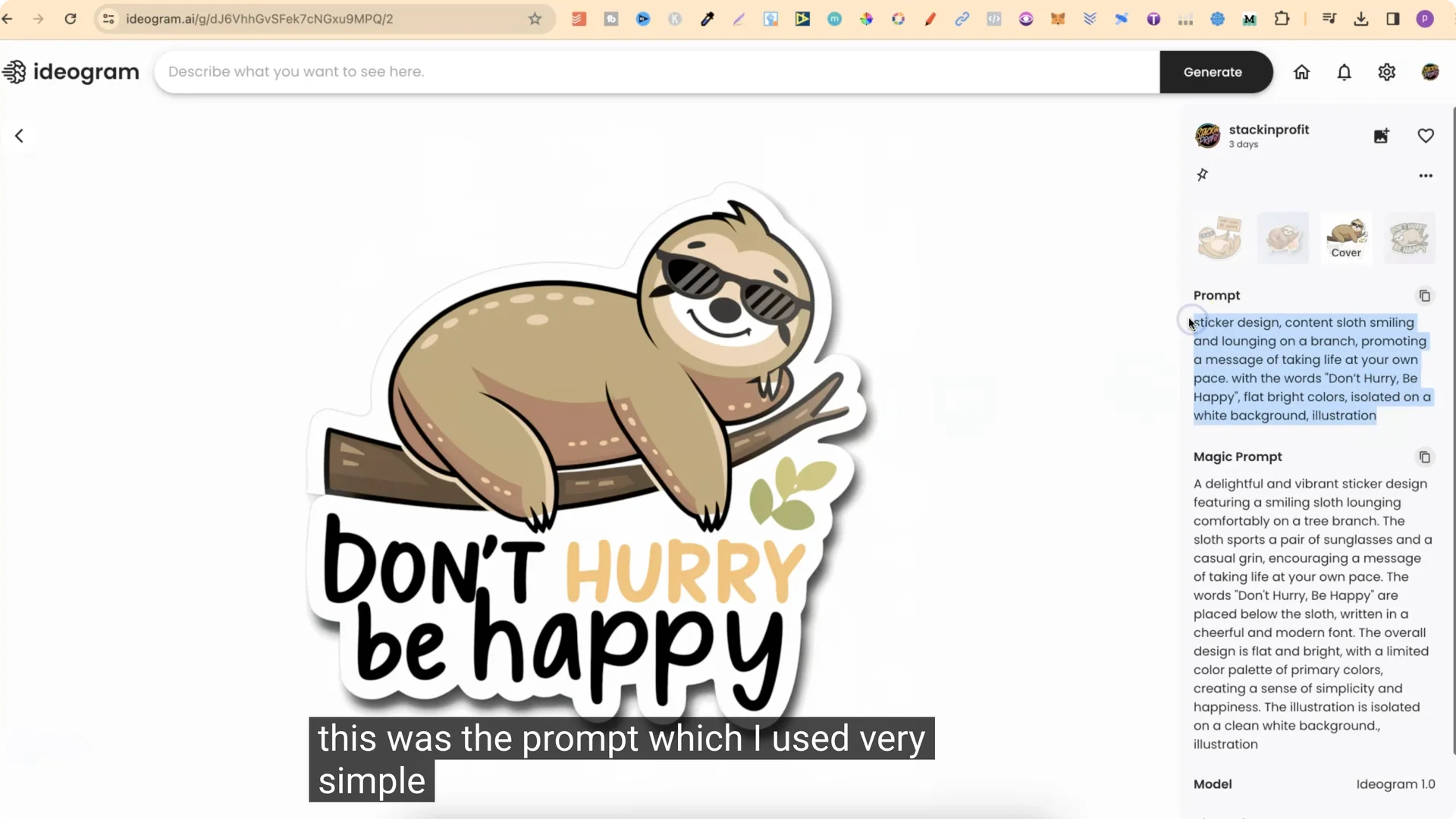
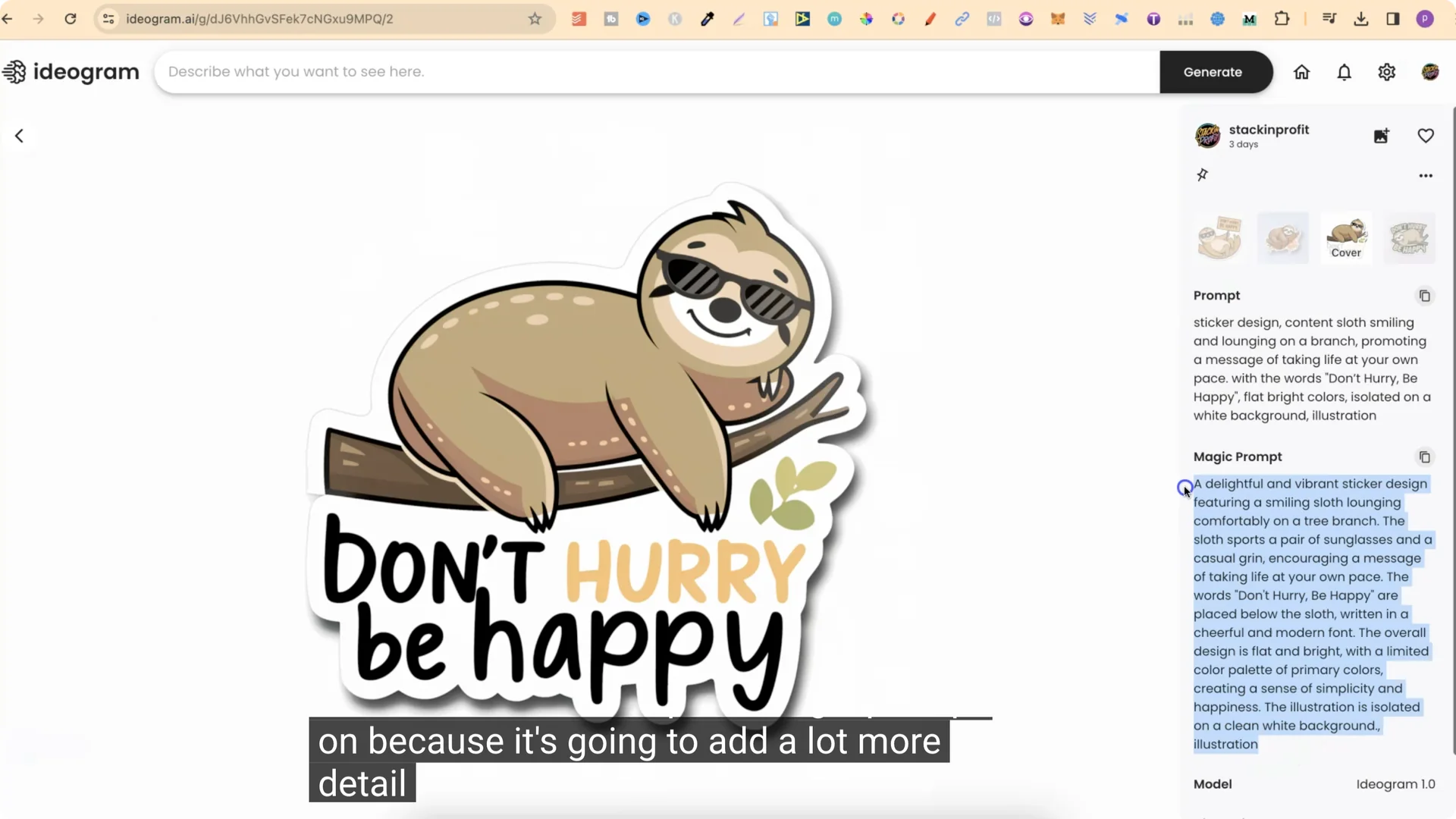
This SLO one was my favorite. The prompt was very simple, and the Magic Prompt added a lot more detail. The four generations varied, but one of them came out exactly how I wanted.
- One was okay.
- One was pretty good.
- One wasn’t great.
- One was my favorite.
When I want to reuse or tweak it, I copy the prompt, paste it in, and change a few things.
Avocado Love-Themed Design
I made a t-shirt design that was also a love-themed design:
- Description: two avocados snuggling up together, cute faces and hearts.
- With the words: AOC cuddle.
- Flat bright colors isolated on a white background.
- Magic Prompt created a richer version from that simple prompt.
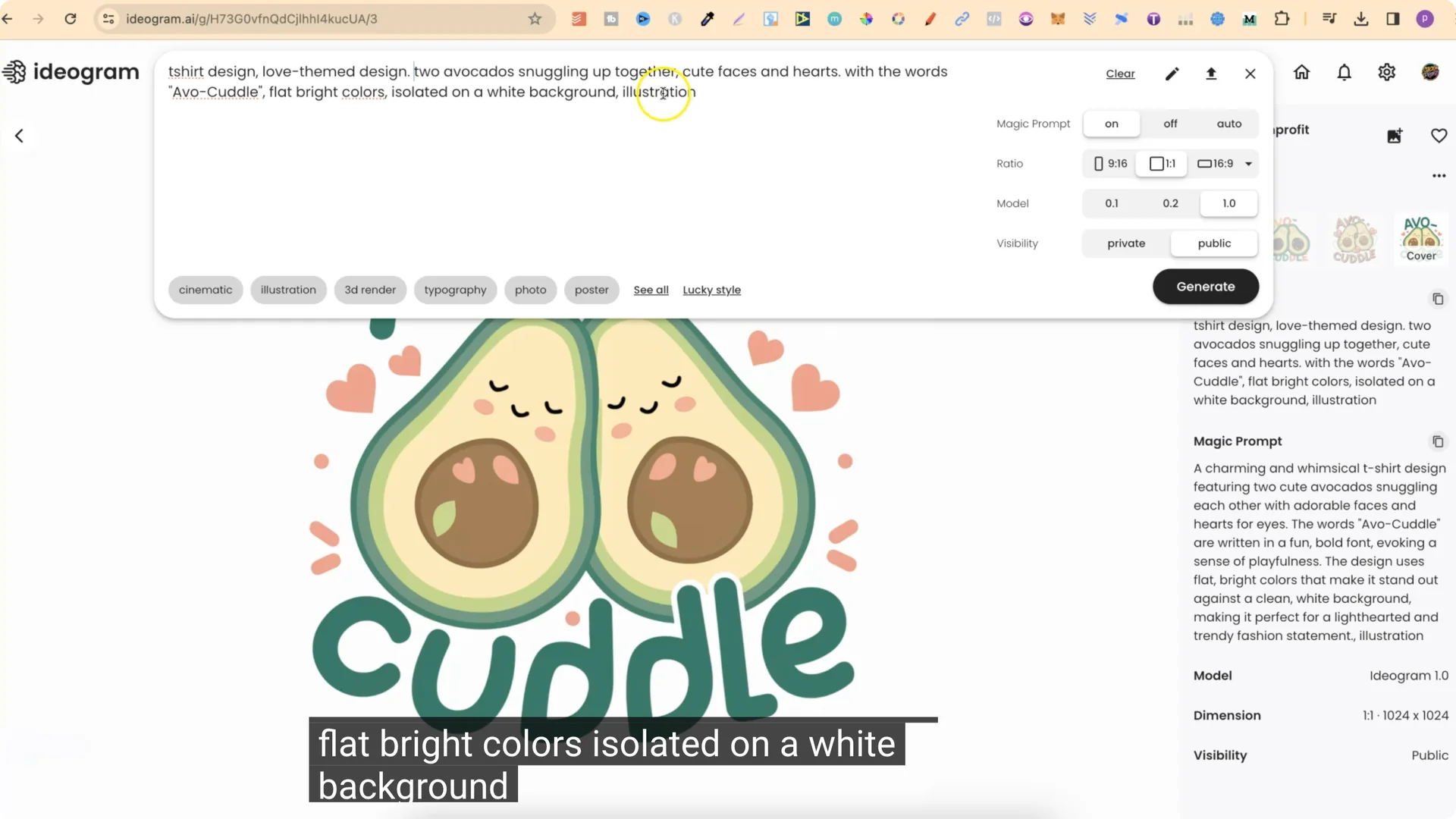
Several of the four results looked great.
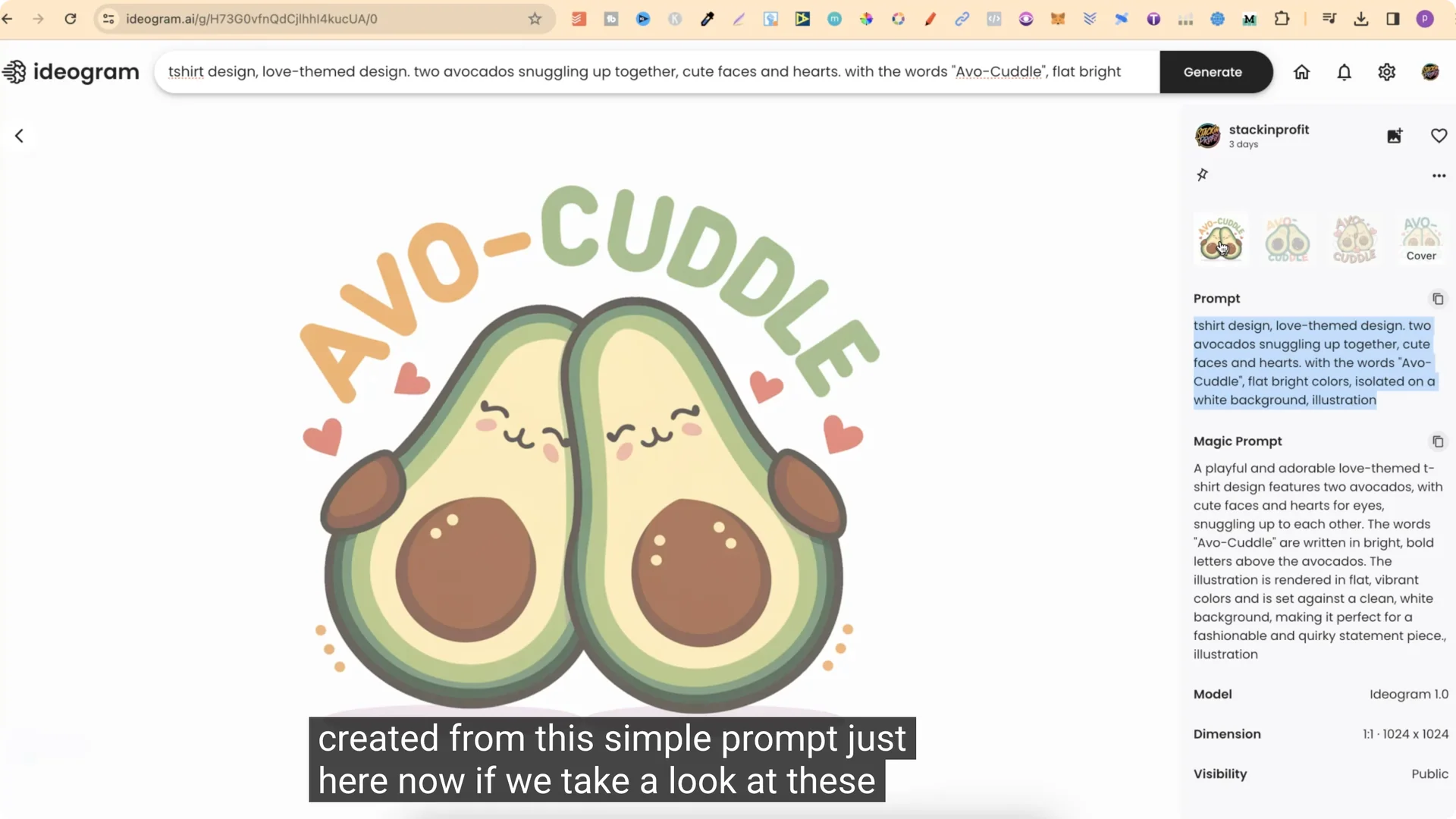
Guac and Roll
This one was “guac and roll,” a play on rock and roll. One version messed up the words a bit, but another one nailed it and looked perfect. It works as a sticker even though the prompt said t-shirt design.
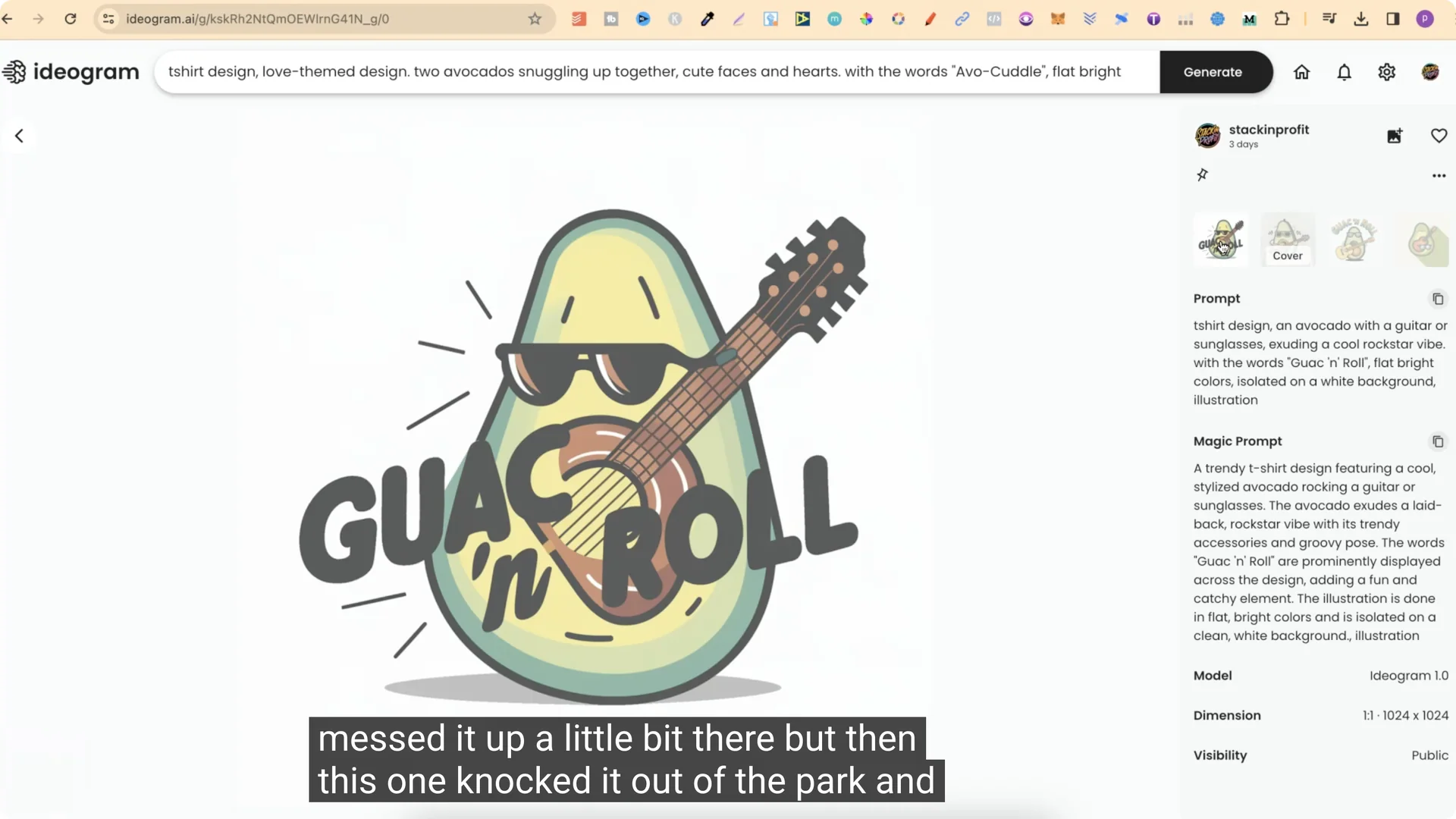
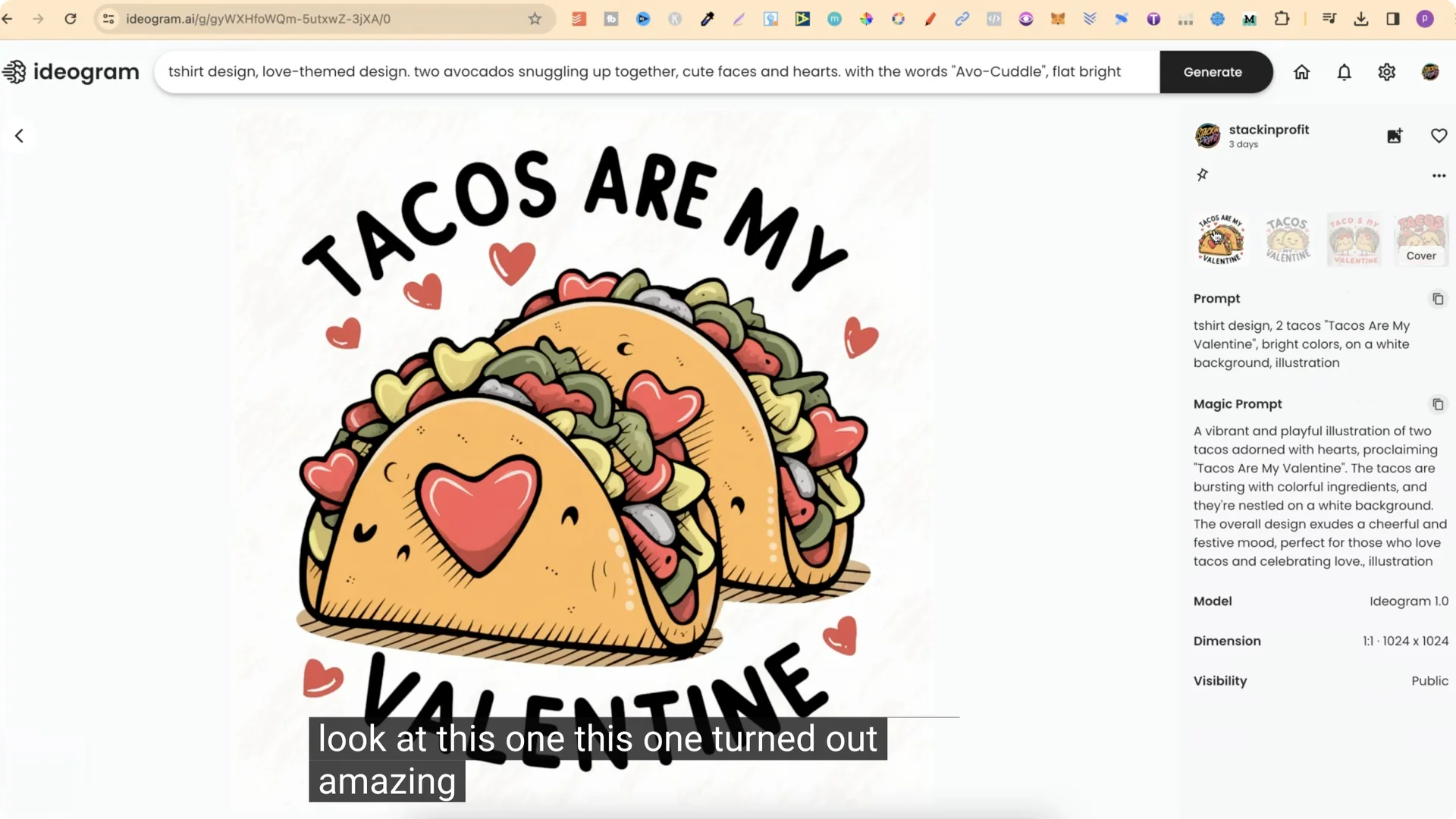
Tacos Are My Valentine
Prompt example:
- t-shirt design
- two tacos
- with the words (tacos are my Valentine) in brackets to indicate the words for the design
- on a white background
- illustration
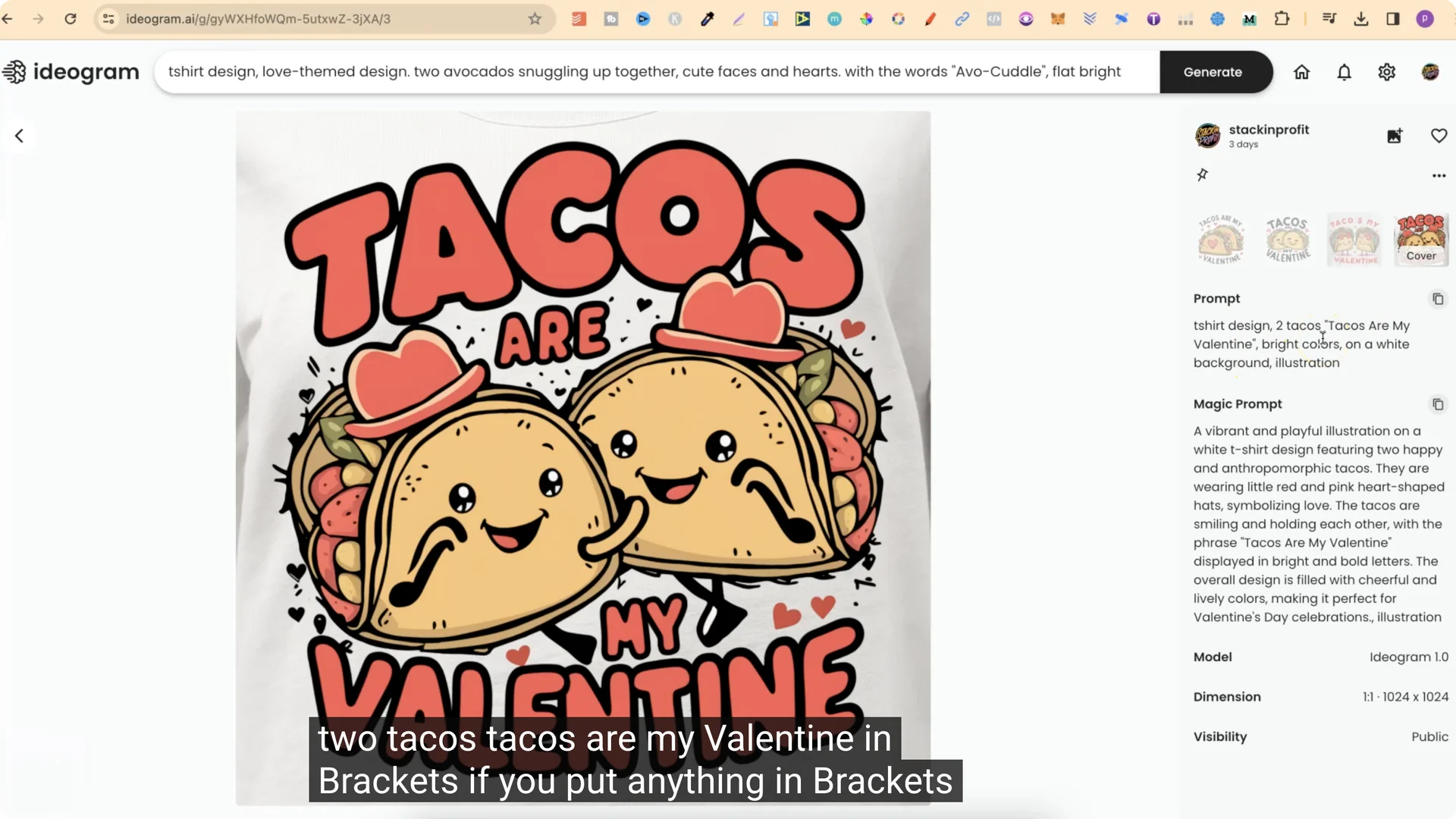
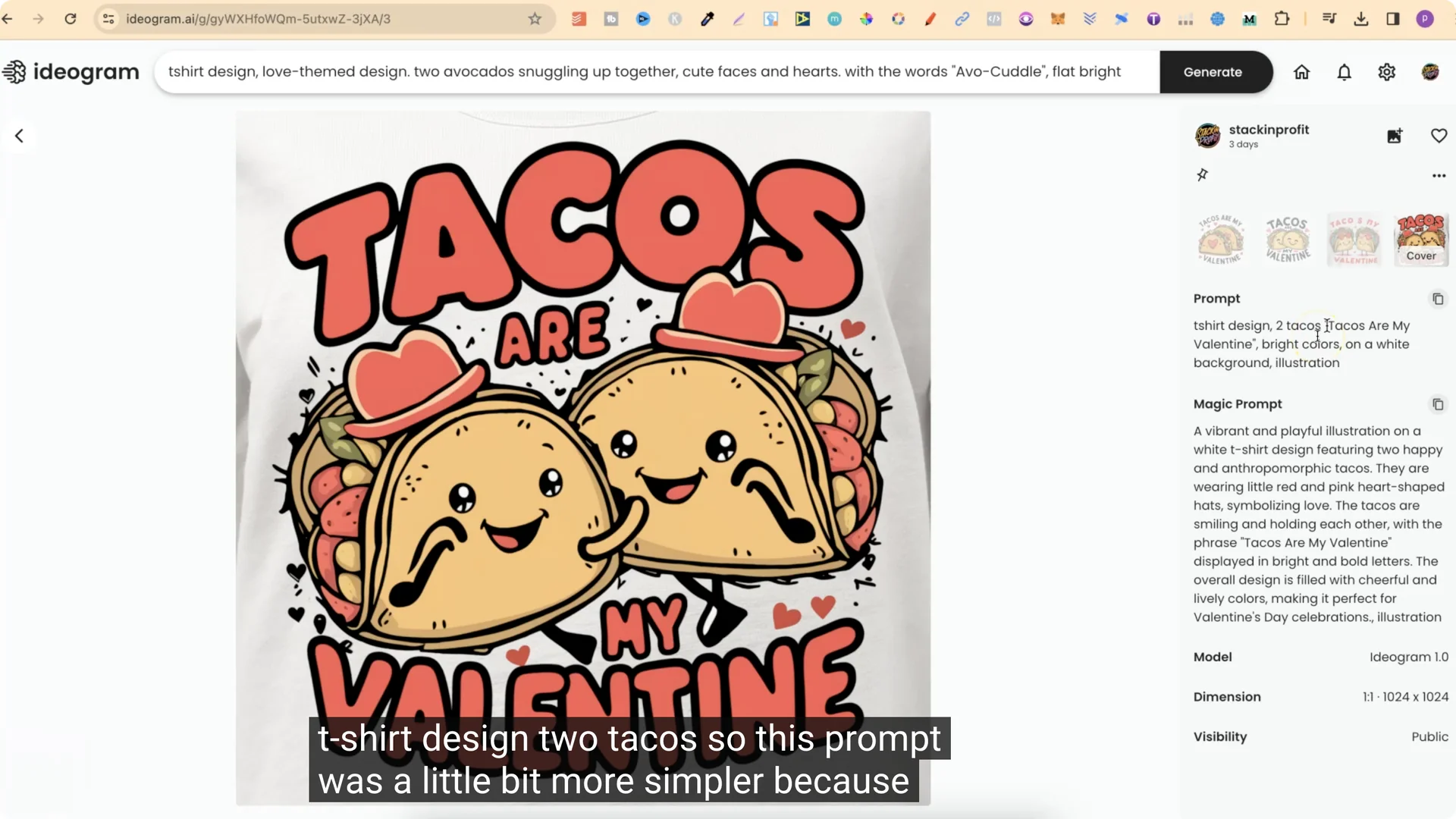
This one turned out amazing. The words are clear and the design looks really good.
Extra Note
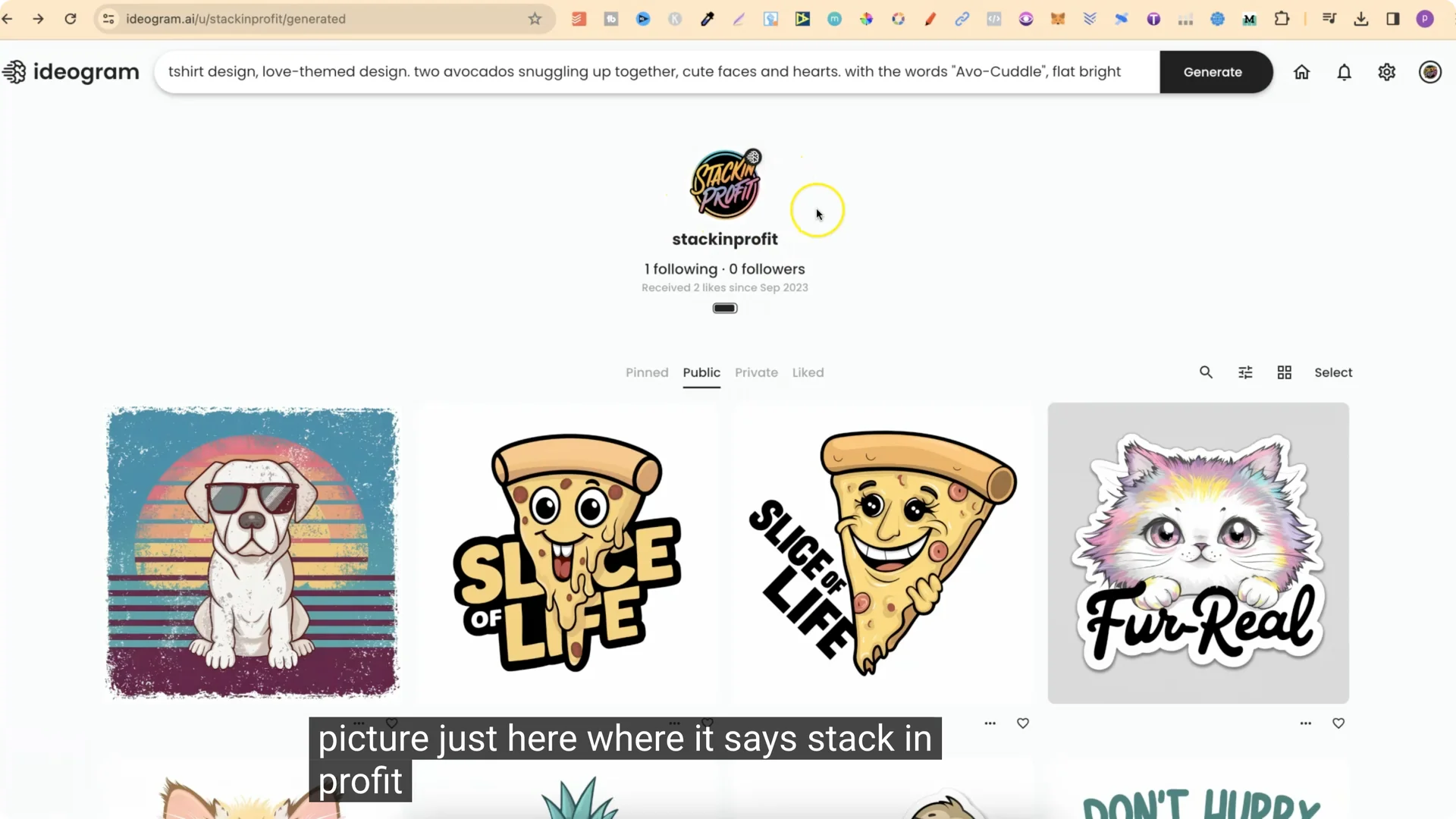
My profile picture that says “stack in profit” was also created with Ideogram.
Final Thoughts
Ideogram 1.0 makes it easy to explore community designs, copy and remix prompts, and produce clean outputs. Magic Prompt helps add detail to simple prompts, and a consistent prompt structure makes it fast to switch between sticker and t-shirt designs. Using flat bright colors on a white background keeps results clean and ready for vector work.