Ideogram is great for designers looking for a quick and efficient way to create designs or gather inspiration.
You can use the search feature to find the type of image you want to create, and there is already plenty available.
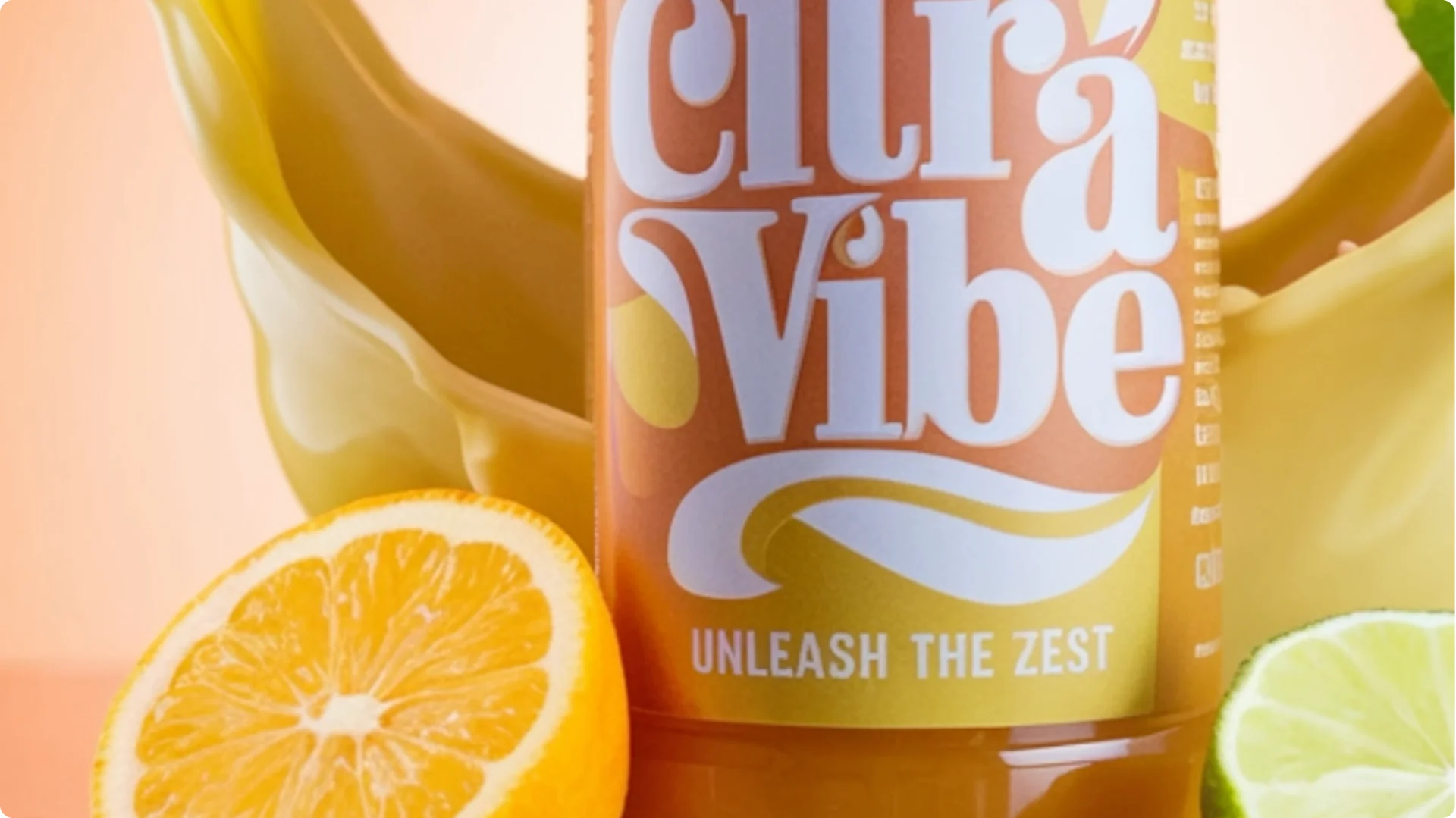
In this case I create an ad for a fictional citrus drink called Citra Viive.
For updates on the latest release, see Ideogram 3.0.
Search and prompts – Ideogram 2.0 Features
If you click an image, it provides the prompts used for that image, which you can revise to fit what you’re going for.
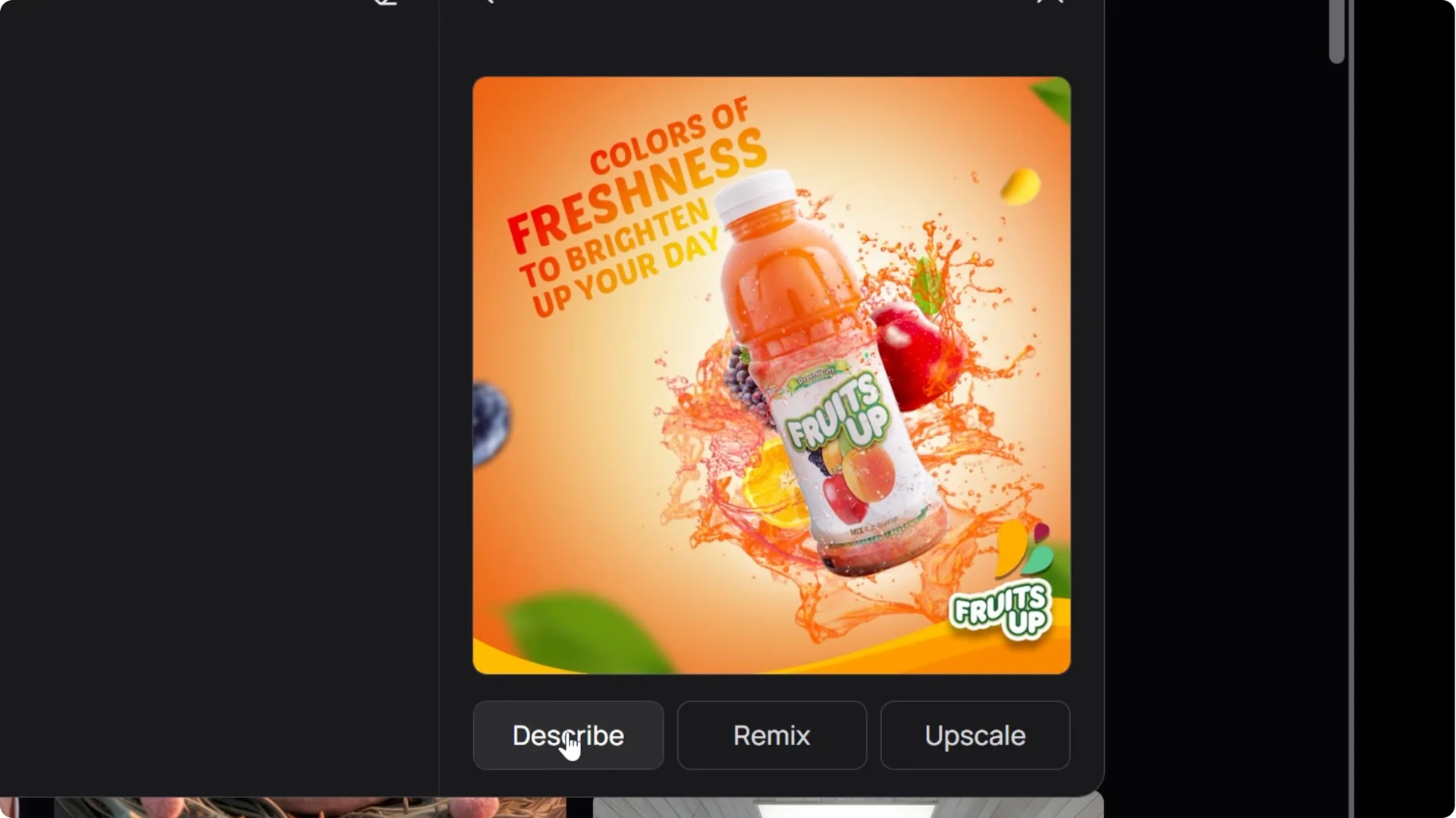
You can also upload your own images and use Ideogram’s Describe feature to generate descriptions that you can adjust as needed.
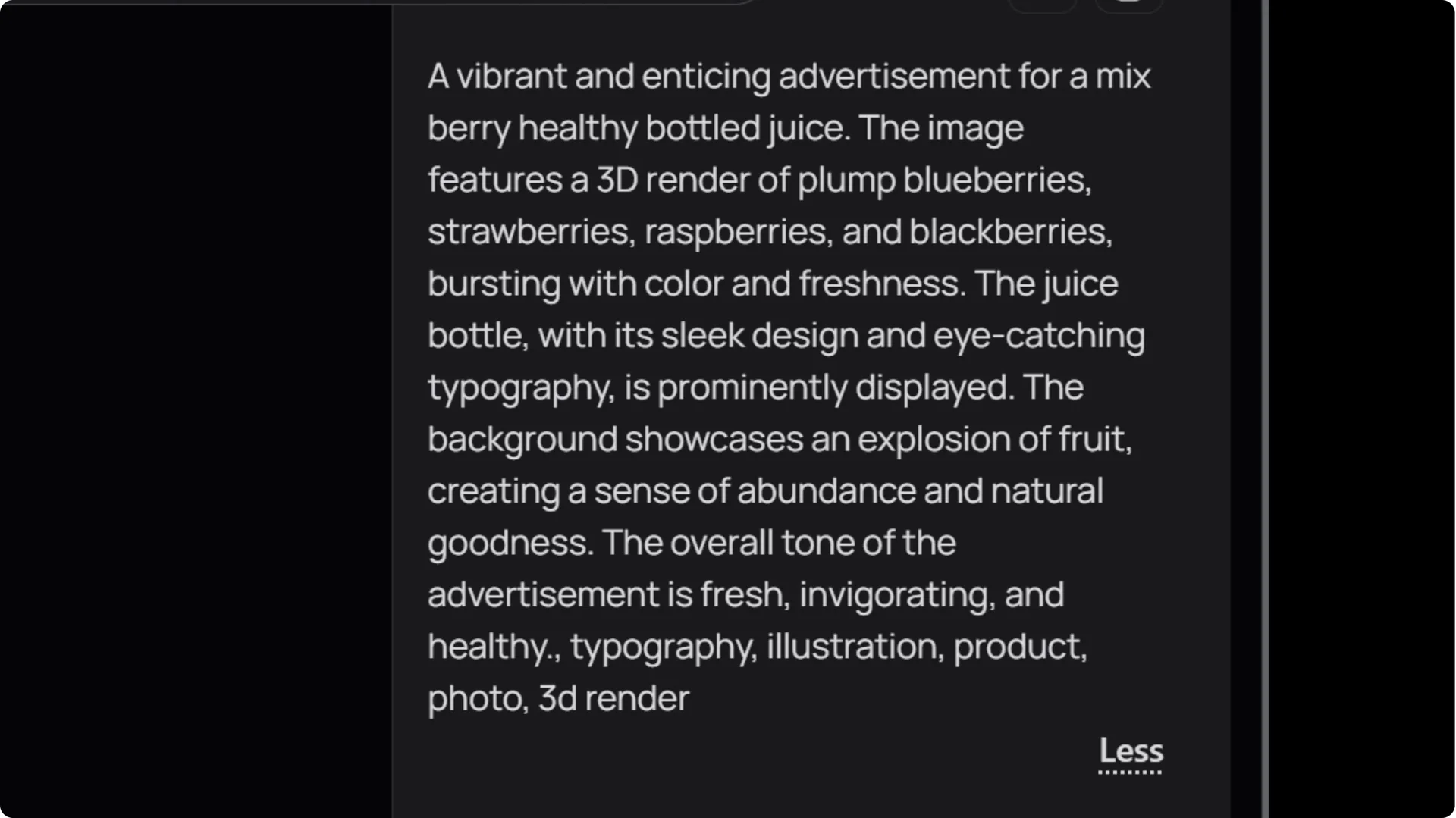
Magic Prompt – Ideogram 2.0 Features
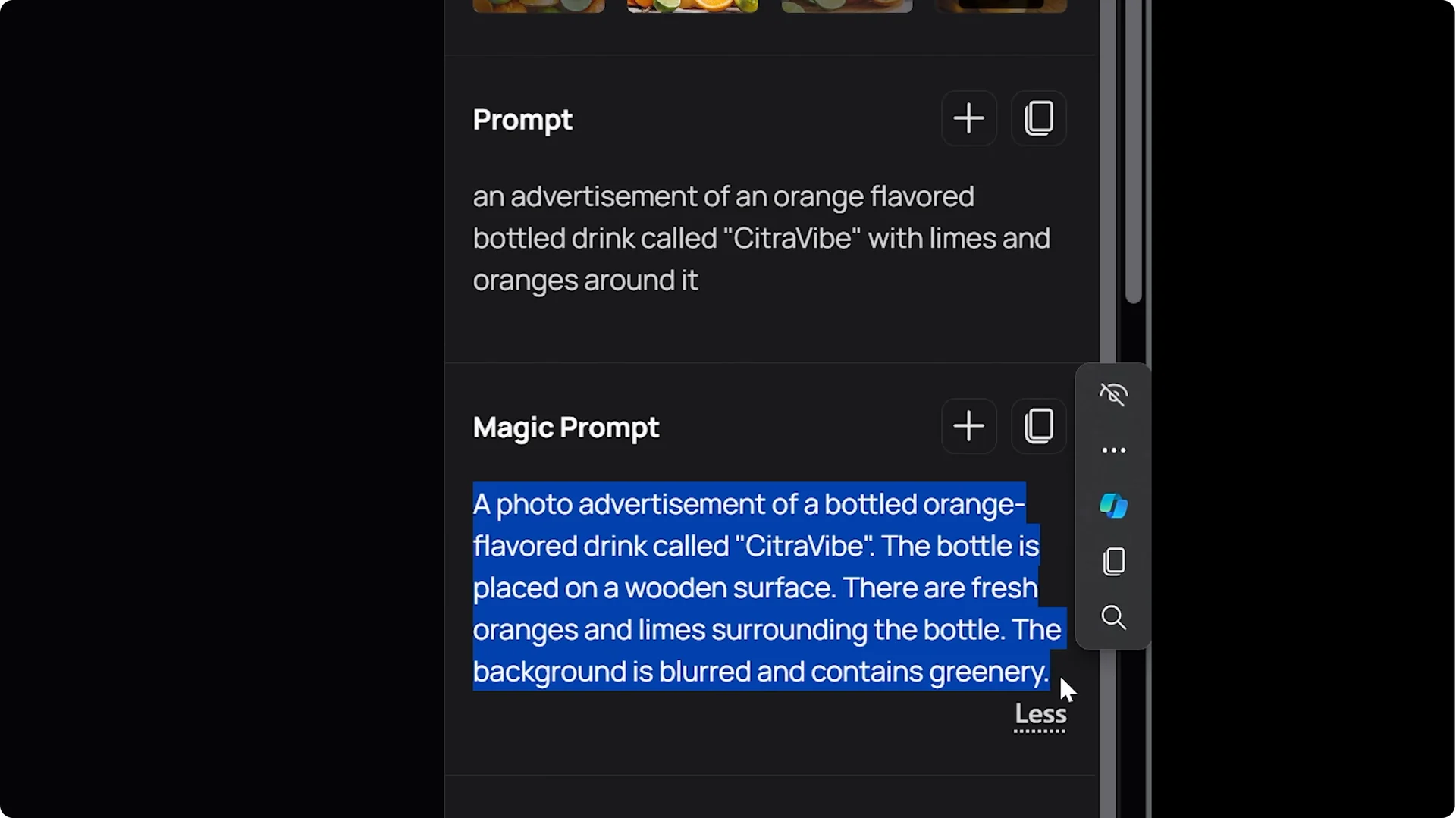
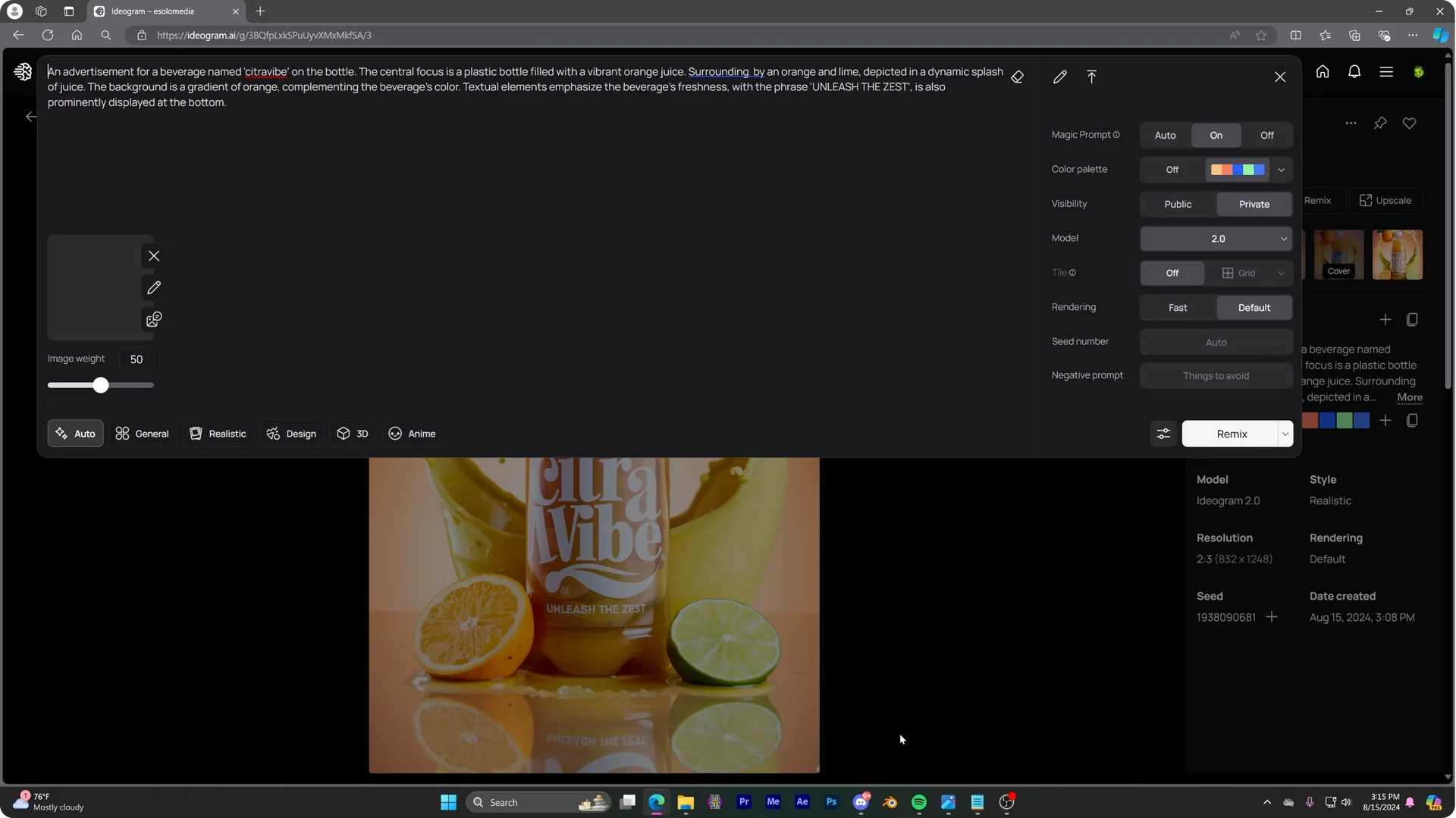
If you’re struggling to come up with a prompt, try entering a basic one and then enable the Magic Prompt feature.
This enhances your prompt by adding more content details, ambience, and stylistic elements.
Here’s an example: a simple prompt I used, followed by what Magic Prompt provided, which led to the creation of this image.
Color palettes – Ideogram 2.0 Features
You can select from pre-made color palettes or create your own custom palette to influence the final image.
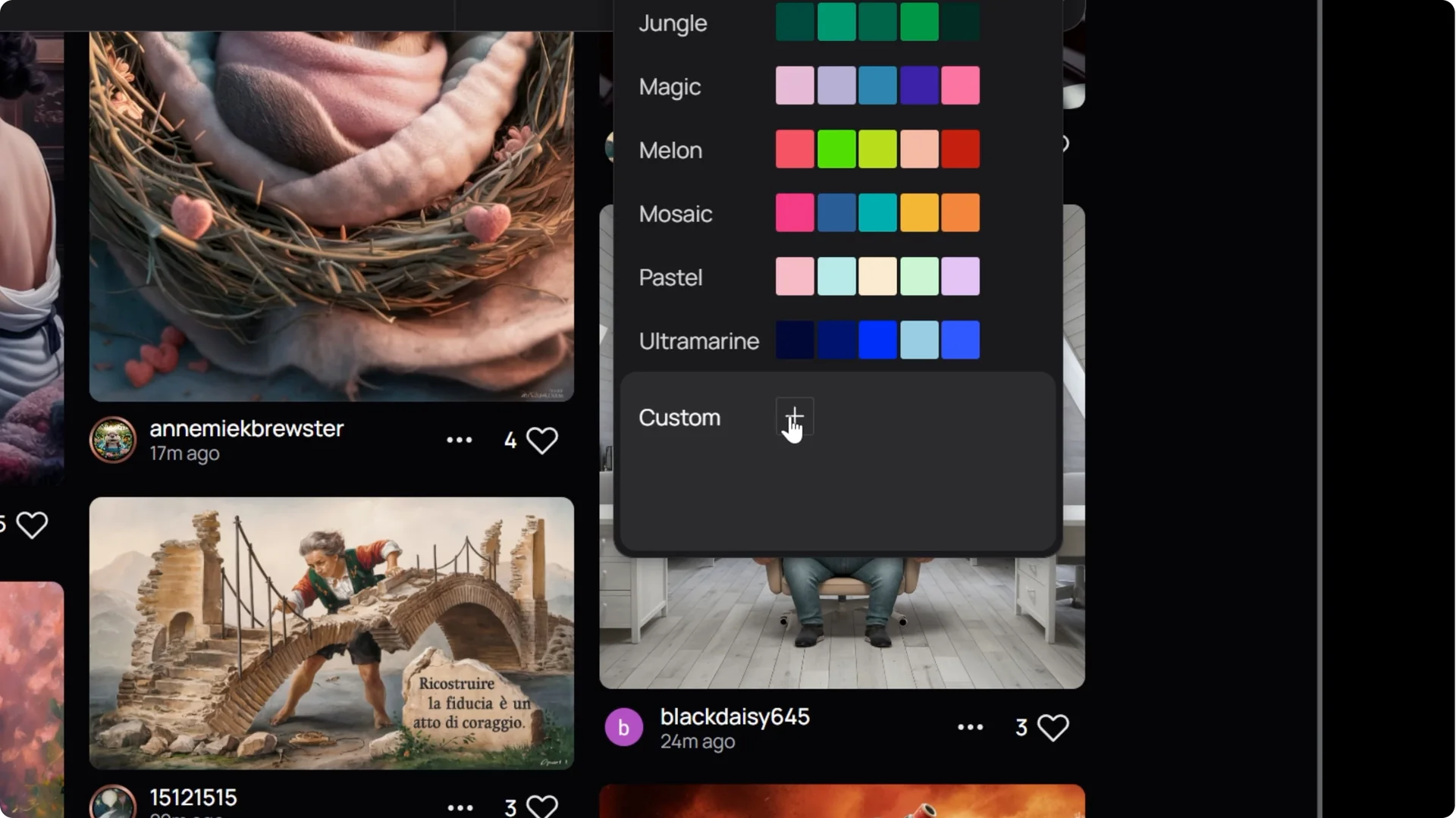
I go with Fresh since that’s the vibe I’m going for.
After clicking Generate, Ideogram produces several options to choose from.
Edit and Remix – Ideogram 2.0 Features
I like one result, but there’s an issue with the text. To fix it, I use the Edit option, draw over the problematic area with a matching color, and then run it through the Remix feature.
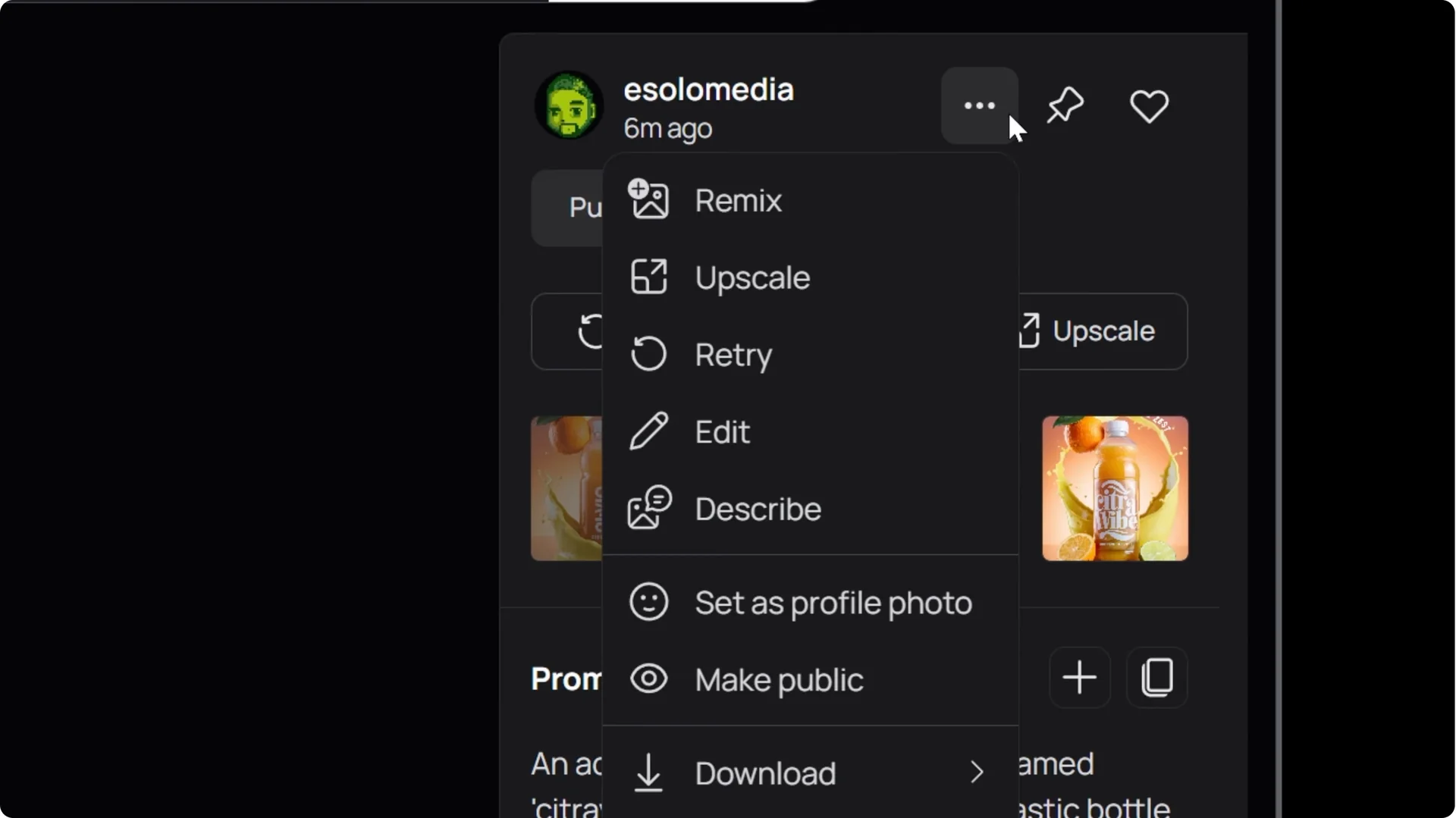
By setting Image Influence to a high level, it retains most of the original design while blending the edit cleanly.
Problem solved. For more detail on these tools, see Draw Remix.
Styles and upscaling – Ideogram 2.0 Features
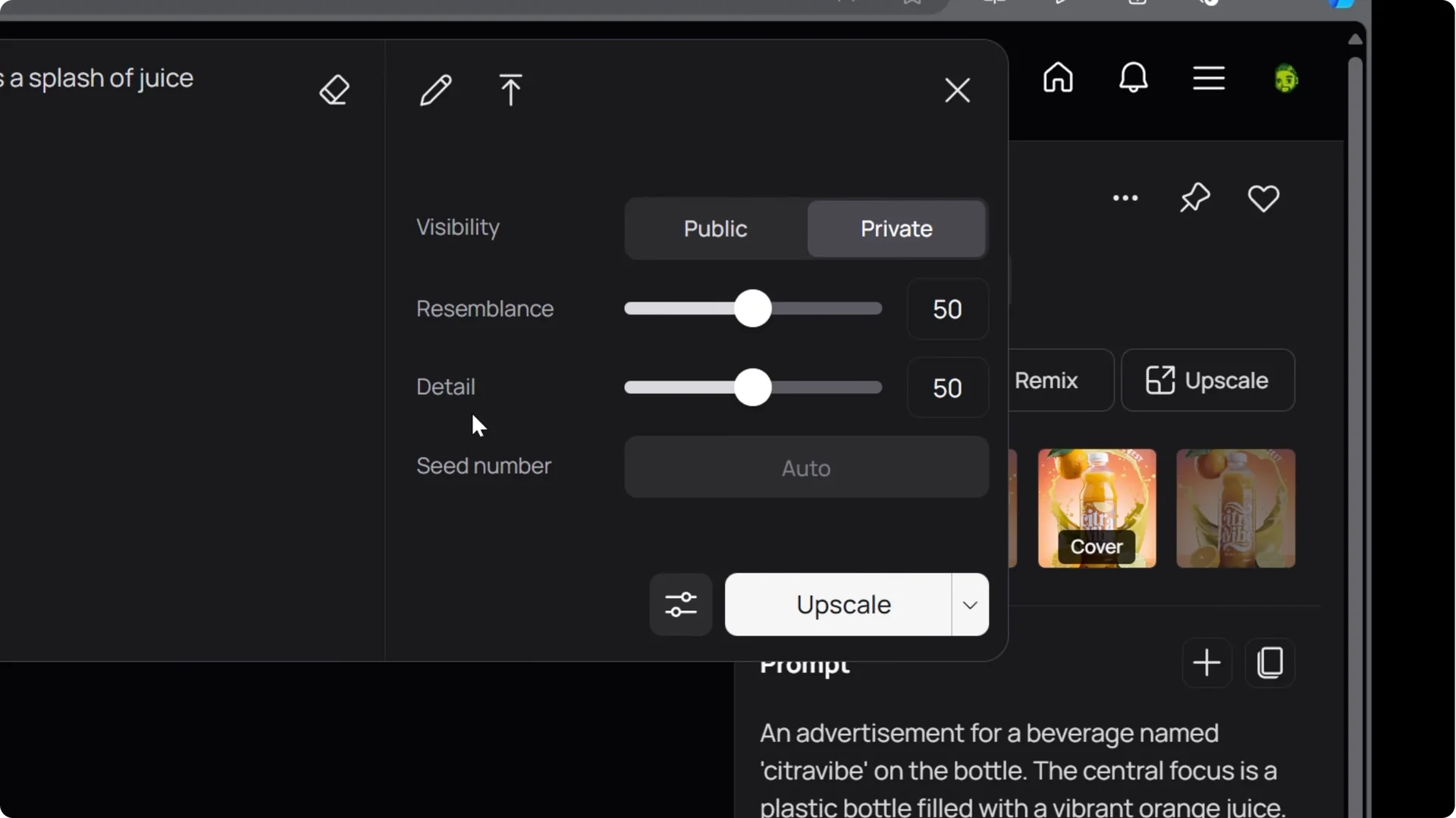
You also have different styles to choose from. Once you’re satisfied with your image, you can upscale it for a higher resolution and a cleaner look. For more on styles, see kids characters.
Step-by-step – Ideogram 2.0 Features
Step 1: Use Search to explore references and spark ideas. Pick a direction for your project, like an ad for Citra Viive.
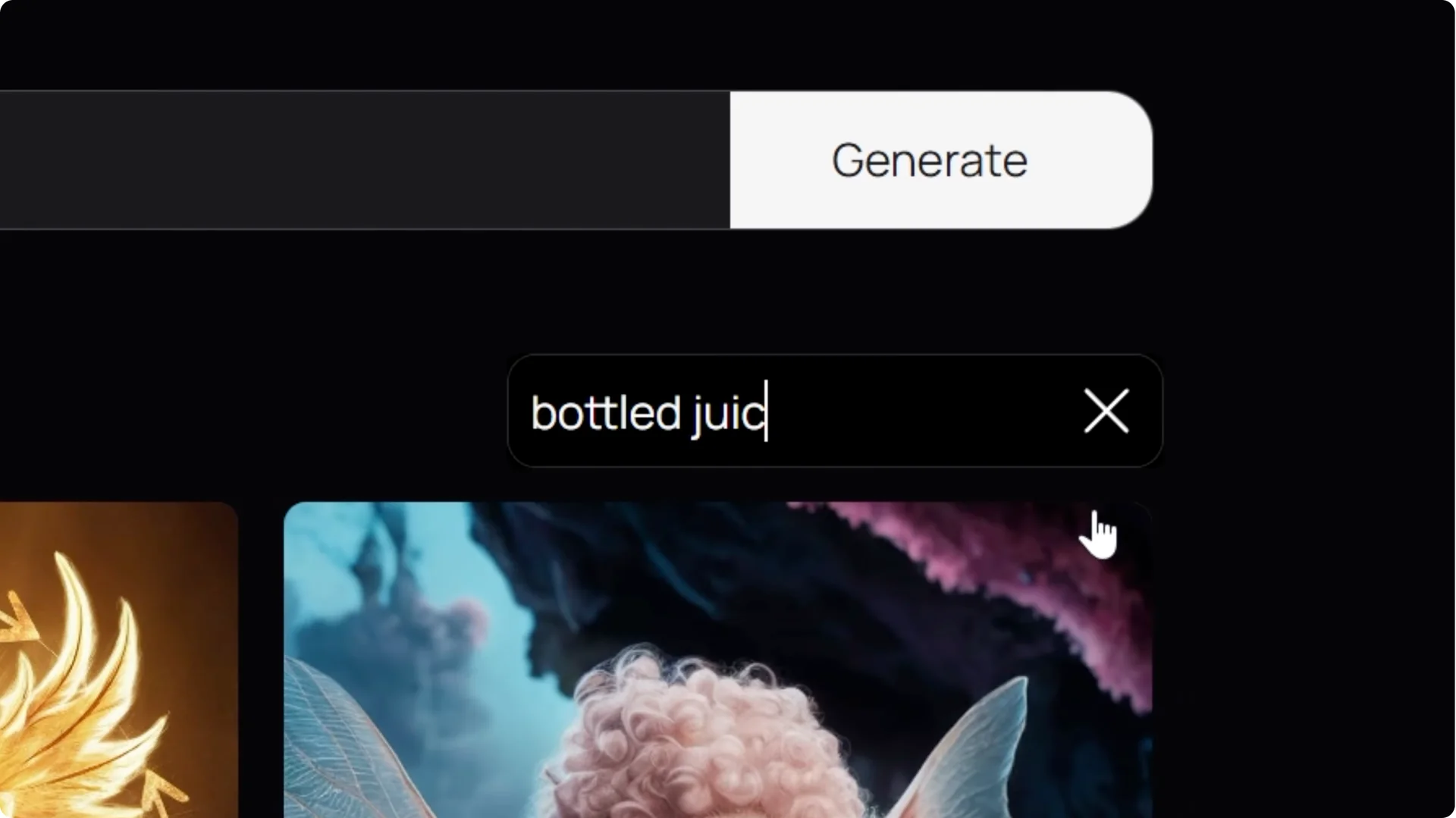
Step 2: Click an image to view the original prompts. Revise them to match your concept.
Step 3: Upload your own image if needed and run Describe. Adjust the generated description to fit your goals.
Step 4: Enter a basic prompt and enable Magic Prompt. Let it expand content details, ambience, and style.
Step 5: Choose a color palette like Fresh or create your own. Use it to guide the final look.
Step 6: Click Generate to produce several options. Review and pick your favorite.
Step 7: If you see text issues, open Edit, paint over the area with a matching color, and run Remix. Set Image Influence high to keep the design intact.
Step 8: Explore styles to refine the feel of the image. Switch styles until it matches your direction.
Step 9: Upscale the final image. This delivers higher resolution and a cleaner result.
Final thoughts
Ideogram makes it quick to go from idea to a polished ad by searching references, enhancing prompts, guiding color, and refining with Edit and Remix. The workflow keeps your design intact while letting you correct details like text and output a clean, high-resolution image. These steps give you a reliable way to create consistent, quality visuals.