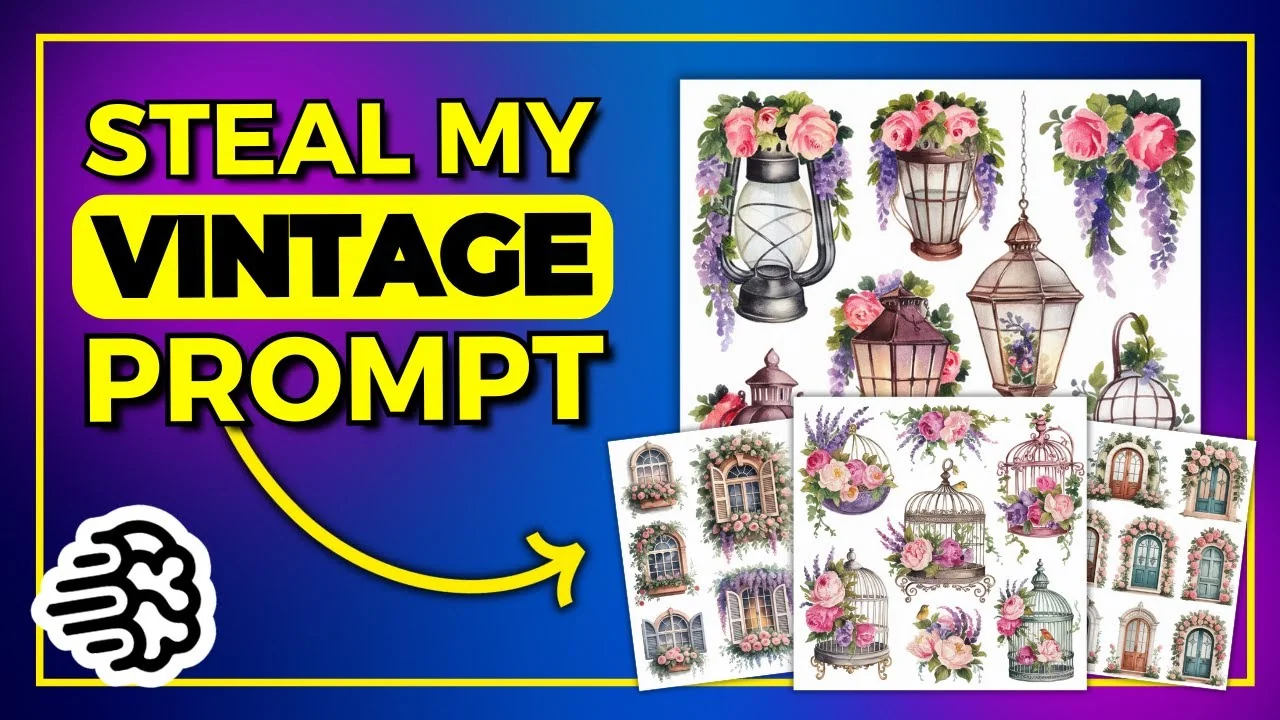
I was playing around in Ideogram creating lots of different watercolor designs using one of my latest GPTs, my clip art bundle generator. I really liked one style and kept making more clip art in that same look. Here is how I take a single prompt, run it through ChatGPT with a couple of commands, and get a steady stream of ideas in the same style.
I created a bunch of designs from one base prompt that used windows. I started swapping that single subject out for other objects while keeping the rest of the prompt intact. You can do this with any prompt that created a design you like.
Vintage Watercolor Clipart Prompts: Expand a Single Prompt With ChatGPT
This process works on the free version of ChatGPT.
Prime ChatGPT
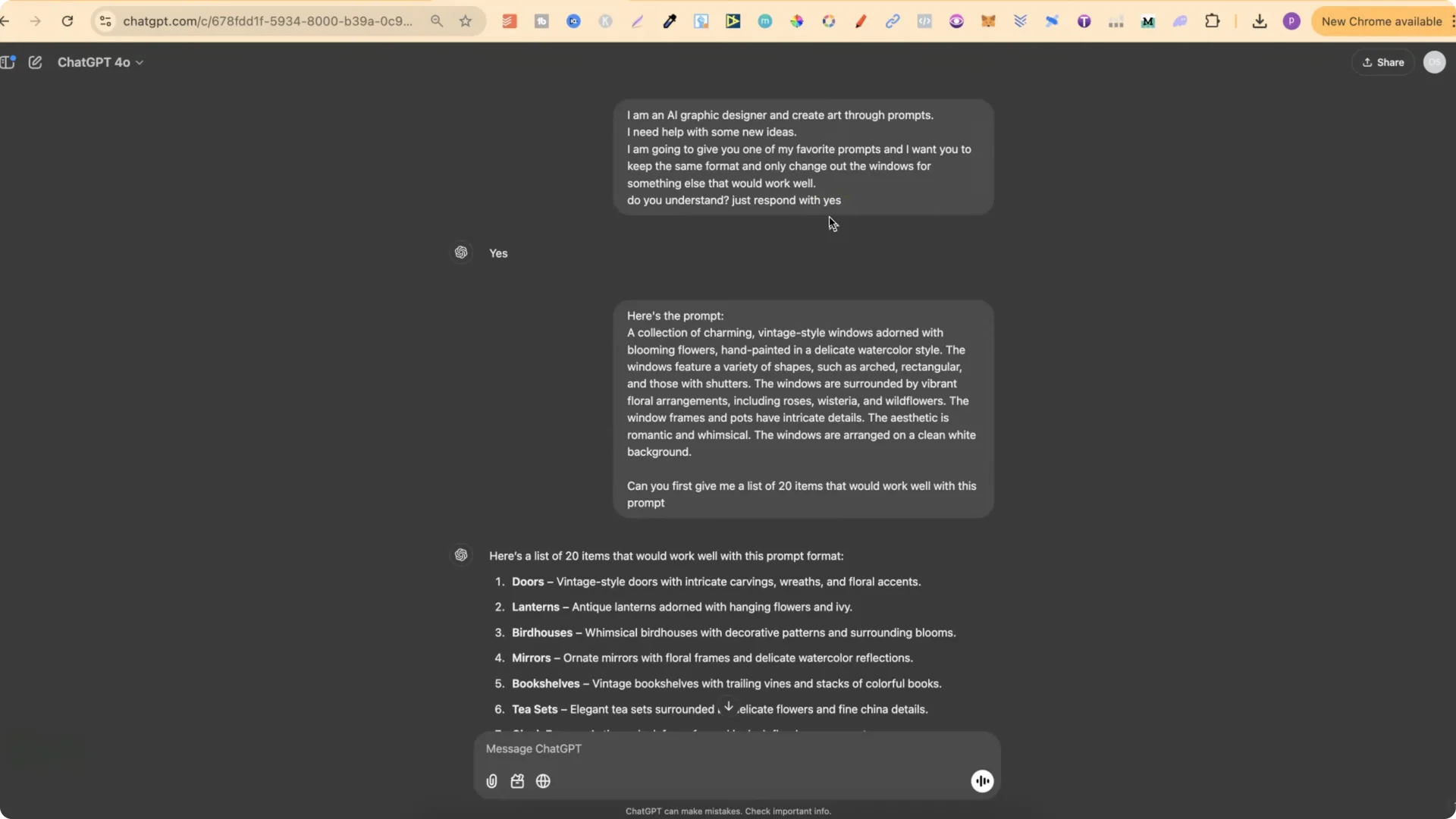
I like to start with a quick priming message. I don’t class myself as an AI graphic designer at all. This is just what I put when talking to ChatGPT.
“I am an AI graphic designer and create art through prompts. I need help with some new ideas. I’m going to give you one of my favorite prompts, and I want you to keep the same format and only change out the windows for something else that would work well. Do you understand? Just respond with yes.”
Feed Your Base Prompt
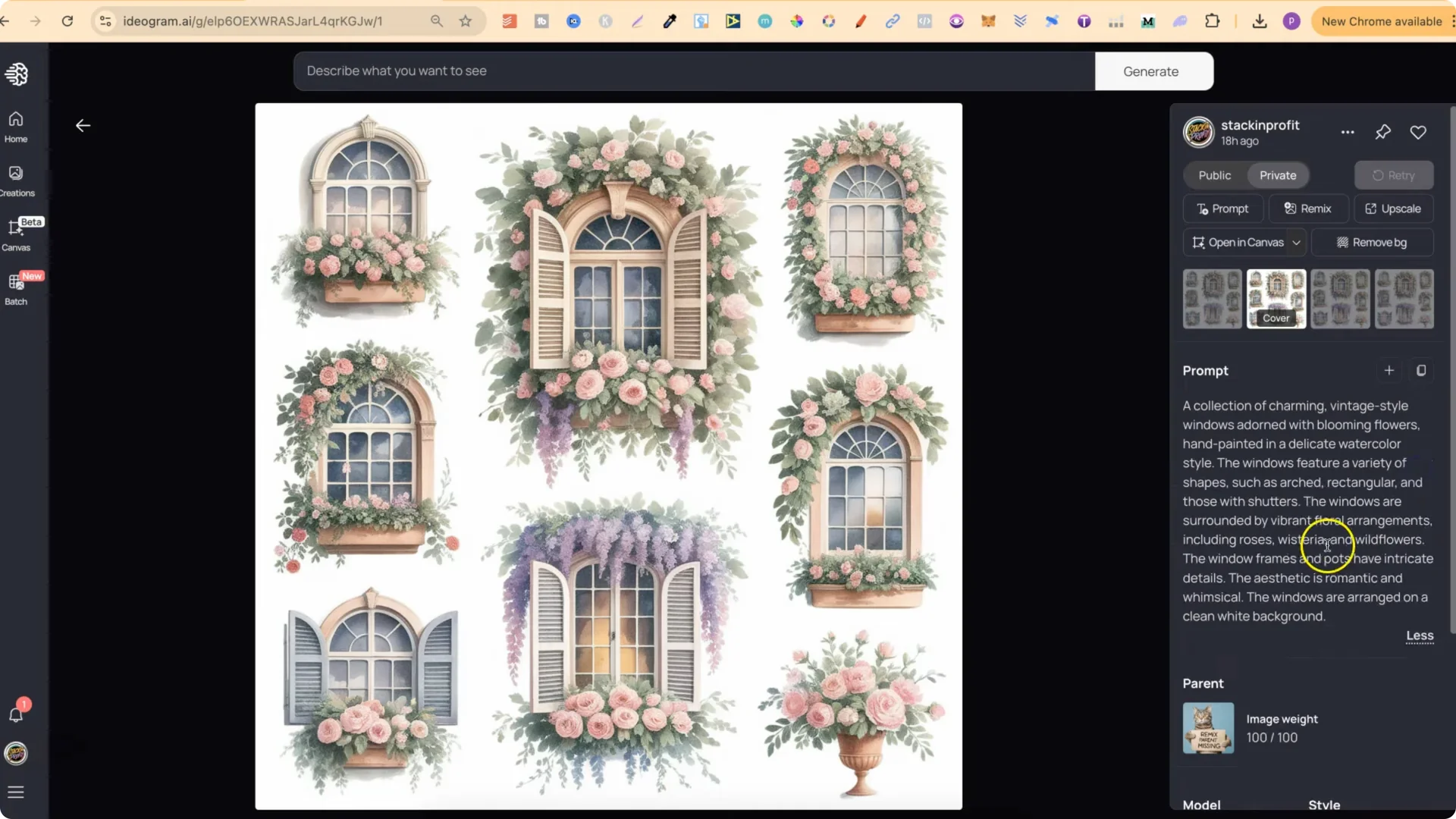
Paste in your favorite prompt. Mine used windows as the subject.
Ask for Categories
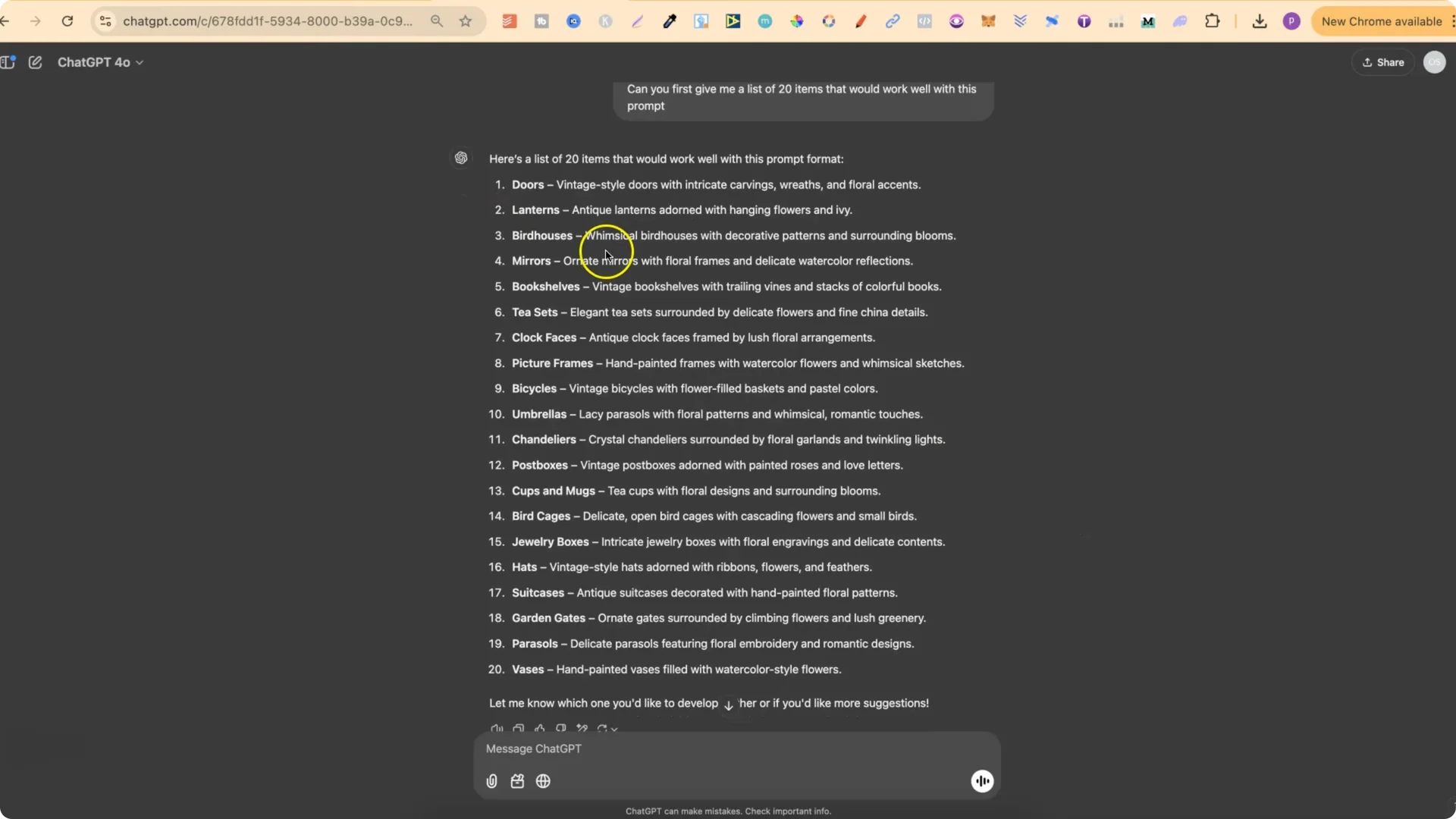
“Can you first give me a list of 20 items that would work well with this prompt?”
You’ll get a bunch of ideas. Examples:
Doors
Lanterns
Birdhouses
Mirrors
Bookshelves
Tea sets
Clock faces
Picture frames
Bicycles
Umbrellas
Hats
Request Modified Prompts
“Now give me the modified prompt for doors.”
“Do the same for lanterns.”
Repeat for bookshelves, picture frames, and any other item you want.
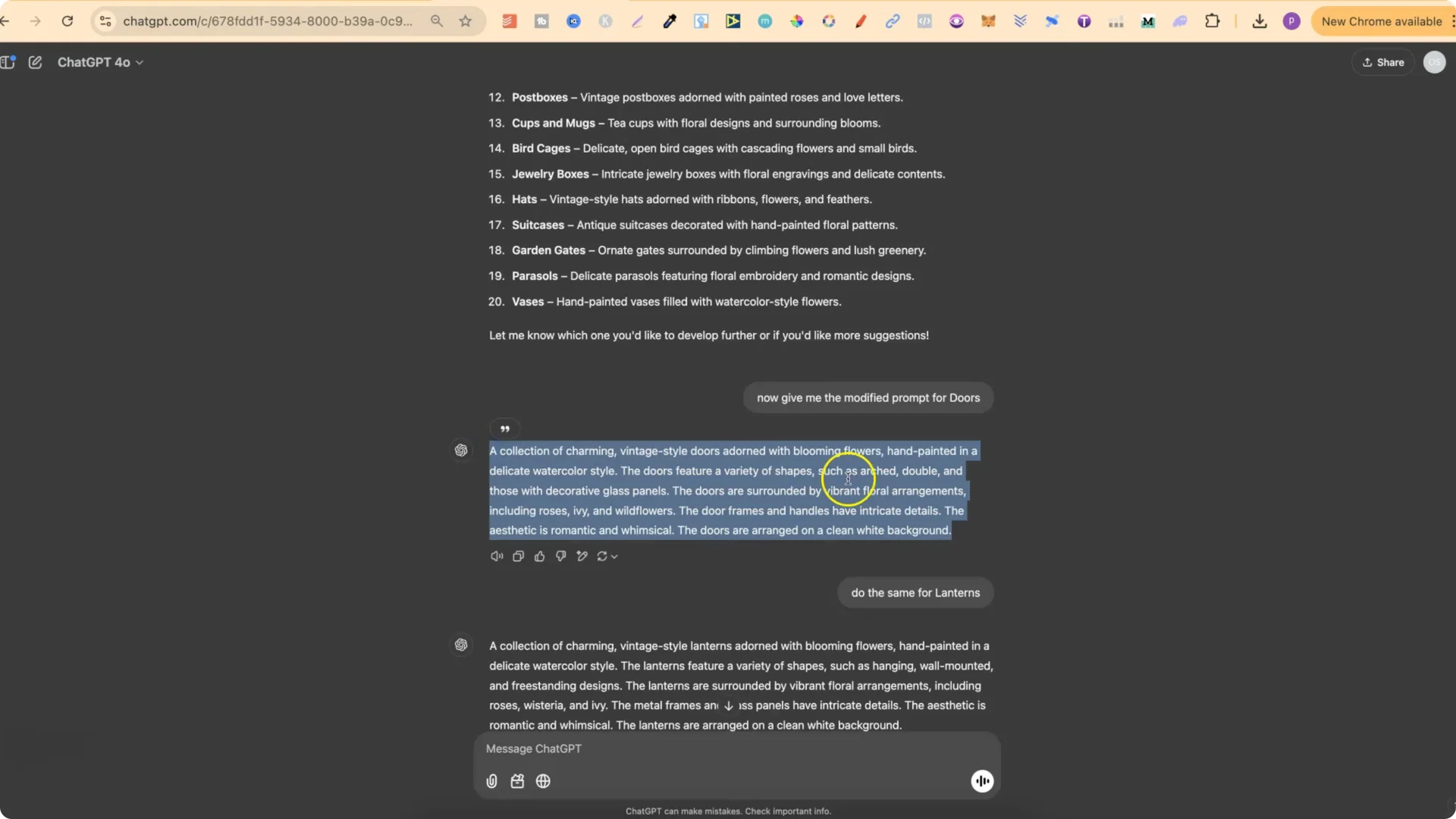
You’ll end up with the exact same prompt structure, but with the subject swapped out.
Vintage Watercolor Clipart Prompts: Generate in Ideogram
Recommended Settings
Paste the modified prompt into Ideogram.
Turn Magic Prompt on.
Use Model 2.0.
Switch on Rendering Turbo. I use this because it only uses one credit.
Click Generate.
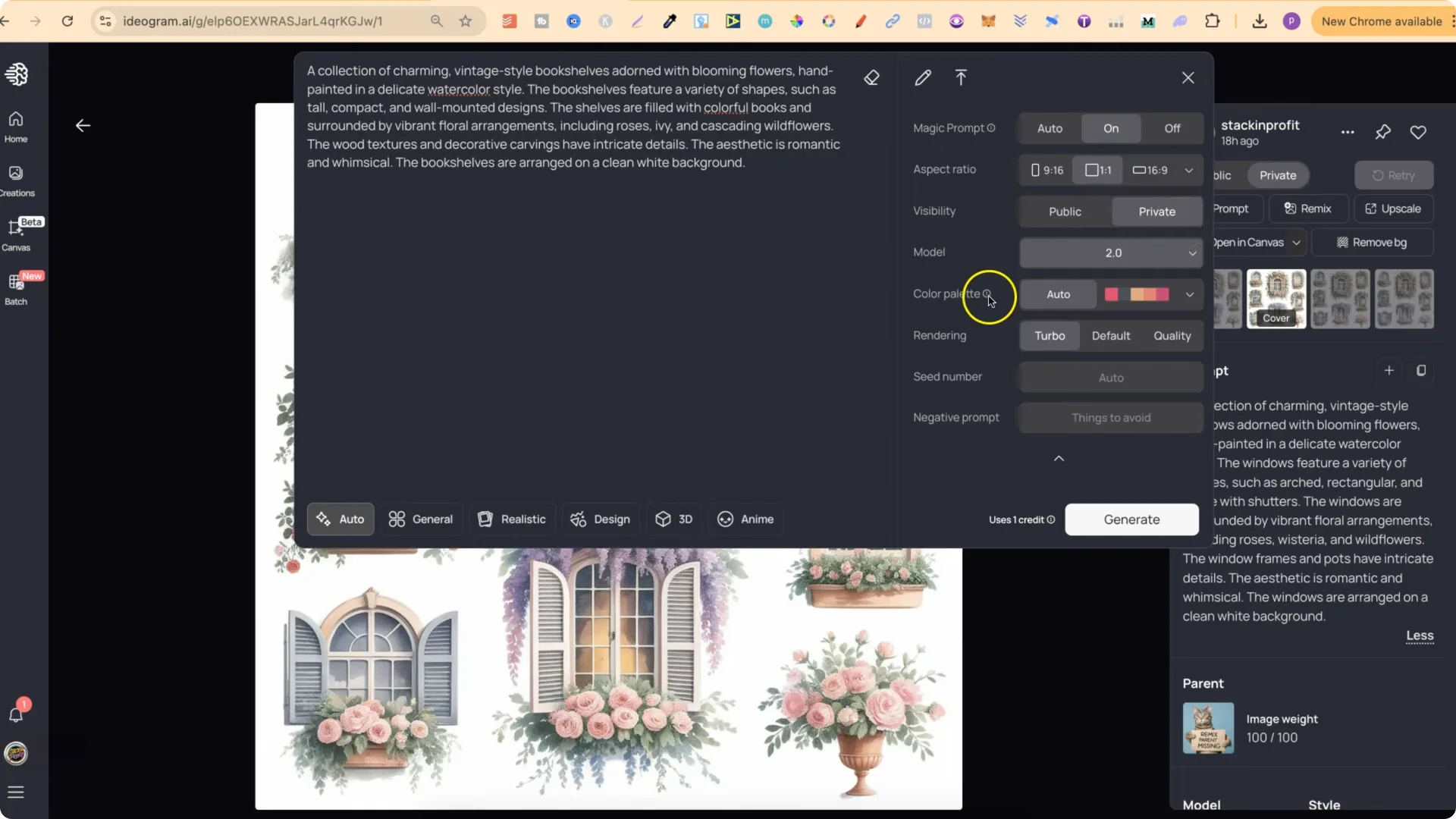
Repeat for each subject category you want to test.
Review and Iterate
Expect that a couple of generations might not be that good, and a couple will be solid.
If you don’t get the results you want, redo the prompt to get different designs.
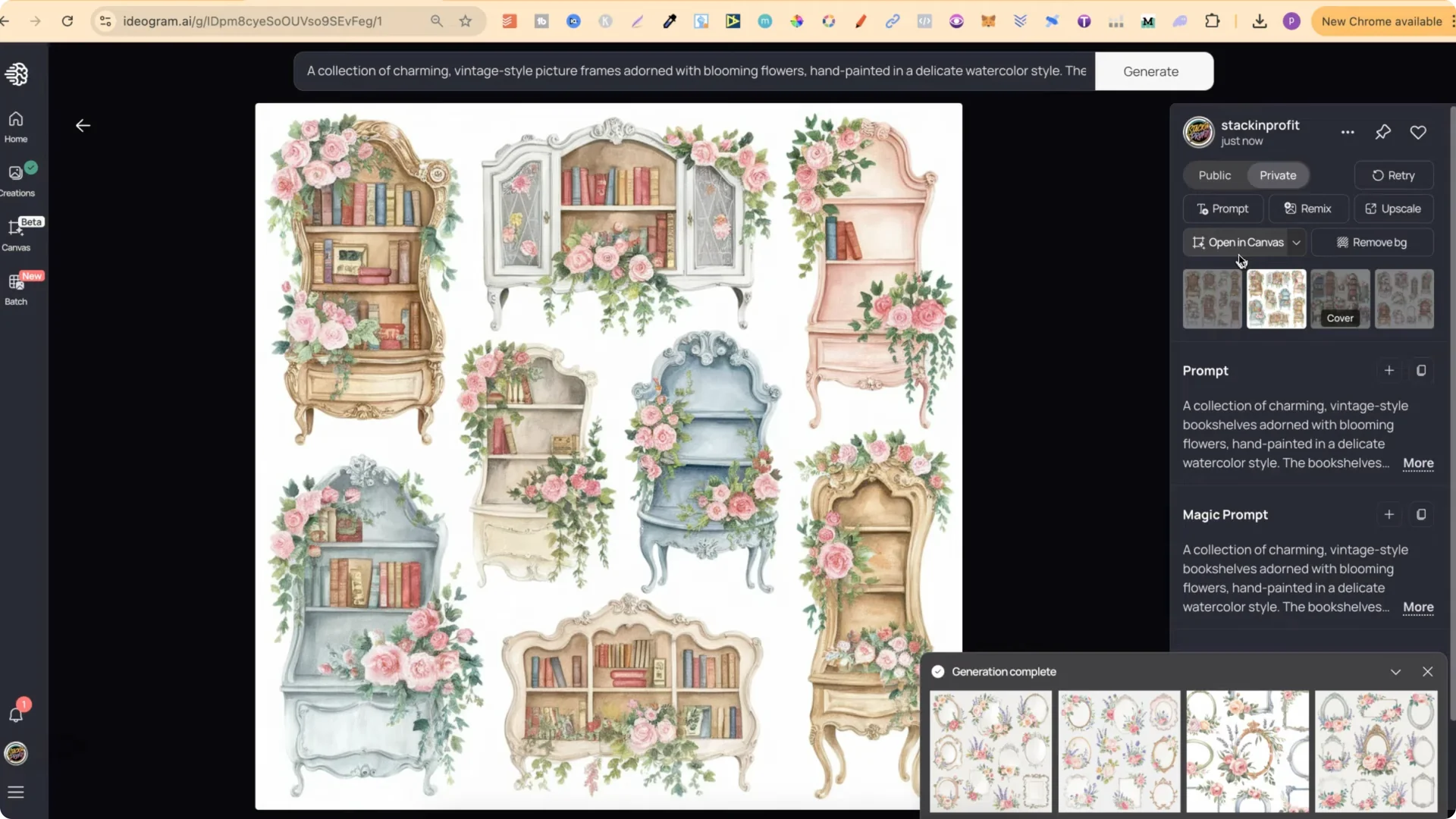
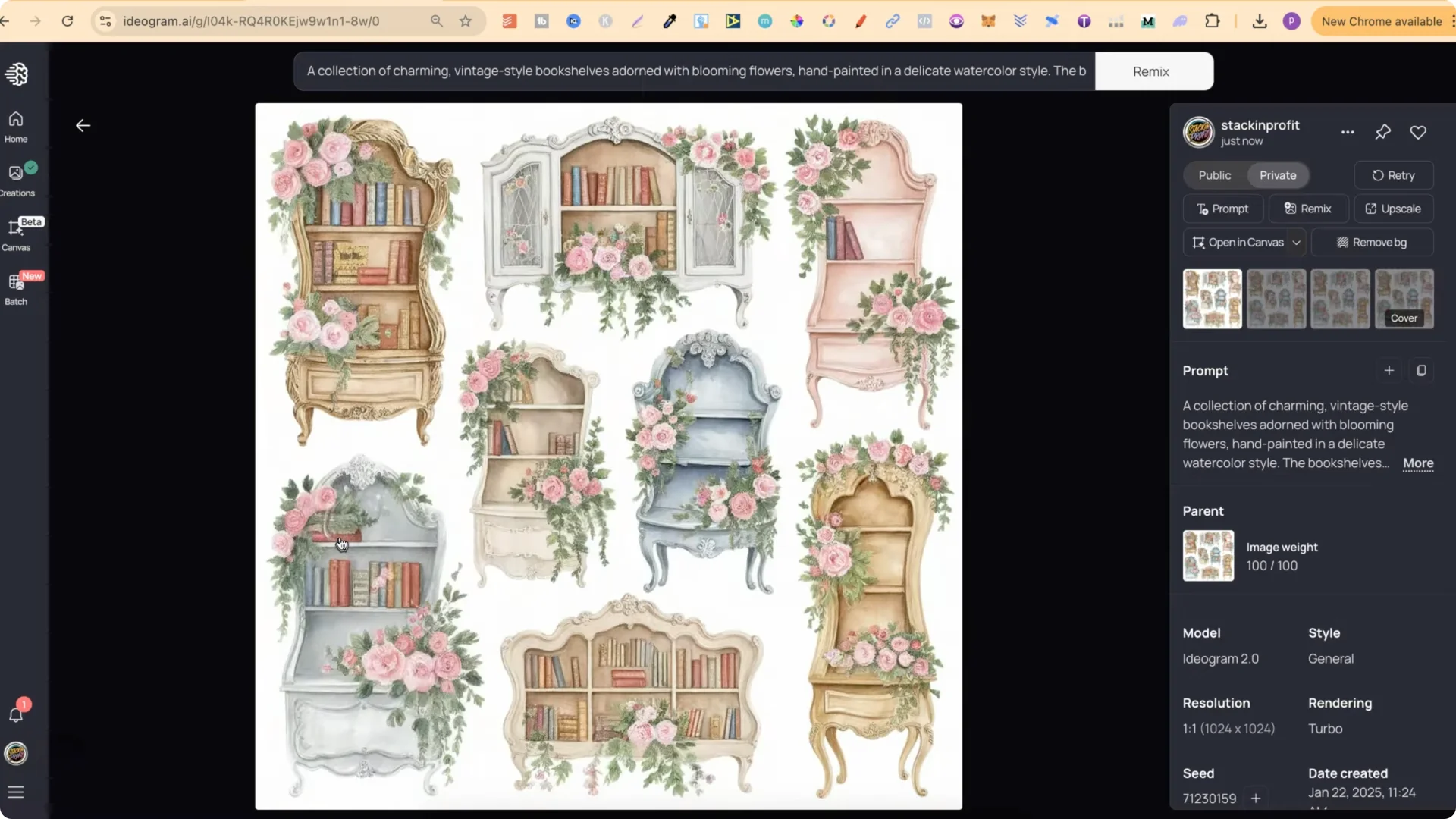
Keep the ones that turn out well and build small themed sets. For example, I kept three strong bookshelf designs to create a set of just bookshelves.
Keep Sets Consistent With Remix
When I find a favorite generation in a set:
Remix at 100%.
Turn Magic Prompt off.
Click Remix.
Delete the original batch afterward.
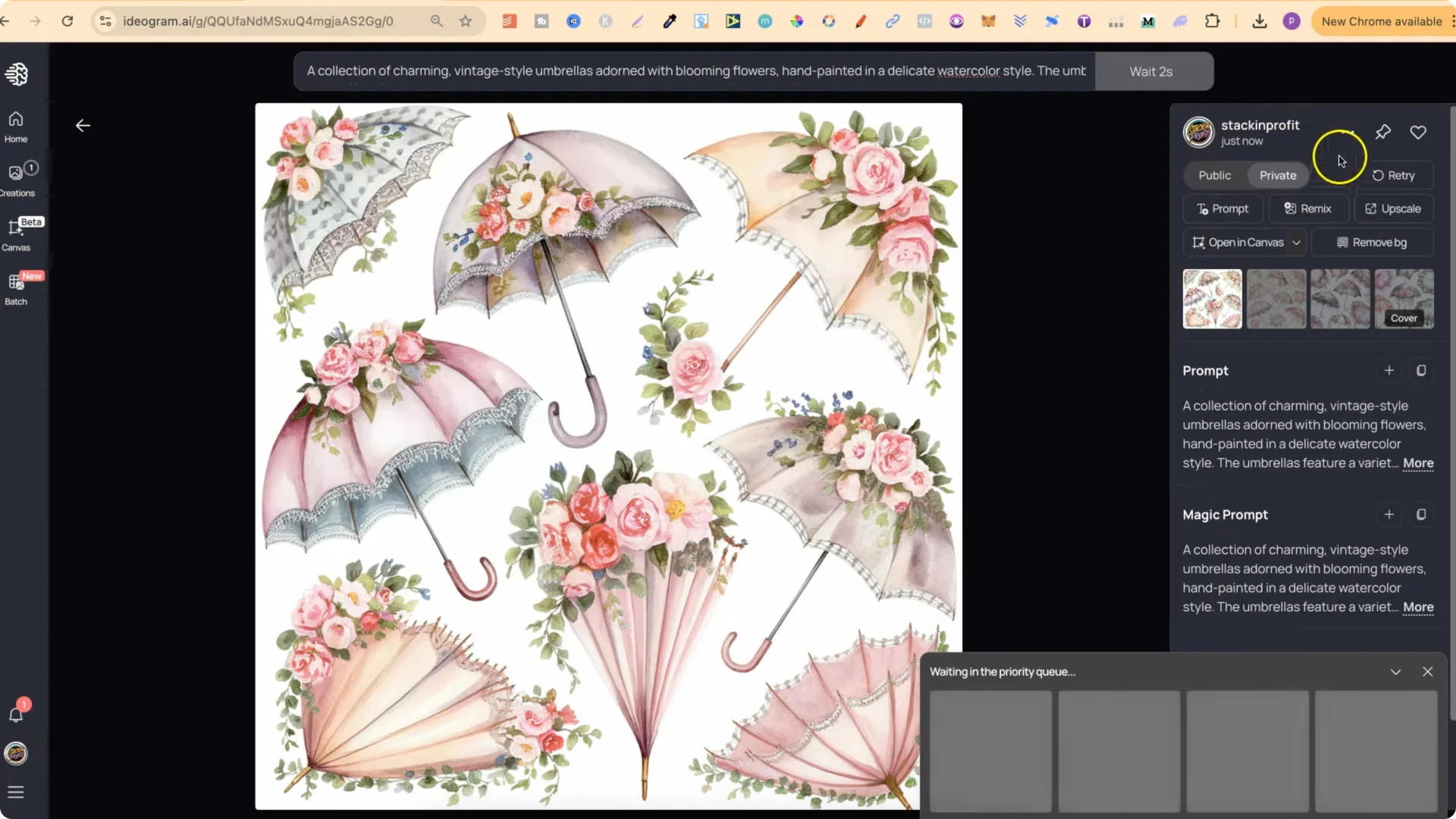
I do this to stay organized and clean up my generations. After remixing at 100%, I get four generations that are practically the same. It keeps everything clean, and I can see what each generation is at a quick glance.
More Examples and Curation Notes
Picture frames: some turned out pretty well. One had frames going over the edge, but others looked good. I picked a favorite, remixed at 100%, and deleted the rest.
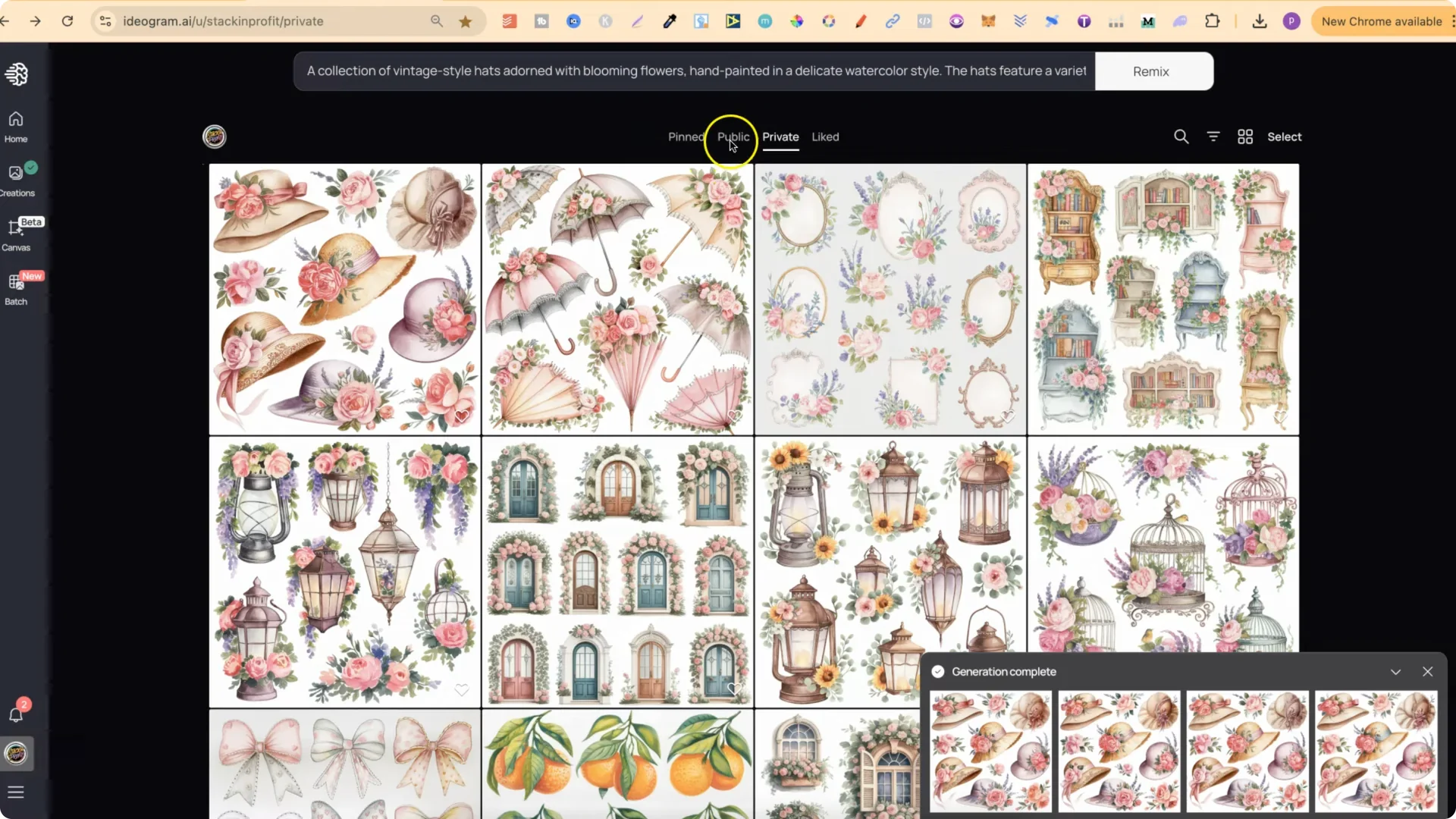
Umbrellas and hats: in one batch, only one result stood out. I picked it, remixed at 100%, and deleted the others.
This approach keeps the style consistent across different subjects, and the sets look really good.
Vintage Watercolor Clipart Prompts: Getting the Base Prompt
If you want to steal this vintage watercolor prompt, go to my public profile, open any design you like, and copy the prompt. Then go to ChatGPT, prime it with the message above, and start asking for modified prompts for different items. You can then use those prompts in Ideogram to create new designs.
Final Thoughts
Start with one strong vintage watercolor prompt.
Use ChatGPT to suggest categories and generate modified prompts that keep the same format.
In Ideogram, test each subject with Magic Prompt on, Model 2.0, and Rendering Turbo.
Curate the best results, remix favorites at 100% with Magic Prompt off, and delete the rest to stay organized.
Repeat across categories like doors, lanterns, bookshelves, picture frames, umbrellas, and hats to build cohesive clip art sets in the same style.