The new canvas tool is currently in beta. You can extend your image using the extend tool or modify by adding, removing, or altering objects, people, and environments with the magic fill tool.
Getting started with Ideogram Magic Fill and Extend
Access the canvas
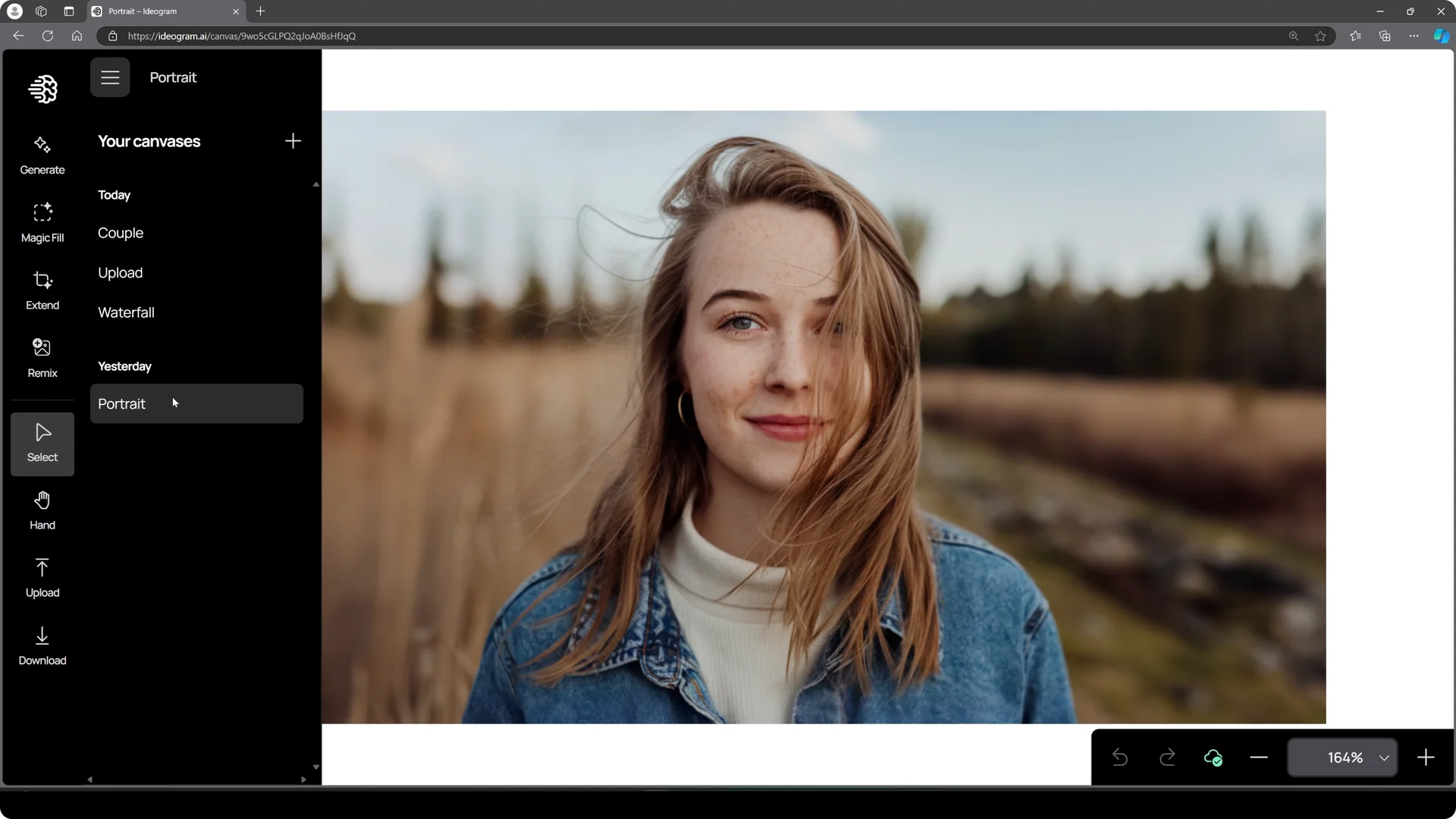
From the sidebar, go to the left side of the screen where it says Canvas.
Click it to open the canvas screen, where you can review previous canvas generations or upload your own image.
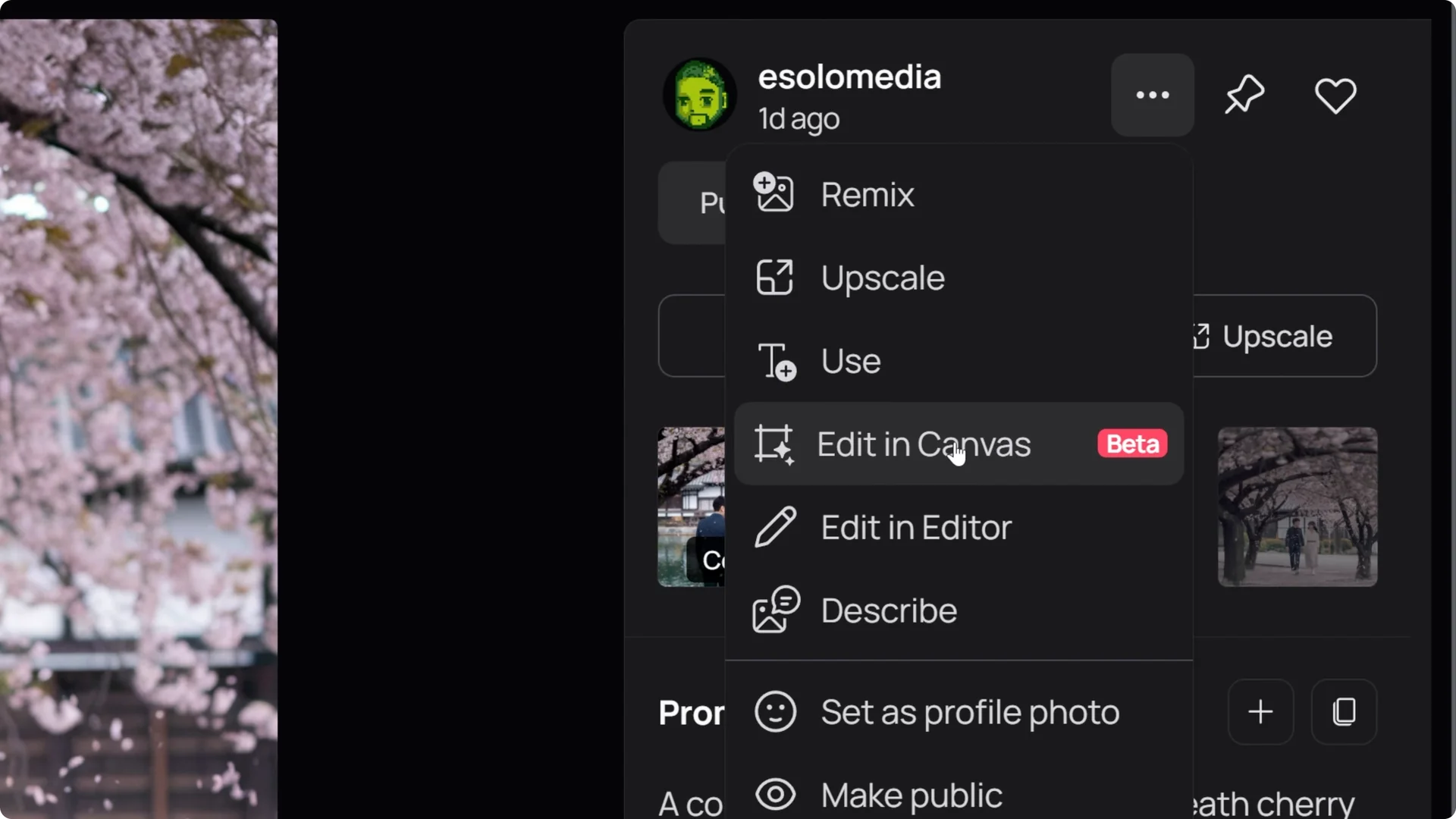
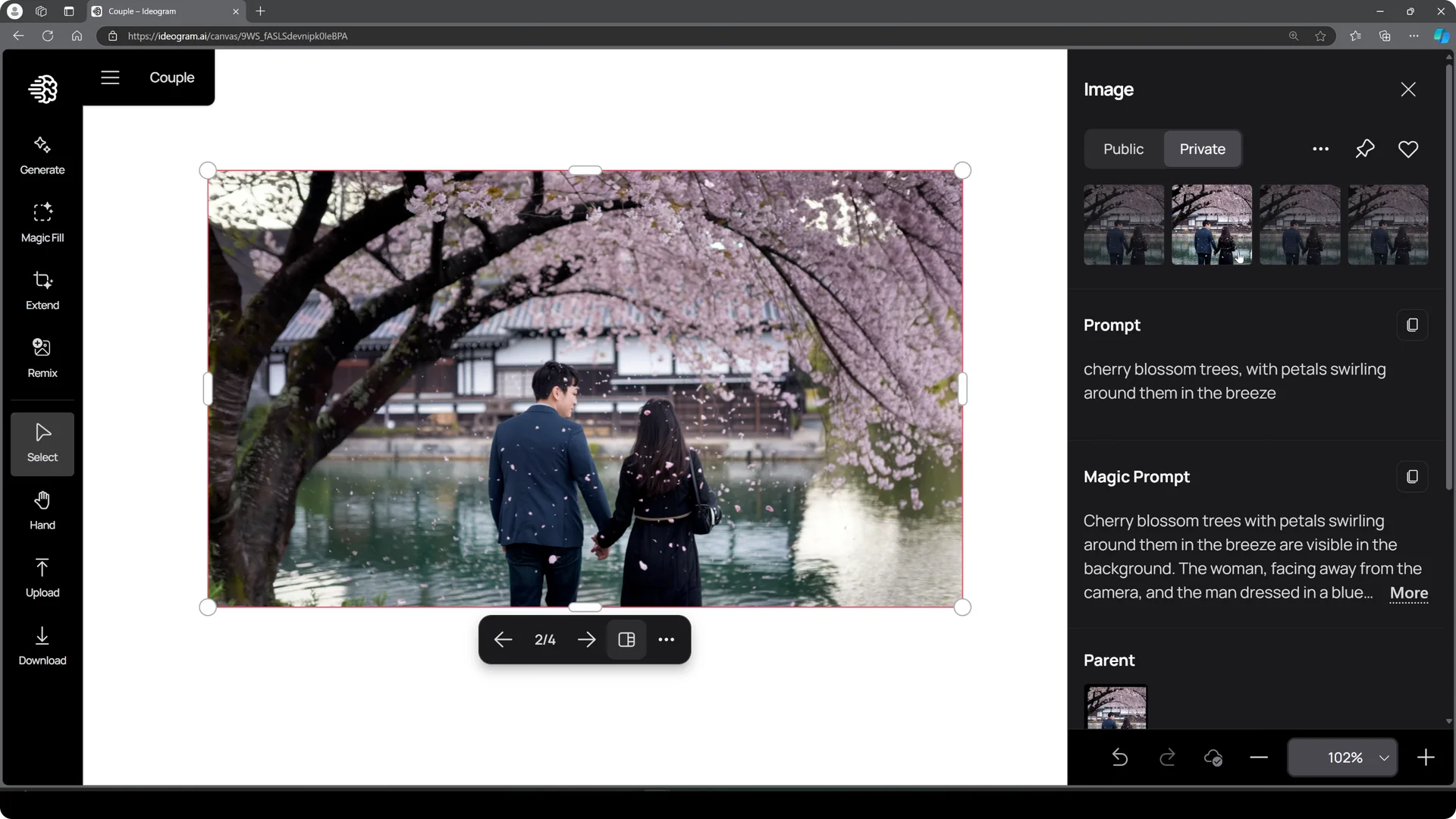
You can also access Canvas by clicking on a previous generation. Select an image, click the three dots, and choose Edit in Canvas.
This opens the canvas window.
Extend in Ideogram Magic Fill and Extend
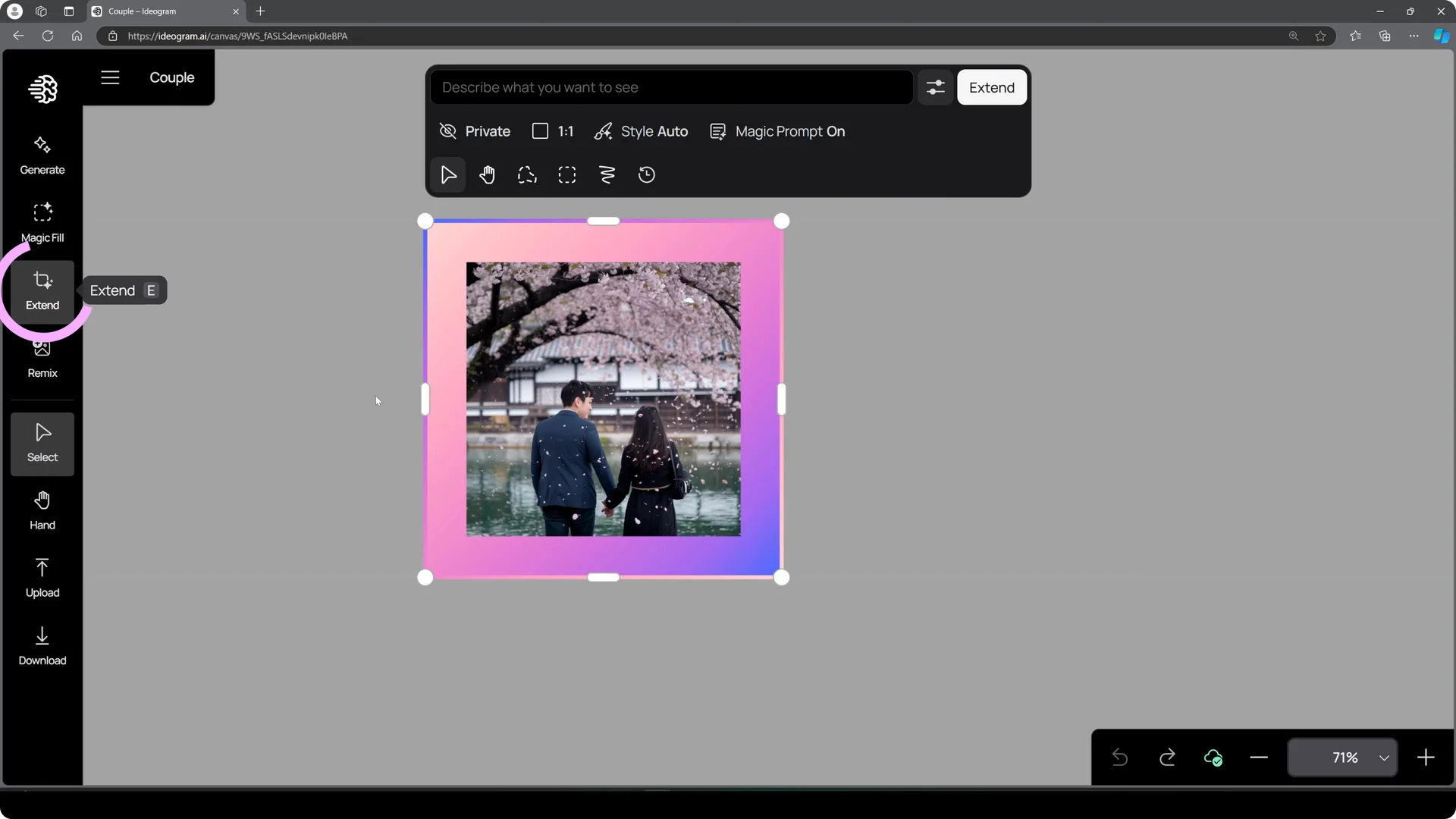
If you need a wider view, use the extend tool. Click the extend icon and a colorful frame appears.
This frame represents the area your image will extend into.
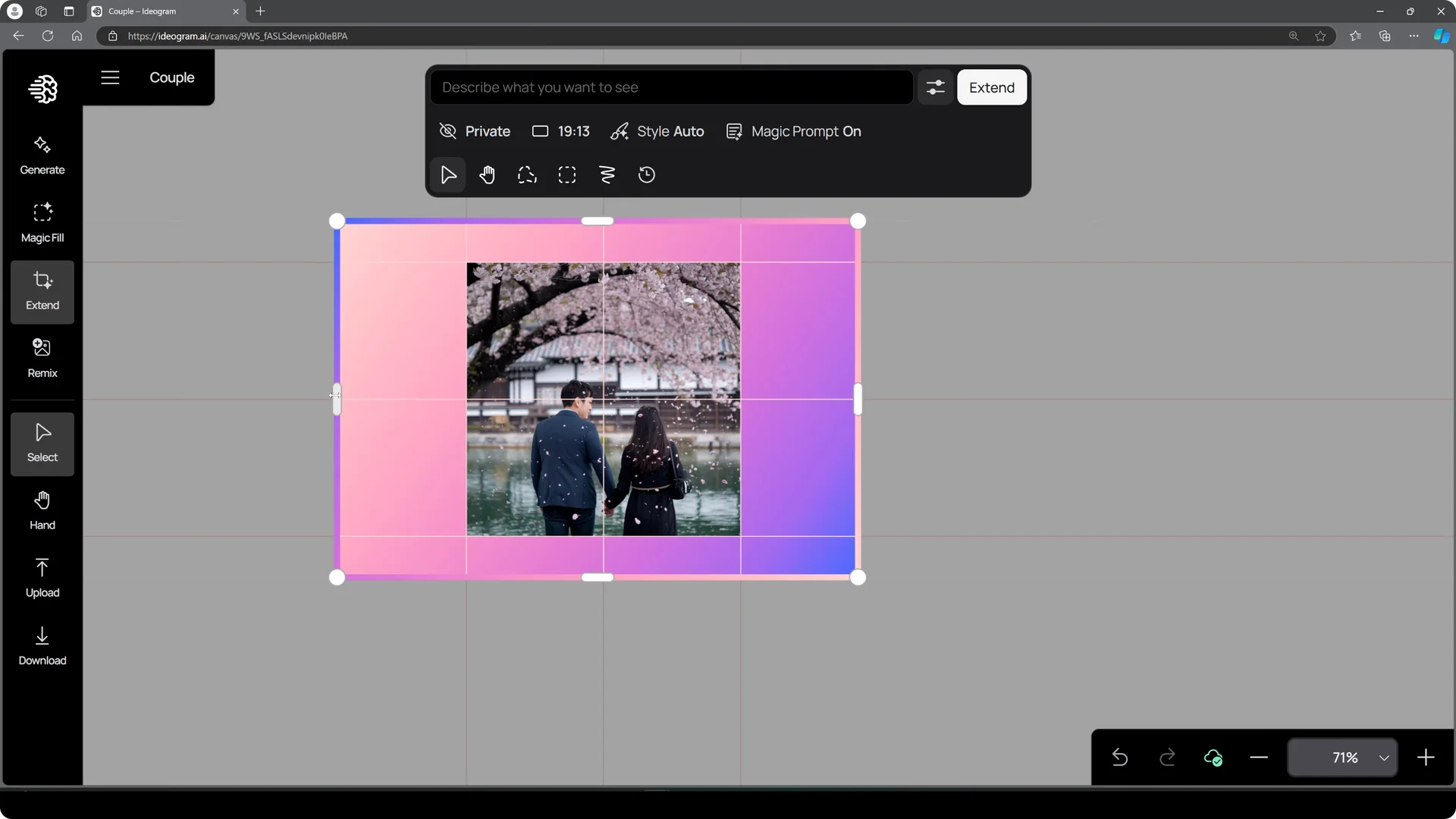
Adjust the frame to make the image as wide or tall as you want.
Enter a prompt describing what you want in those areas.
Ideogram will blend the new content with the original image.
When the generation is complete, click the image to see four options to choose from.
If you’re happy with the result, export the image. You’re done.
For precise product placement inside Canvas, see Perfectly Place Products Ideogram Canvas.
It pairs well with extend for layout tasks.
Magic Fill in Ideogram Magic Fill and Extend
To add or remove something in the image, use the magic fill tool.
Select the area where you want changes.
Adjust the square outside the mask area, then enter your prompt.
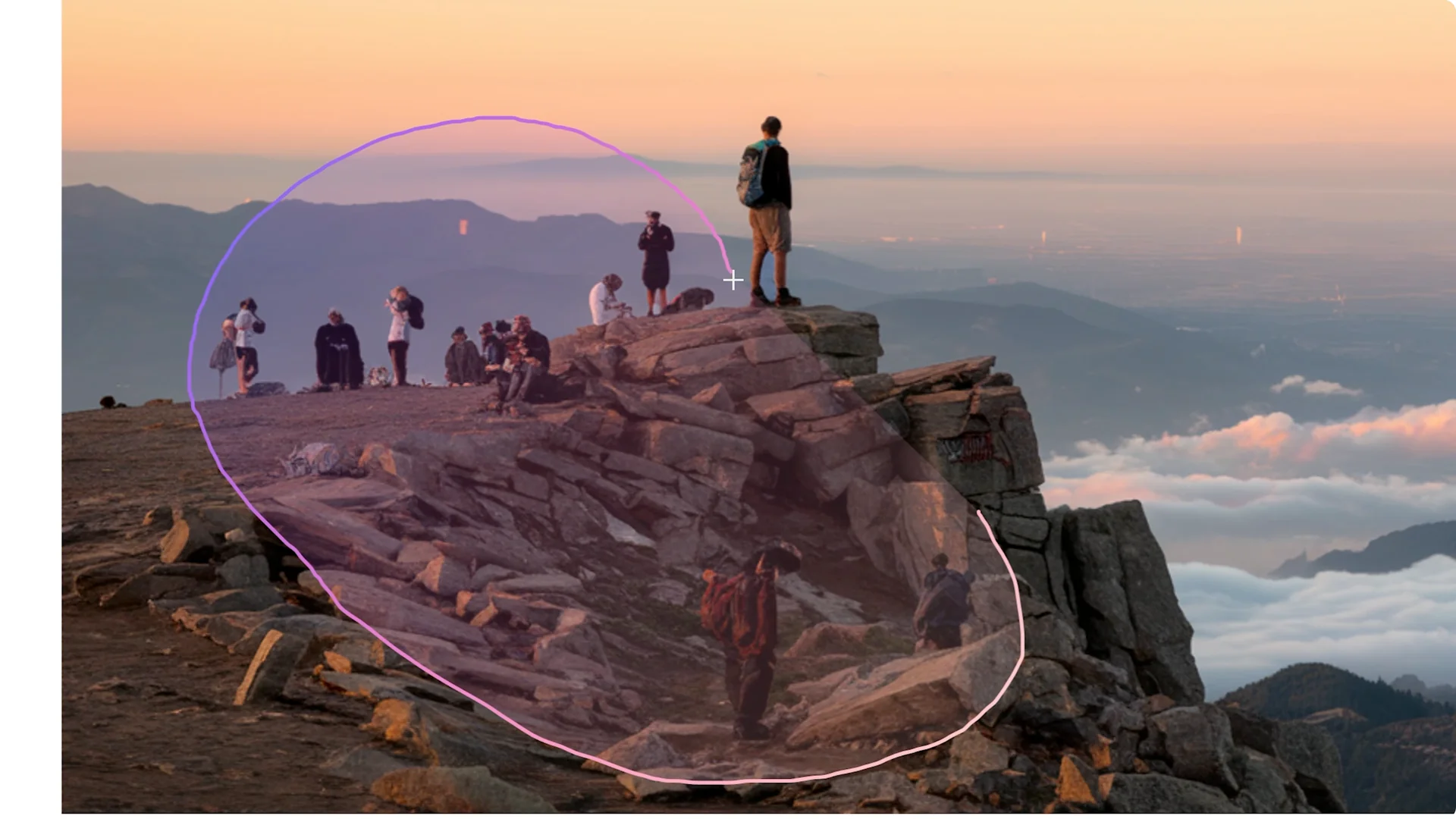
You transform the elements in the image right away.
You can even change the environment around people for more scenic options.
Correct faces and small errors
Magic fill also corrects parts of the image that do not look right. If a face did not come out right, select the area you want to correct.
Adjust the selection window to overlap the part of the image you want to fill.

Enter a prompt to guide the correction and generate.
You will again have four options to choose from.
This shows how effective the tool can be for faces and other small errors.

For more detailed face work, see Professional Face Swaps Ideogram Magic Fill. It expands on precise facial edits using magic fill.
Add text with magic fill
Add text using the same process. Select the area, adjust the window, and input your prompt. Generate and pick the option you like.
Export and finish
Once you’re satisfied with your edits, download the image. It is ready to share.
Final thoughts
The canvas tool lets you extend scenes, edit elements, fix details, and add text with simple selections and prompts. Access it from the sidebar or from any previous generation, then choose extend or magic fill to shape the image.
For creative prompt ideas and projects, take a look at Ideas For Ideogram Pod. Pair those prompts with extend and magic fill to get polished results fast.